Feature Summary
The Name field is used to collect the respondent's name information, which is part of the check-in person's information, making it easier to identify the respondent. It supports auto-filling the previously entered content.
Feature Description
| Feature Dimension | Description |
|---|---|
| Membership Restriction | No membership restriction |
| Version Restriction | No version restriction |
Operation Steps
Adding a Name Question
Feature Entry
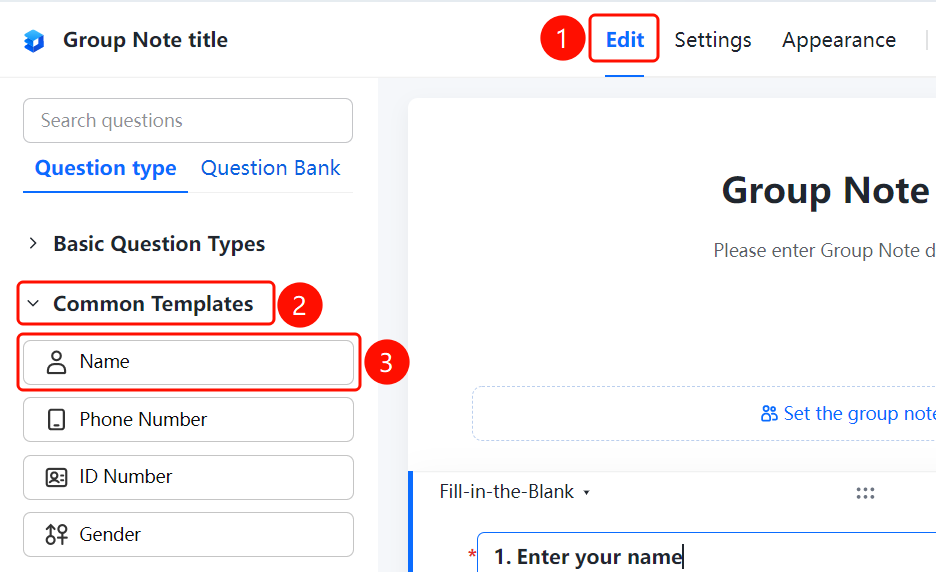
"Edit" tab → "Question Type" tab → "Common Templates" → "Name" button
- Click the top "Edit" tab
- Expand the "Common Templates" area in the left panel
- Click the "Name" button to add the Name question to the form
Setting Format Restrictions
Feature Entry
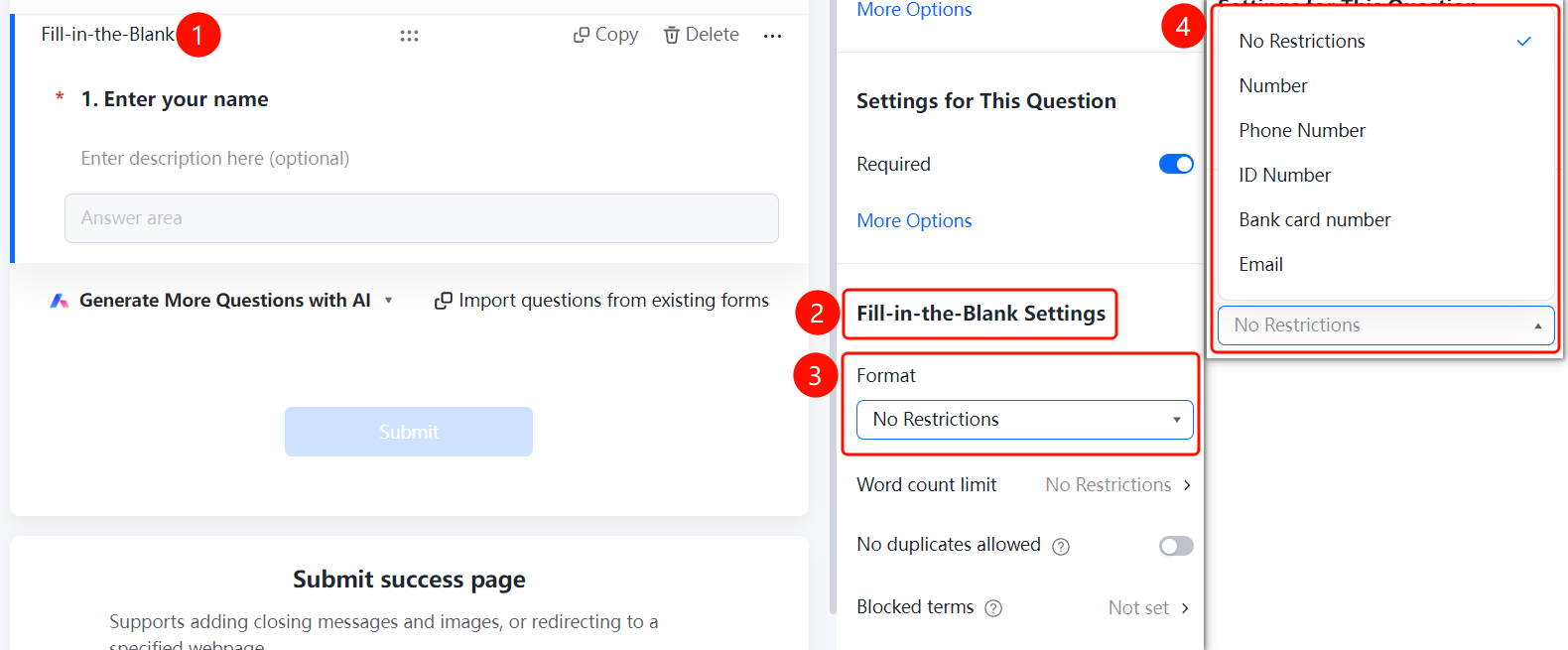
Name question → "Fill Settings" → "Format Restriction"
- Click the added Name question
- In the right "Fill Settings" panel, click the "Format Restriction" dropdown
- Select a format: No Restriction, Number, Phone Number, ID Number, Bank Card Number, Email
Setting Character Limit
Feature Entry
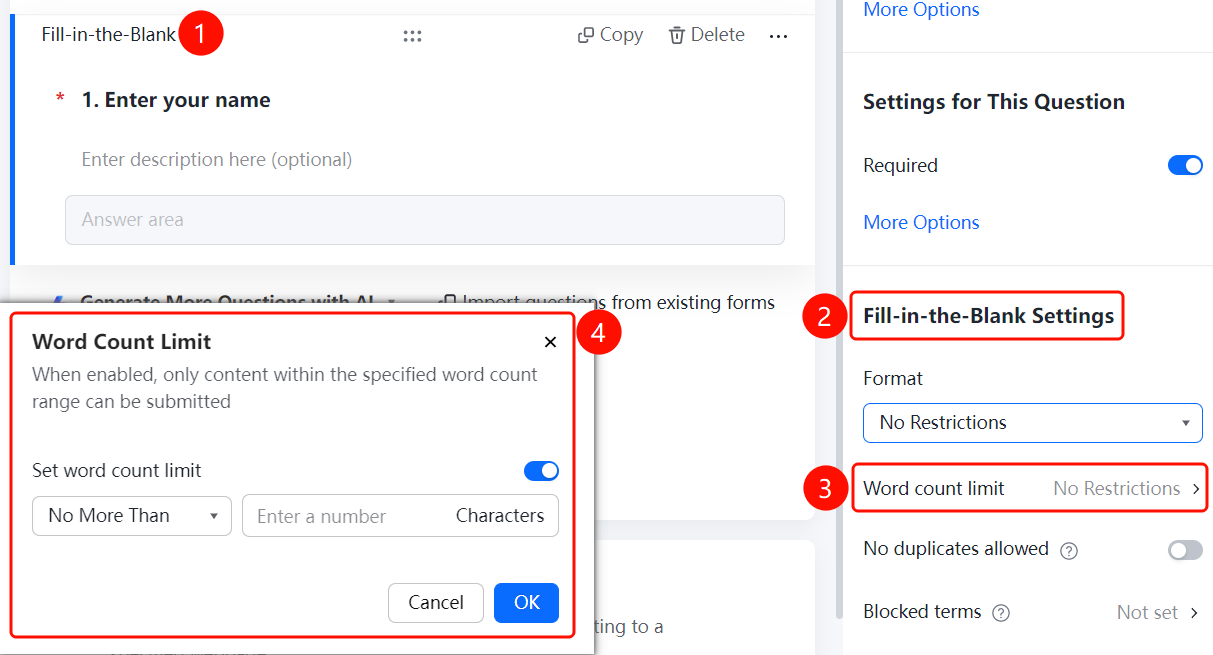
Name question → "Fill Settings" → "Character Limit"
- Click the added Name question
- In the right "Fill Settings" panel, click the "Character Limit" option
- In the pop-up panel, enable the "Set Character Limit" toggle
- Set the minimum and maximum character limits
Setting Disallow Duplicates
Feature Entry
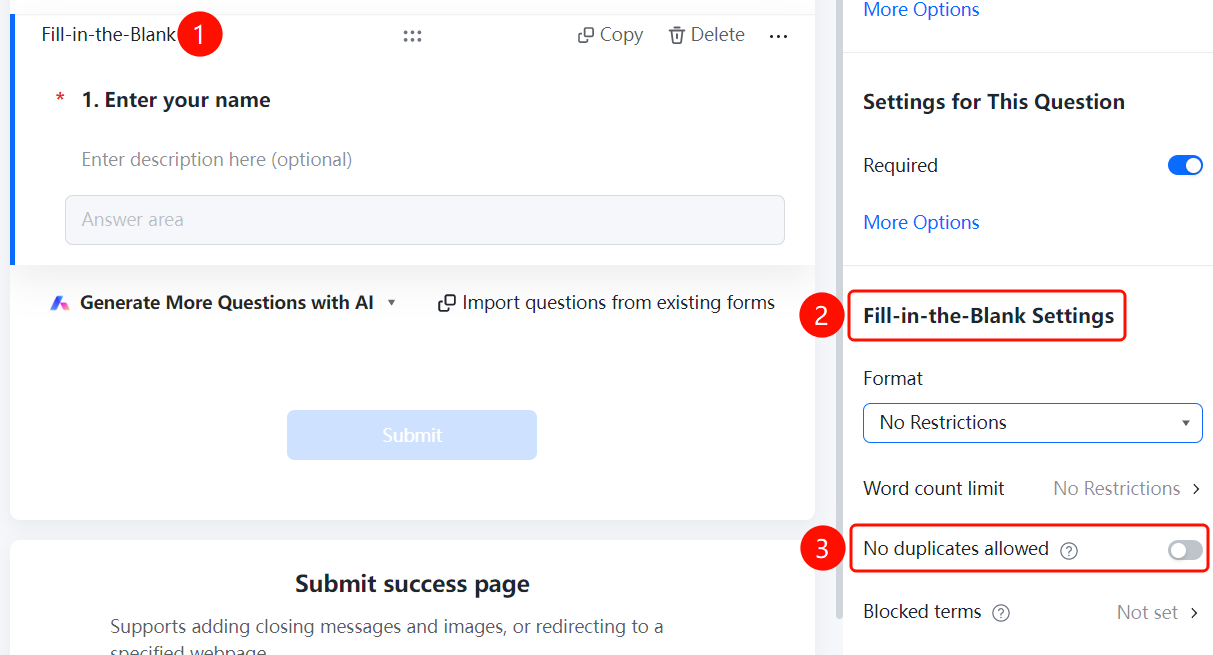
Name question → "Fill Settings" → "Disallow Duplicates"
- Click the added Name question
- In the right "Fill Settings" panel, find the "Disallow Duplicates" option
- After enabling the toggle, the same name cannot be submitted repeatedly
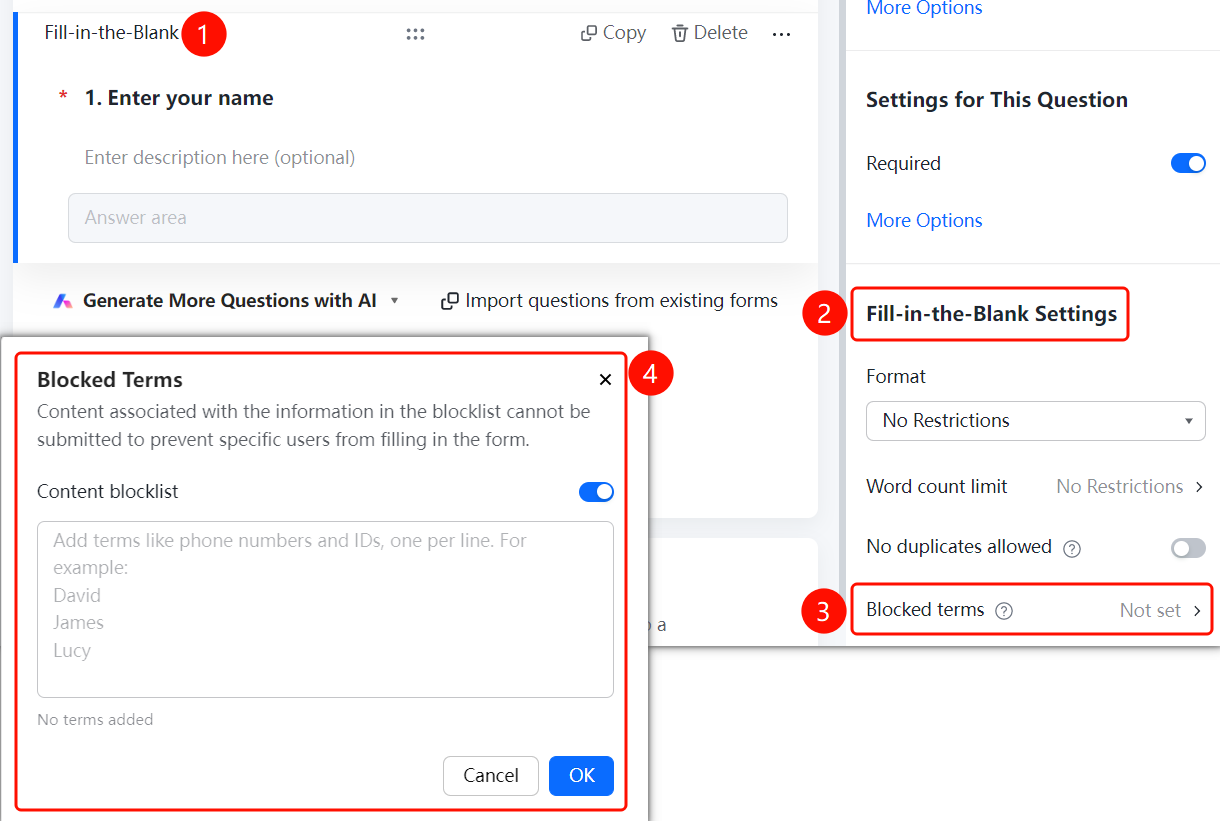
Setting Prohibited Content
Feature Entry
Name question → "Fill Settings" → "Prohibited Content"
- Click the added Name question
- In the right "Fill Settings" panel, click the "Prohibited Content" option
- Enable the "Content Blacklist" toggle
- Add the name content to be prohibited, one per line
- Click the "Confirm" button to save
FAQ
Q1: How to add a Name field?
- Solution: Click the 「Edit」 tab, and check the 「Name」 option in the 「Check-in Person Information」 area.
Q2: Can the Name field be set as required?
- Solution: Yes. Click the Name field, and turn on 「This question is required」 in 「Basic Settings」.
Q3: How to auto-fill the name when the respondent fills it out again?
- Solution: Click the Name field, and turn on the 「Auto-fill previously entered content」 toggle in 「Basic Settings」.
Notes
- The Name field is usually part of the check-in person's information, used to identify the respondent.
- After enabling auto-fill, respondents do not need to enter their name again when filling out the form again.