Feature Summary
Common Settings is used to configure the common parameters of Group Form, including Group Form type, Group Form mode, fill permissions, etc., helping Admins quickly configure the basic operating rules of Group Form.
Feature Description
| Feature Dimension | Description |
|---|---|
| Member Restriction | No member restriction |
| Version Restriction | No version restriction |
Operation Steps
Set Validity Period
Feature Entry
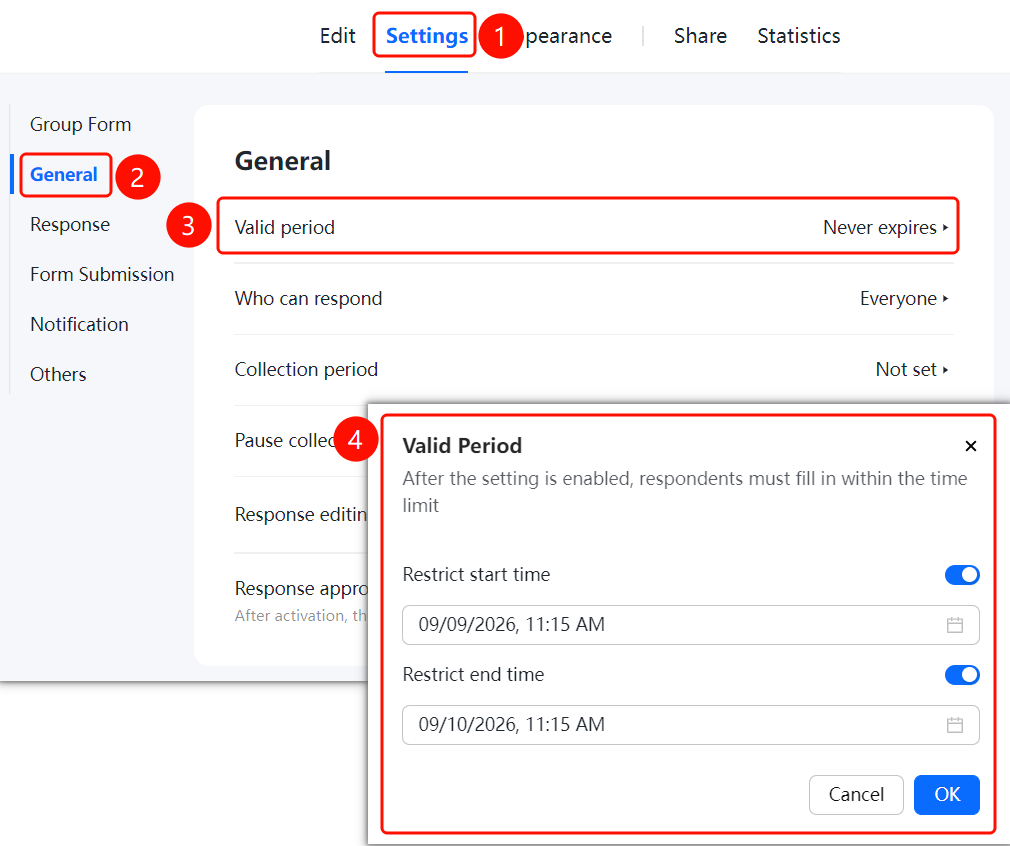
「Settings」 tab → 「General」 → 「Validity Period」 option
- Click the top 「Settings」 tab
- Click 「General」 in the left panel
- Click 「Valid period」 (currently 「Never expires」)
- In the pop-up window, enable 「Restrict Start Time」 and 「Restrict End Time」, and set the specific time
- After enabling the settings, fillers can only fill normally within the limited time. Click 「OK」 to save
Set Who can respond
Feature Entry
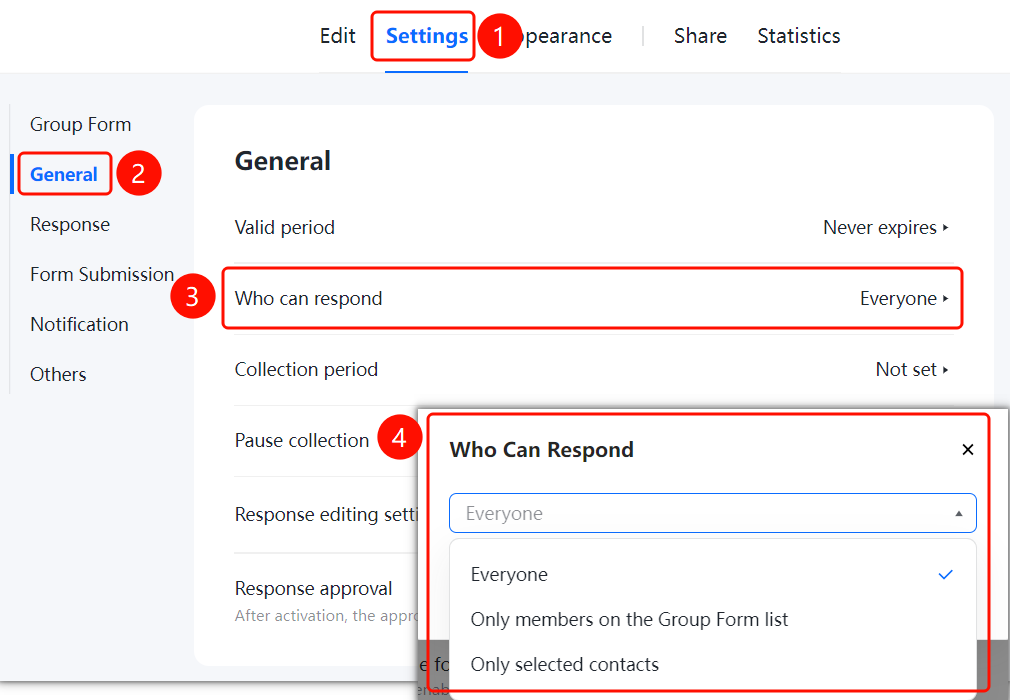
「Settings」 tab → 「General」 → 「Who can respond」 option
- Click the top 「Settings」 tab
- Click 「General」 in the left panel
- Click 「Who can respond」 (currently 「Everyone」)
- Select fill permission: 「Everyone」, 「Only members on the Group Form list」 or 「Only selected contacts」
Set Collection period
Feature Entry
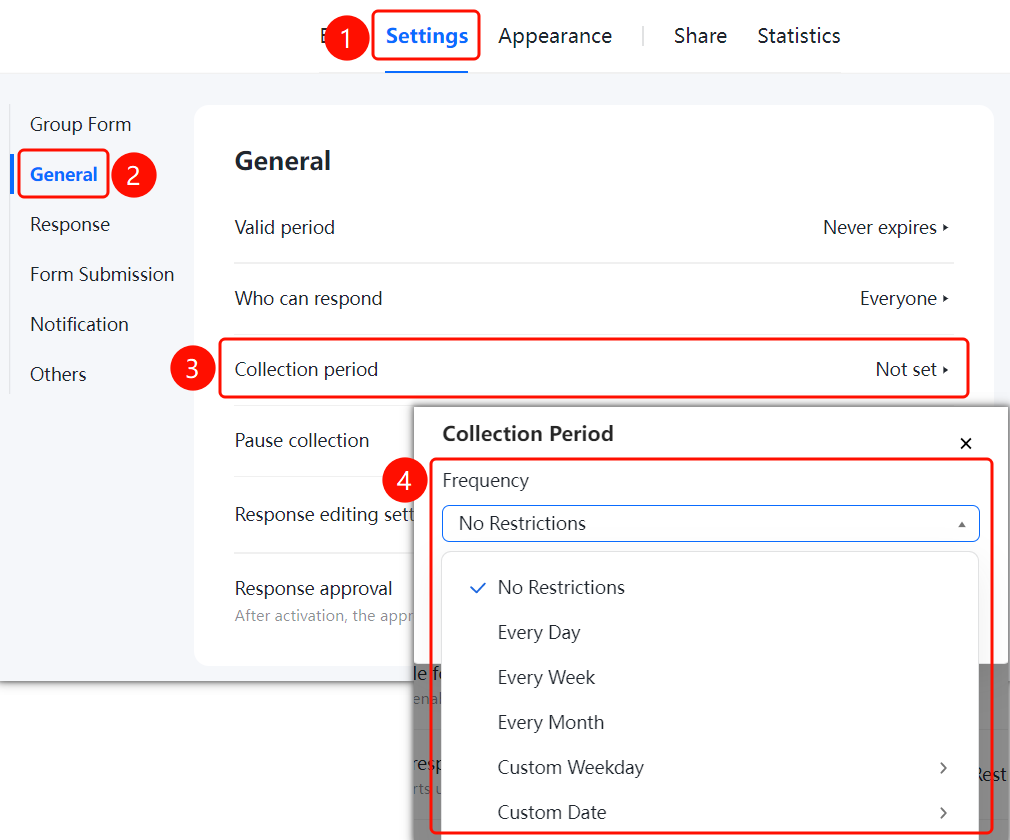
「Settings」 tab → 「General」 → 「Collection period」 option
- Click the top 「Settings」 tab
- Click 「General」 in the left panel
- Click 「Collection period」 (currently 「Not Set」)
- Select cycle type: No Restrictions, Every Day, Every Week,Every Month or custom date
Set Pause Collection
Feature Entry
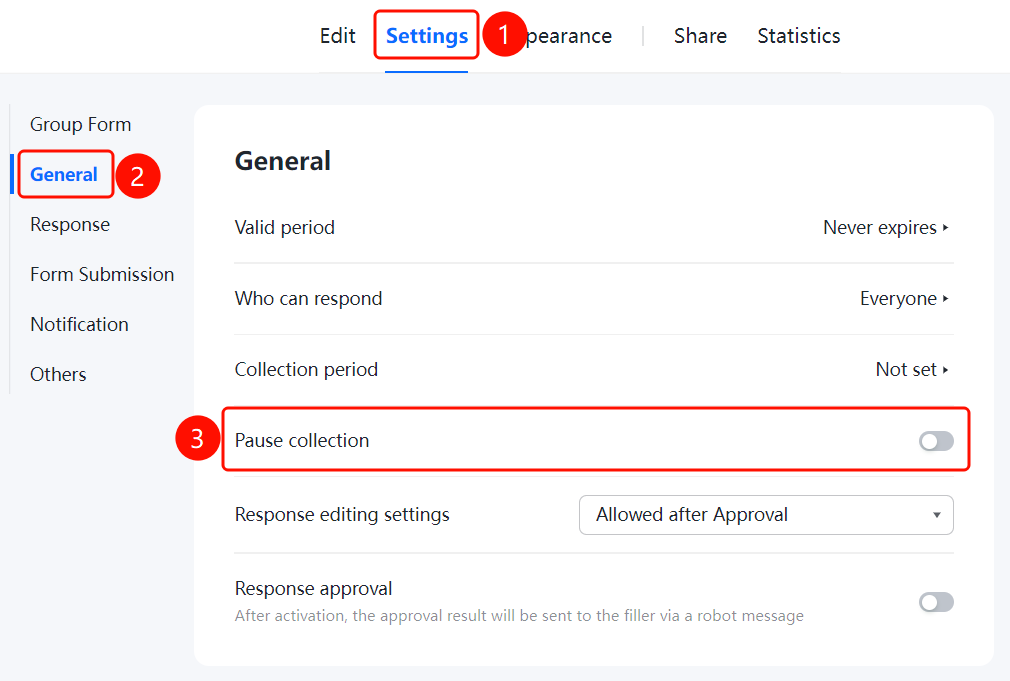
「Settings」 tab → 「General」 → 「Pause Collection」 toggle
- Click the top 「Settings」 tab
- Click 「General」 in the left panel
- Turn on the 「Pause Collection」 toggle
- After enabling, Group Form will pause collection and fillers cannot submit
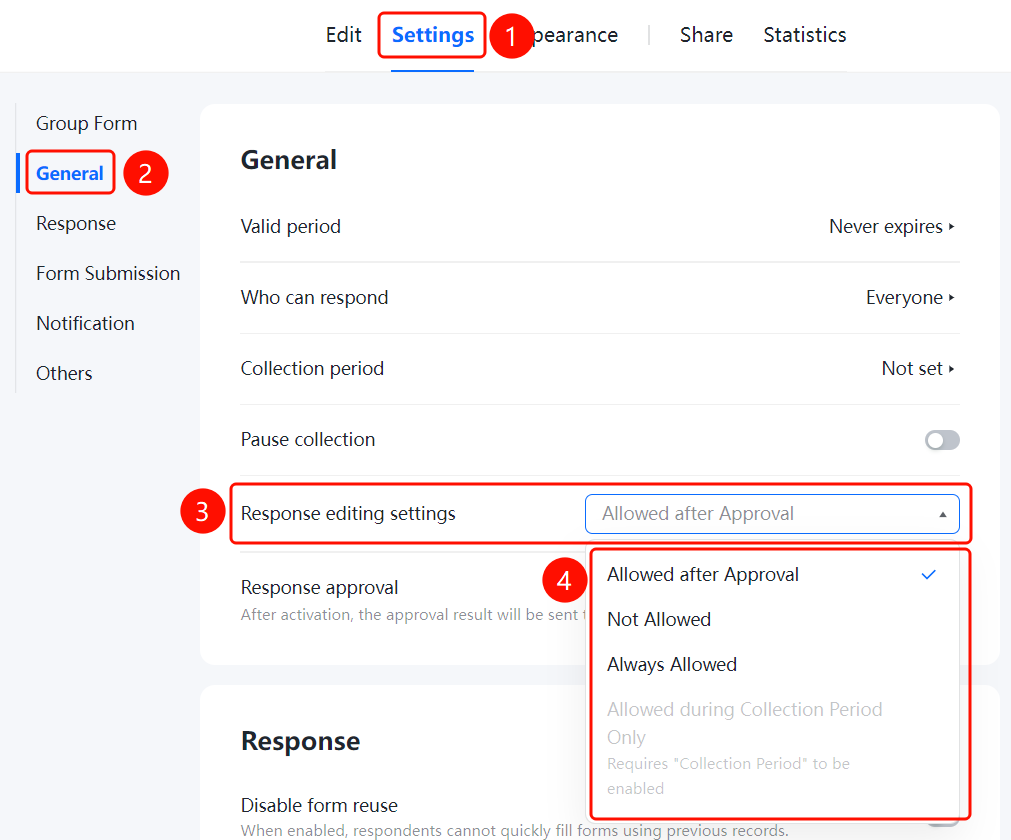
Set Response editing Settings
Feature Entry
「Settings」 tab → 「General」 → 「Response editing Settings」 option
- Click the top 「Settings」 tab
- Click 「General」 in the left panel
- Click 「Response editing Settings」 option
- Select modify permission: Allow afteer Approval, Not Allowed, Always allowed, or Allow during Collection Period Only
Set Response Approval
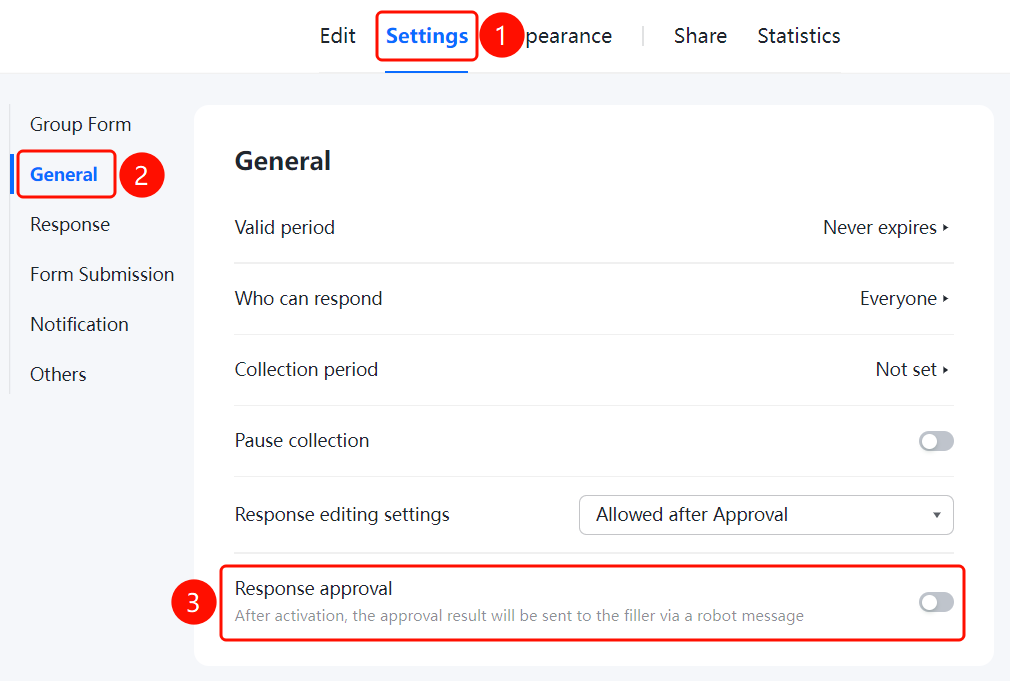
Feature Entry
「Settings」 tab → 「General」 → 「Response Approval」 toggle
- Click the top 「Settings」 tab
- Click 「Common Settings」 in the left panel
- Turn on the 「Response Approval」 toggle
- After enabling, the approval result will be sent to the filler via bot message
FAQ
Q1: How to set the type of Group Form?
- Solution: Select the Group Form type in 「Settings」 → 「Common Settings」.
Q2: How to restrict who can fill Group Form?
- Solution: Set the fill permission in 「Settings」 → 「Common Settings」 to specify the range of fillers.
Q3: How to set Group Form notifications?
- Solution: Configure the Group Form notification method in 「Settings」 → 「Common Settings」, such as message push.
Notes
- Common Settings is the basic configuration of Group Form. It is recommended to set it first after creating a Group Form.
- Settings can be adjusted at any time as needed after completion.