Feature Summary
The handwritten signature question is used to collect respondents' handwritten signatures, which can serve as confirmation credentials. It supports Add Watermark and custom signature image naming methods.
Feature Description
| Feature Dimension | Description |
|---|---|
| Membership Restriction | No membership restriction |
| Version Restriction | No version restriction |
Operation Steps
Add Handwritten Signature Question
Feature Entry
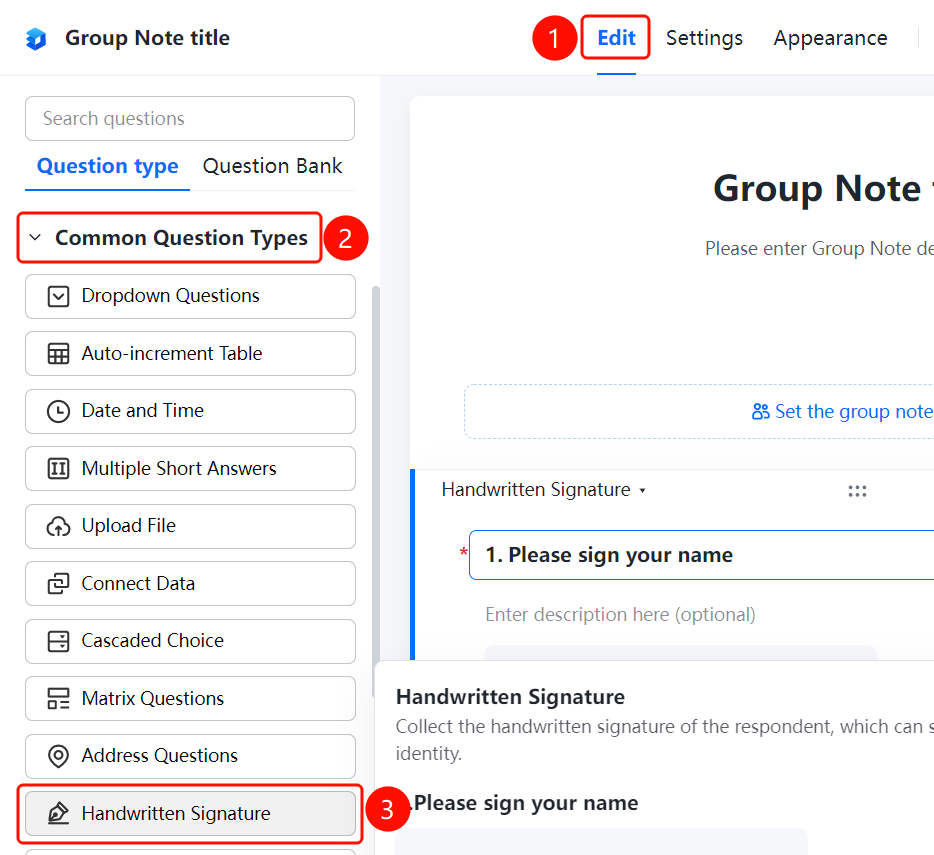
「Edit」 tab → 「Common Question Types」 → 「Handwritten Signature」 button
- Click the top 「Edit」 tab
- Expand the 「Common Question Types」 area in the left panel
- Click the 「Handwritten Signature」 button to add the handwritten signature question to the Group Form
- Enter the question content in the question editing area, such as "Please sign"
- The respondent clicks 「Click to Start Handwritten Signature」 to sign
Add Watermark
Feature Entry
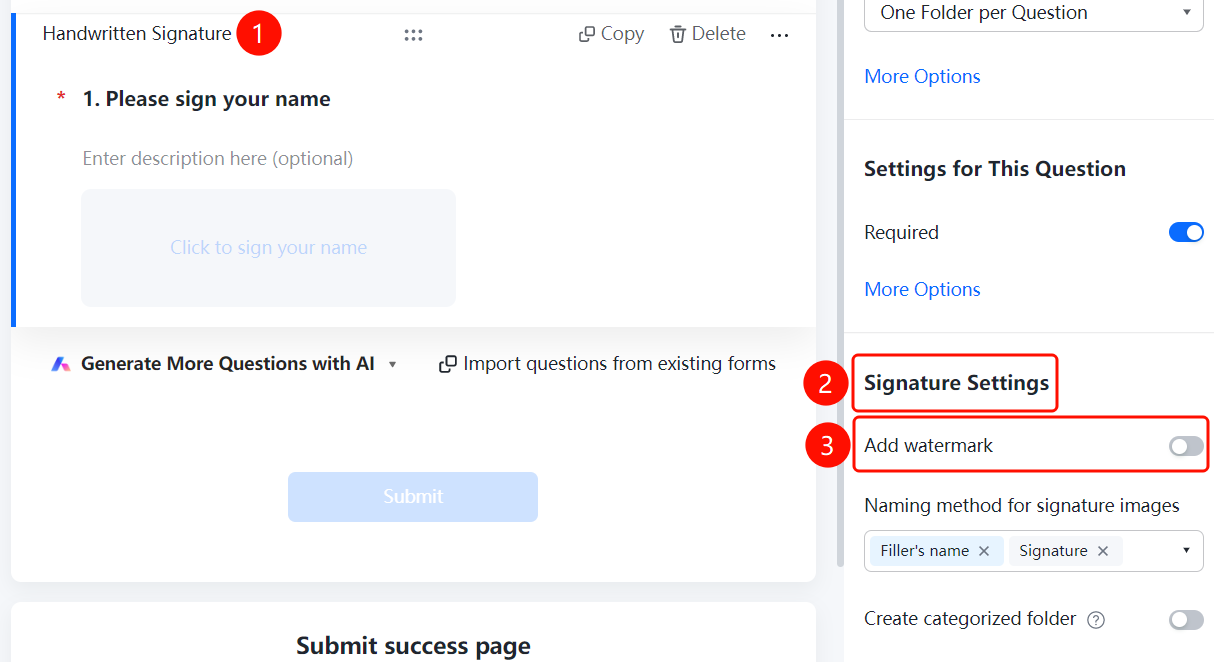
Handwritten Signature Question → 「Signature Settings」 → 「Add Watermark」 option
- Click the added handwritten signature question
- In the right 「Signature Settings」 panel, click the 「Add Watermark」 option
- Set the watermark content, such as respondent's nickname, signature, etc.
Set Signature Image Naming Method
Feature Entry
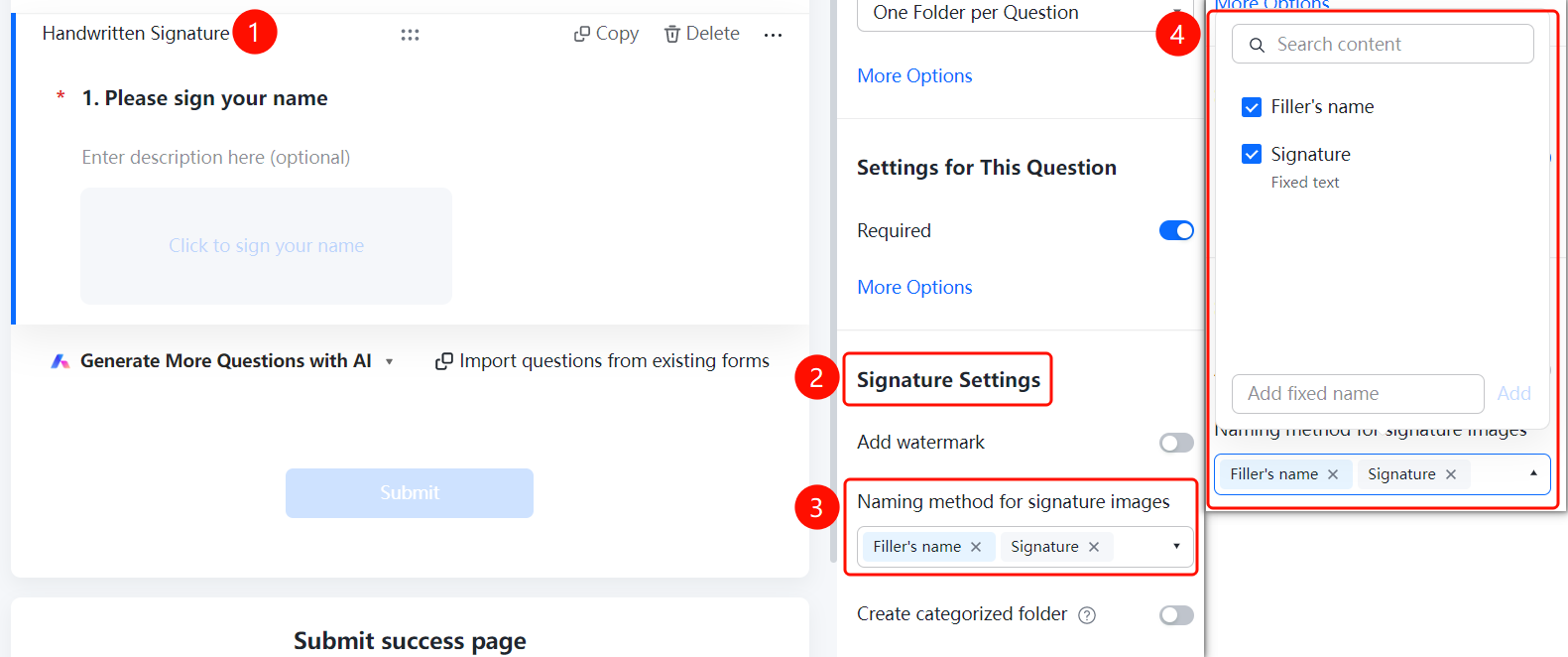
Handwritten Signature Question → 「Signature Settings」 → 「Signature Image Naming Method」 option
- Click the added handwritten signature question
- In the right 「Signature Settings」 panel, click the 「Signature Image Naming Method」 option
- Select a naming method: 「Respondent's Nickname」, 「Signature」, 「Fixed Text」, or click 「Add Custom Fixed Naming」 to add a custom rule
Create Category Folder
Feature Entry
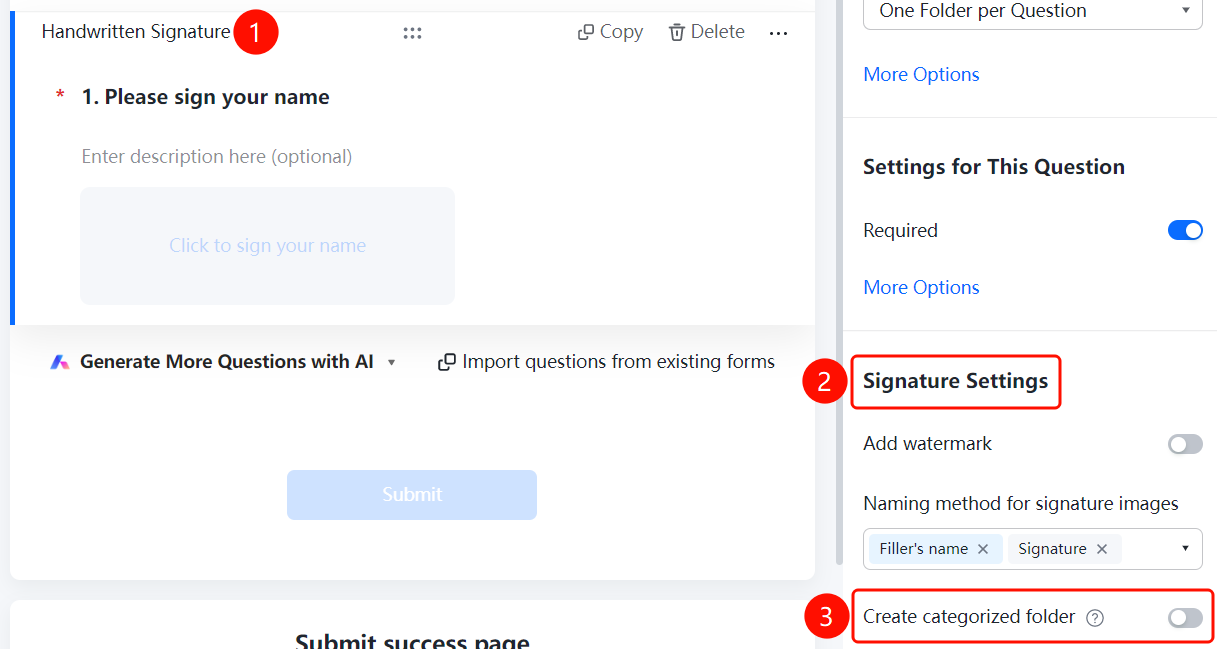
Handwritten Signature Question → 「Signature Settings」 → 「Create Category Folder」 toggle
- Click the added handwritten signature question
- In the right 「Signature Settings」 panel, enable the 「Create Category Folder」 toggle
- After enabling, folders will be automatically created according to the folder naming method, and collected signatures will be categorized and summarized
FAQ
Q1: How to add a watermark to a signature?
- Solution: Click the handwritten signature question, click 「Add Watermark」 in the 「Signature Settings」 panel, and set the watermark content.
Q2: What are the naming methods for signature images?
- Solution: Naming methods such as respondent's nickname, signature, and fixed text are supported. You can also add custom fixed naming.
Q3: How to categorize and manage collected signatures?
- Solution: Click the handwritten signature question, enable 「Create Category Folder」 in the 「Signature Settings」 panel, and the system will categorize and summarize signatures according to the folder naming method.
Notes
- Handwritten signatures can serve as confirmation credentials, suitable for scenarios such as contract signing and agreement confirmation
- Signature images support Add Watermark to enhance security