Feature Summary
Data statistics is used to view the collection results of Group Form data. It supports filtering by date range and viewing detailed data, helping admins fully understand the collection status of Group Form data.
Feature Description
| Feature Dimension | Description |
|---|---|
| Member Limit | No member limit |
| Version Limit | No version limit |
Steps
View Data Statistics
Feature Entry
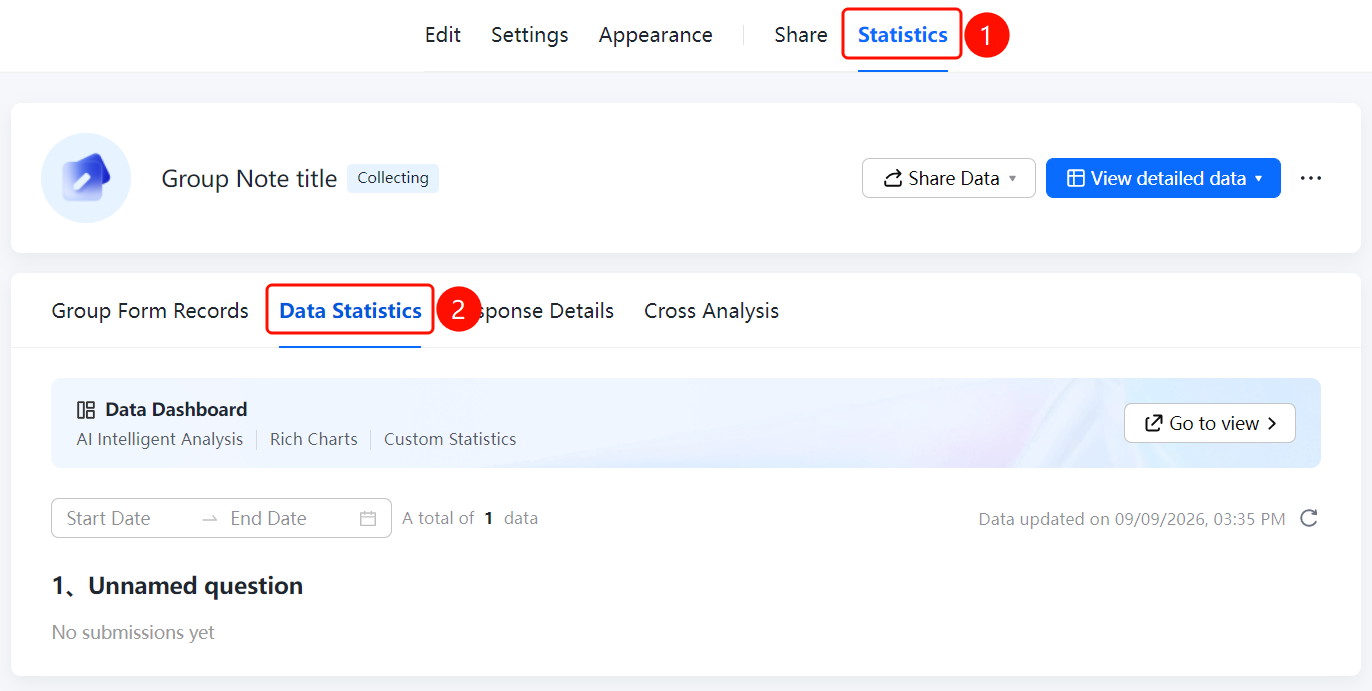
Statistics tab → Data Statistics option
- Click the Statistics tab at the top.
- Click the Data Statistics option in the left panel.
- You can set the Start Date and End Date at the top of the page to filter the data range.
- View the collection results, serial numbers, and content of each question.
- Click Detailed Data to view details.
FAQs
Question 1: How do I filter data by date range?
- Solution: Set the Start Date and End Date at the top of the Data Statistics page to view the collected data within that period.
Question 2: How do I view the details of each piece of data?
- Solution: Click Detailed Data to view the details of each submission record, including the fill-in time and content.
Question 3: What information is displayed on the Data Statistics page?
- Solution: The Data Statistics page displays the collection results, serial numbers, content, data update time of each question, and the total amount of data.
Notes
- Data statistics displays summarized statistical results. To view the details of each piece of data, click Detailed Data.
- The data update time is the time of the last data change.