Feature Summary
The file upload question is used to collect files uploaded by respondents. It supports setting file types, size limits, and upload quantities, making it suitable for scenarios such as material collection and attachment submission.
Feature Description
| Feature Dimension | Description |
|---|---|
| Member Limit | No member limit |
| Version Limit | No version limit |
Steps
Add a File Upload Question
Feature Entry
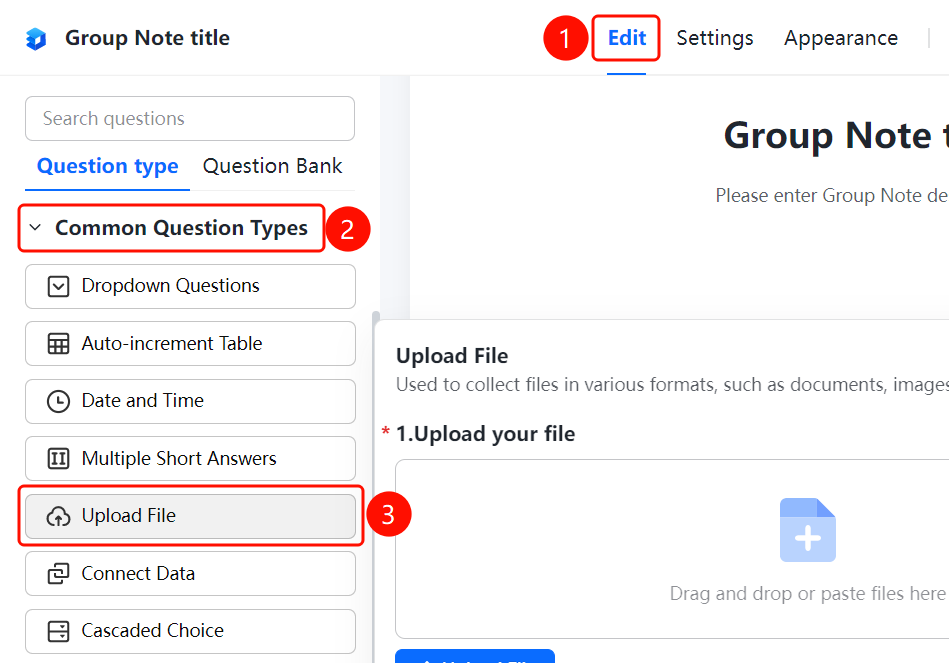
「Edit」 tab → 「Common Question Types」 → 「File Upload」 button
- Click the top 「Edit」 tab
- Expand the 「Common Question Types」 area in the left panel
- Click the 「File Upload」 button to add a file upload question to the form
Set File Type Restrictions
Feature Entry
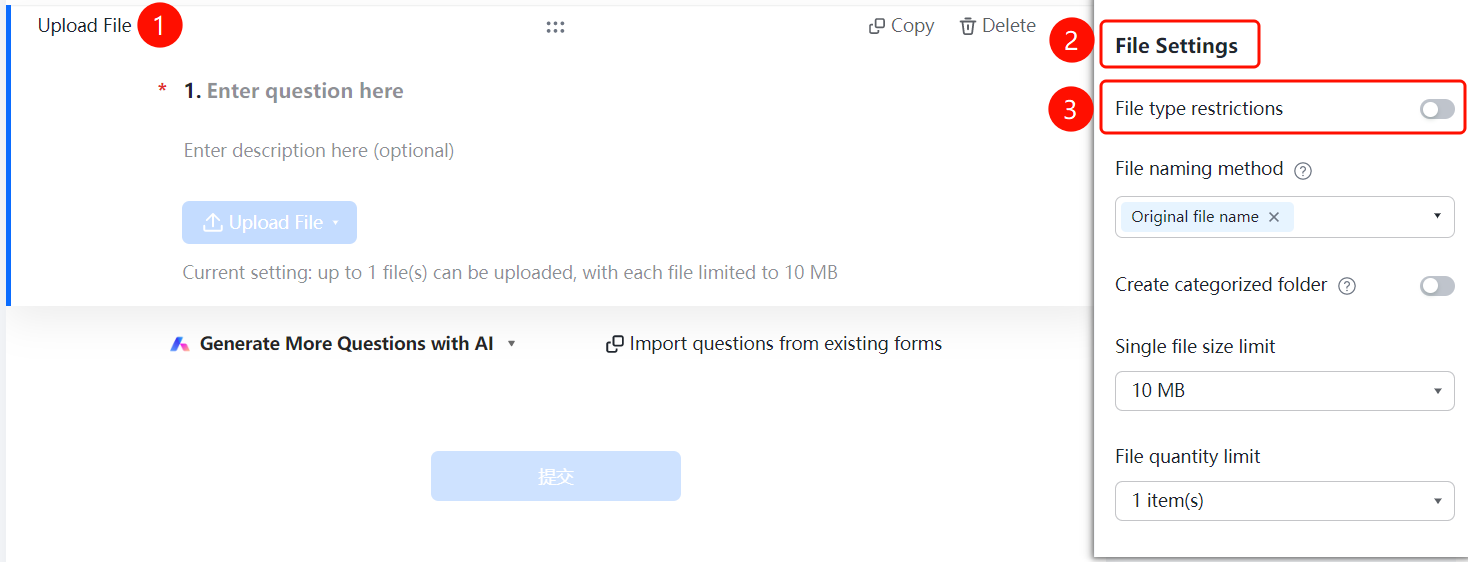
File Upload → 「File Settings」 → 「File Type Restrictions」 toggle
- Click the added file upload question
- In the right 「File Settings」 panel, turn on the 「File Type Restrictions」 toggle
- After turning it on, you can set the allowed file types for upload
Set File Naming Method
Feature Entry
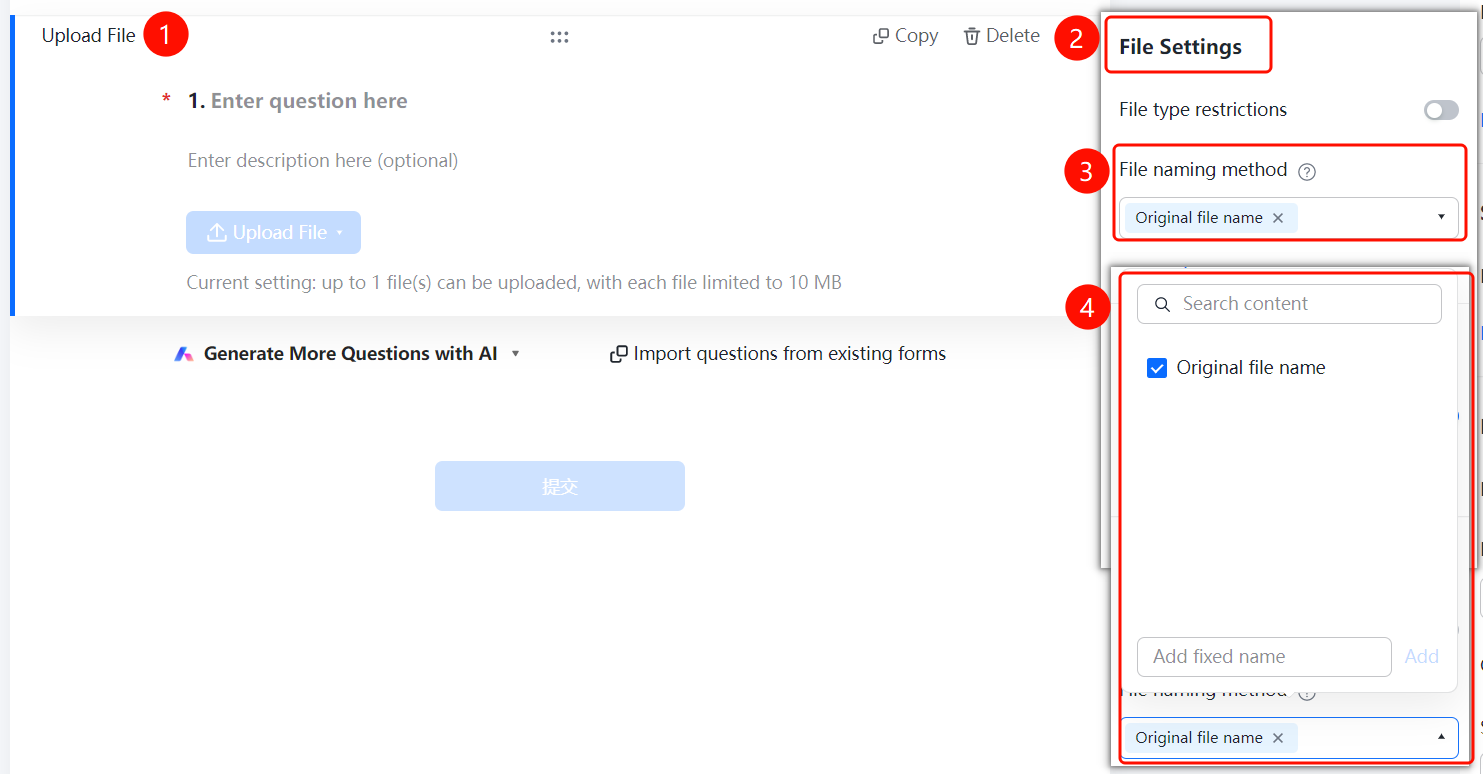
File Upload → 「File Settings」 → 「File Naming Method」 dropdown menu
- Click the added file upload question
- In the right 「File Settings」 panel, click the 「File Naming Method」 dropdown menu
- Select the naming method: 「Original File Name」 or 「Add Custom Fixed Naming」
Set Up Category Folders
Feature Entry
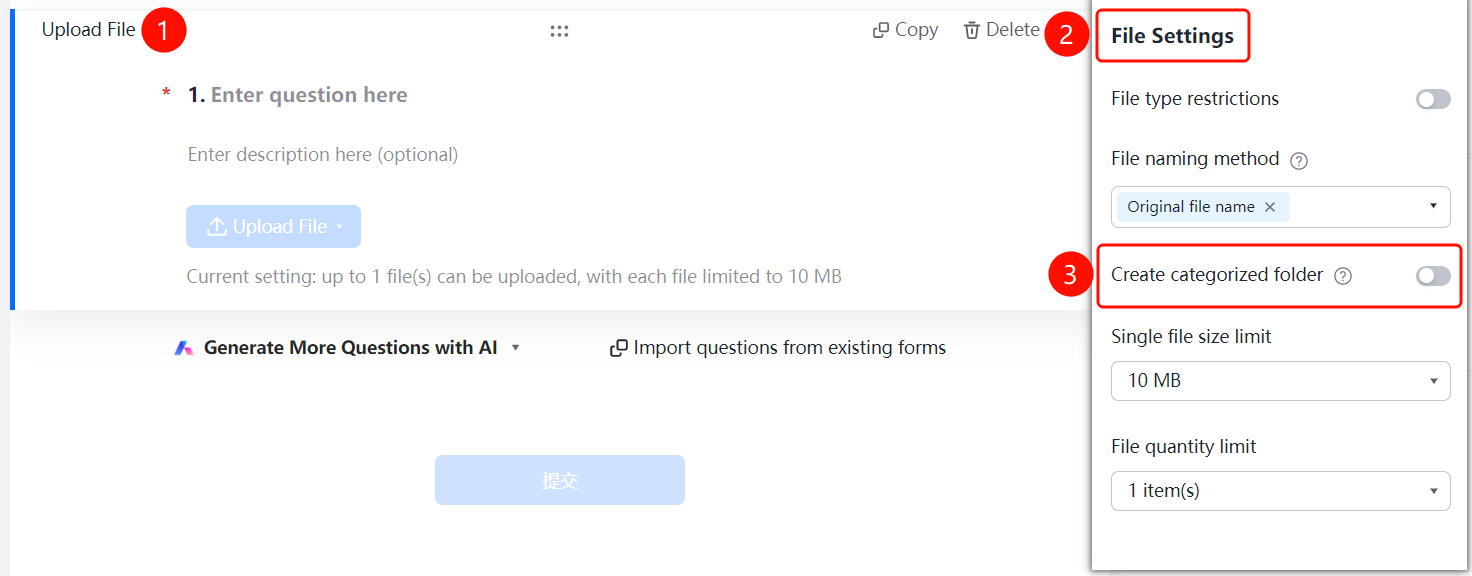
File Upload → 「File Settings」 → 「Create Category Folders」 toggle
- Click the added file upload question
- In the right 「File Settings」 panel, turn on the 「Create Category Folders」 toggle
- After turning it on, the system will automatically create category folders based on the respondent to store files
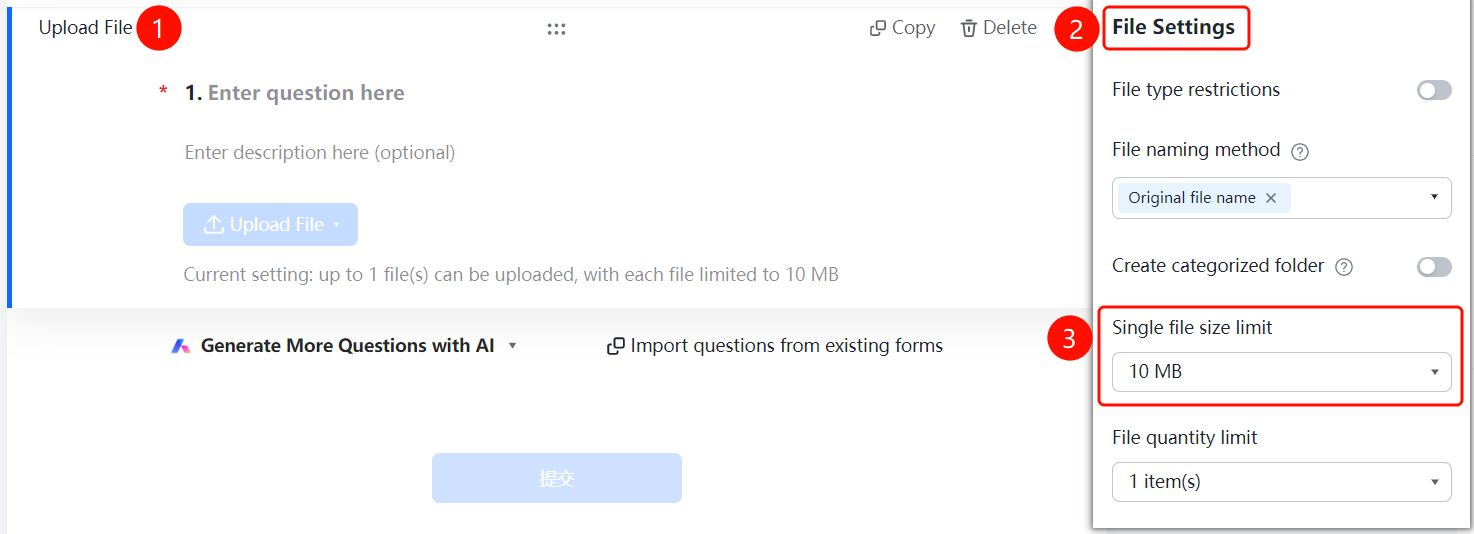
Set Single File Size Limit
Feature Entry
File Upload → 「File Settings」 → 「Single File Size Limit」 dropdown menu
- Click the added file upload question
- In the right 「File Settings」 panel, click the 「Single File Size Limit」 dropdown menu
- Select the allowed size limit: 10M, 30M, 50M, 100M, or 300M
Set File Quantity Limit
Feature Entry
File Upload → 「File Settings」 → 「File Quantity Limit」 dropdown menu
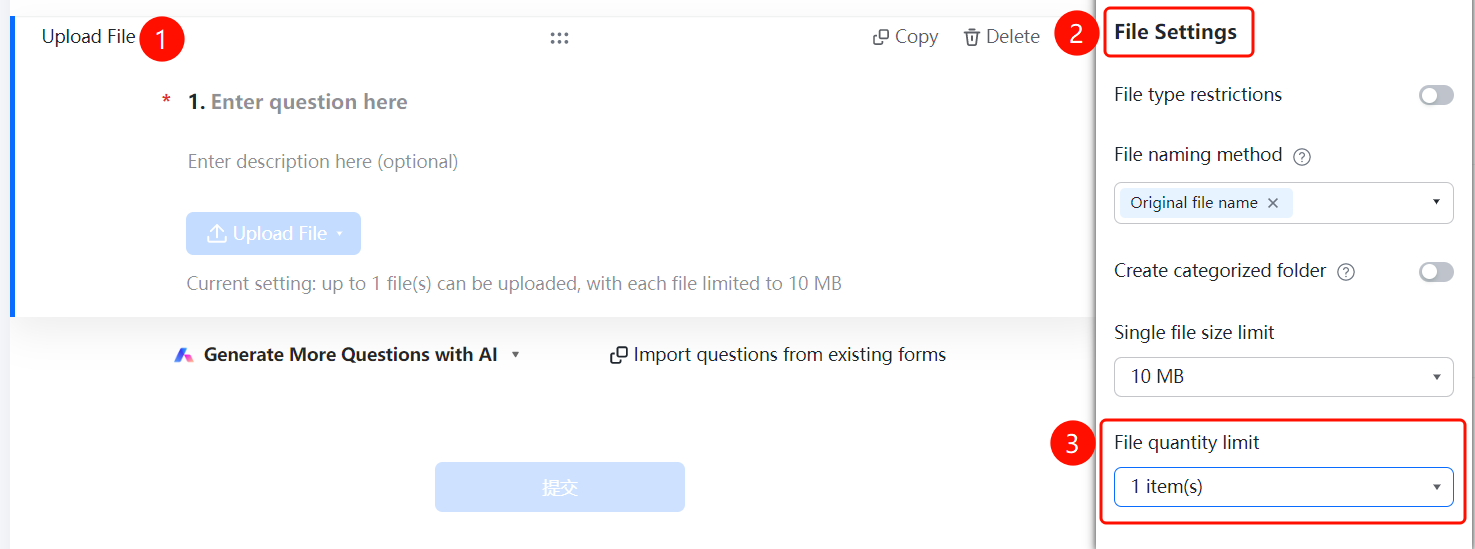
- Click the added file upload question
- In the right 「File Settings」 panel, click the 「File Quantity Limit」 dropdown menu
- Select the allowed number of files to upload
FAQ
Q1: How do I limit the uploaded file types?
- Solution: Click the file upload question, set "File Type Limit" in "File Settings", and select the allowed file types.
Q2: How do I limit the file size and quantity?
- Solution: Click the file upload question, and set "File Size Limit" and "Max Upload Quantity" respectively in "File Settings".
Q3: How are uploaded files saved?
- Solution: After turning on the "Save Uploaded Files" switch, the files uploaded by respondents will be saved in the data statistics page for viewing.
Notes
- The file upload question is suitable for scenarios such as material collection and attachment submission.
- We recommend setting reasonable file type and size limits.