Summary
Receipt recognition questions are used to recognize invoice and ticket information uploaded by respondents. AI automatically recognizes the receipt content and fills it into the corresponding fields, reducing manual entry and improving efficiency.
Feature Description
| Feature Dimension | Description |
|---|---|
| Premium Limits | No premium limits |
| Version Limits | No version limits |
Steps
Add a Receipt Recognition Question
Feature Entry
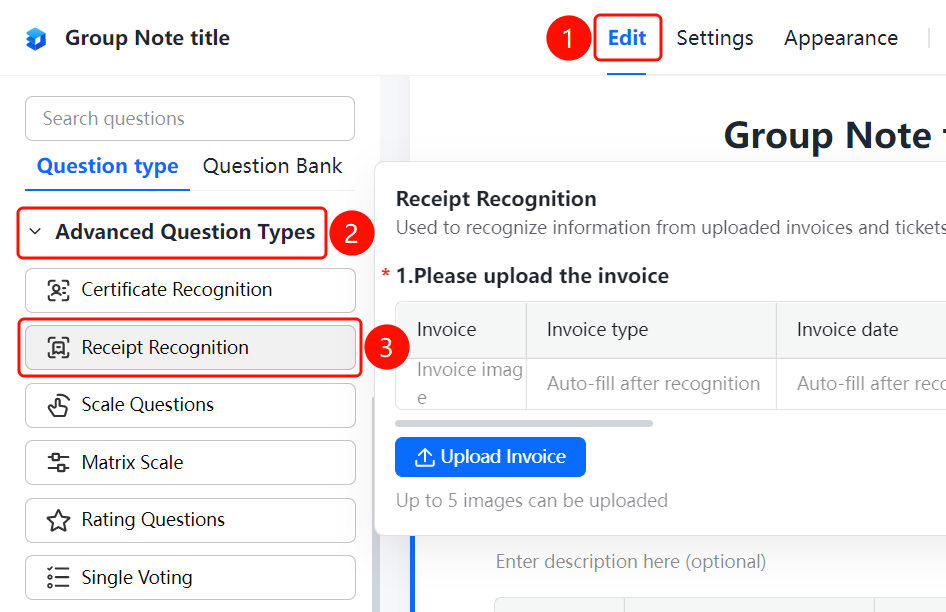
"Edit" tab > "Advanced Question Types" > "Receipt Recognition" button
- Click the Edit tab at the top.
- Expand the Advanced Question Types area in the left panel.
- Click the Receipt Recognition button to add the receipt recognition question to the Group Form.
- Enter the question content in the question editing area, such as "Please upload your invoice."
- The question area displays the following fields: Invoice Type, Invoice Date, and Total Amount (Tax Inclusive), all marked as Auto-filled after recognition, as well as the Invoice Image upload area.
- Respondents click Upload Invoice to upload. The current setting displays Up to 5 images allowed.
Set Receipt Types to Recognize
Feature Entry
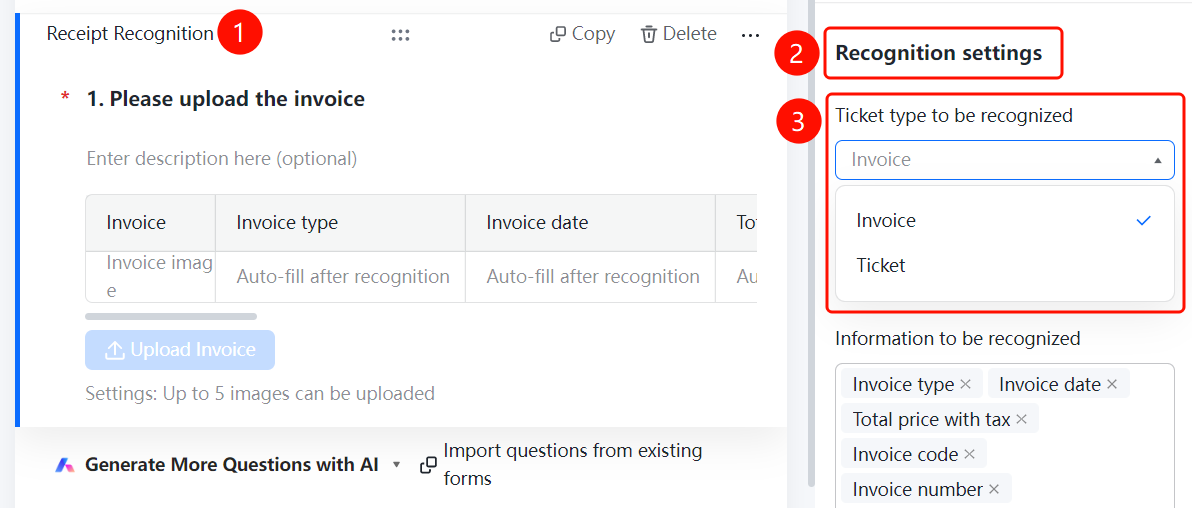
Receipt recognition question > "Recognition Settings" > "Receipt Types to Recognize" option
- Click the added receipt recognition question.
- Click the Receipt Types to Recognize option in the Recognition Settings panel on the right.
- Select: Invoice/Ticket
Set Invoice Type Limits
Feature Entry
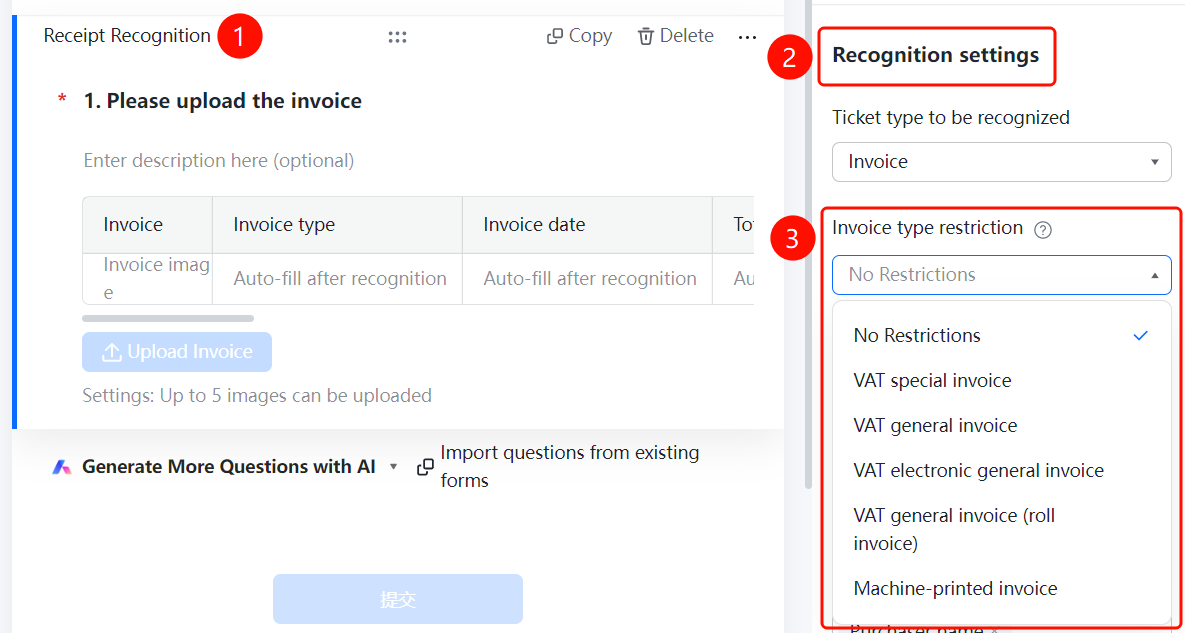
Receipt recognition question > "Recognition Settings" > "Invoice Type Limits" option
- Click the added receipt recognition question.
- Click the Invoice Type Limits option in the Recognition Settings panel on the right.
- Select: No limit/Special VAT invoice/General VAT invoice, etc.
Set Information to Recognize
Feature Entry
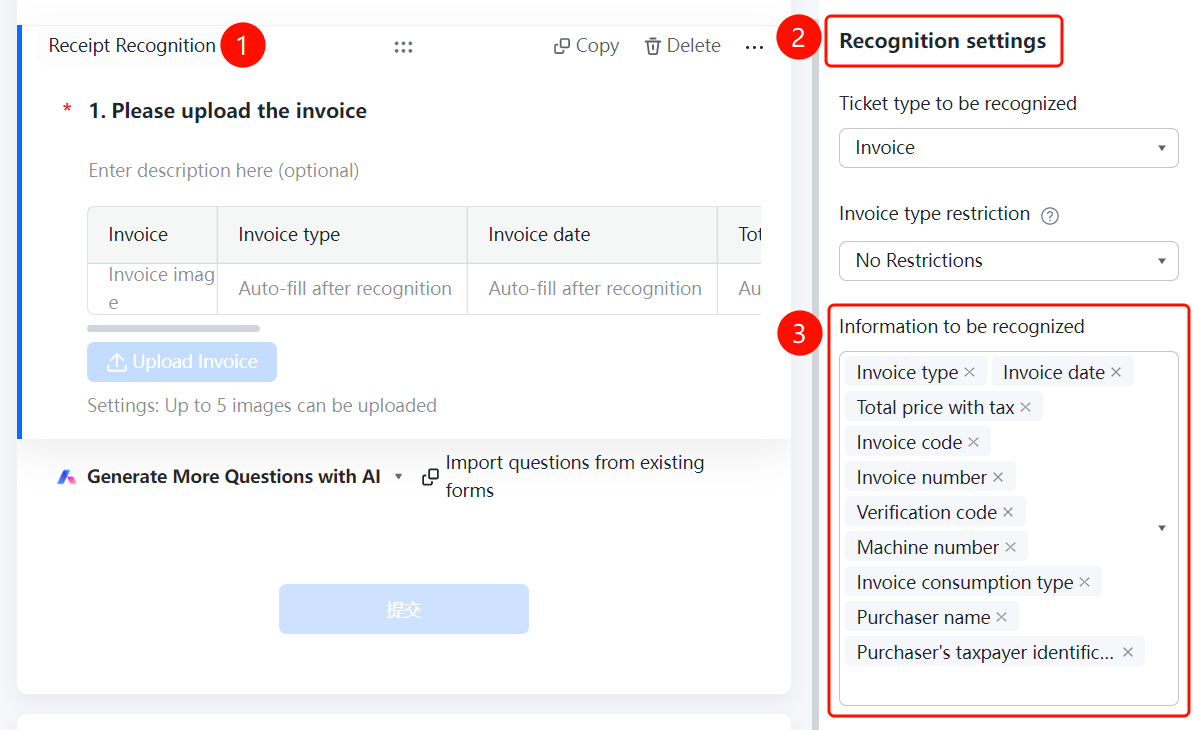
Receipt recognition question > "Recognition Settings" > "Information to Recognize" option
- Click the added receipt recognition question.
- Click the Information to Recognize option in the Recognition Settings panel on the right.
- Select the fields to recognize: Invoice type/Invoice date/Total amount (tax inclusive)/Invoice code/Invoice number, etc.
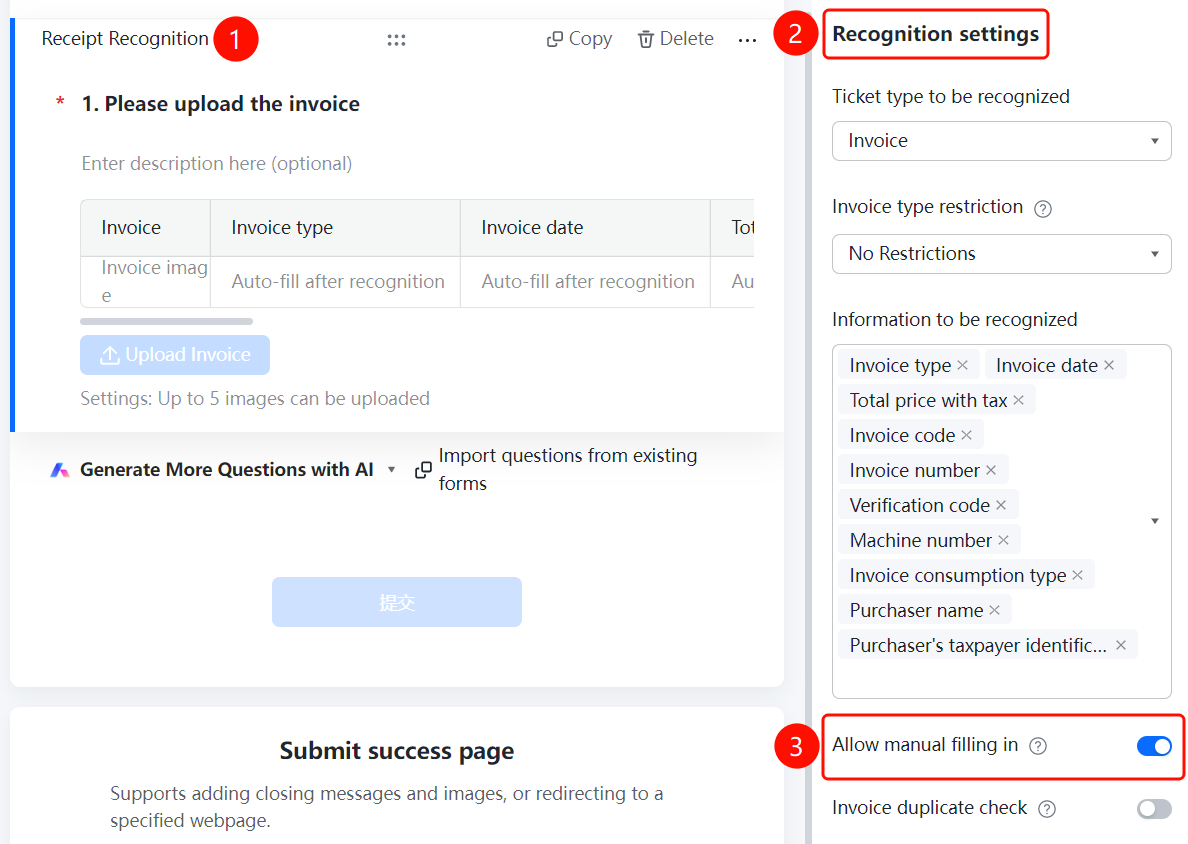
Enable Manual Entry
Feature Entry
Receipt recognition question > "Recognition Settings" > "Allow Manual Entry" switch
- Click the added receipt recognition question.
- Turn on the Allow Manual Entry switch in the Recognition Settings panel on the right.
Enable Invoice Duplicate Check
Feature Entry
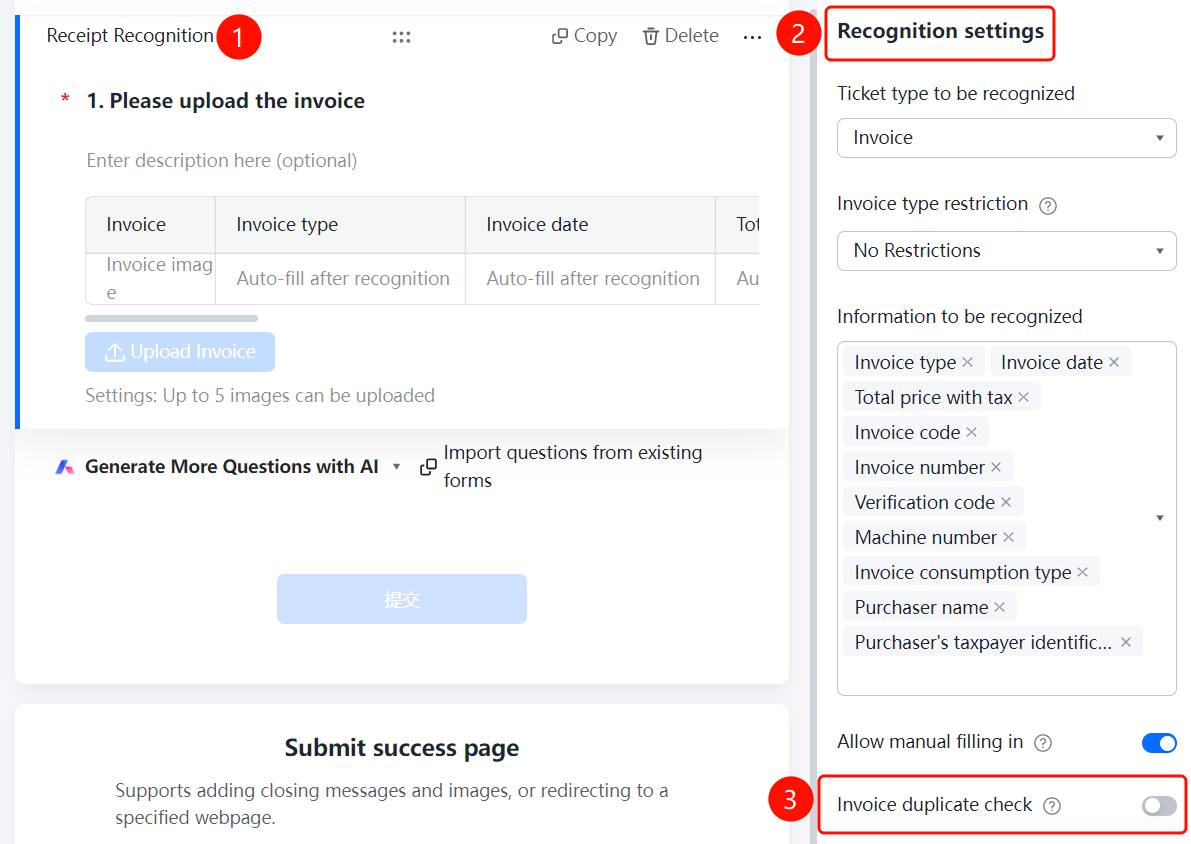
Receipt recognition question > "Recognition Settings" > "Invoice Duplicate Check" switch
- Click the added receipt recognition question.
- Turn on the Invoice Duplicate Check switch in the Recognition Settings panel on the right.
Set Maximum Upload Limit
Feature Entry
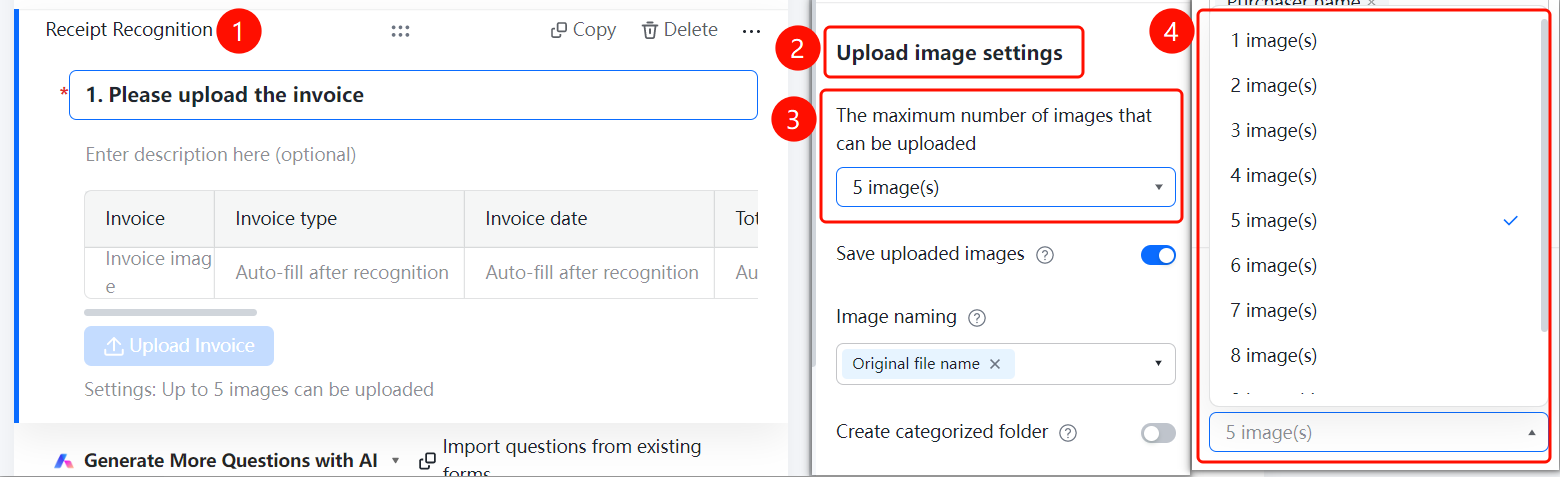
Receipt recognition question > "Image Upload Settings" > "Maximum Upload Limit" option
- Click the added receipt recognition question.
- Click the Maximum Upload Limit option in the Image Upload Settings panel on the right.
- Select the number of images.
Enable Save Uploaded Images
Feature Entry
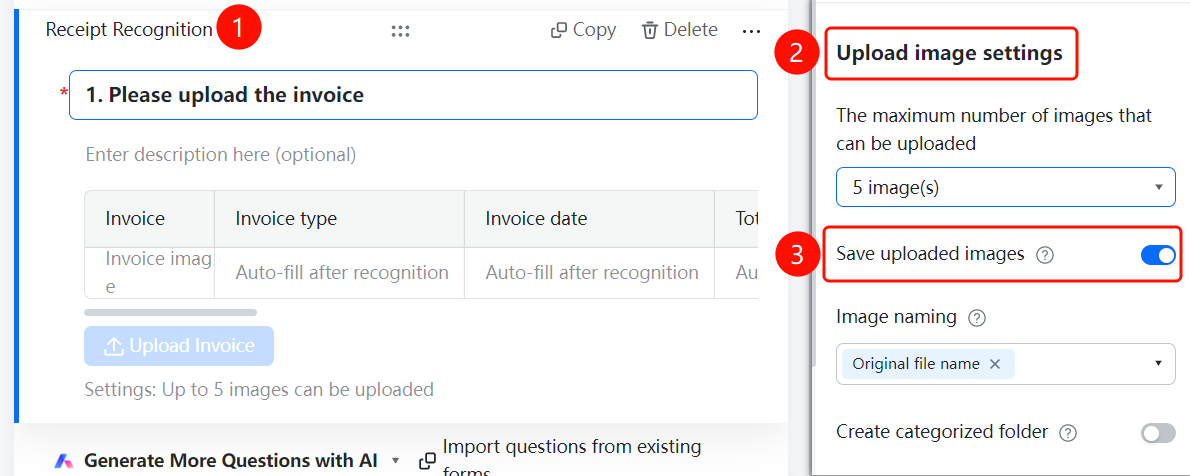
Receipt recognition question > "Image Upload Settings" > "Save Uploaded Images" switch
- Click the added receipt recognition question.
- Turn on the Save Uploaded Images switch in the Image Upload Settings panel on the right.
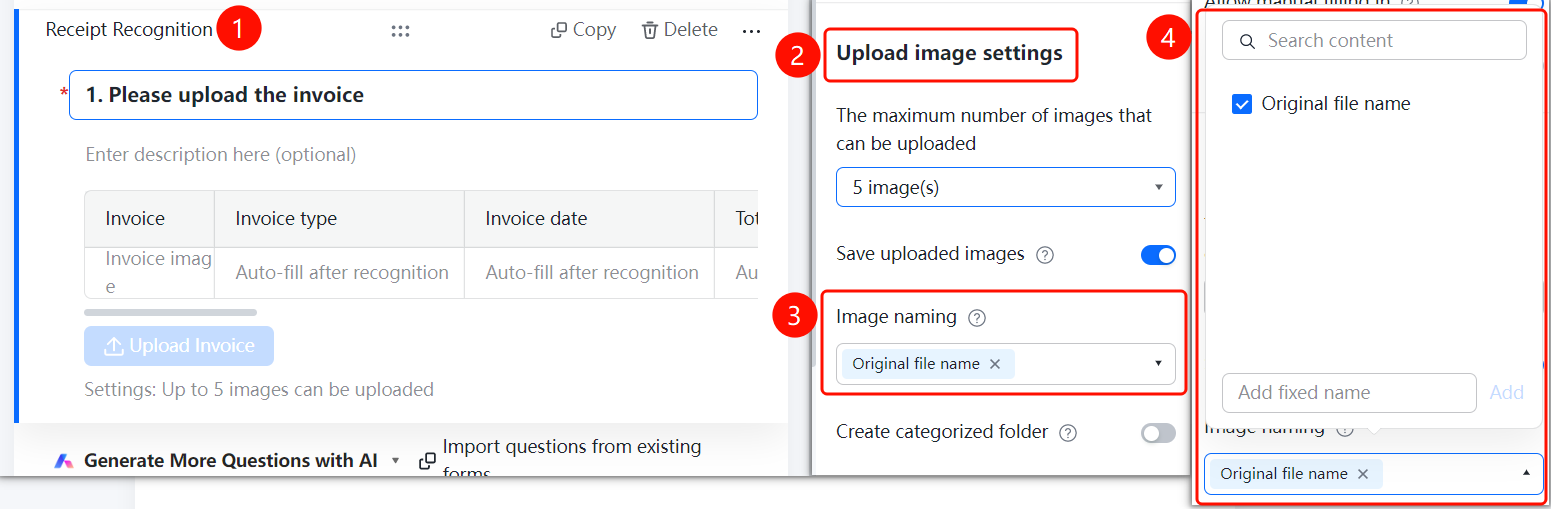
Set Image Naming Method
Feature Entry
Receipt recognition question > "Image Upload Settings" > "Image Naming Method" option
- Click the added receipt recognition question.
- Click the Image Naming Method option in the Image Upload Settings panel on the right.
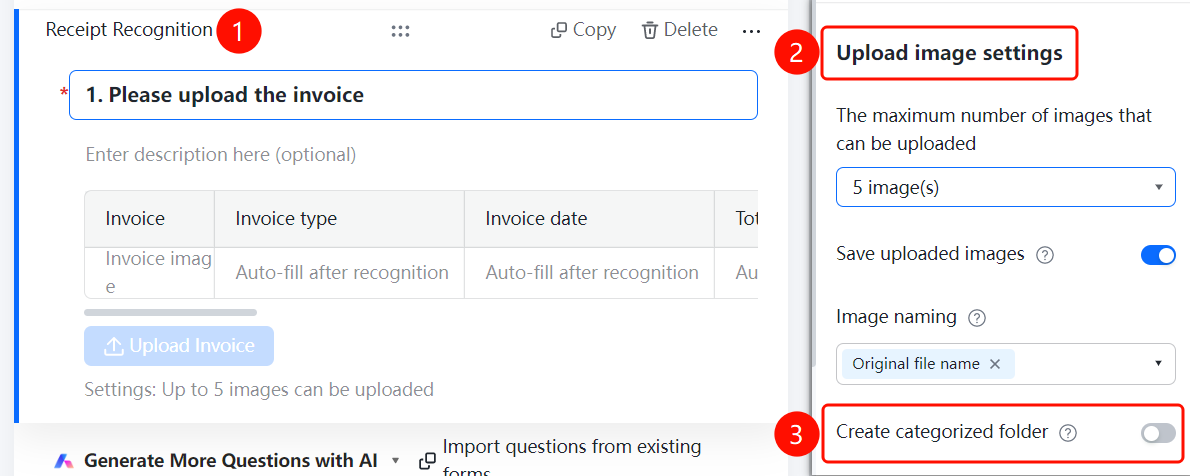
Enable Create Categorized Folders
Feature Entry
Receipt recognition question > "Image Upload Settings" > "Create Categorized Folders" switch
- Click the added receipt recognition question.
- Turn on the Create Categorized Folders switch in the Image Upload Settings panel on the right.
FAQ
Q1: How do I limit the invoice types that respondents can upload?
- Solution: Click the receipt recognition question, click Invoice Type Limits in Recognition Settings, and select the specified types.
Q2: How do I prevent respondents from submitting the same invoice multiple times?
- Solution: Turn on the Invoice Duplicate Check switch in Recognition Settings. The system will check for duplicate invoices.
Q3: How do I categorize and manage the collected invoices?
- Solution: Turn on the Create Categorized Folders switch in Image Upload Settings. The system will automatically categorize and group the invoices.
Notes
- Receipt recognition supports two receipt types: invoices and tickets.
- Once Invoice Duplicate Check is enabled, duplicate invoices cannot be submitted.
- Once Save Uploaded Images is enabled, you can view the uploaded images on the data statistics page.