Feature Summary
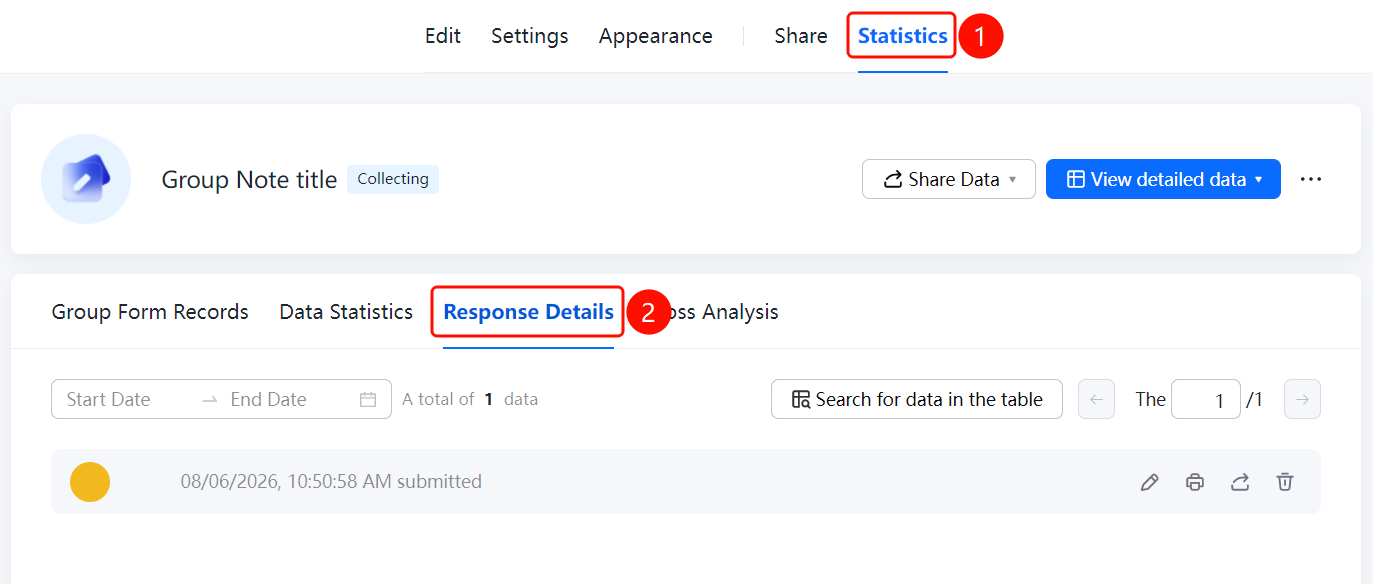
Response Details is used to view the submission time and answers of each response collected by the Group Form, helping the Admin quickly understand the respondents' answers.
Feature Description
| Feature Dimension | Description |
|---|---|
| Premium Limit | No premium limit |
| Version Limit | No version limit |
Steps
View Response Details
Feature Entry
"Statistics" tab → "Response Details" option
- Click the Statistics tab at the top.
- Click the Response Details option in the left panel.
- At the top of the page, you can set the Start Date and End Date to filter the response time range.
- Enter keywords in the Find Data in Table input box to quickly find responses.
- View the submission time and answers of each response.
FAQ
Question 1: How do I filter responses by time range?
- Solution: Set the "Start Date" and "End Date" at the top of the "Response Details" page to view the response data within that time period.
Question 2: How do I quickly find a specific response?
- Solution: Enter keywords in the "Find Data in Table" input box on the "Response Details" page to quickly locate the relevant response.
Question 3: What is the difference between Response Details and Data Statistics?
- Solution: Response Details displays the submission time and answers of each response individually, while Data Statistics summarizes and analyzes the overall data.
Notes
- Response Details are displayed in reverse chronological order of submission time, with the latest submitted response displayed at the top.
- The total number of responses is displayed at the bottom of the page.