Feature Summary
The auto numbering question automatically generates a unique number for each submission record, such as serial numbers, order numbers, product numbers, etc. This eliminates the need for manual entry by respondents, ensuring that numbers are unique and standardized.
Feature Specifications
| Dimension | Description |
|---|---|
| Subscription Limits | No subscription limits |
| Version Limits | No version limits |
Steps
Add an Auto Numbering Question
Feature Entry
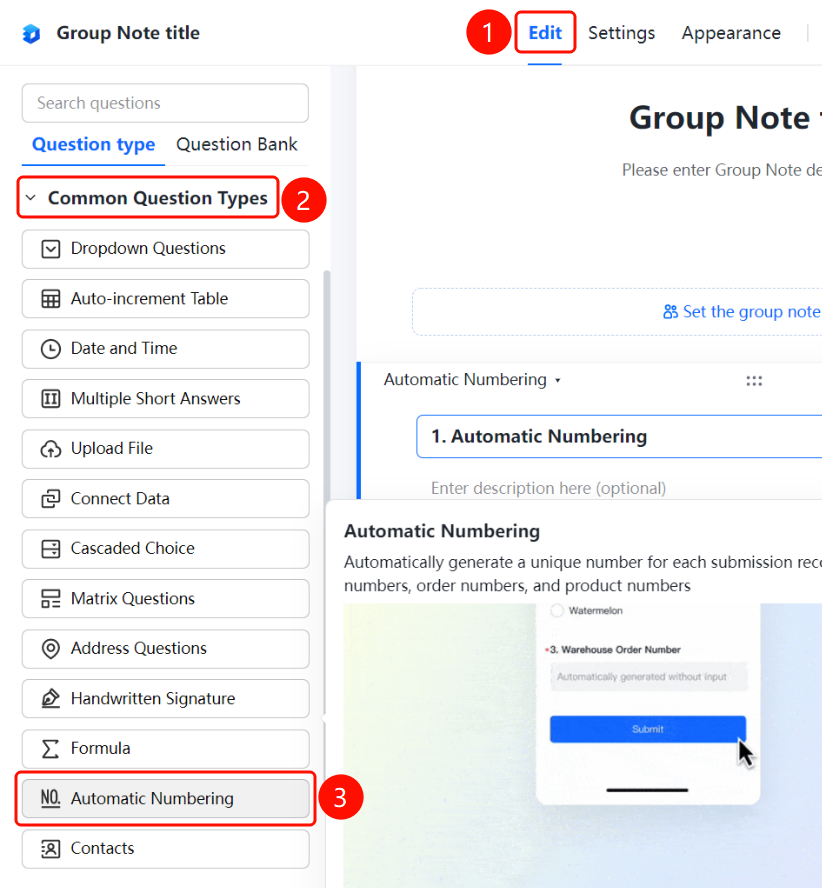
Edit tab > Common Question Types > Auto Numbering button
- Click the Edit tab at the top.
- In the left panel, expand the Common Question Types area.
- Click the Auto Numbering button to add an auto numbering question to the Group Form.
- Enter the question content in the question editing area, such as "Storage Number". The message "Automatically generated upon submission, no entry required" will be displayed below the question.
Set Up Auto Counting
Feature Entry
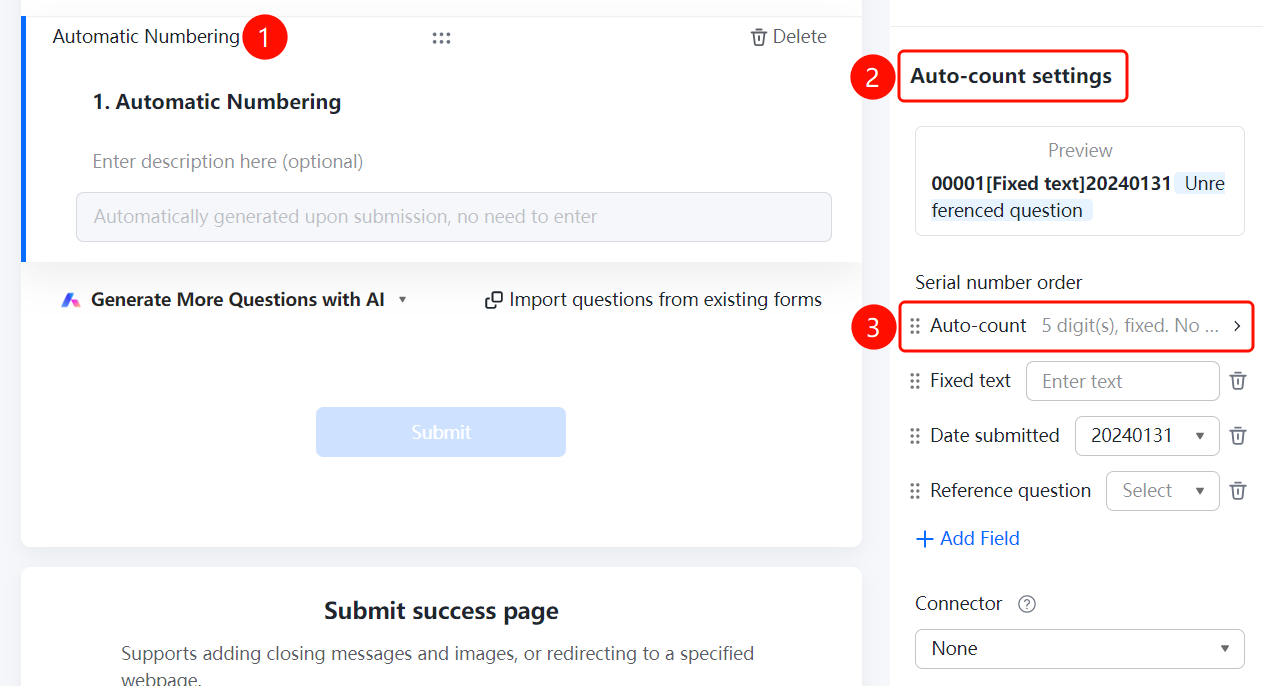
Auto numbering question > Auto Numbering Settings > Auto Counting Settings option
- Click the added auto numbering question.
- In the Auto Numbering Settings panel on the right, click the Auto Counting Settings option.
- Set the numbering range, start value, reset cycle, etc.
Set Up Fixed Text
Feature Entry
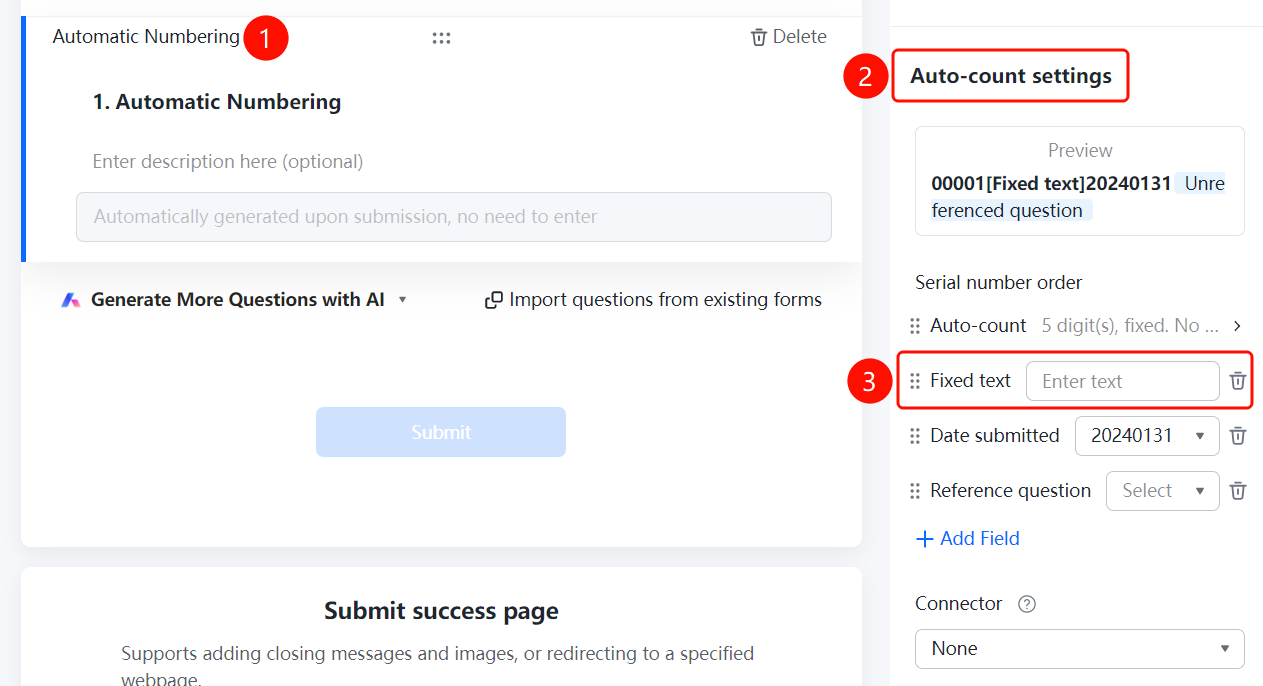
Auto numbering question > Auto Numbering Settings > Fixed Text option
- Click the added auto numbering question.
- In the Auto Numbering Settings panel on the right, click the Fixed Text option.
- Enter the fixed text content.
Set the Submission Date
Feature Entry
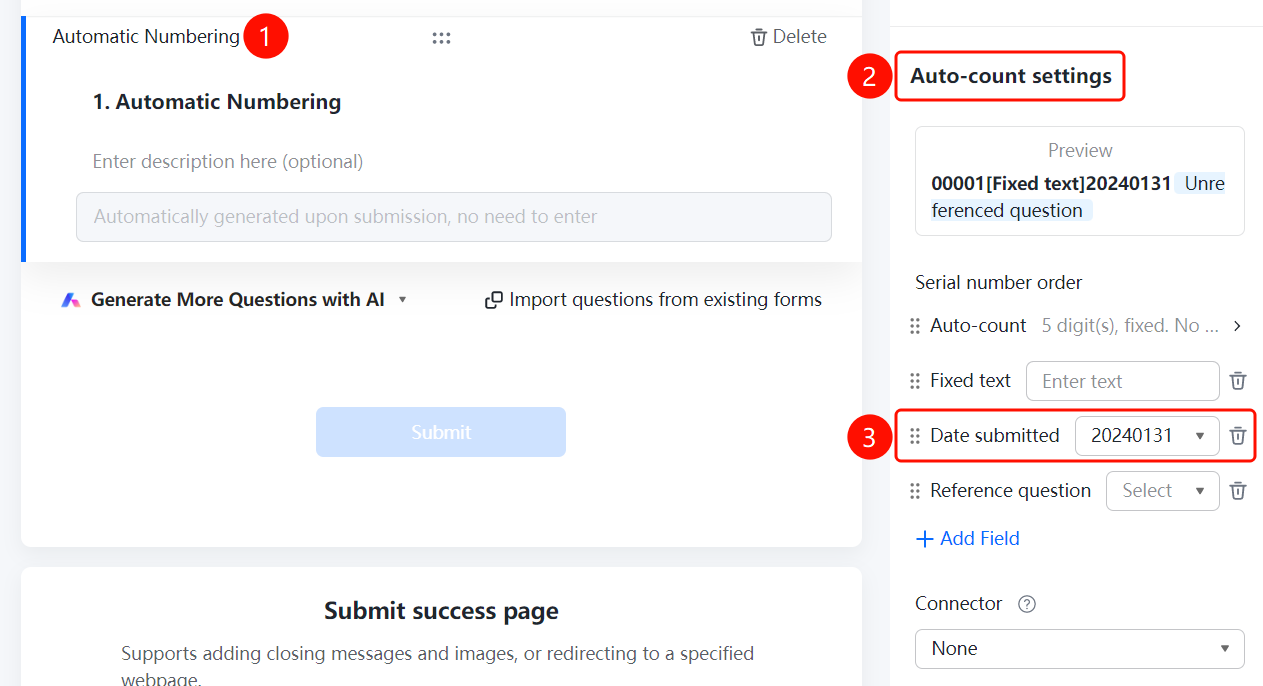
Auto numbering question > Auto Numbering Settings > Submission Date option
- Click the added auto numbering question.
- In the Auto Numbering Settings panel on the right, click the Submission Date option.
Reference Form Questions
Feature Entry
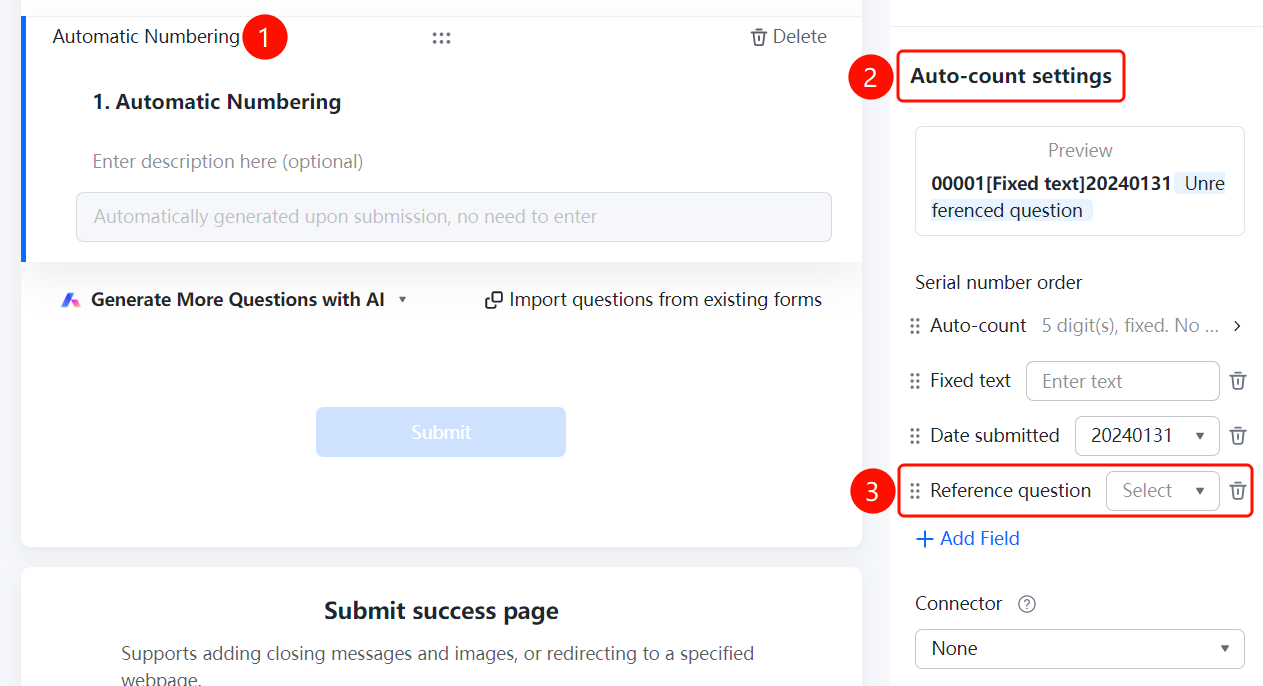
Auto numbering question > Auto Numbering Settings > Reference Question option
- Click the added auto numbering question.
- In the Auto Numbering Settings panel on the right, click the Reference Question option.
- Click Add Field to select the referenced question.
Set Up the Connector
Feature Entry
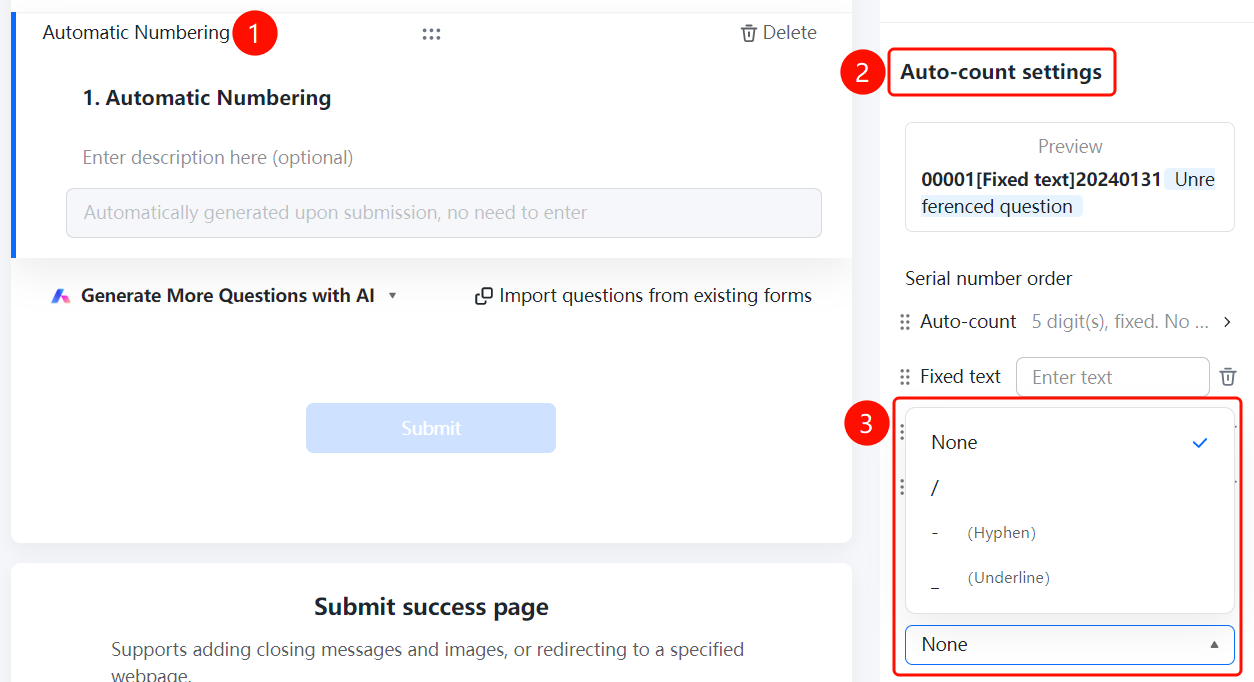
Auto numbering question > Auto Numbering Settings > Connector option
- Click the added auto numbering question.
- In the Auto Numbering Settings panel on the right, click the Connector option.
- Select the connector type: 「None」, 「/」, 「- (Hyphen)」, or 「_ (Underscore)」
FAQs
Question 1: How do I set the number of digits for the numbering?
- Solution: Click the auto numbering question, click Number of Digits in Auto Numbering Settings, select the number of digits, and enable fixed digits.
Question 2: How do I make the numbering include fixed text or dates?
- Solution: Click the auto numbering question, and set Fixed Text and Submission Date respectively in Auto Numbering Settings.
Question 3: How do I make the numbering include content from other questions in the form?
- Solution: Click the auto numbering question, click Reference Question in Auto Numbering Settings, and click Add Field to select the referenced question.
Notes
- Auto numbers are automatically generated upon submission and do not require manual entry by respondents.
- You can set the numbering to reset periodically using the Reset Cycle option.