Feature Summary
Group Form records are used to view the list of Group Form submission records. It supports filtering by time range and submitter, and switching between "All" and "My" views. It supports viewing details, modifying Group Forms, and deleting Group Forms for a single record.
Feature Description
| Feature Dimension | Description |
|---|---|
| Subscription Limits | No subscription limits |
| Version Limits | No version limits |
Operation Steps
View Group Form Records
Feature Entry
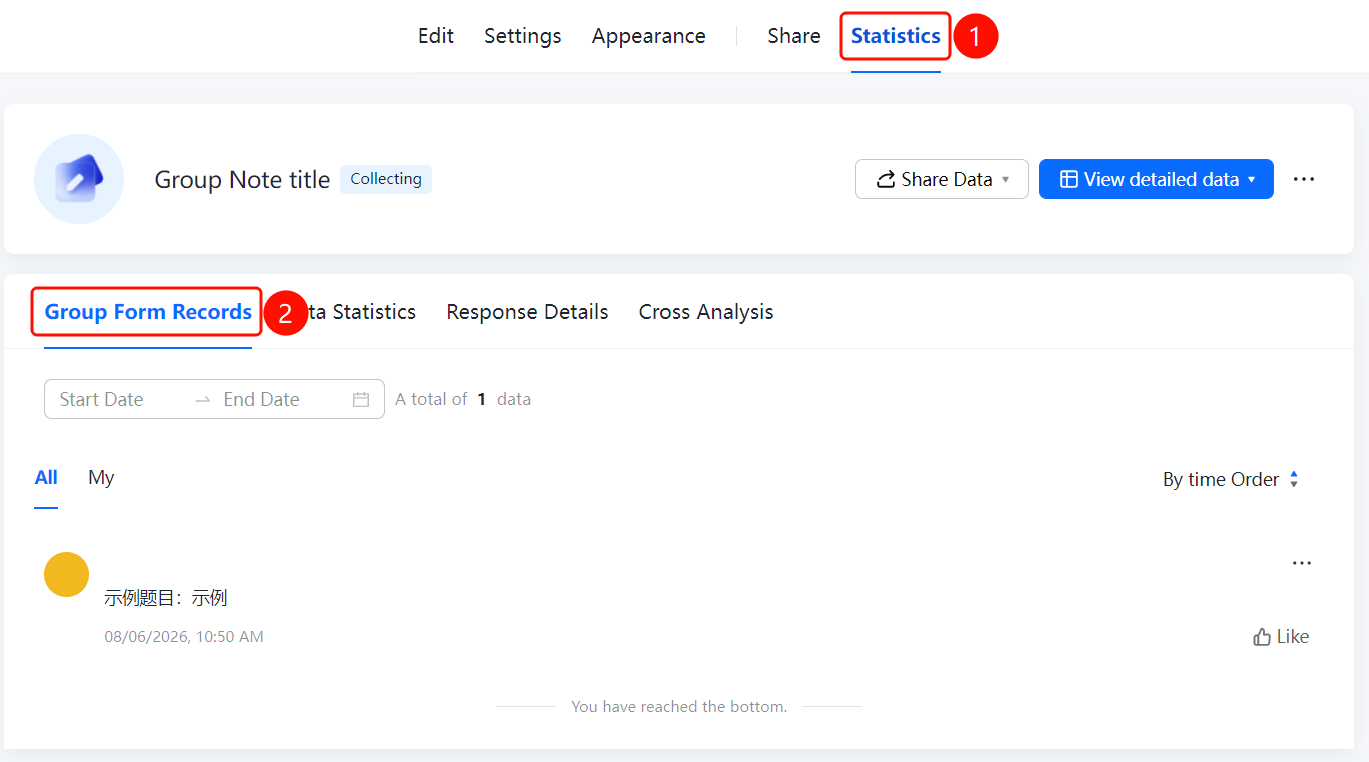
"Stats" tab at the top -> "Group Form Records" tab
- Click the Stats tab at the top.
- Click the Group Form Records option in the sub-tab.
- The page displays the list of Group Form records. Each record contains the submitted content, submission time, and a Like button.
- You can switch between All and My to view records in different scopes.
- You can filter the time range by Start Date and End Date.
- You can switch the sorting method to Chronological Order.
View Record Details
Feature Entry
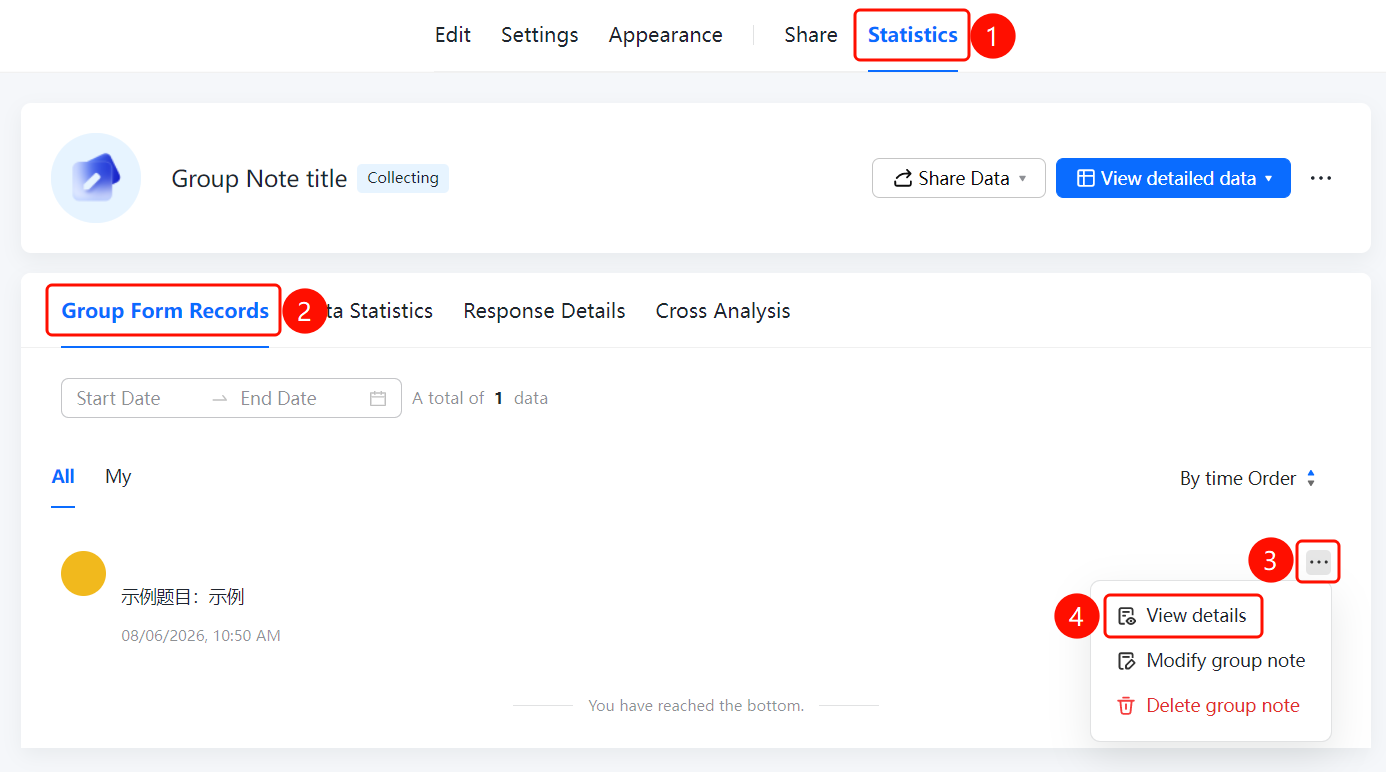
Group Form record list -> "..." more actions button -> "View Details" option
- In the Group Form record list, find the record you want to view details for.
- Click the ... button on the right side of the record.
- Click the View Details option in the pop-up drop-down menu.
Modify Group Form
Feature Entry
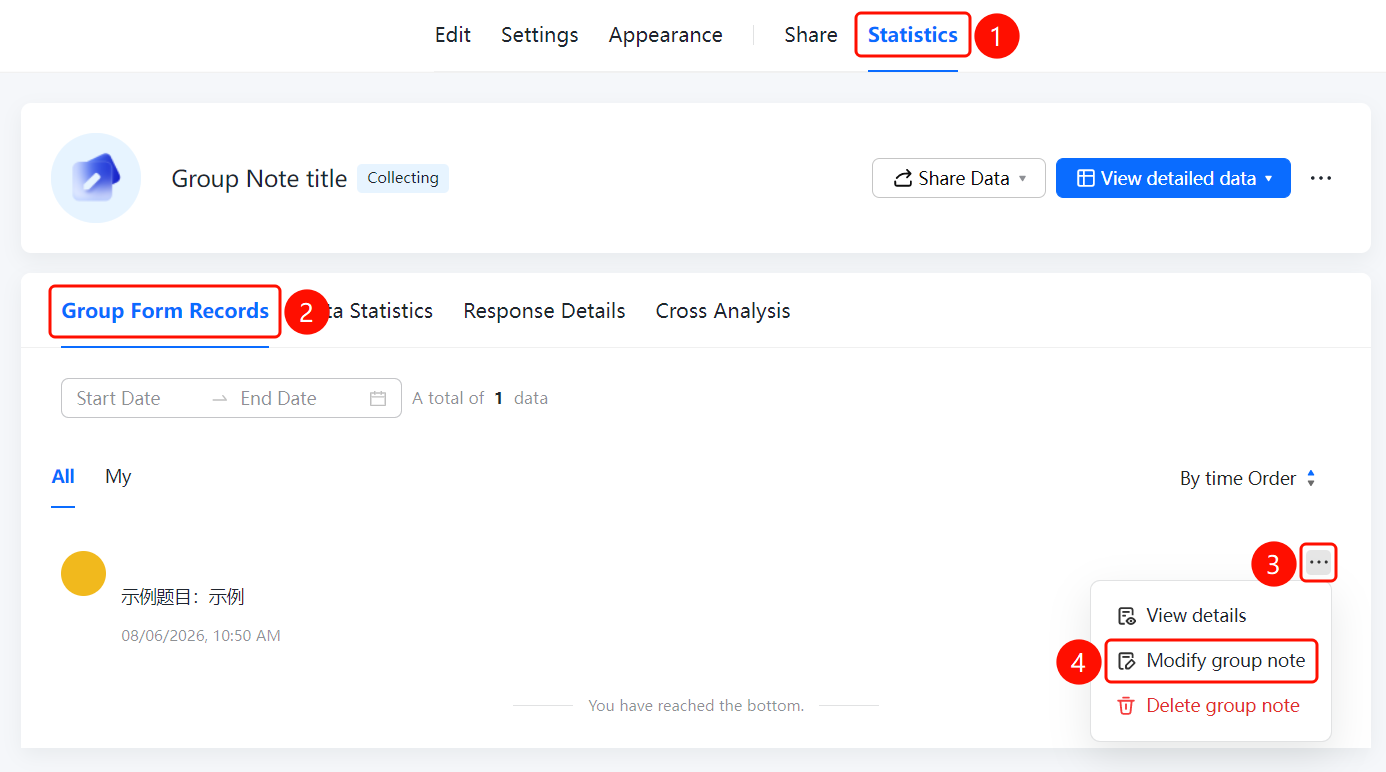
Group Form record list -> "..." more actions button -> "Modify Group Form" option
- In the Group Form record list, find the record you want to modify.
- Click the ... button on the right side of the record.
- Click the Modify Group Form option in the pop-up drop-down menu.
Delete Group Form
Feature Entry
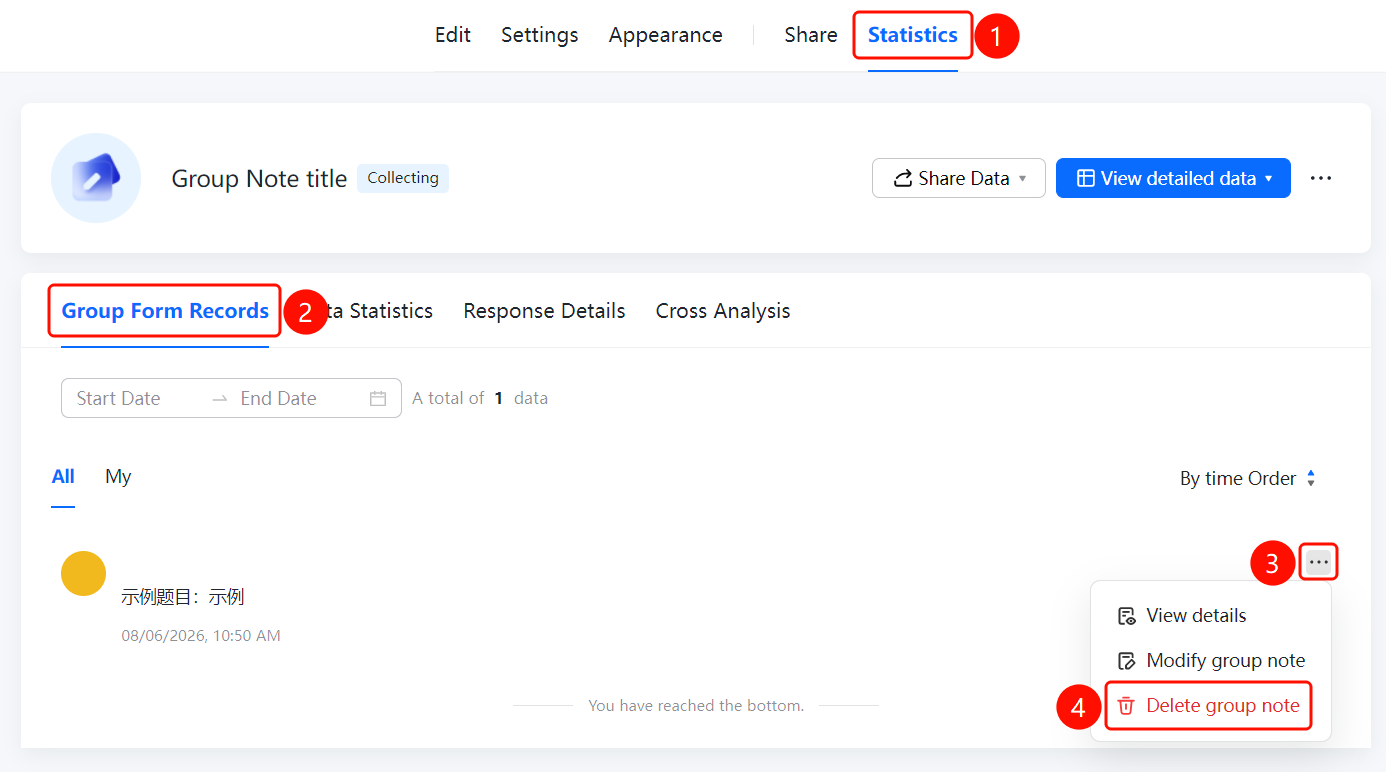
Group Form record list -> "..." more actions button -> "Delete Group Form" option
- In the Group Form record list, find the record you want to delete.
- Click the ... button on the right side of the record.
- Click the Delete Group Form option in the pop-up drop-down menu.
FAQ
Q1: How do I view all Group Form records?
- Solution: Switch to "All" on the "Group Form Records" page to view the submission records of all respondents.
Q2: How do I view only my own records?
- Solution: Switch to "My" on the "Group Form Records" page to view only your own submission records.
Q3: How do I filter Group Form records by time?
- Solution: Set the "Start Date" and "End Date" at the top of the "Group Form Records" page to view records within that time period.
Notes
- Group Form records are arranged in chronological order, displaying the submitted content and submission time.
- The "..." button on the right side of each record provides three action options: View Details, Modify Group Form, and Delete Group Form.
- "You have reached the bottom" displayed at the bottom indicates that all records have been loaded.