Feature Summary
Group Form settings are used to configure the global parameters of a Group Form, including the Group Form cycle, limits on the number of submissions, start and end times, etc., helping the admin flexibly control the running rules of the Group Form.
Feature Description
| Feature Dimension | Description |
|---|---|
| Member Limit | No member limit |
| Version Limit | No version limit |
Operating Steps
Enable Group Form
Feature Entry
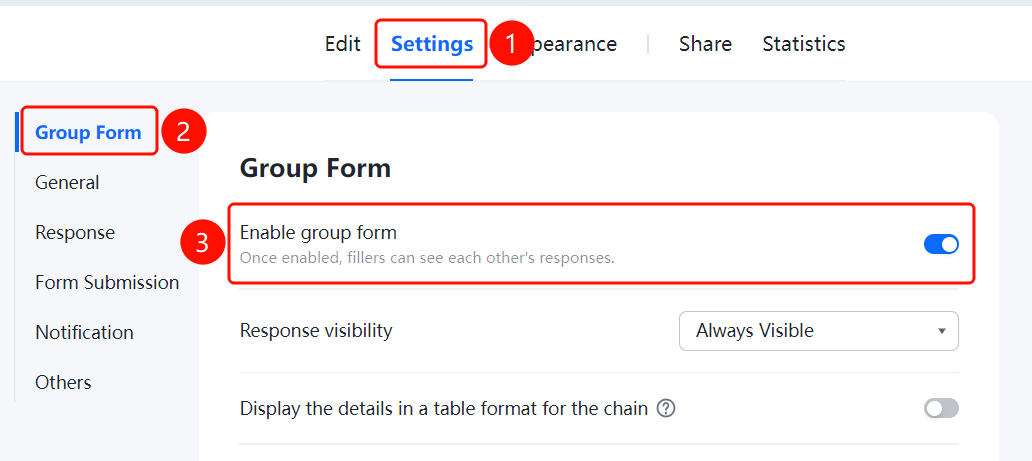
Settings tab > Group Form Settings > Enable Group Form switch
- Click the Settings tab at the top.
- Expand the Group Form Settings area in the left panel.
- Turn on the Enable Group Form switch.
- Once enabled, respondents will be able to see each other's submissions.
Set Group Form Details Display
Feature Entry
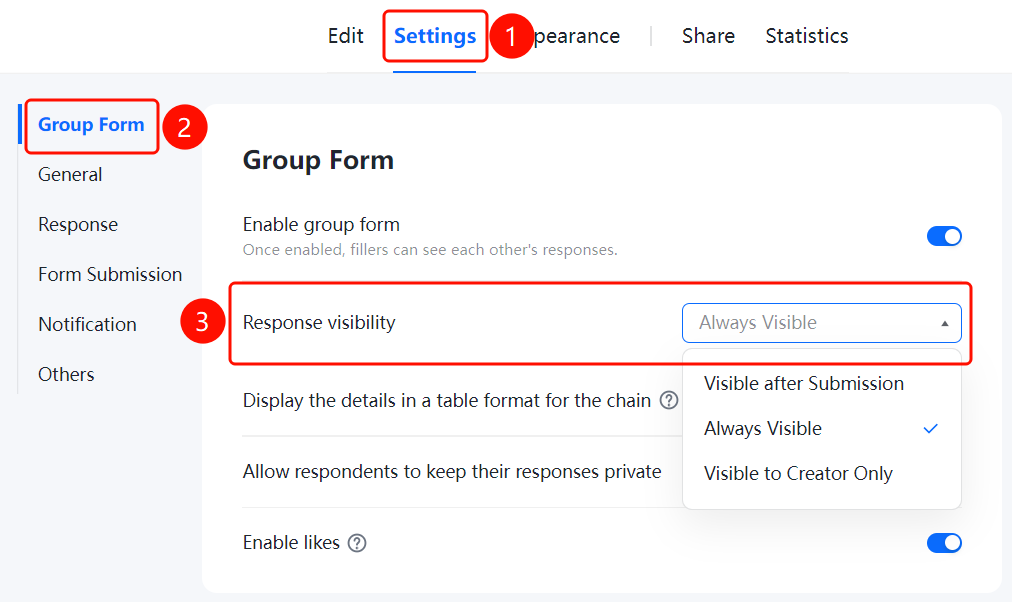
Settings tab > Group Form Settings > Group Form Details Display option
- Click the Settings tab at the top.
- Expand the Group Form Settings area in the left panel.
- Click Group Form Details Display (currently set to Visible before and after participating).
- Select a display method.
Display Group Form Details as a Table
Feature Entry
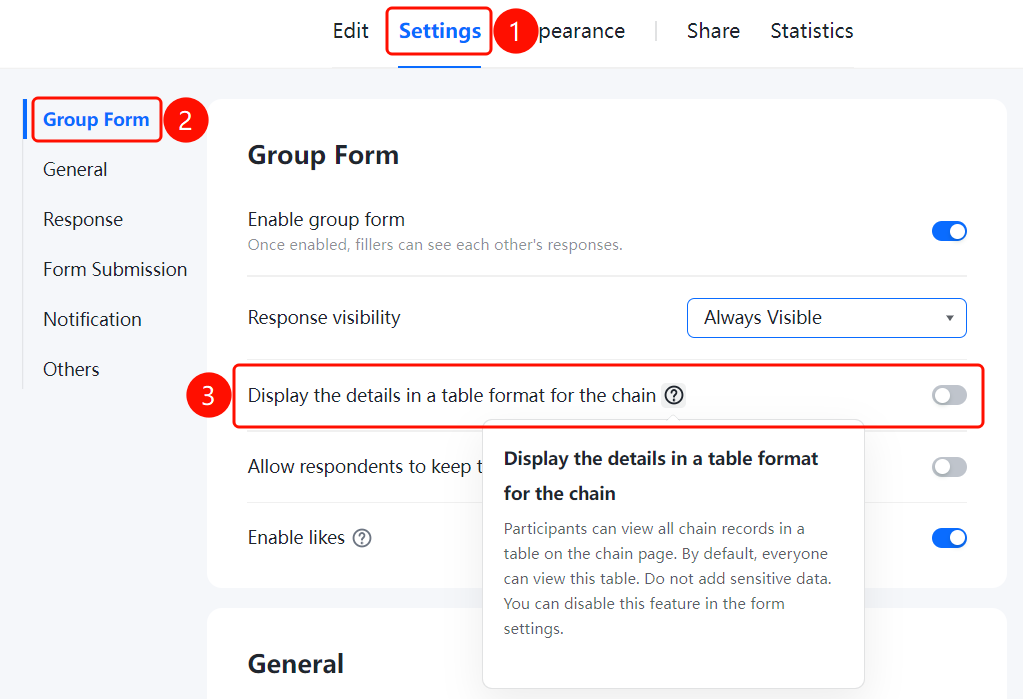
Settings tab > Group Form Settings > Display Group Form Details as a Table switch
- Click the Settings tab at the top.
- Expand the Group Form Settings area in the left panel.
- Turn on the Display Group Form Details as a Table switch.
Allow Participants to Keep Group Form Records Private
Feature Entry
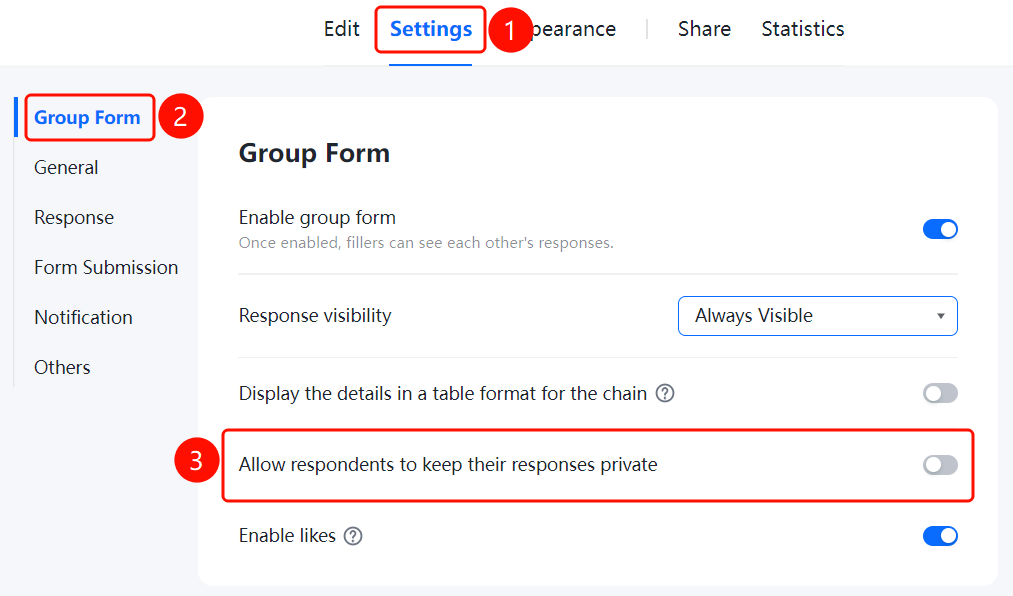
Settings tab > Group Form Settings > Allow Participants to Keep Group Form Records Private switch
- Click the Settings tab at the top.
- Expand the Group Form Settings area in the left panel.
- Turn on the Allow Participants to Keep Group Form Records Private switch.
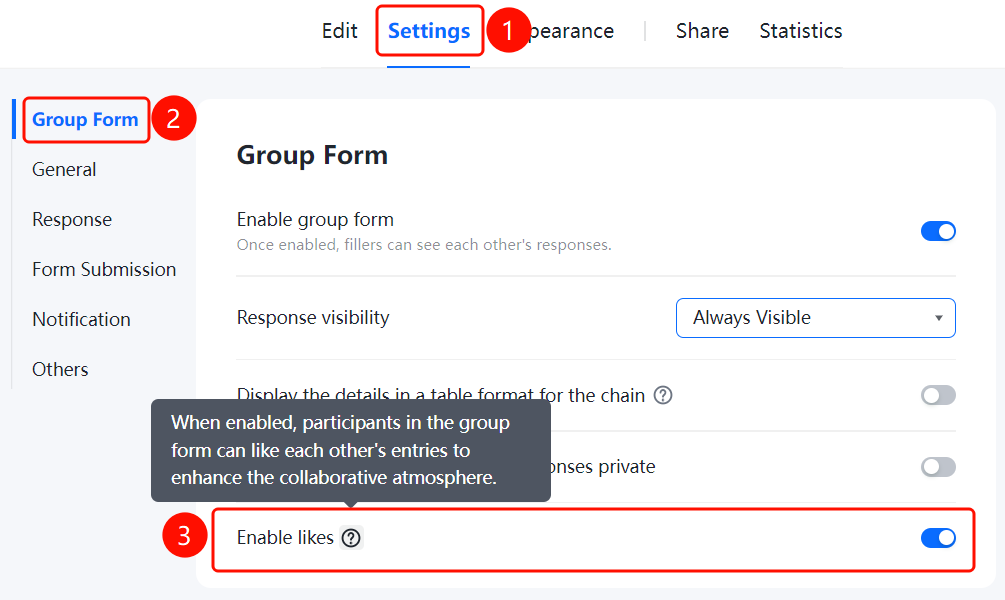
Allow Likes
Feature Entry
Settings tab > Group Form Settings > Allow Likes switch
- Click the Settings tab at the top.
- Expand the Group Form Settings area in the left panel.
- Turn on the Allow Likes switch.
FAQ
Q1: How do I set the submission time range for a Group Form?
- Solution: Go to Settings > Group Form Settings, set the Start and End Time, and specify when the Group Form starts and ends.
Q2: How do I limit the number of submissions per respondent?
- Solution: Go to Settings > Group Form Settings, click Limit Submissions, and set the allowed number of times.
Q3: How do I set the Group Form cycle?
- Solution: Go to Settings > Group Form Settings, click Group Form Cycle, and set the repetition cycle, such as daily or weekly.
Notes
- Group Form settings are used to control the global running rules of a Group Form.
- You can flexibly adjust these settings as needed.