Feature Summary
ID/Certificate Recognition questions are used to recognize the ID/certificate information uploaded by respondents. It automatically recognizes information such as name, gender, ethnicity, date of birth, address, and ID numbers on the ID card without manual entry.
Feature Description
| Feature Dimension | Description |
|---|---|
| Membership Limit | No membership limit |
| Version Limit | No version limit |
Steps
Add an Certificate Recognition Question
Feature Entry
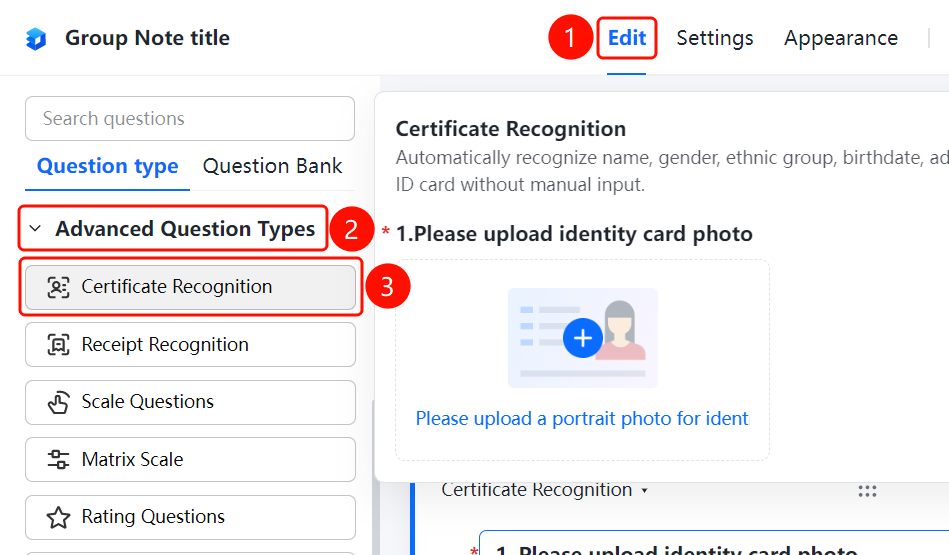
"Edit" tab > "Advanced Question Types" > "ID/Certificate Recognition" button
- Click the "Edit" tab at the top.
- Expand the "Advanced Question Types" area in the left panel.
- Click the "Certificate Recognition" button to add the ID/certificate recognition question to the Group Form.
- Enter the question content in the question editing area, such as "Please upload a photo of your ID card."
- Respondents click "Please upload a photo of the portrait side for recognition" to upload their ID card.
Set the Certificate Type to Be Recognized
Feature Entry
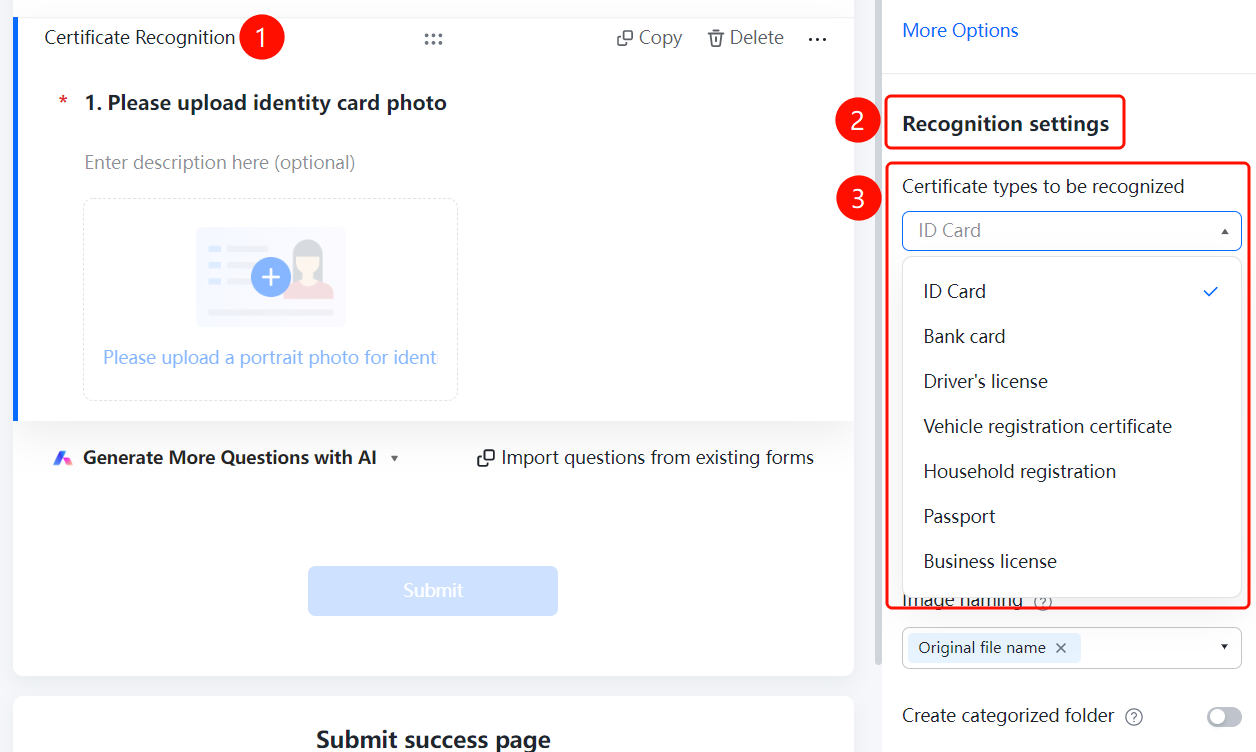
ID/Certificate Recognition question > "Recognition Settings" > "Certificate Type to Be Recognized" option
- Click the added ID/certificate recognition question.
- Click the "Certificate Type to Be Recognized" option in the "Recognition Settings" panel on the right.
- Select: ID Card/Bank Card/Driver's license/Vehicle License/Household Register/Passport/Business License.
Set the Information to Be Recognized
Feature Entry
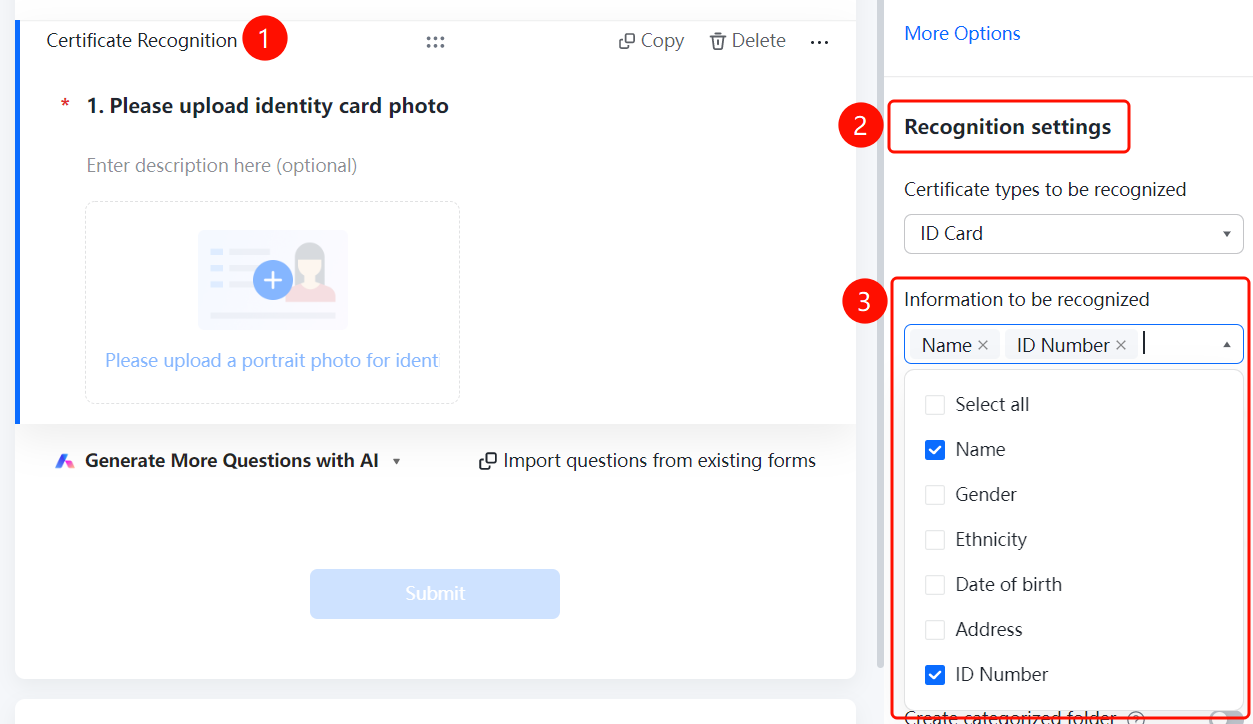
Certificate Recognition question > "Recognition Settings" > "Information to Be Recognized" option
- Click the added Certificate recognition question.
- Click the "Information to Be Recognized" option in the "Recognition Settings" panel on the right.
- Select the fields that need to be recognized or click Select All.
Enable Allow Manual Entry
Feature Entry
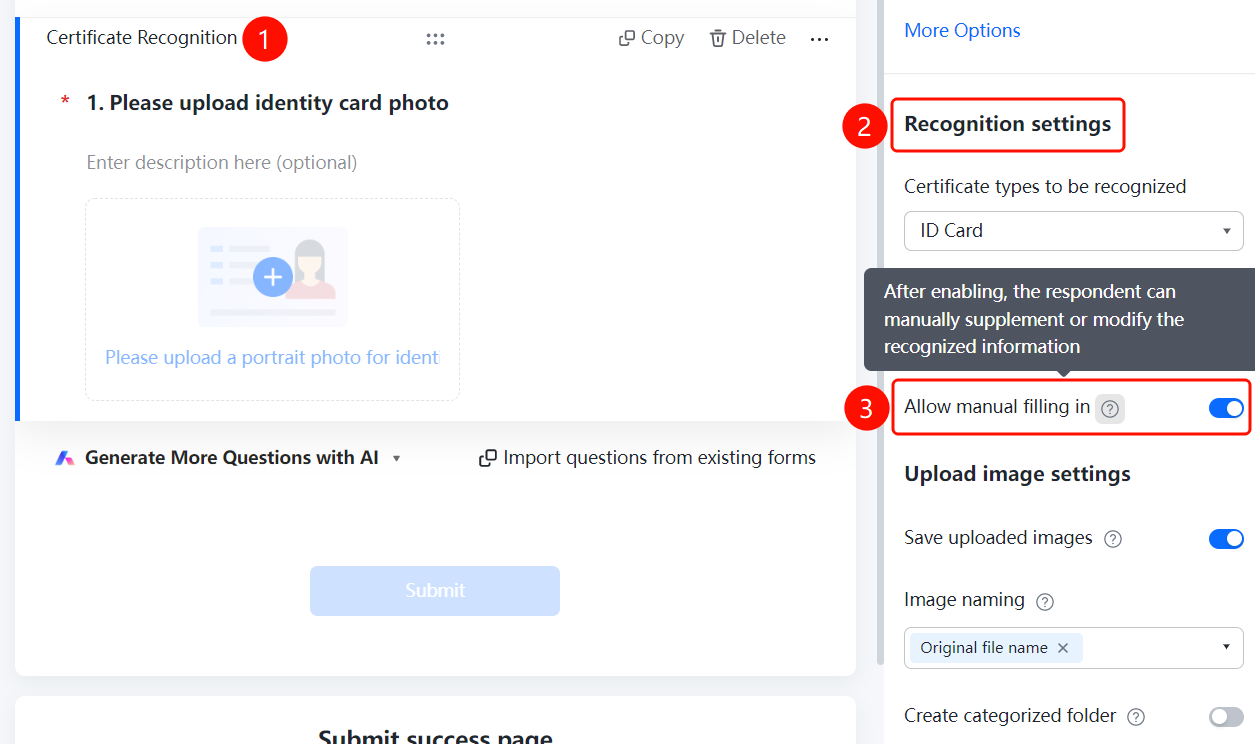
Certificate Recognition question > "Recognition Settings" > "Allow Manual Entry" switch
- Click the added Certificate recognition question.
- Turn on the "Allow Manual Entry" switch in the "Recognition Settings" panel on the right.
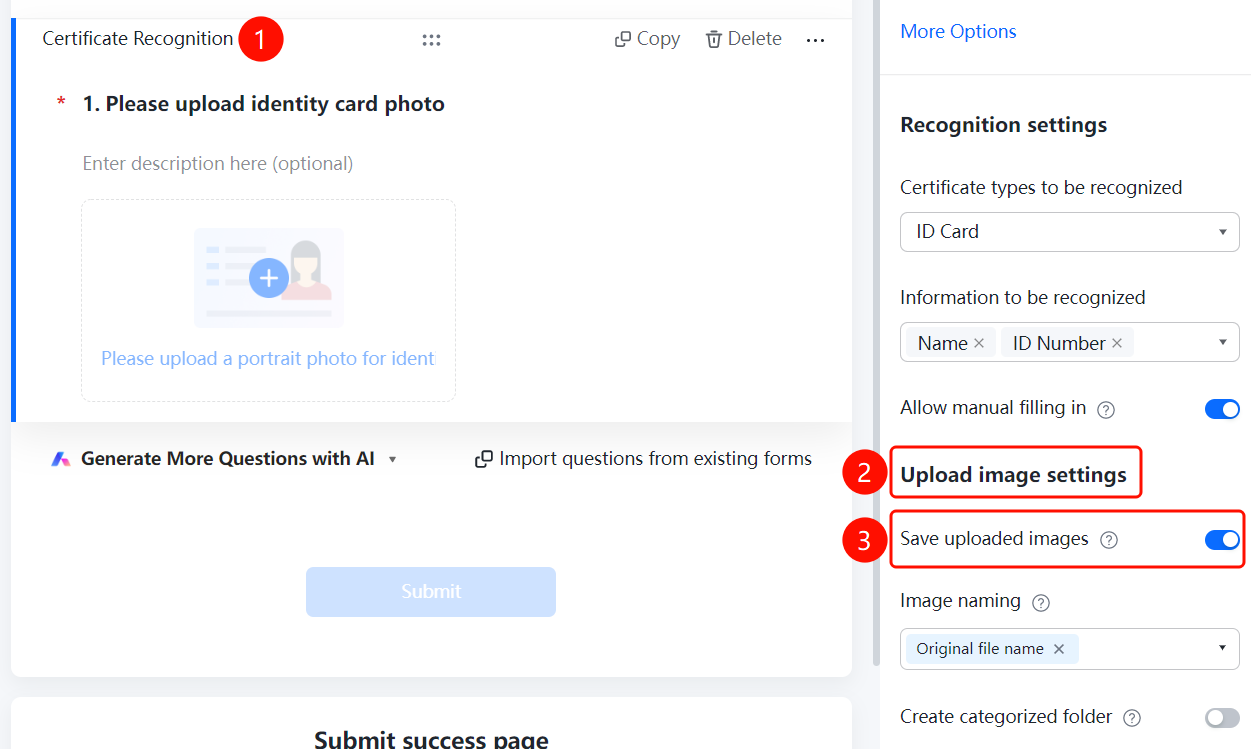
Enable Save Uploaded Images
Feature Entry
Certificate Recognition question > "Upload Image Settings" > "Save Uploaded Images" switch
- Click the added Certificate recognition question.
- Turn on the "Save Uploaded Images" switch in the "Upload Image Settings" panel on the right.
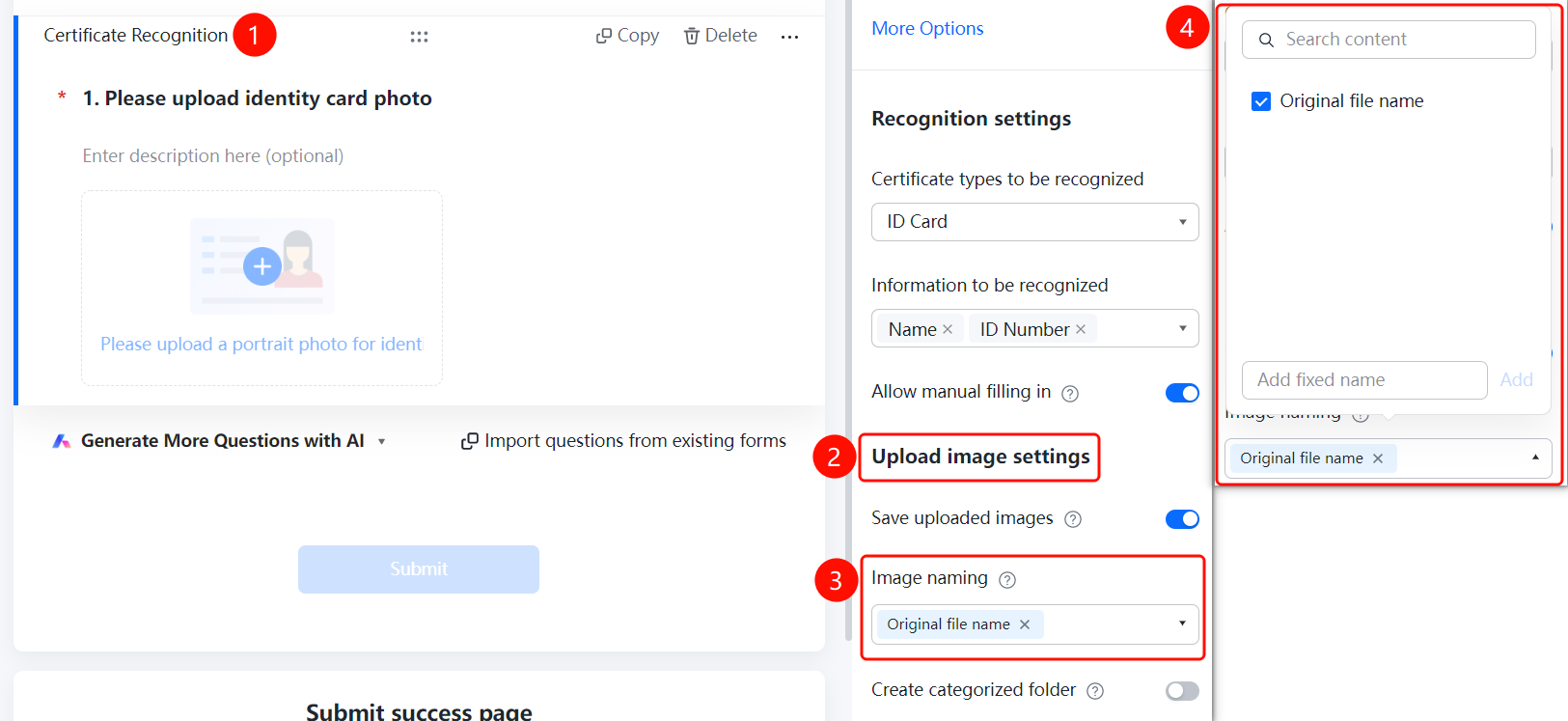
Set Image Naming Method
Feature Entry
Certificate Recognition question > "Upload Image Settings" > "Image Naming Method" option
- Click the added Certificate recognition question.
- Click the "Image Naming Method" option in the "Upload Image Settings" panel on the right.
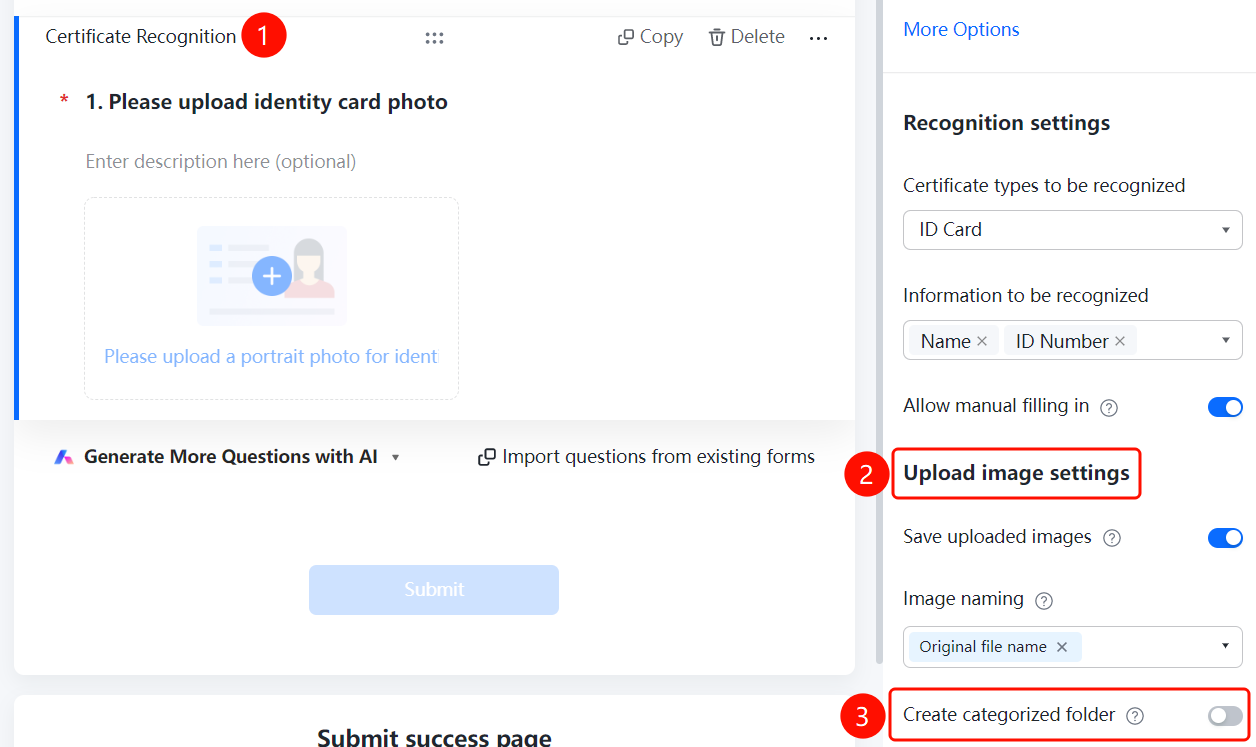
Enable Create Categorized Folders
Feature Entry
Certificate Recognition question > "Upload Image Settings" > "Create Categorized Folders" switch
- Click the added Certificate recognition question.
- Turn on the "Create Categorized Folders" switch in the "Upload Image Settings" panel on the right.
FAQ
Question 1: What types of IDs/certificates are supported by ID/Certificate Recognition?
- Solution: It supports ID cards, bank cards, driver's licenses, vehicle licenses, household registers, passports, business licenses, etc.
Question 2: How do I set the ID/certificate information fields that need to be recognized?
- Solution: Click the ID/certificate recognition question, click "Information to Be Recognized" under "Recognition Settings", and select the required fields.
Question 3: How do I modify the recognition results if they are inaccurate?
- Solution: Turn on the "Allow Manual Entry" switch in "Recognition Settings", and respondents can manually edit and update the information.
Notes
- ID/certificate recognition does not require manual entry; the system automatically recognizes the information on the ID/certificate.
- Once "Save Uploaded Images" is enabled, you can view them on the data statistics page.