Summary
Rating questions are commonly used for scoring. Respondents can rate an item on a scale of 1 to 5 stars. This feature is suitable for satisfaction surveys, service evaluations, and other scenarios.
Feature Details
| Feature Dimension | Description |
|---|---|
| Premium Restrictions | None |
| Version Restrictions | None |
Steps
Add a Rating Question
Entry
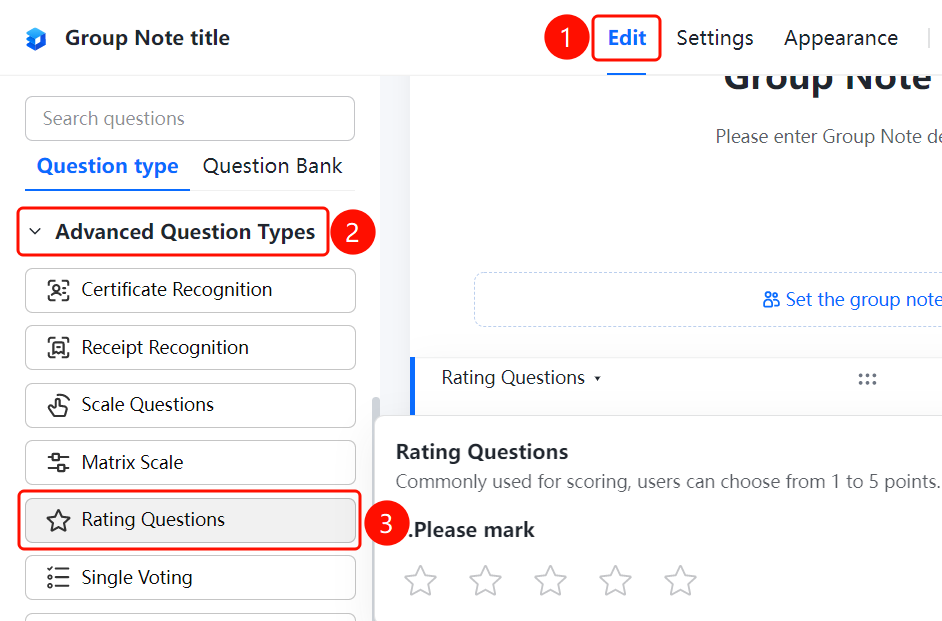
Edit tab > Advanced Questions > Rating Question button
- Click the Edit tab at the top.
- In the left panel, expand the Advanced Questions area.
- Click the Rating Question button to add a rating question to your Group Form.
- Enter your question in the question editing area, such as "Please rate".
FAQ
Q1: What score range do rating questions support?
- Solution: Rating questions support a scale of 1 to 5 stars. Respondents can choose the corresponding score based on their evaluation.
Q2: What scenarios are rating questions suitable for?
- Solution: Rating questions are commonly used for scoring scenarios, such as satisfaction surveys, service evaluations, and product ratings.
Q3: Can rating questions be set as required?
- Solution: Yes. Click the rating question, and in Settings, turn on "Required" to make it mandatory for respondents to rate before submitting.
Notes
- Rating questions are displayed in star format. Respondents can click to select a score.
- Rating results can be viewed as summarized analysis on the data statistics page.