Feature Summary
ID Card Recognition is used to recognize ID card photos uploaded by respondents. It automatically extracts information such as name, gender, ethnicity, date of birth, address, and ID numbers from the ID card, eliminating the need for manual entry.
Feature Description
| Feature Dimension | Description |
|---|---|
| Premium Limits | No premium limits |
| Version Limits | No version limits |
Steps
Add ID Card Recognition Question
Feature Entry
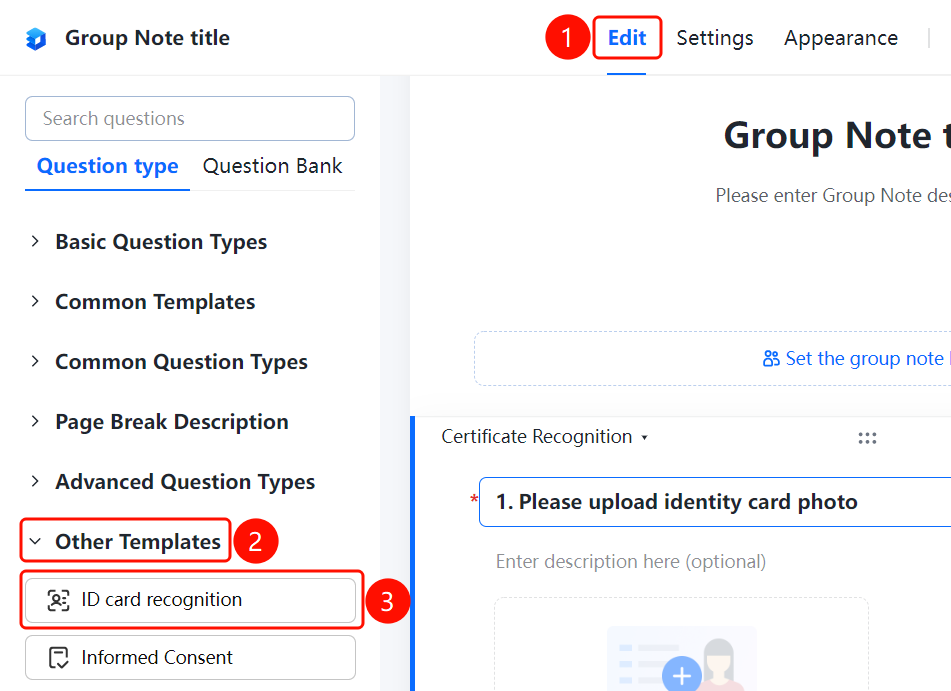
「Edit」 tab → 「Other Templates」 → 「ID Card Recognition」 button
- Click the top 「Edit」 tab
- Expand the 「Other Templates」 area in the left panel
- Click the 「ID Card Recognition」 button to add the ID card recognition question to the form
Set the Certificate Type to Recognize
Feature Entry
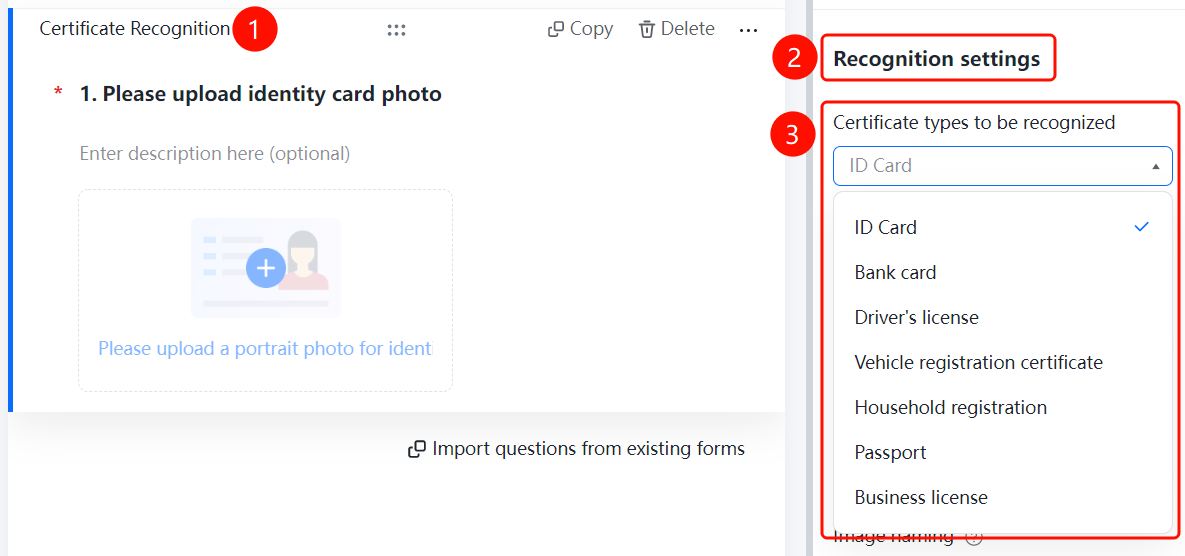
ID Card Recognition → 「Recognition Settings」 → 「Certificate Type to Recognize」 dropdown menu
- Click the added ID card recognition question
- In the right 「Recognition Settings」 panel, click the 「Certificate Type to Recognize」 dropdown menu
- 「ID Card」 is selected by default, and you can switch to other certificate types
Set the Information to Recognize
Feature Entry
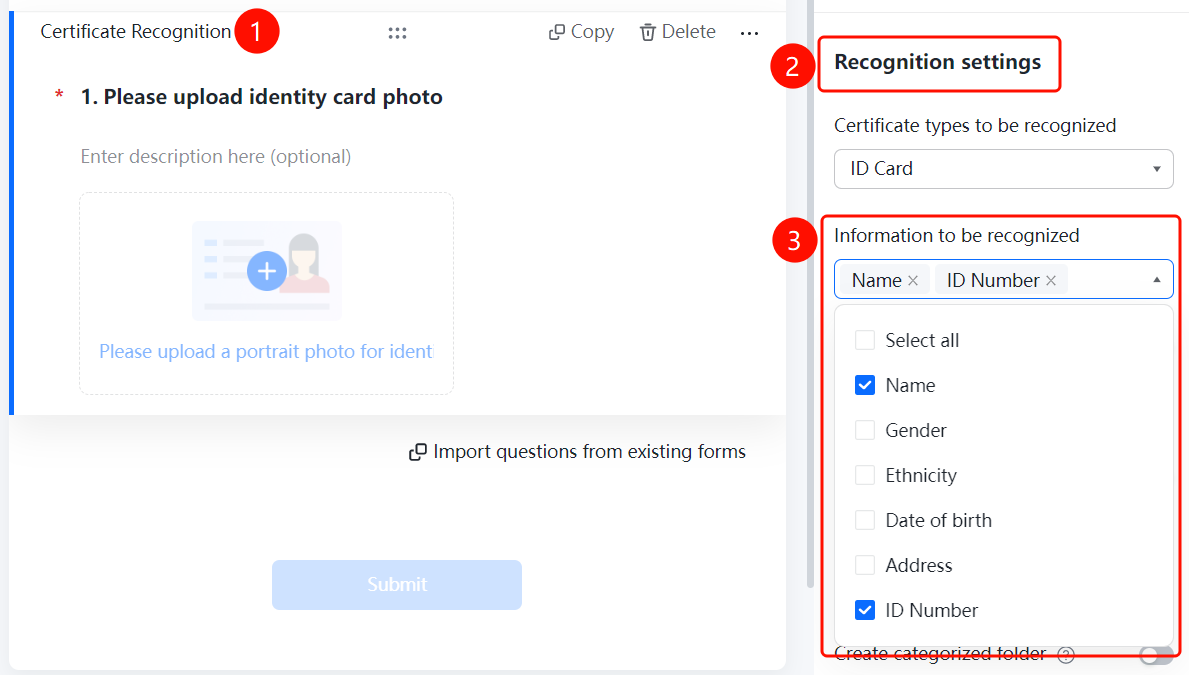
ID Card Recognition → 「Recognition Settings」 → 「Information to Recognize」 area
- Click the added ID card recognition question
- In the right 「Recognition Settings」 panel, view the 「Information to Recognize」 area
- Check the information fields to recognize: Name, Gender, Ethnicity, Date of Birth, Address, ID Number, etc.
Set Allow Manual Filling
Feature Entry
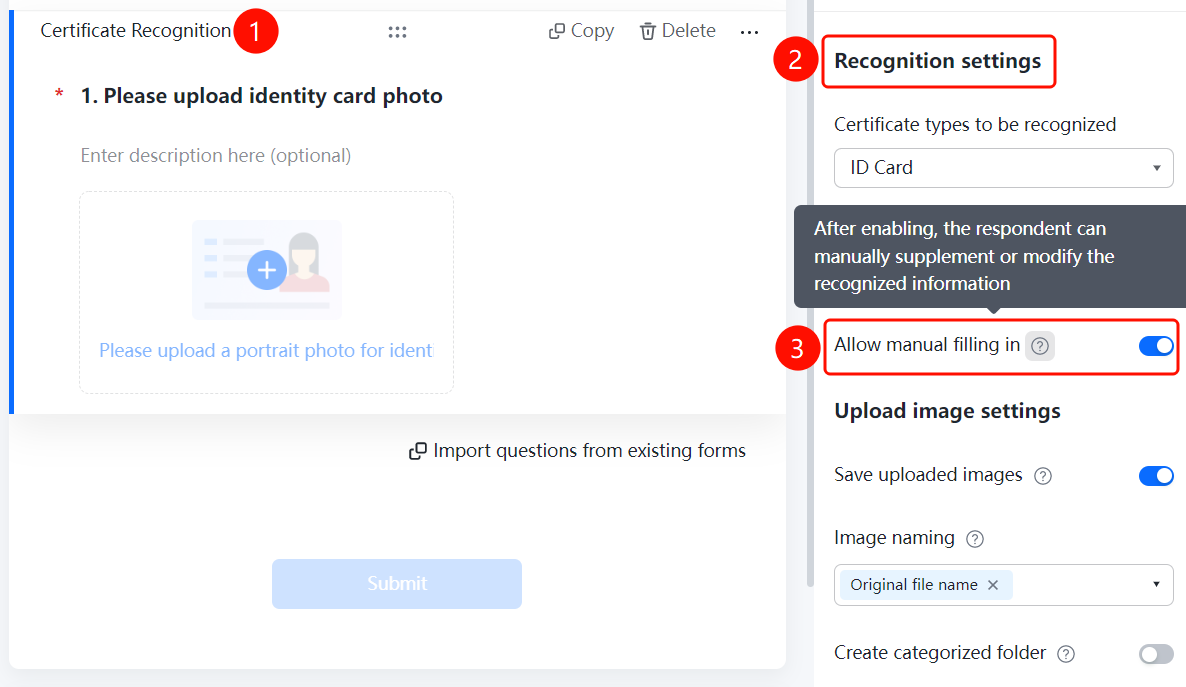
ID Card Recognition → 「Recognition Settings」 → 「Allow Manual Filling」 toggle
- Click the added ID card recognition question
- In the right 「Recognition Settings」 panel, turn on the 「Allow Manual Filling」 toggle
- After enabling, respondents can manually supplement and modify the recognized information
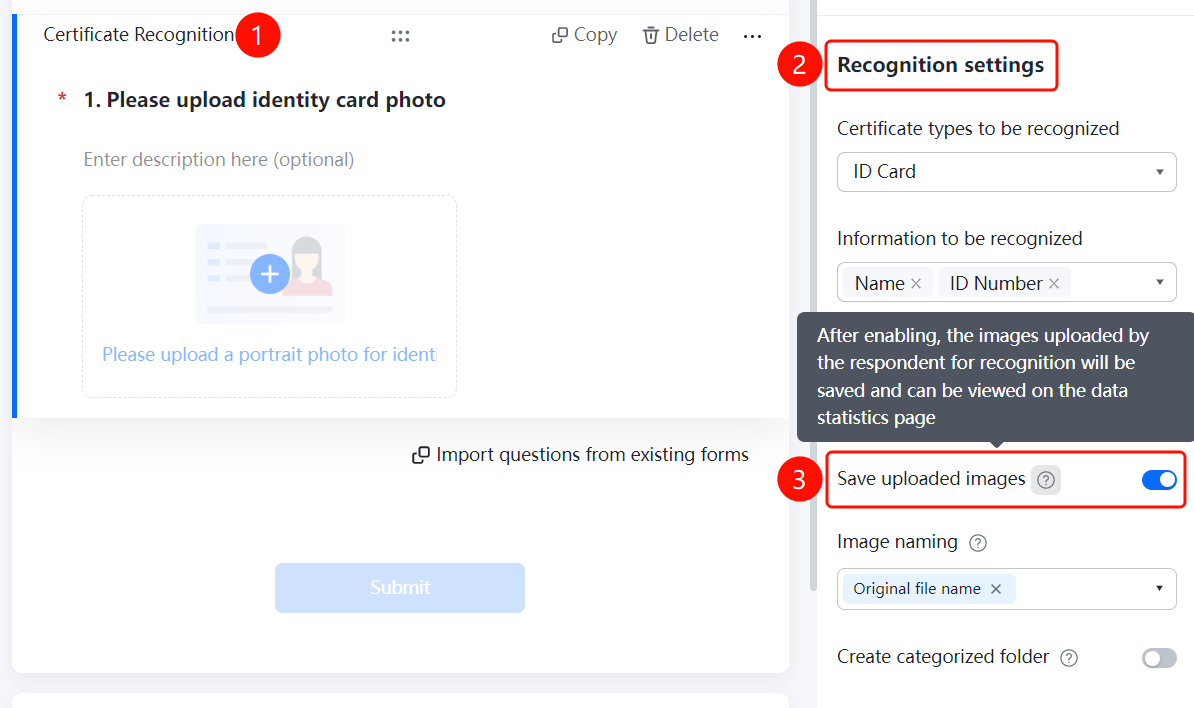
Set Save Uploaded Image
Feature Entry
ID Card Recognition → 「Upload Image Settings」 → 「Save Uploaded Image」 toggle
- Click the added ID card recognition question
- In the right 「Upload Image Settings」 panel, turn on the 「Save Uploaded Image」 toggle
- After enabling, the recognized images uploaded by respondents will be saved and can be viewed on the data statistics page
Set Image Naming Method
Feature Entry
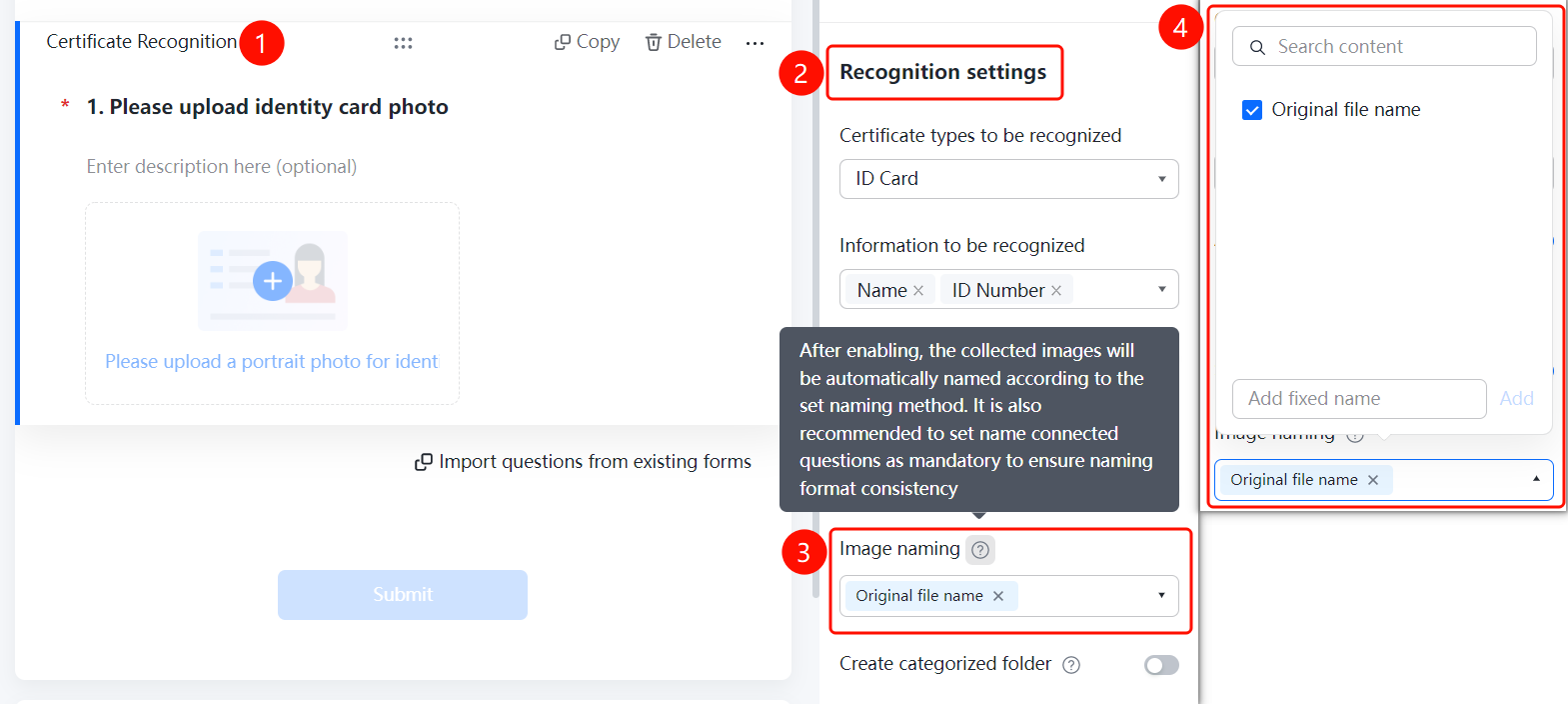
ID Card Recognition → 「Upload Image Settings」 → 「Image Naming Method」 dropdown menu
- Click the added ID card recognition question
- In the right 「Upload Image Settings」 panel, click the 「Image Naming Method」 dropdown menu
- Select the naming method: 「Original File Name」 or 「Add Custom Fixed Naming」
Set Create Category Folder
Feature Entry
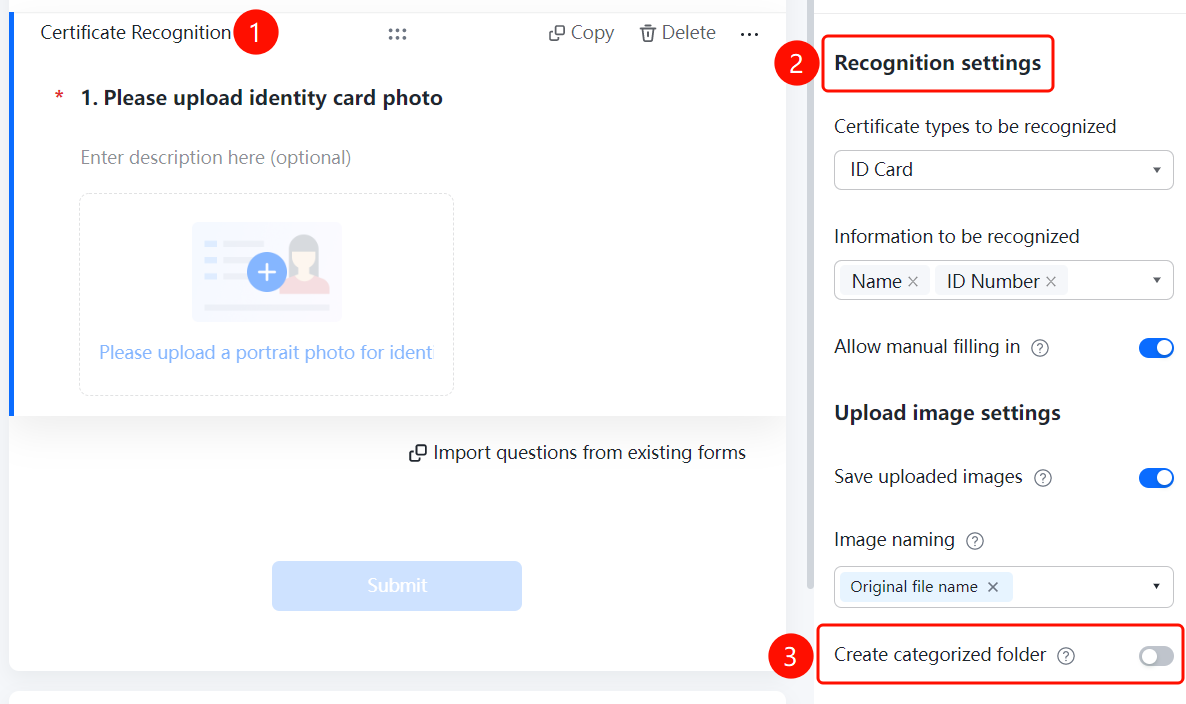
ID Card Recognition → 「Upload Image Settings」 → 「Create Category Folder」 toggle
- Click the added ID card recognition question
- In the right 「Upload Image Settings」 panel, turn on the 「Create Category Folder」 toggle
- After enabling, folders will be automatically created according to the folder naming method, and collected ID cards will be categorized and summarized
FAQ
Q1: What information can ID Card Recognition recognize?
- Solution: It can automatically recognize information such as name, gender, ethnicity, date of birth, address, and ID numbers.
Q2: How do I modify the recognition results if they are inaccurate?
- Solution: Turn on the "Allow Manual Entry" switch in "Recognition Settings" so that respondents can manually supplement or modify the information.
Q3: How do I prevent duplicate submissions of the same ID card?
- Solution: Turn on the "ID Card Duplicate Prevention" switch in "Recognition Settings", and the system will check for duplicate ID cards.
Notes
- ID Card Recognition automatically extracts ID card information, eliminating the need for manual entry.
- Turning on "ID Card Duplicate Prevention" can prevent duplicate submissions.