Feature Summary
Question Settings is used to personalize questions in a form. This includes setting questions as required, hiding them from respondents, making them unfillable for respondents, and configuring question numbering to meet different collection needs.
Feature Description
| Feature Dimension | Description |
|---|---|
| Member Limit | No member limit |
| Version Limit | No version limit |
Steps
Set Questions as Required
Feature Entry
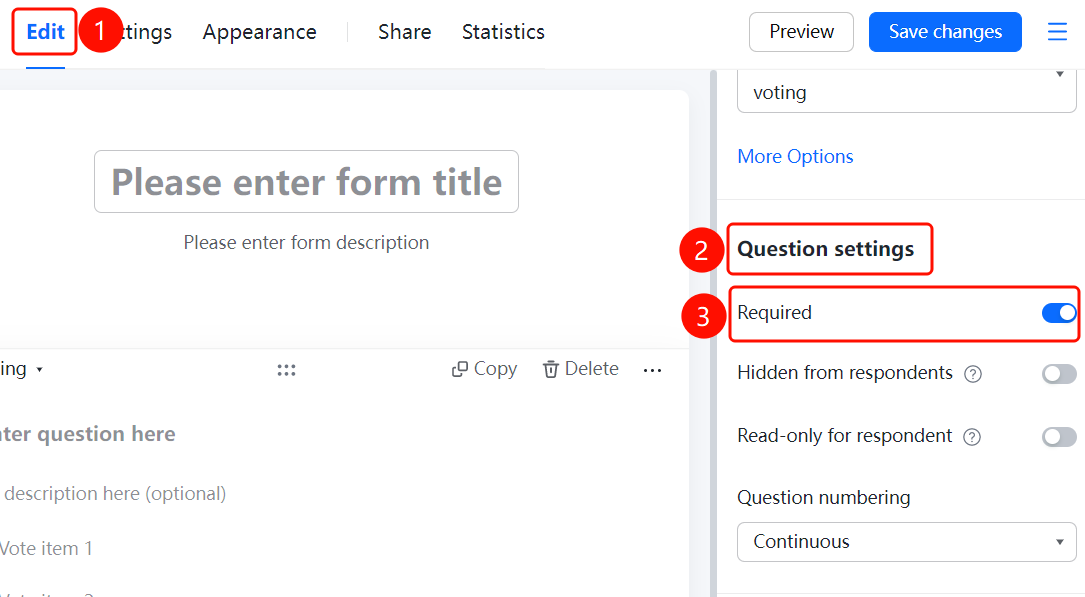
Question → Question Settings → Required switch
- Click the question you want to set.
- In the Question Settings panel on the right, turn on the Required switch.
- Once enabled, respondents must answer this question to submit the form.
Hide Questions from Respondents
Feature Entry
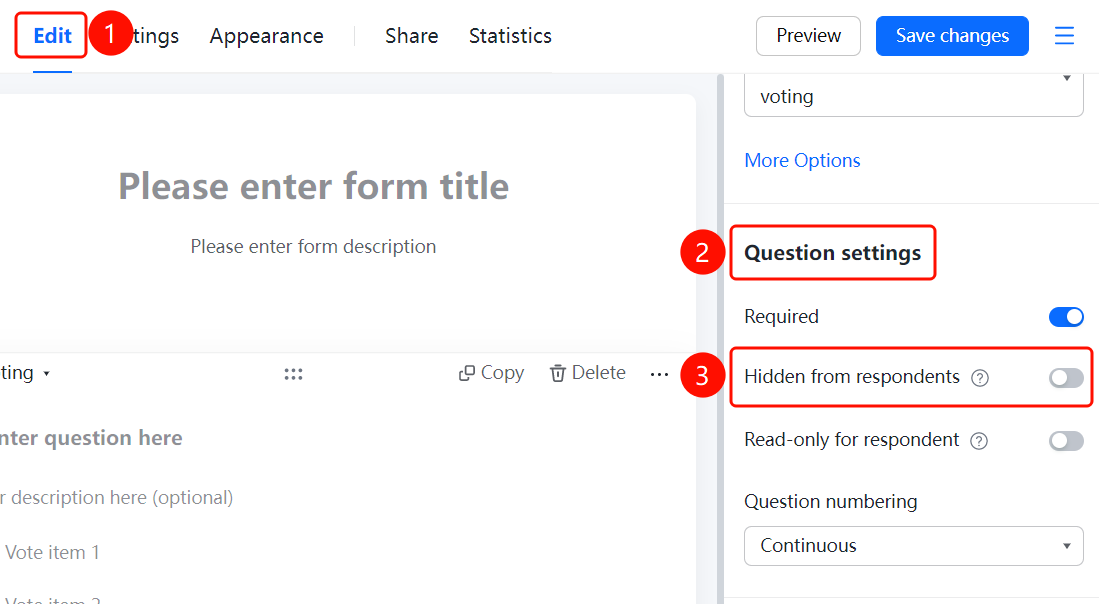
Question → Question Settings → Hide from Respondents switch
- Click the question you want to set.
- In the Question Settings panel on the right, turn on the Hide from Respondents switch.
- Once selected, respondents will not be able to see this question. This is useful for adding hidden information to submitted forms.
Make Questions Unfillable for Respondents
Feature Entry
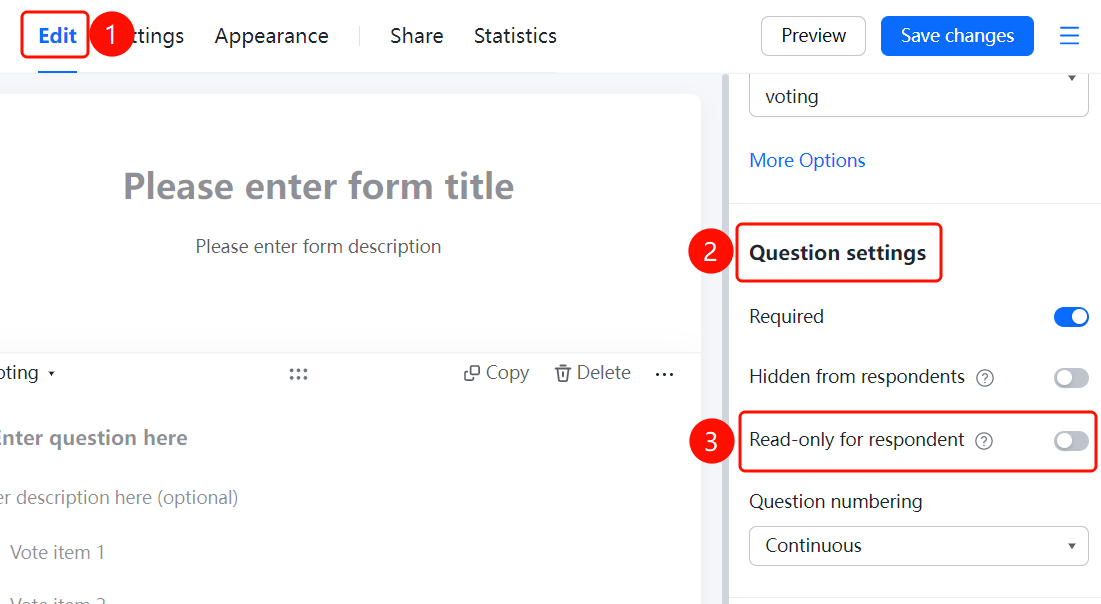
Question → Question Settings → Read-only for Respondents switch
- Click the question you want to set.
- In the Question Settings panel on the right, turn on the Read-only for Respondents switch.
- Once selected, respondents can see but cannot answer this question.
Set Question Numbering
Feature Entry
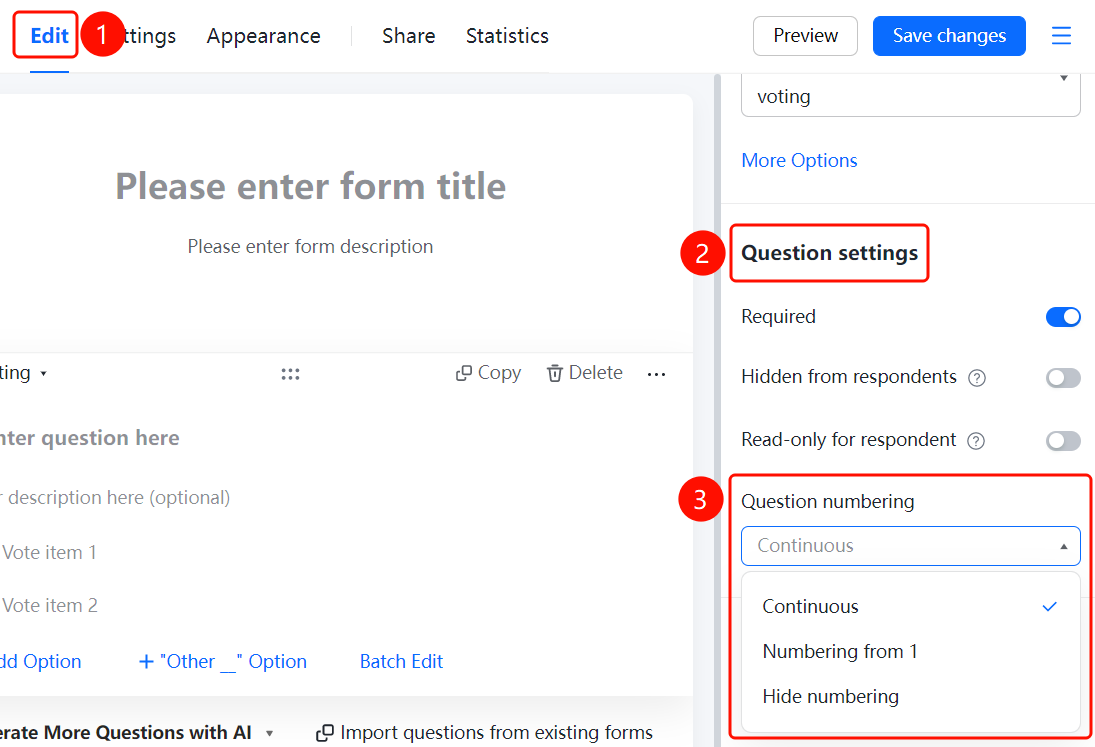
Question → Question Settings → Question Numbering Settings → Continuous Numbering option
- Click the question you want to set.
- In the Question Settings panel on the right, click the Question Numbering Settings option.
- Choose a numbering method: Continuous Numbering, Start Numbering from 1, or Do Not Show Numbers.
FAQ
Question 1: How do I set a question as required?
- Solution: Click the question, and turn on the "Required" switch in the "Question Settings" panel.
Question 2: How do I hide a question from respondents?
- Solution: Click the question, and turn on the "Hide from Respondents" switch in the "Question Settings" panel.
Question 3: How do I make a question visible to respondents but unfillable?
- Solution: Click the question, and turn on the "Read-only for Respondents" switch in the "Question Settings" panel.
Notes
- "Hide from Respondents" and "Read-only for Respondents" are suitable for different scenarios.
- Question numbering settings support three methods: continuous numbering, starting numbering from 1, and not showing numbers.