Feature Summary
Global settings are used to configure the global parameters of a Poll, including voting time, number of votes, start and end time, visibility scope, voting rules, etc., to fully control voting behavior.
Feature Description
| Feature Dimension | Description |
|---|---|
| Membership Restriction | No membership restriction |
| Version Restriction | No version restriction |
Operation Steps
Set All Questions as Required
Entry
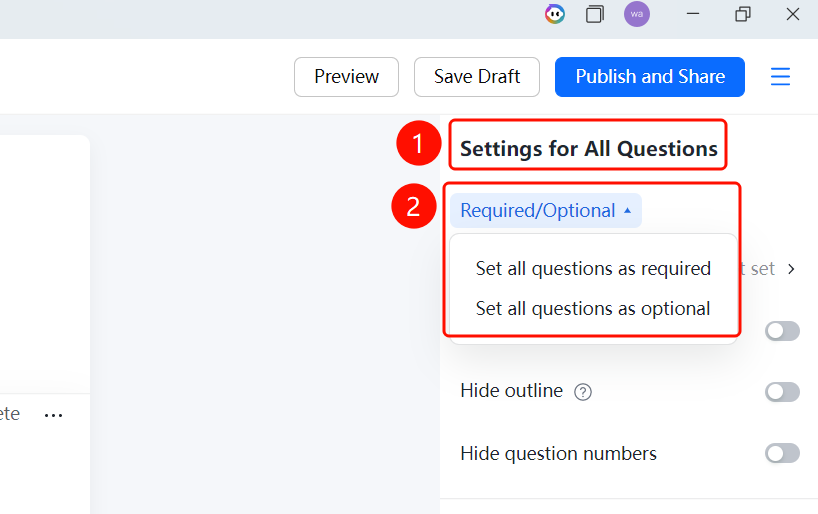
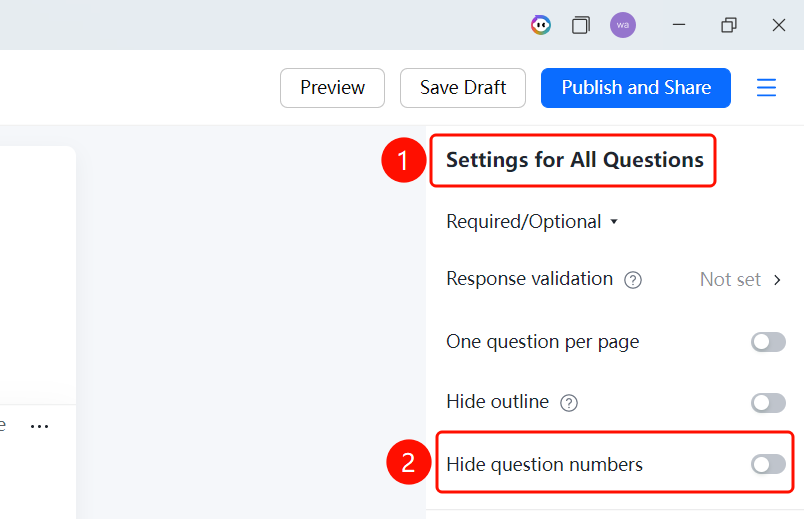
Editing page → "Global Settings" panel on the right → "Set All Questions as Required" dropdown menu
- On the editing page, find the Global Settings panel on the right.
- Click the Set All Questions as Required dropdown menu (currently set to Not Set).
- Select Set All Questions as Required or Set All Questions as Optional.
Set Form Submission Validation
Entry
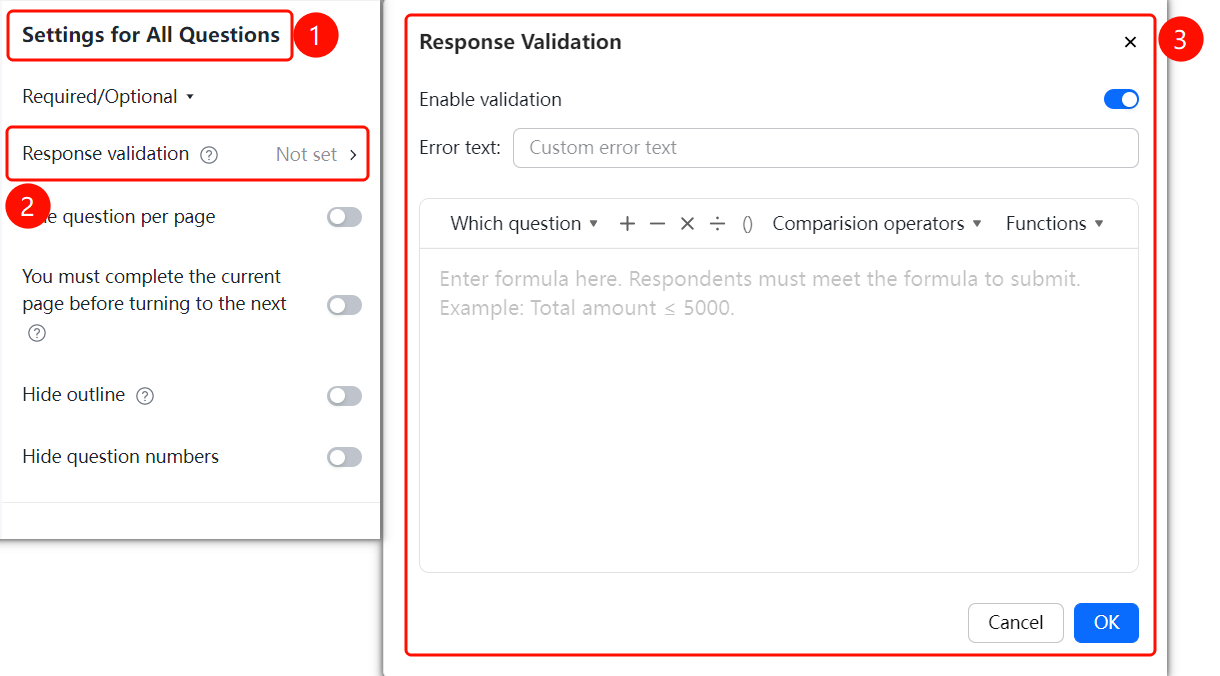
Editing page → "Global Settings" panel on the right → "Form Submission Validation" option
On the editing page, find the Global Settings panel on the right.
Click the Form Submission Validation option (currently set to Not Set).
You can set validation rules. If the validation fails, the form cannot be submitted.
In the Form Submission Validation dialog box that appears:
- Turn on the Enable Validation switch.
- Enter the Error message when validation rules are not met.
- Enter the validation formula in the formula editing area using tools such as Reference Form Question, + - × ÷ (), Comparison Operators, and Functions.
Respondents must meet the formula requirements to submit the form. For example, to require that the "total amount cannot exceed 5,000," you can enter "Total Amount <= 5000".
Click OK to save.
Set One Question per Page
Entry
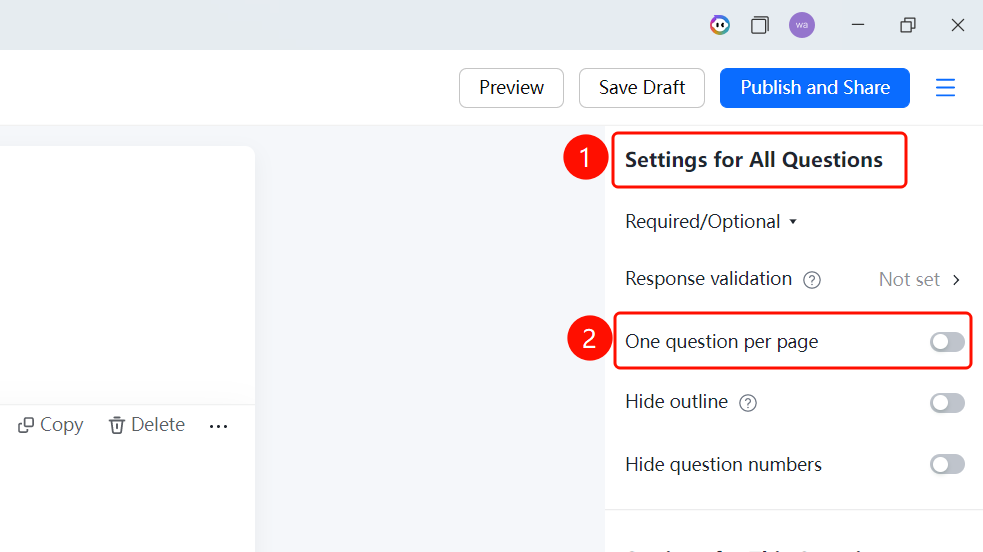
Editing page → "Global Settings" panel on the right → "One Question per Page" switch
- On the editing page, find the Global Settings panel on the right.
- Turn on the One Question per Page switch.
- Once enabled, respondents will only see one question at a time.
Hide Outline
Entry
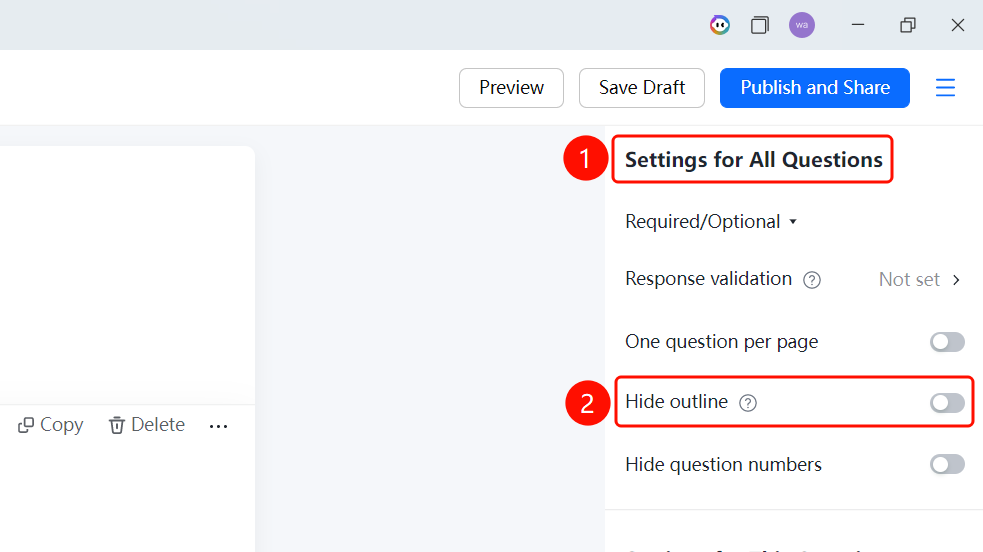
Editing page → "Global Settings" panel on the right → "Hide Outline" switch
- On the editing page, find the Global Settings panel on the right.
- Turn on the Hide Outline switch.
- Once enabled, respondents will not see the outline and cannot use it to skip questions, but they can still see the progress bar (answered questions/total questions).
Hide Question Numbers
Entry
Editing page → "Global Settings" panel on the right → "Hide Question Numbers" switch
- On the editing page, find the Global Settings panel on the right.
- Turn on the Hide Question Numbers switch.
- Once enabled, respondents will not see the question numbers.
FAQ
Q1: How to set a voting time limit?
- Solution: Set the voting time in 「Settings」 → 「Global Settings」. Voters must complete voting within the specified time.
Q2: How to limit the number of votes?
- Solution: Set the vote count limit in 「Settings」 → 「Global Settings」. Each voter can vote up to the specified number of times.
Q3: How to prevent vote manipulation?
- Solution: Enable the relevant anti-manipulation feature in 「Settings」 → 「Global Settings」 to limit the number of votes and visibility scope.
Notes
- Global settings are the core configuration of a poll. It is recommended to set them first after creating a poll.
- The anti-manipulation feature can effectively ensure the fairness of the poll.