Feature Summary
Single-choice questions are used to select one option from a set, commonly used in scenarios such as event registration, exams and teaching, and information collection.
Feature Description
| Feature Dimension | Description |
|---|---|
| Member Limit | No member limit |
| Version Limit | No member limit |
Steps
Add a Single-Choice Question
Feature Entry
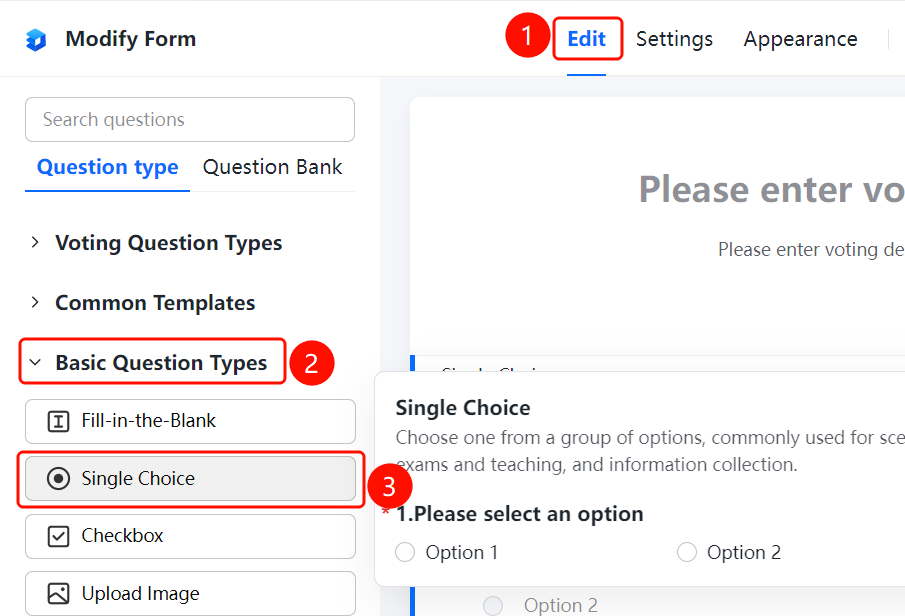
Edit tab → Basic Question Types → Single Choice button
- Click the Edit tab at the top.
- Expand the Basic Question Types area in the left panel.
- Click the Single Choice button to add a single-choice question to the vote.
- Enter the question content in the question editing area and add options (such as Option 1 and Option 2). You can click Add Option, Batch Edit, or "Other" Option to manage options.
Set Preset Answers
Feature Entry
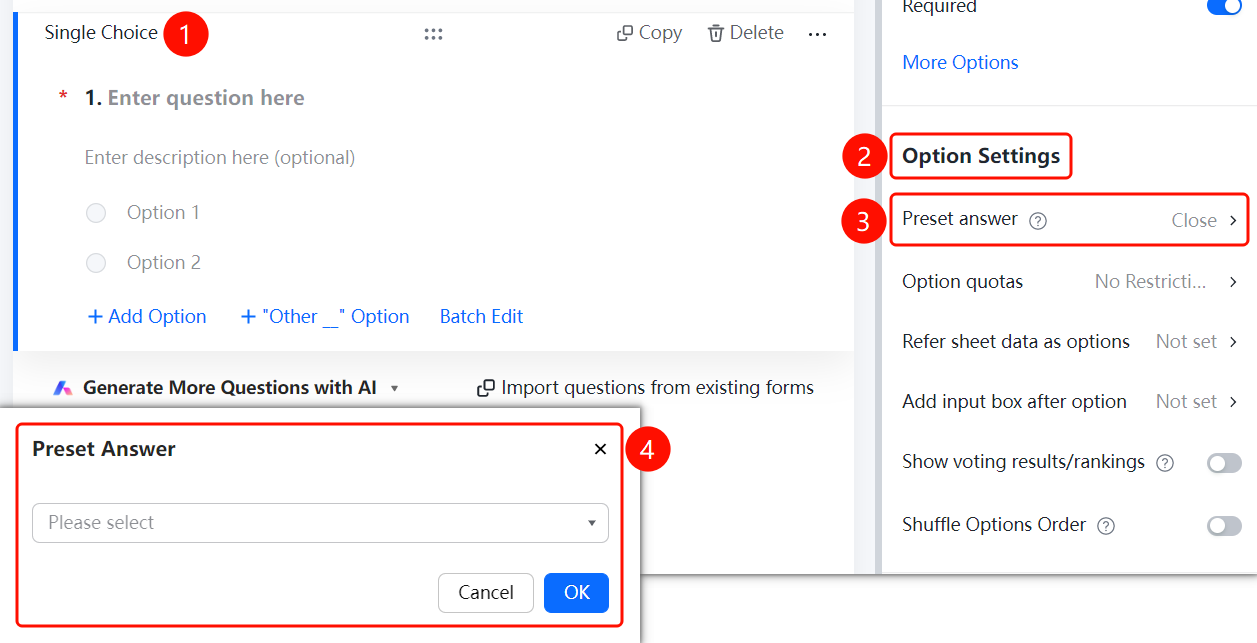
Single-choice question → Option Settings → Preset Answers option
- Click the added single-choice question.
- Click the Preset Answers option in the Option Settings panel on the right.
- Select a default answer from the pop-up drop-down list, such as Option 1 or Option 2.
Set Option Quotas
Feature Entry
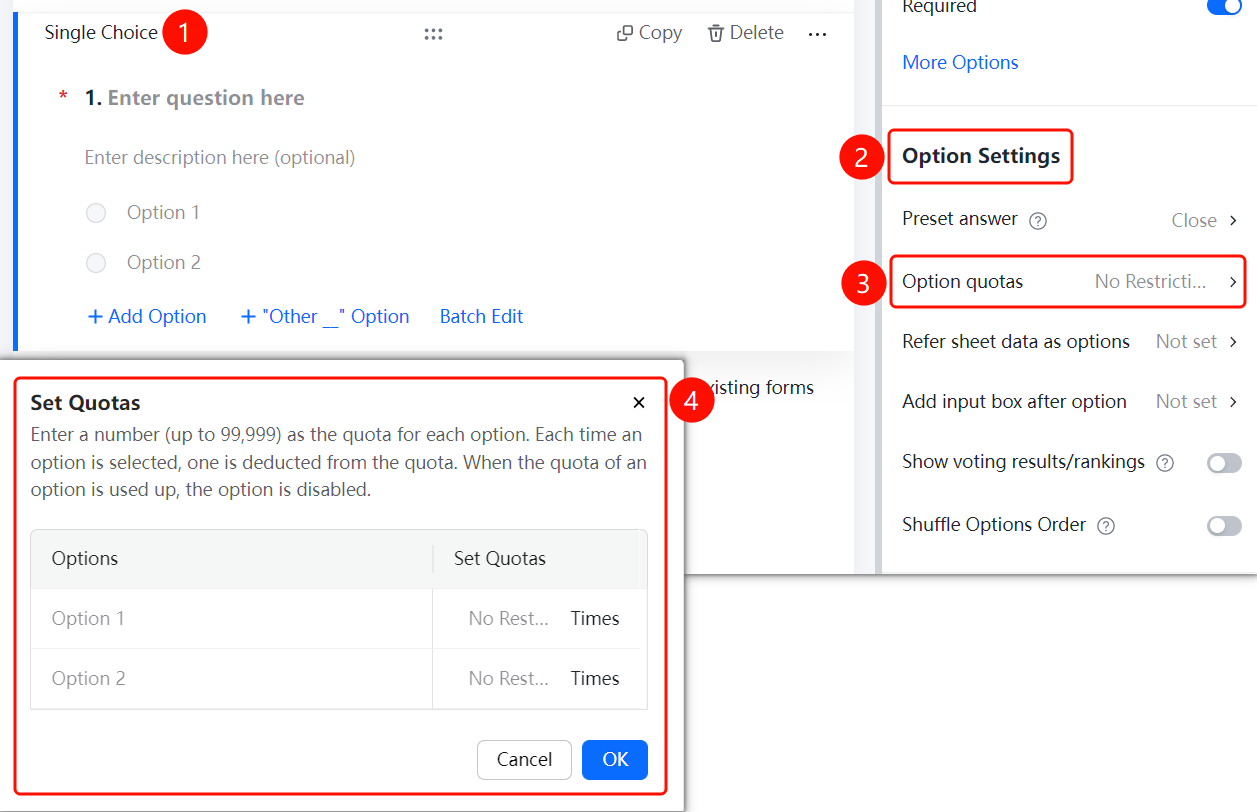
Single-choice question → Option Settings → Option Quotas option
- Click the added single-choice question.
- Click the Option Quotas option in the Option Settings panel on the right.
- Set a quota for each option in the pop-up dialog box. The maximum quota supported is 99999.
- Each time an option is selected, one quota is consumed. Once the quota is exhausted, the option can no longer be selected.
Reference Sheet Data as Options
Feature Entry
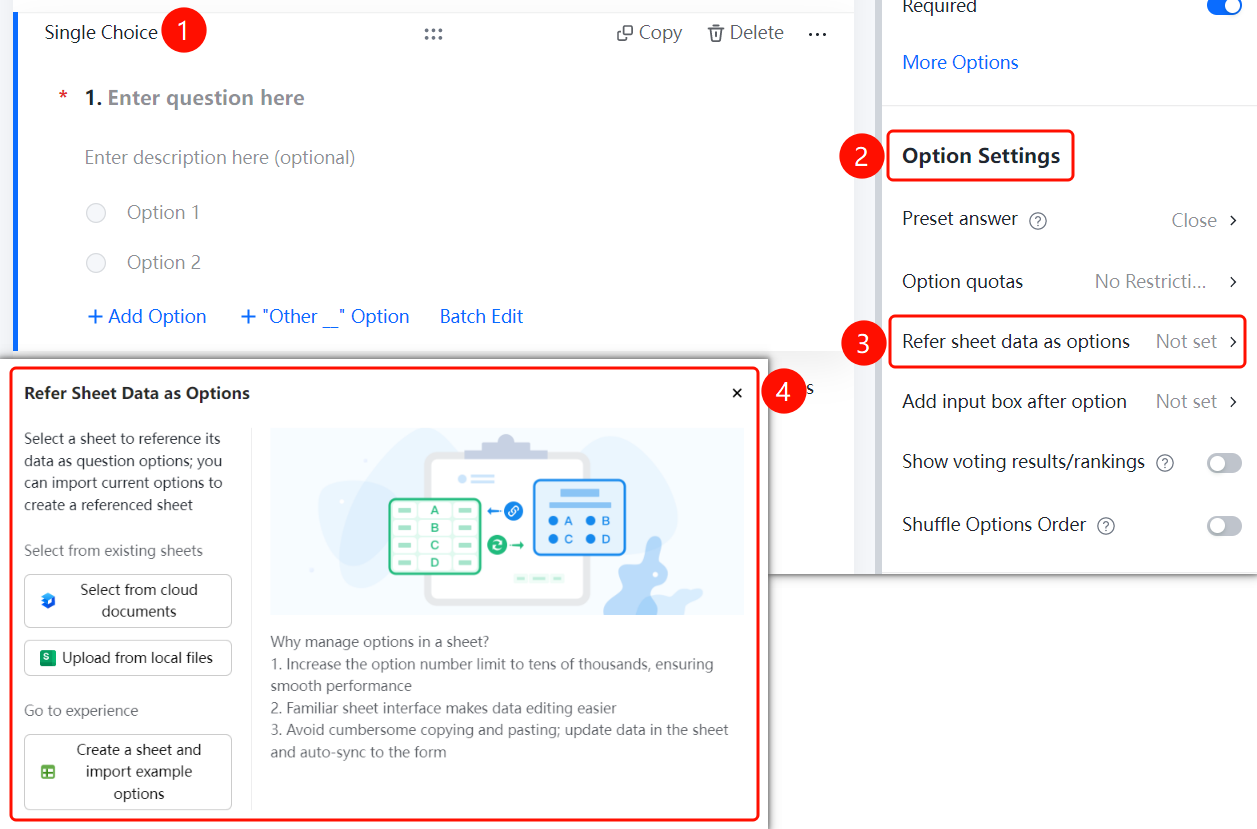
Single-choice question → Option Settings → Reference Sheet Data as Options option
- Click the added single-choice question.
- Click Reference Sheet Data as Options in the Option Settings panel on the right.
- Select a sheet source in the pop-up panel: Select from Cloud Documents, Upload from Local File, or Create New Sheet and Import Sample Options.
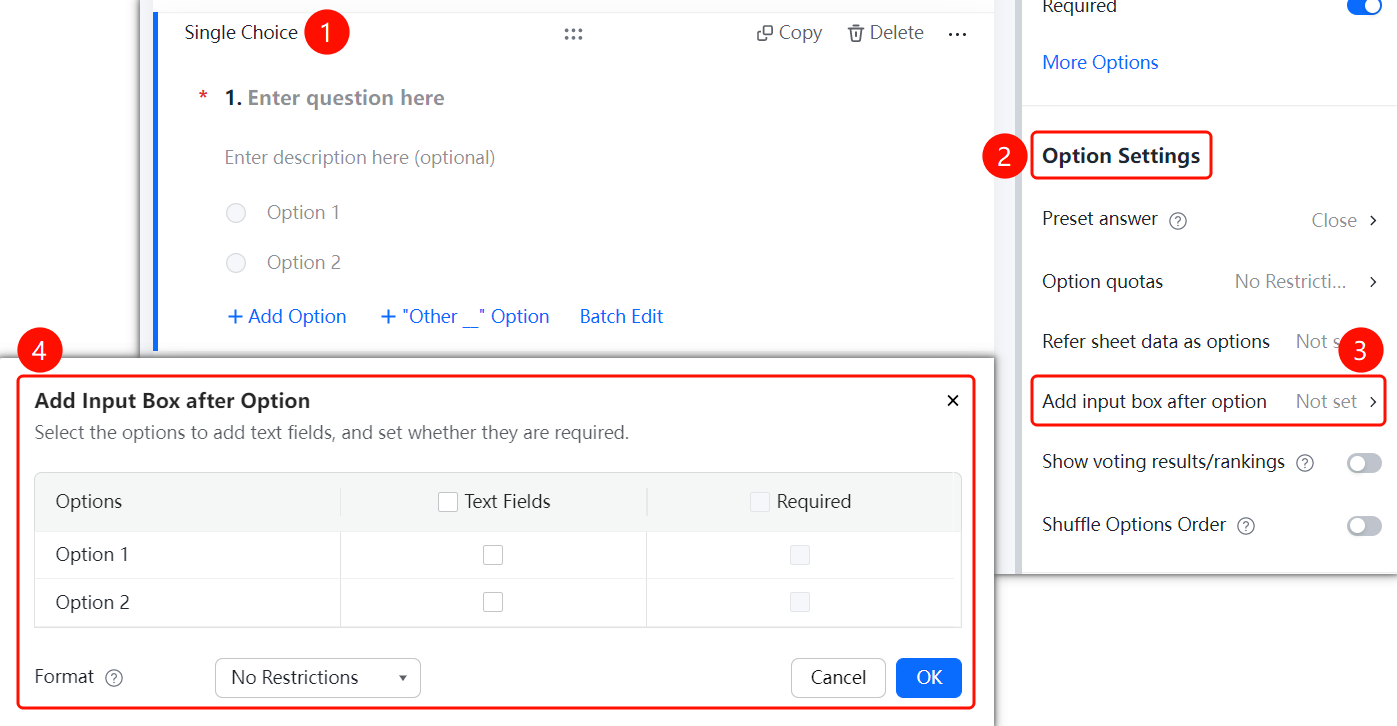
Add Text Box After Option
Feature Entry
Single-choice question → Option Settings → Add Text Box After Option option
- Click the added single-choice question.
- Click Add Text Box After Option in the Option Settings panel on the right.
- In the pop-up panel, select the options that require a text box, and set whether the text box is required.
- You can set Input Format Limit, such as No Limit.
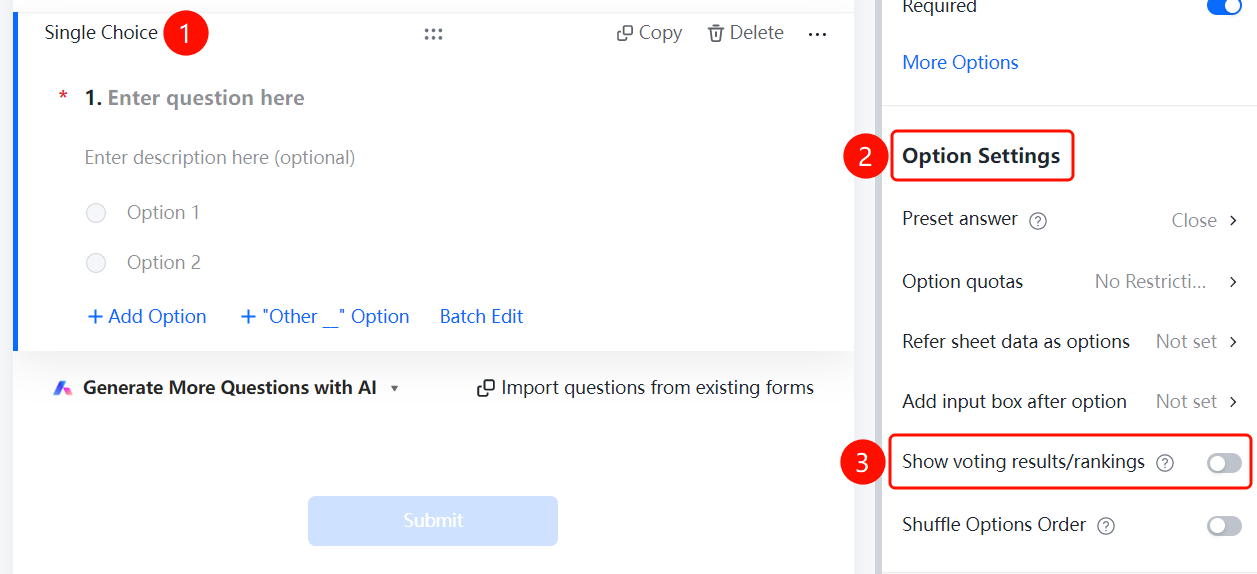
Display Voting Results/Leaderboard
Feature Entry
Single-choice question → Option Settings → Display Voting Results/Leaderboard switch
- Click the added single-choice question.
- Turn on the Display Voting Results/Leaderboard switch in the Option Settings panel on the right.
Shuffle Option Order
Feature Entry
Single-choice question → Option Settings → Shuffle Option Order switch
- Click the added single-choice question.
- Turn on the Shuffle Option Order switch in the Option Settings panel on the right.
![[CN] Guide to Single-Choice Questions in Forms on Desktop 07](https://wps-kf-static.wpscdn.com/knowledge/md-images/2026/09/23/44eeb1a9b710481cb655ac599934e440.png)
FAQ
Q1: How do I set a default option for a single-choice question?
- Solution: Click the single-choice question, click Preset Answers in the Option Settings panel, and select the default option from the pop-up drop-down list.
Q2: Can single-choice questions reference sheet data as options?
- Solution: Yes. Click the single-choice question, click Reference Sheet Data as Options in the Option Settings panel, and select a sheet from Cloud Documents or upload one from a local file.
Q3: How do I allow respondents to enter custom content after selecting an option?
- Solution: Click the single-choice question, click Add Text Box After Option in the Option Settings panel, select the options that require a text box, and set the required rules.
Notes
- Single-choice questions support adding multiple options, which can be managed via Add Option, Batch Edit, or "Other" Option.
- After turning on Shuffle Option Order, the option order seen by each respondent will be randomized.