Feature Summary
Filling settings are used to configure the rules for filling out votes, including filling permissions, number of times, and filling time, helping admins control the filling behavior of votes.
Feature Description
| Dimension | Description |
|---|---|
| Member Limit | No member limit |
| Edition Limit | No edition limit |
Steps
Set Sign-In Requirement for Filling
Feature Entry
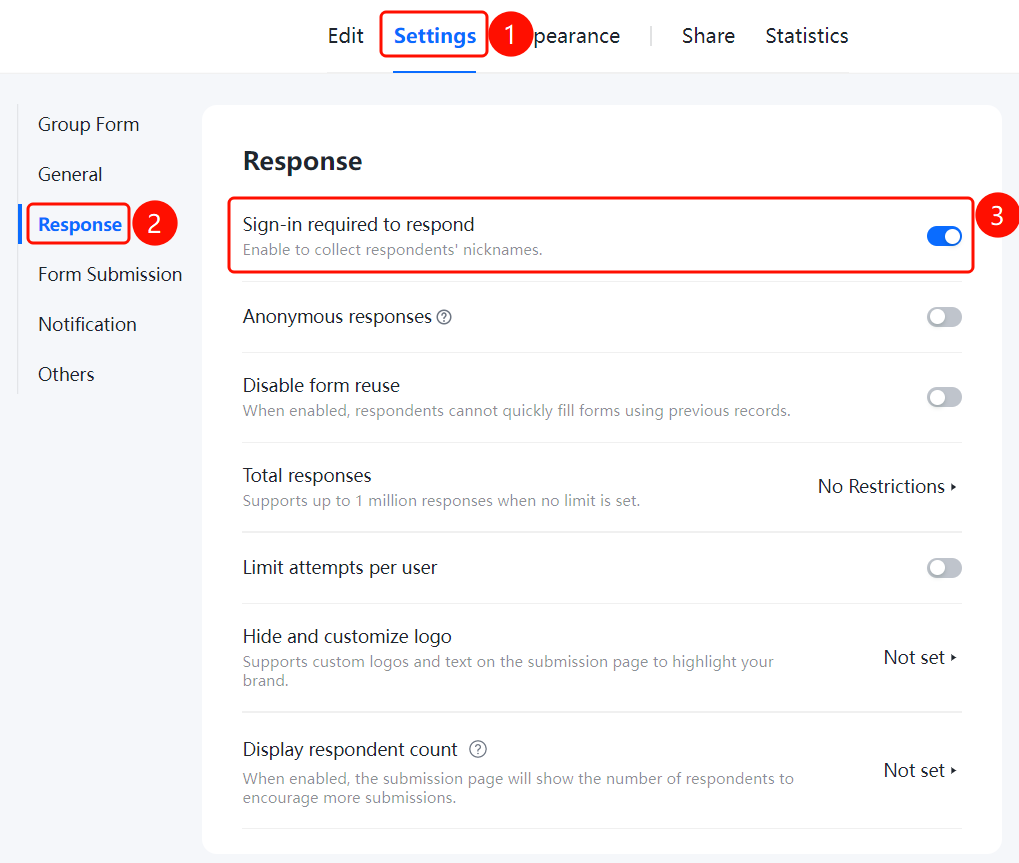
Settings tab → Filling Settings → Require Sign-In to Fill switch
- Click the Settings tab at the top.
- Click Filling Settings in the left panel.
- Turn on the Require Sign-In to Fill switch.
- Once enabled, you can collect the nicknames of respondents.
Set Anonymous Filling
Feature Entry
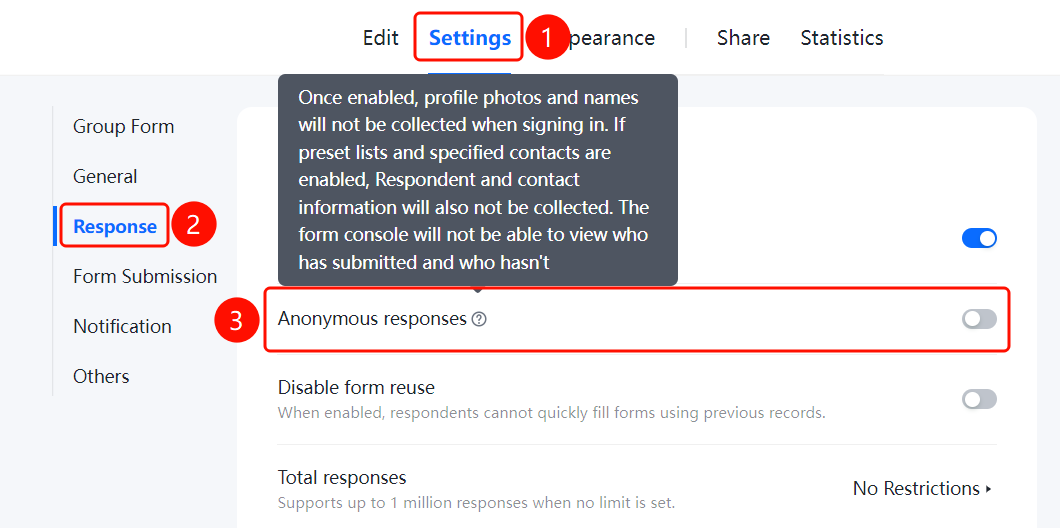
Settings tab → Filling Settings → Anonymous Filling switch
- Click the Settings tab at the top.
- Click Filling Settings in the left panel.
- Turn on the Anonymous Filling switch.
Set Disable form reuse
Feature Entry
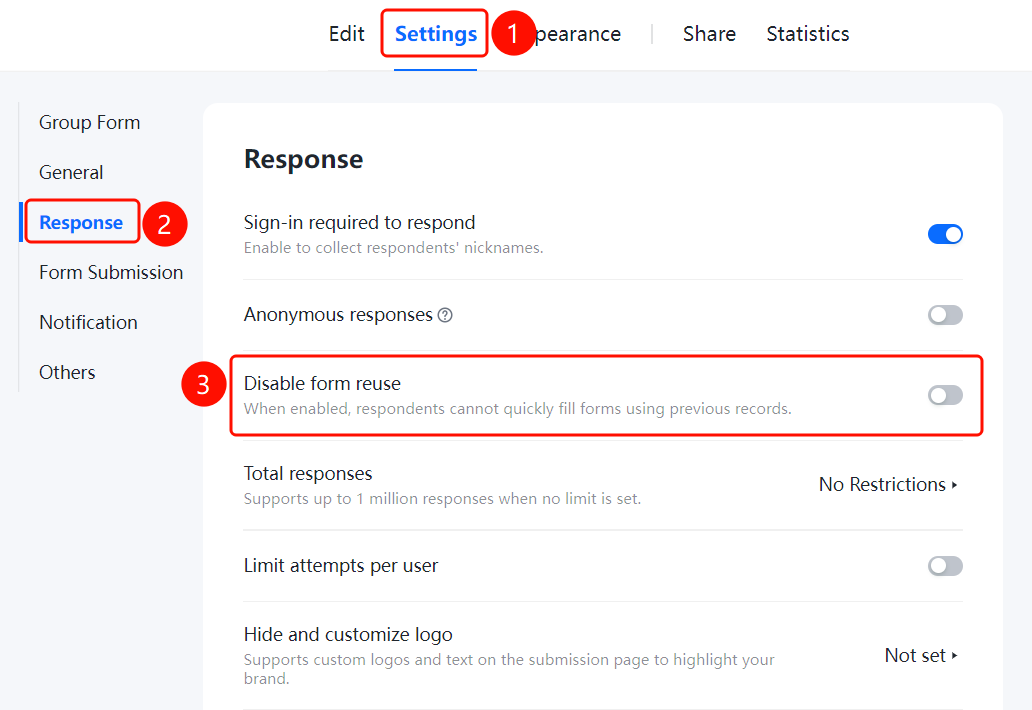
Settings tab → Filling Settings → Disable form reuse switch
- Click the Settings tab at the top.
- Click Filling Settings in the left panel.
- Turn on the Disable form reuse switch.
- Once enabled, respondents will not be able to use this feature for quick filling.
Set Total Responses
Feature Entry
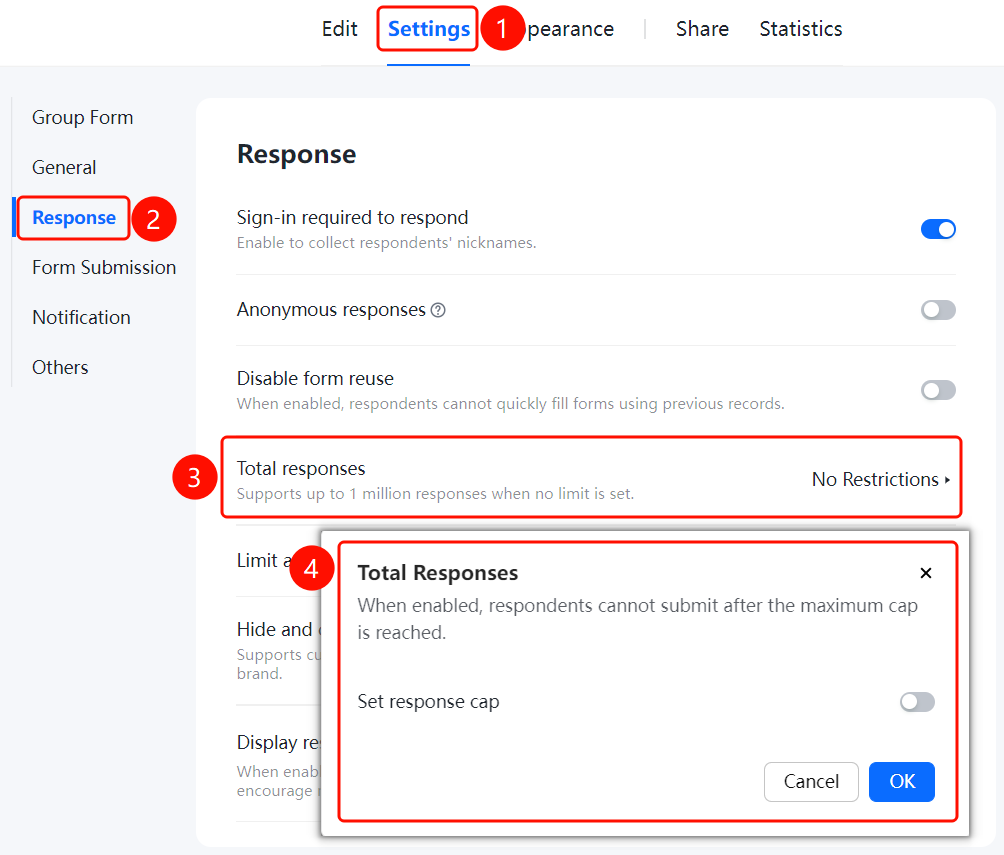
Settings tab → Filling Settings → Total Responses option
- Click the Settings tab at the top.
- Click Filling Settings in the left panel.
- Click Total Responses (currently set to Unlimited; when unlimited, the total can support up to millions of responses).
- Enable the limit and set the maximum limit.
Set Limit on Responses per User
Feature Entry
Settings tab → Filling Settings → Limit Responses per User option
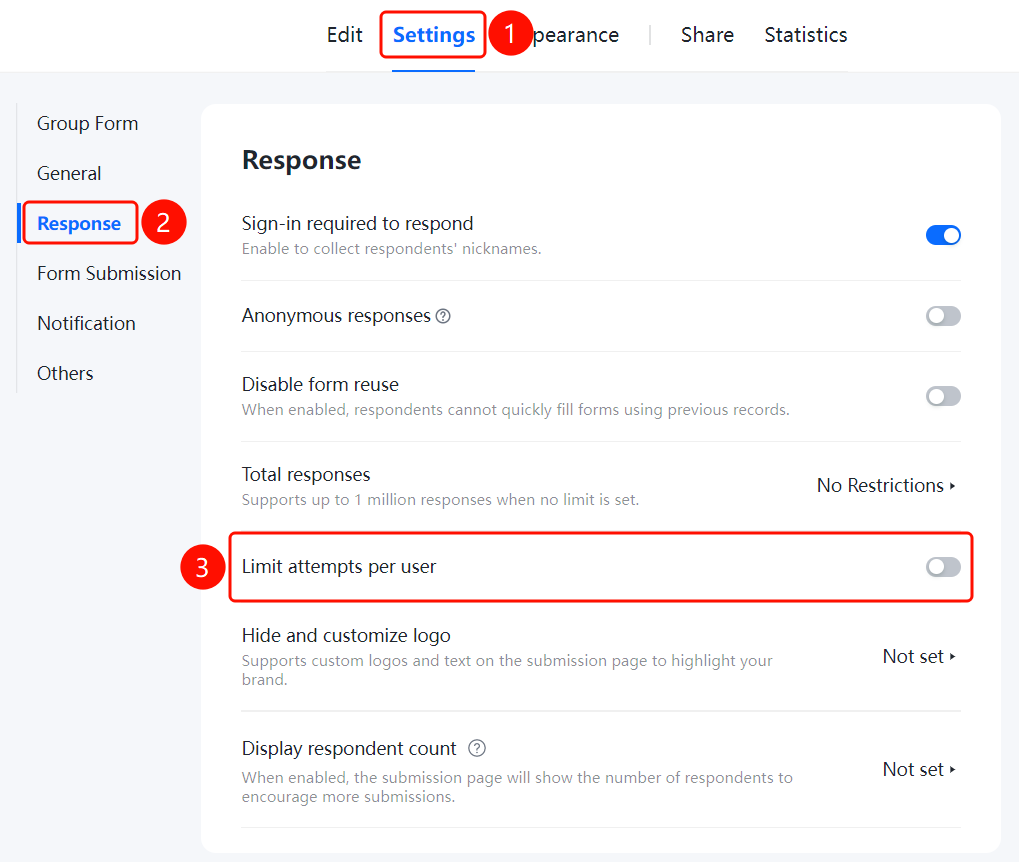
- Click the Settings tab at the top.
- Click Filling Settings in the left panel.
- Click Limit Responses per User and set the allowed number of times.
Set Hide and Custom Logo
Feature Entry
Settings tab → Filling Settings → Hide and Custom Logo option
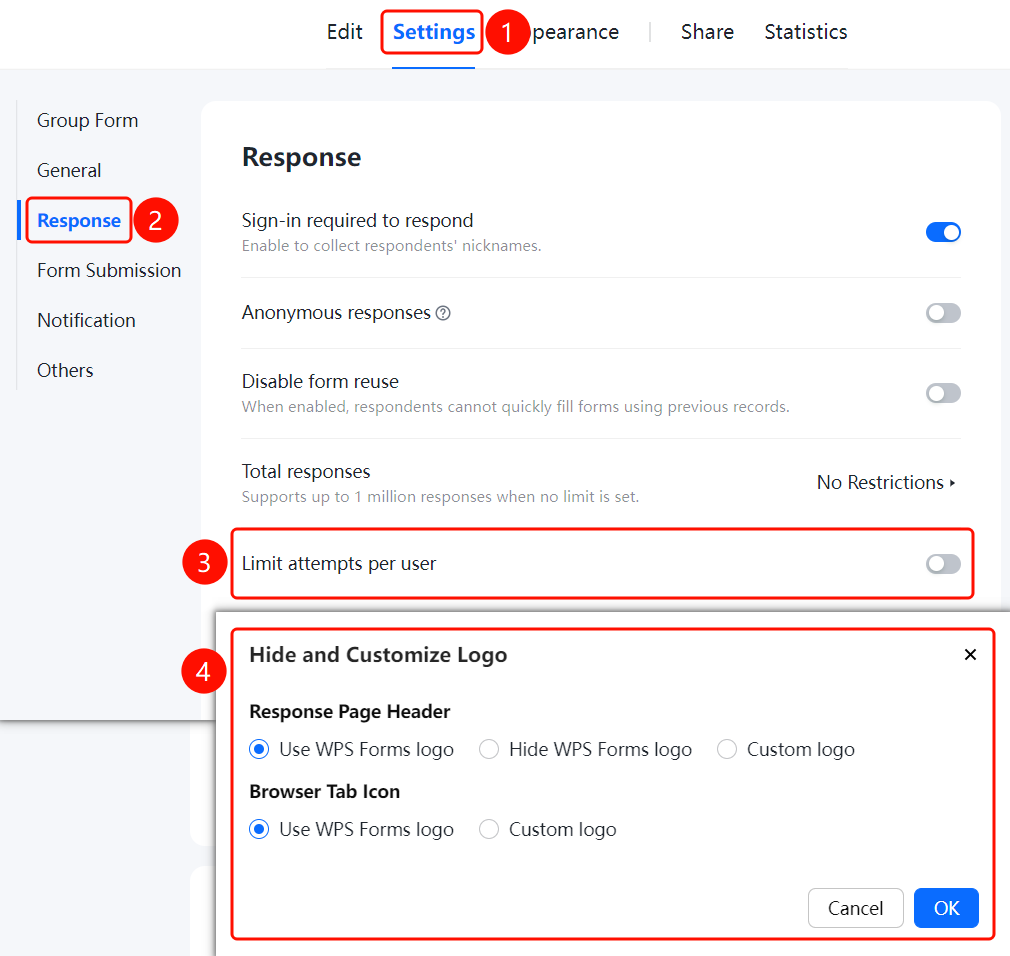
- Click the Settings tab at the top.
- Click Filling Settings in the left panel.
- Click Hide and Custom Logo (currently set to Not Set).
- You can customize the logo and text on the filling page to highlight your organization's brand image.
Set Show Number of Participants
Feature Entry
Settings tab → Filling Settings → Show Number of Participants option
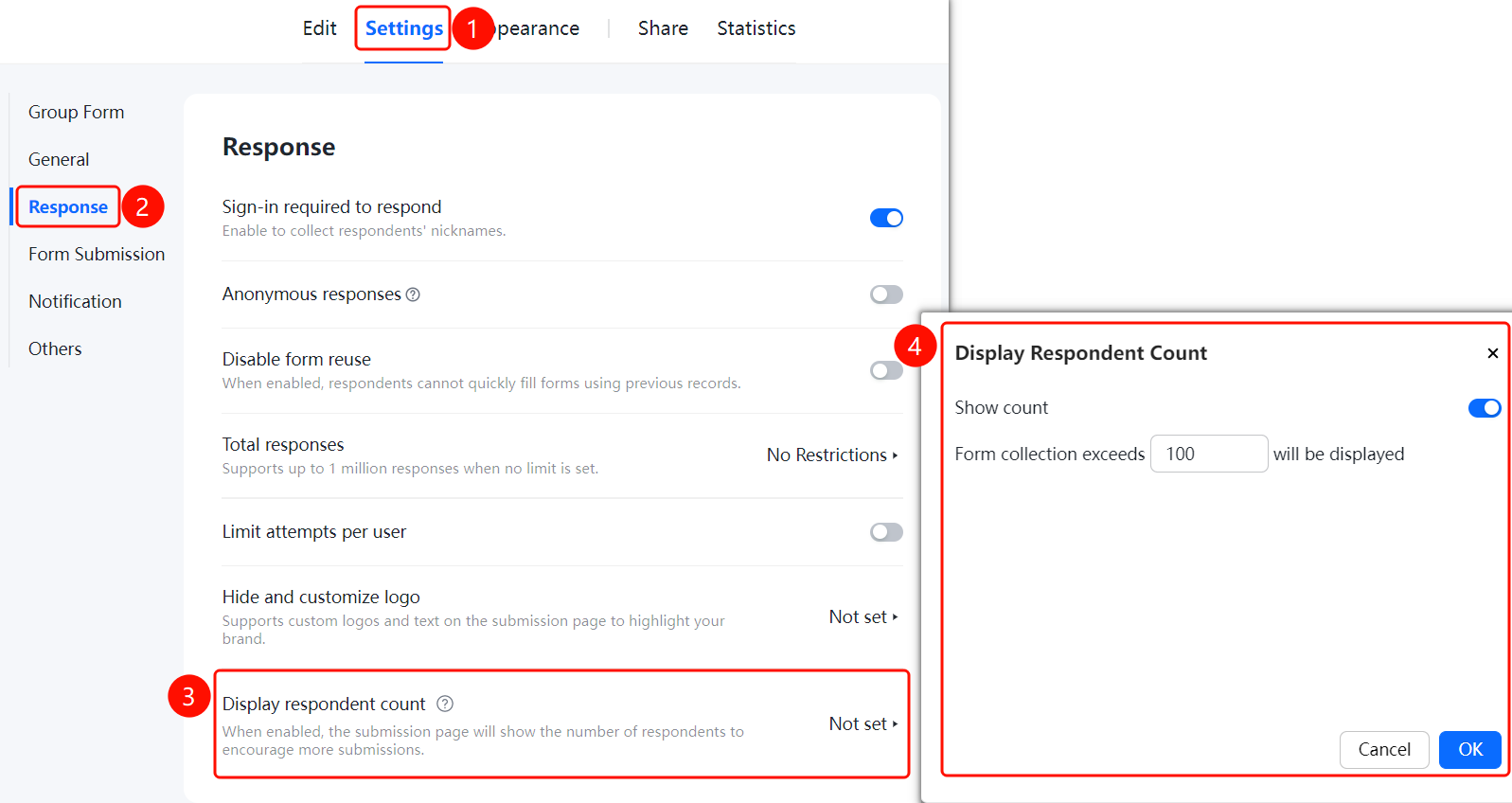
- Click the Settings tab at the top.
- Click Filling Settings in the left panel.
- Click Show Number of Participants (currently set to Not Set).
- Once enabled, the filling page will display the number of participants who have already submitted, encouraging more people to fill it out.
FAQ
Q1: How do I limit the number of times a voter can vote?
- Solution: Set the number of responses in Settings → Filling Settings, such as allowing only one vote per person or allowing multiple votes.
Q2: How do I set the time range for filling out a vote?
- Solution: Set the Start and End Time in Settings → Filling Settings to specify when the voting starts and ends.
Q3: Can voters modify their votes after submitting?
- Solution: Enable Allow Modifying Responses in Filling Settings, and voters will be able to modify their submitted votes.
Notes
- Filling settings help admins control the filling behavior of votes.
- Filling permissions can be set to specified people only, or open to anyone.