Feature Summary
Name is used to collect the names of respondents. It belongs to the fill-in-the-blank question type in common templates. Respondents enter their names in the answer area. It supports setting format limits, word count limits, etc.
Feature Description
| Feature Dimension | Description |
|---|---|
| Member Limit | No member limit |
| Version Limit | No member limit |
Operating Steps
Add Name
Feature Entry
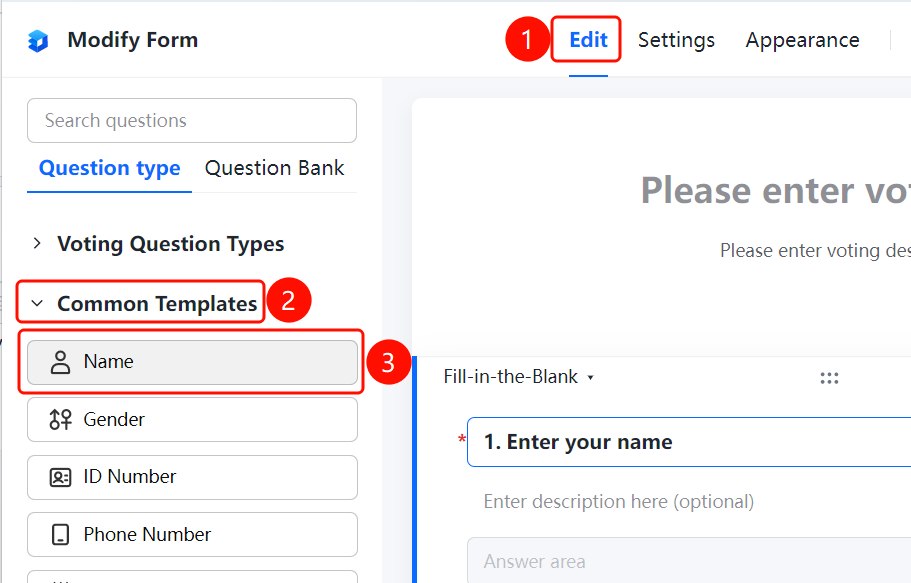
"Edit" tab → "Common Templates" → "Name" option
- Click the "Edit" tab at the top.
- Expand the "Common Templates" area in the left panel and click the "Name" option.
- The name field will be added to the vote, and respondents can enter their names in the "Respondent Answer Area".
Set Format Limits
Feature Entry
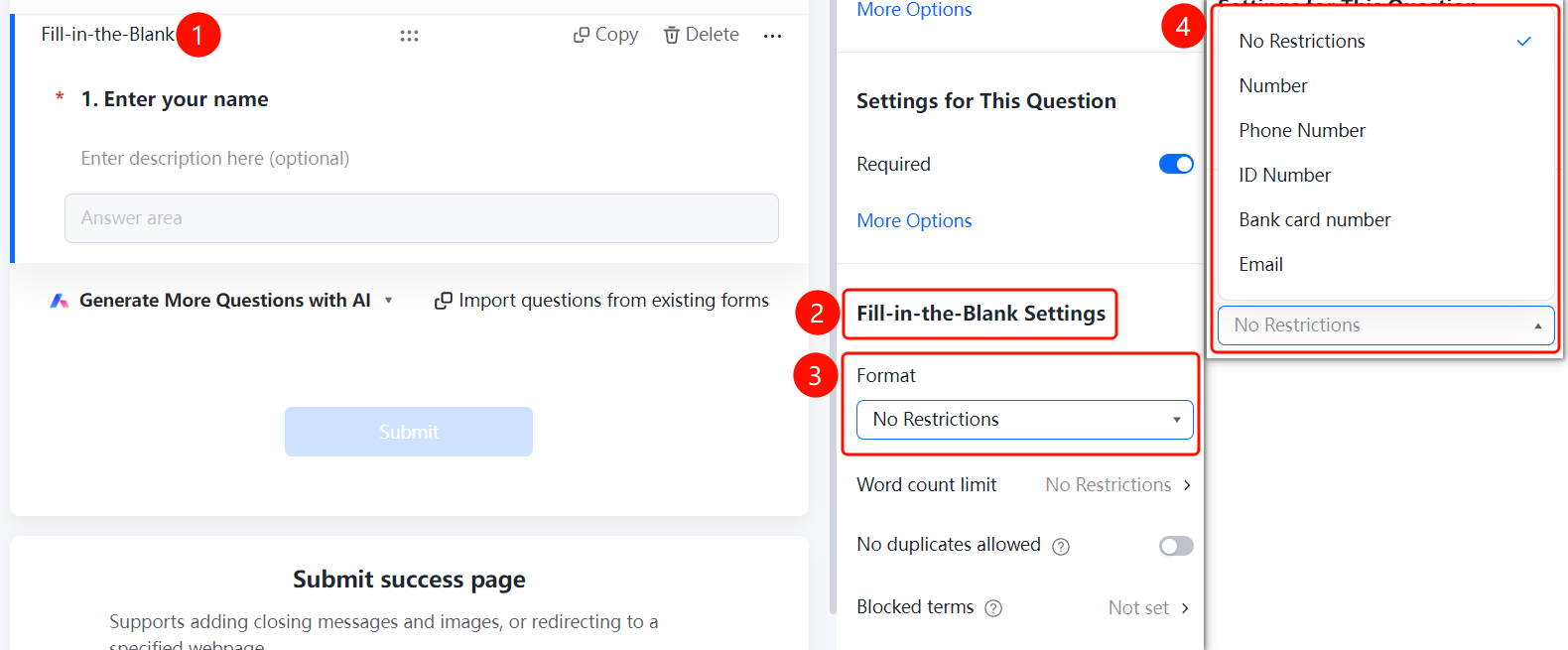
Name → "Fill-in Settings" → "Format Limits" option
- Click the added name field.
- In the "Fill-in Settings" panel on the right, click the "Format Limits" drop-down box (currently "No Limit").
- Select the format type: "No Limit", "Number", "Phone Number", "ID Numbers", "Bank Card Number", or "Email".
Set Word Count Limits
Feature Entry
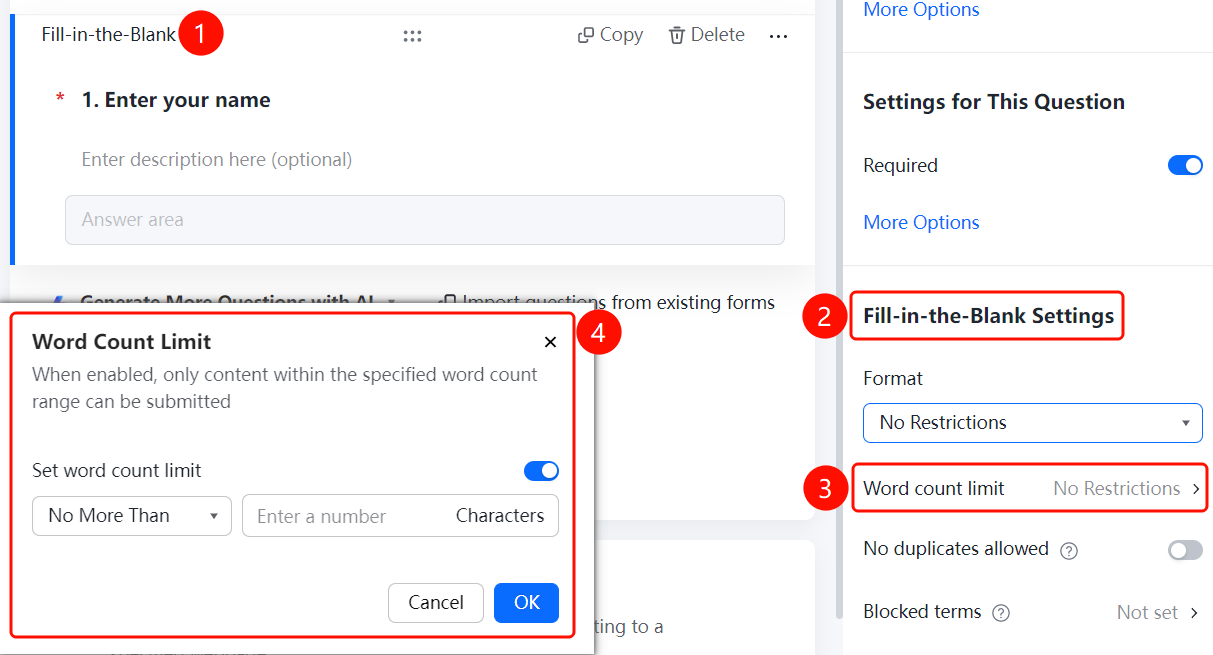
Name → "Fill-in Settings" → "Word Count Limits" option
- Click the added name field.
- In the "Fill-in Settings" panel on the right, click the "Word Count Limits" option (currently "No Limit").
- In the pop-up dialog, turn on the "Set Word Count Limits" switch.
- Enter the minimum and maximum word counts.
- Once enabled, only content within the specified word count range can be submitted.
- Click "OK" to save settings.
Set Do Not Allow Duplicates
Feature Entry
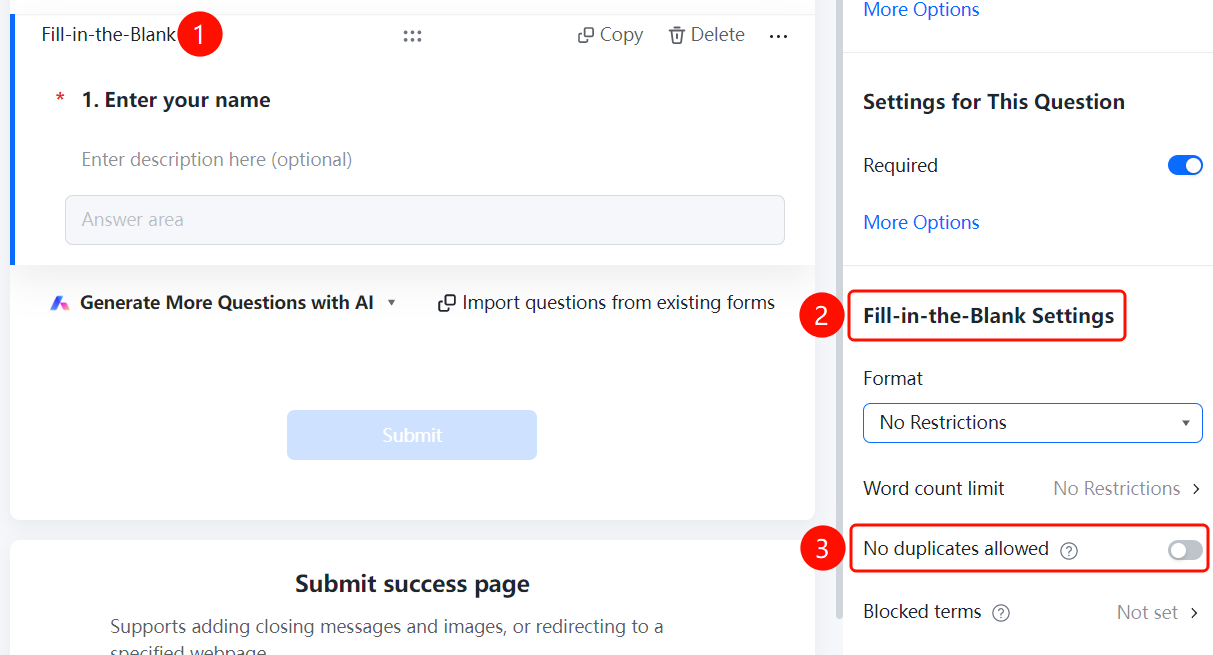
Name → "Fill-in Settings" → "Do Not Allow Duplicates" switch
- Click the added name field.
- In the "Fill-in Settings" panel on the right, turn on the "Do Not Allow Duplicates" switch.
- Once enabled, the content submitted by respondents cannot be identical to other submitted content.
Set Prohibited Content
Feature Entry
Name → "Fill-in Settings" → "Prohibited Content" option
- Click the added name field.
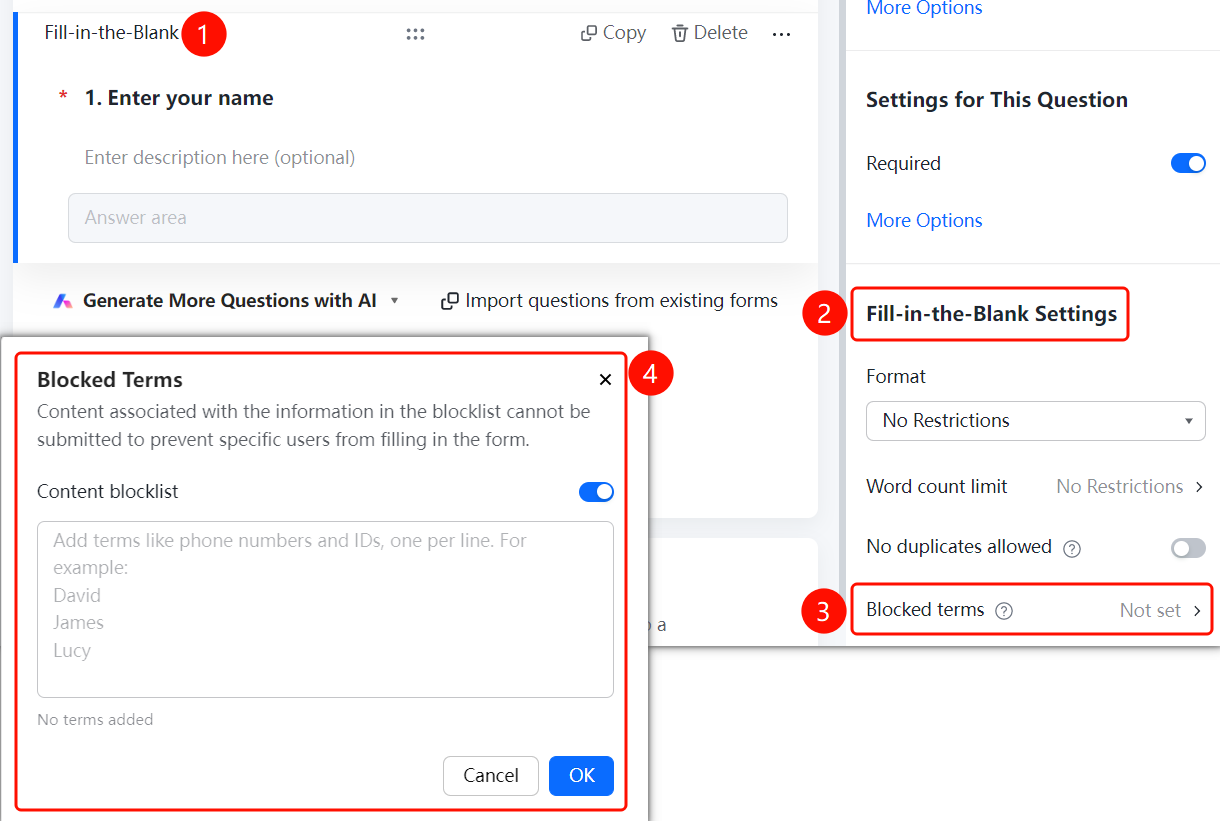
- In the "Fill-in Settings" panel on the right, click the "Prohibited Content" option (currently "Not Set").
- In the pop-up dialog, turn on the "Content Blocklist" switch.
- Add prohibited content in the input box. Content in the blocklist cannot be submitted.
- Click "OK" to save settings.
FAQ
Q1: How do I add a name field?
- Solution: Click the "Edit" tab, and click the "Name" option in the "Common Templates" area.
Q2: Can format limits be set for names?
- Solution: Yes. Click the name field, click "Format Limits" in "Fill-in Settings", and select formats such as no limit, number, or phone number.
Q3: What is the purpose of "Do Not Allow Duplicates"?
- Solution: Once enabled, the content submitted by respondents cannot be identical to other submitted content, which is suitable for scenarios requiring unique content.
Notes
- Name belongs to the fill-in-the-blank question type in common templates.
- Format limits can prevent respondents from filling in content that does not meet specifications.