Feature Summary
Inspection tasks are commonly used for equipment checks. When inspecting multiple devices or multiple indicators, they enable quick browsing of inspection records and tracking of abnormal indicators.
Feature Description
| Functional Dimension | Description |
|---|---|
| Membership Restrictions | No membership restrictions |
| Version Restrictions | No version restrictions |
Operating Steps
Adding a Check Question
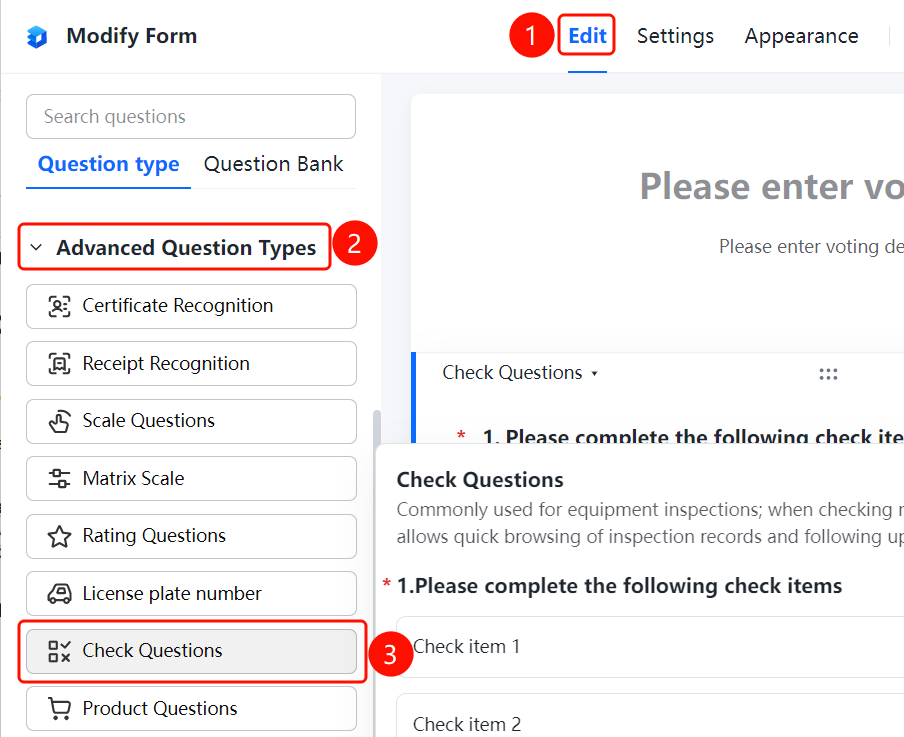
Access Path"Edit" tab → "Advanced Question Types" → "Check Question" button
- Click the "Edit" tab at the top
- Expand the "Advanced Question Types" section in the left panel
- Click the "Check Question" button to add it to the form
Enable Adding Image and Text Descriptions to Inspection Items
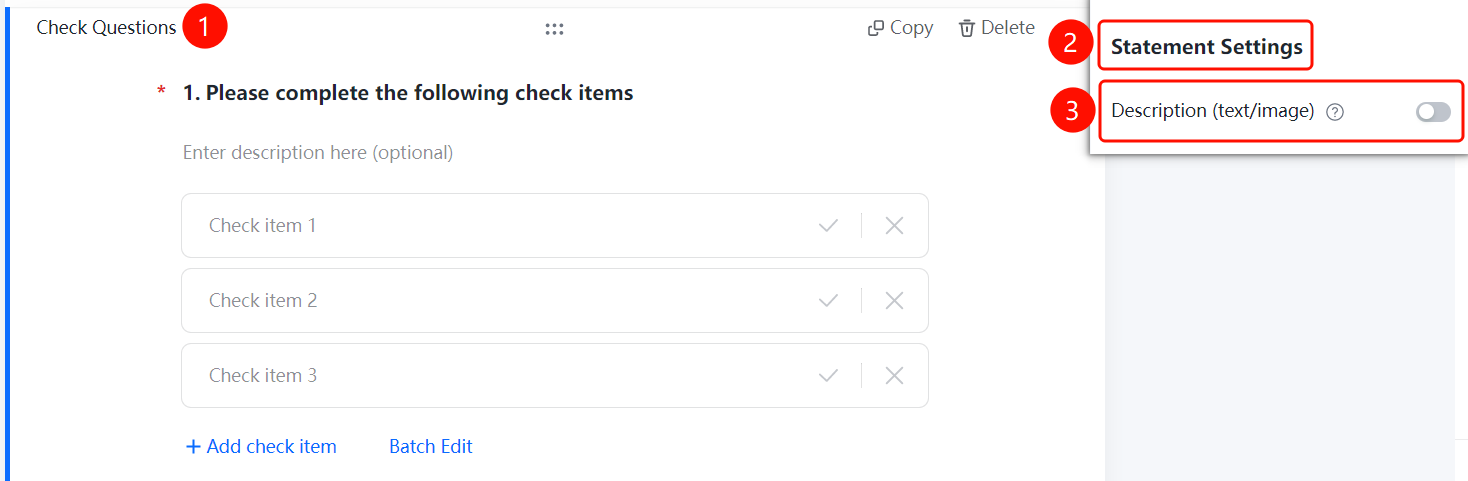
Feature Access PathInspection Questions → "Inspection Item Settings" → Toggle "Enable Adding Image and Text Descriptions"
- Click on an already added inspection question.
- In the right-hand "Inspection Item Settings" panel, turn on the toggle for "Enable Adding Image and Text Descriptions".
Frequently Asked Questions
Q1: In what scenarios are inspection items applicable?
- Solution: Inspection items are commonly used for equipment inspections. When checking multiple devices or indicators, they enable quick review of patrol records and follow-up on abnormal indicators.
Q2: How can I add multiple inspection items?
- Solution: Click the inspection item, then click "Add Inspection Item" to add new entries, or use "Batch Edit" to quickly add multiple items at once.
Q3: Can text or image descriptions be added to inspection results?
- Solution: Yes. Enable "Allow Text and Image Descriptions in Inspection Items" under "Inspection Item Settings."
Notes
- Inspection items can be marked as Pass/Fail, allowing quick follow-up on abnormal indicators.
- Batch editing of inspection items is supported, improving editing efficiency.