Feature Summary
Industry questions are used to collect information about the industries that voters work in. Preset industry options allow voters to make quick selections, making it easier to perform data statistics and analysis by industry.
Feature Description
| Feature Dimension | Description |
|---|---|
| Premium limit | No premium limit |
| Version limit | No version limit |
| Member limit | No member limit |
Steps
Add an Industry Question
Feature Entry
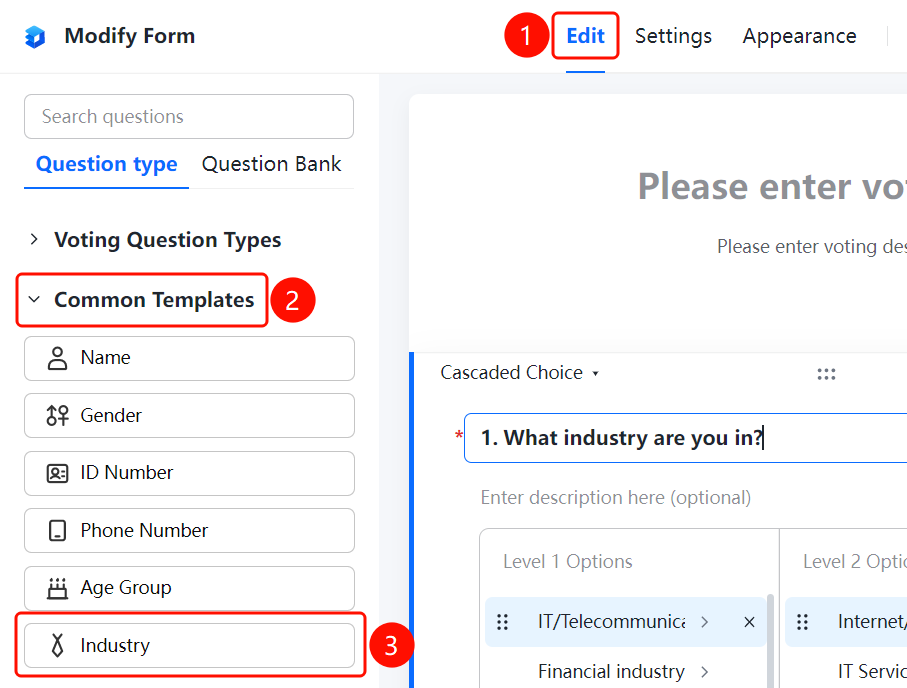
"Edit" tab > "Common Templates" > "Industry" option
- Click the Edit tab at the top.
- In the left panel, expand the Common Templates area.
- Click the Industry option to add the industry question to the vote.
- Enter the question content in the question editing area, such as "What industry do you work in?"
- Industry questions are multi-level selection types, with preset primary options (such as "IT/Telecom/Electronics/Internet", "Finance", "Real Estate/Construction", "Business Services", "Trade/Wholesale/Retail", etc.) and secondary options (such as "Internet/E-commerce", "IT Services (System/Data/Maintenance)", "Computer Hardware", "Computer Software", etc.).
Set Up Preset Answers
Feature Entry
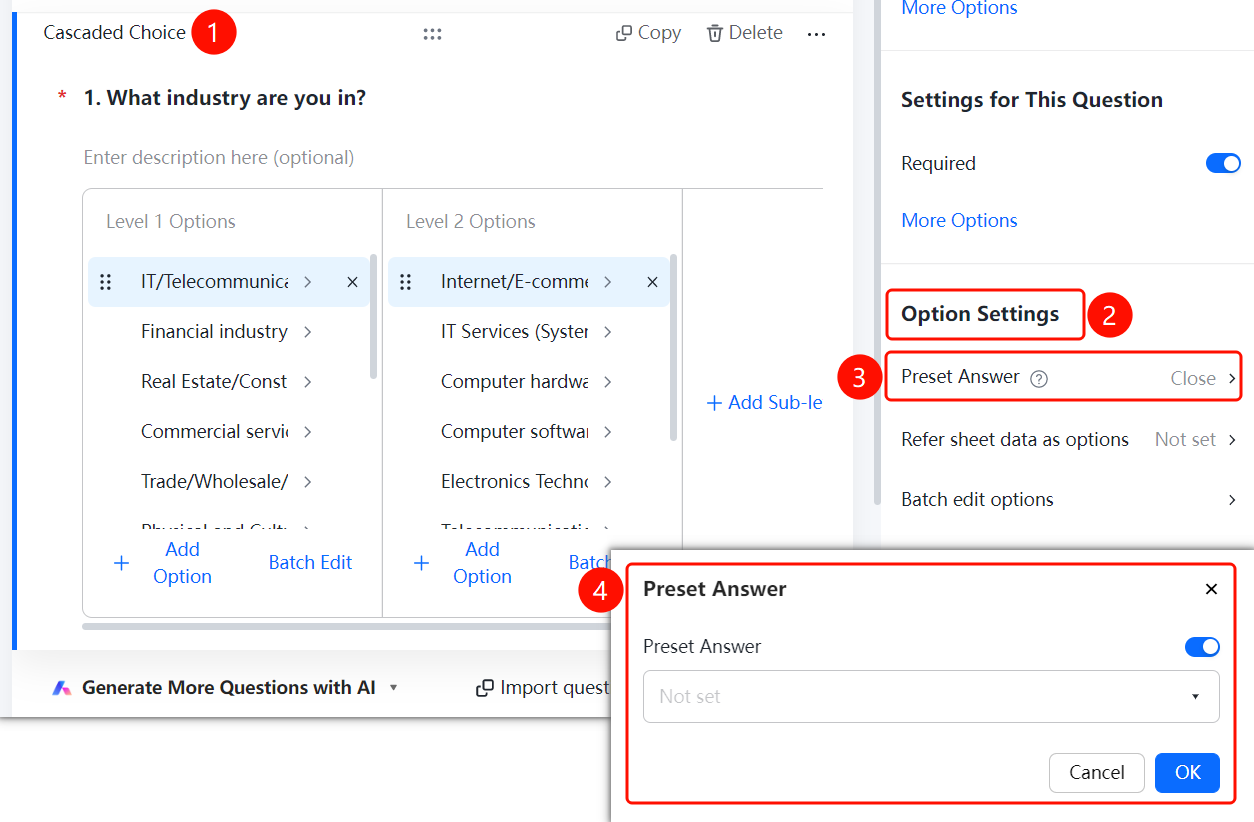
Industry question > "Option Settings" > "Preset Answers" option
- Click the added industry question.
- In the Option Settings panel on the right, click Preset Answers (currently displayed as "Off").
- In the Preset Answers dialog box that pops up, turn on the Preset Answers switch.
- Select the default option in the drop-down box, and click OK to save.
Reference Spreadsheet Data as Options
Feature Entry
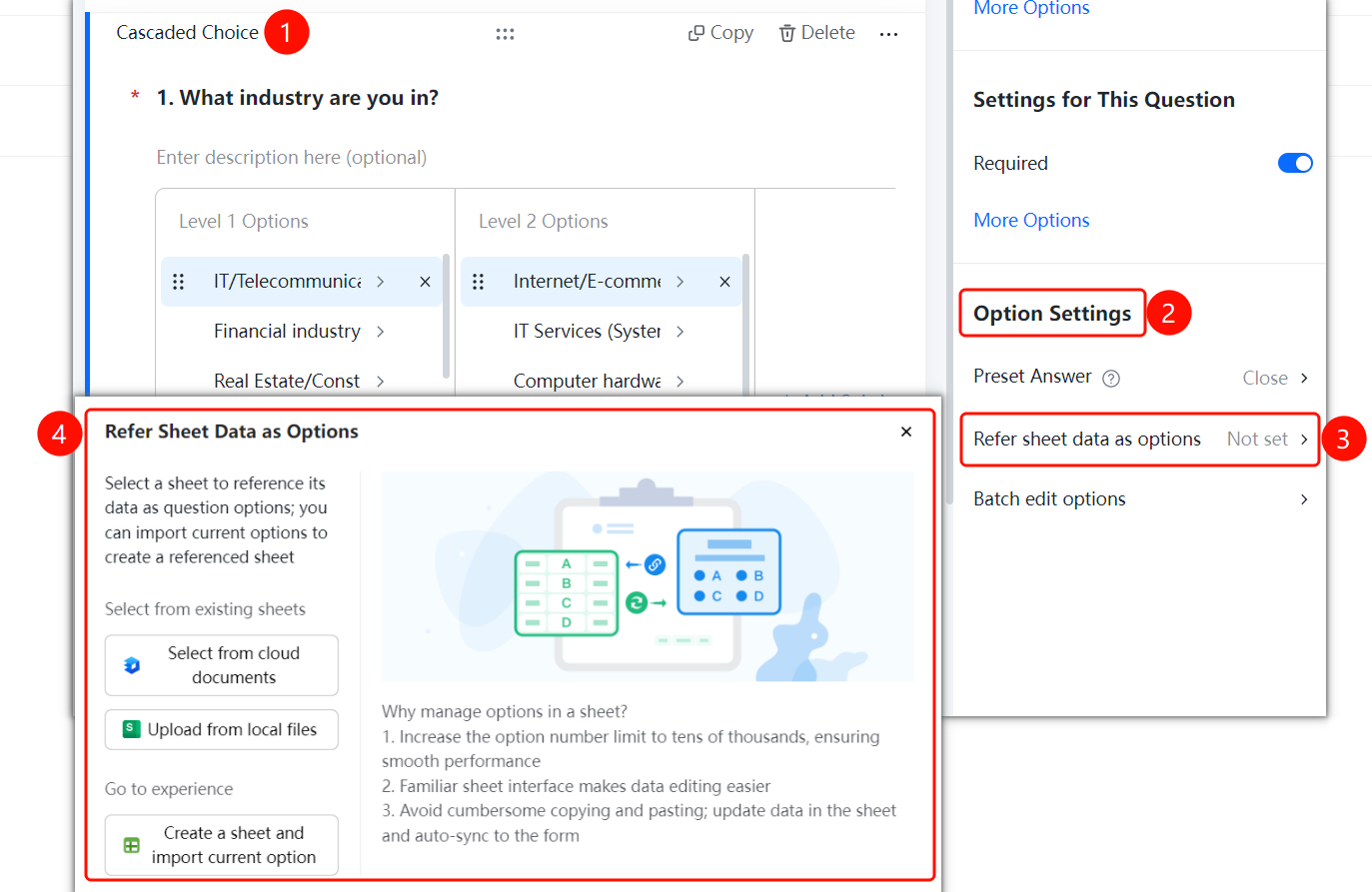
Industry question > "Option Settings" > "Reference Spreadsheet Data as Options" option
- Click the added industry question.
- In the Option Settings panel on the right, click Reference Spreadsheet Data as Options (currently displayed as "Not Set").
- In the dialog box that pops up, select the spreadsheet source: "Select from Cloud Documents", "Upload from Local File", or click "Create Spreadsheet and Import Current Options" to try it out.
- Advantages of managing options with spreadsheets: The maximum number of options is increased to tens of thousands and runs smoothly without lagging, editing data is easier in the familiar spreadsheet interface, and updating data in the spreadsheet automatically syncs to the form.
Batch Edit All Options
Feature Entry
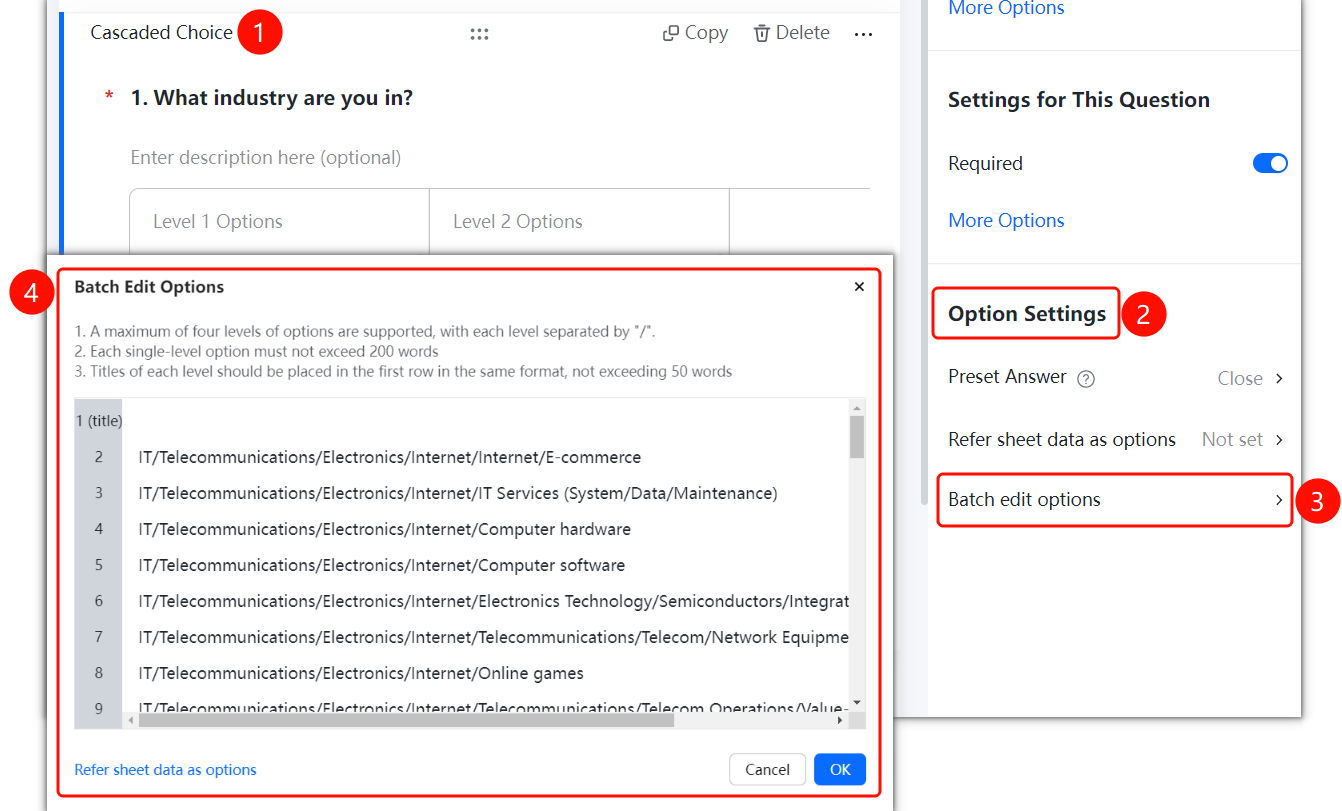
Industry question > "Option Settings" > "Batch Edit All Options" option
Click the added industry question.
In the Option Settings panel on the right, click Batch Edit All Options.
In the dialog box that pops up, batch edit the options at all levels. Rules:
- Up to four levels of options are supported, and each option is separated by "/".
- A single-level option cannot exceed 200 characters.
- Headers of all levels are placed on the first line in the same format, and each level header cannot exceed 50 characters.
After editing, click OK to save.
FAQ
Question 1: What preset options are available for industry questions?
- Solution: Industry questions have preset common industry classification options, which can also be customized according to actual needs.
Question 2: Can I customize the industry options?
- Solution: Yes. Click the industry question, and you can modify or add industry options in the option editing area.
Question 3: What scenarios are industry questions suitable for?
- Solution: Industry questions are suitable for scenarios such as questionnaires and user information collection that need to be analyzed by industry.
Notes
- Industry questions are single-choice questions, and voters can only select one industry.
- Preset options can be customized according to actual needs.