Feature Summary
ID numbers are used to collect voters' ID card number information, which is part of the clock-in user information, making it easy to identify voters. The system automatically verifies the format of ID numbers.
Feature Description
| Feature Dimension | Description |
|---|---|
| Member Limit | No member limit |
| Version Limit | No version limit |
| Platform Limit | Desktop only |
Operating Steps
Add ID Numbers
Feature Entry
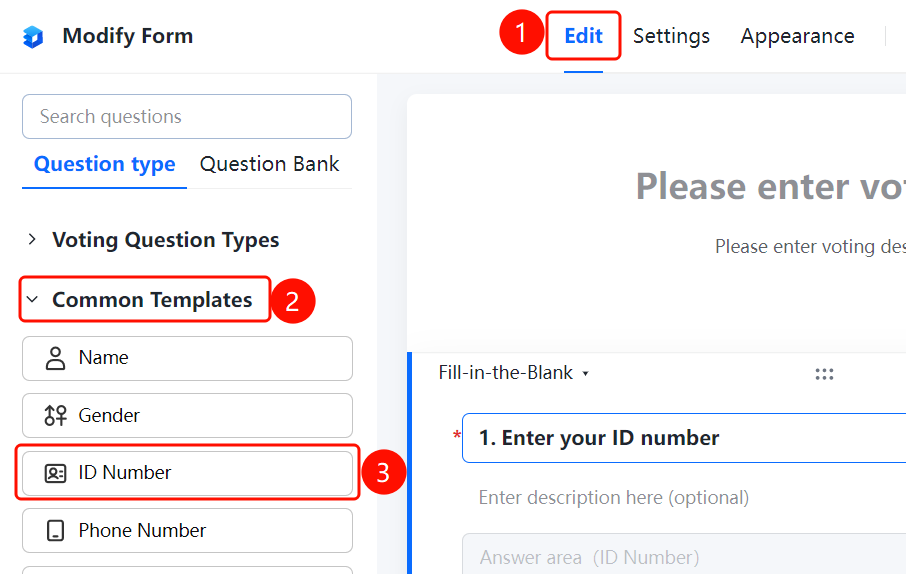
Edit tab → Common Templates → ID Numbers option
- Click the Edit tab at the top.
- In the left panel, expand the Common Templates area and select the ID Numbers question.
- The ID Numbers question will be added to the vote.
Set Format Limits
Feature Entry
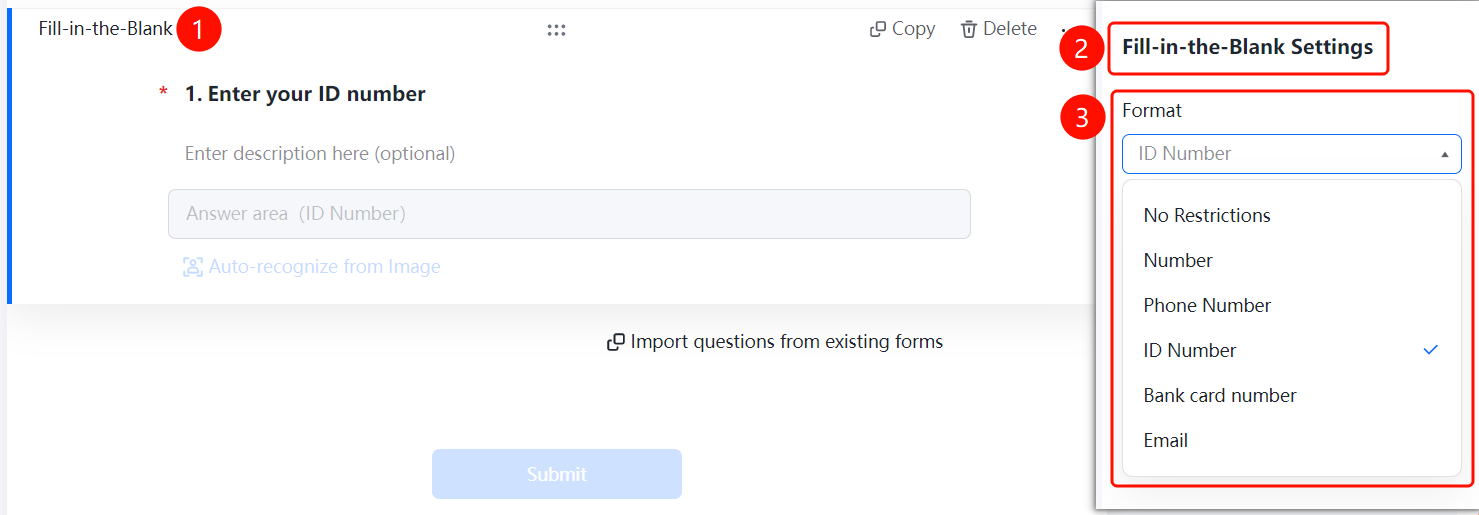
ID Numbers → Fill-in-the-blank Settings → Format Limits option
- Click the added ID Numbers field.
- In the Fill-in-the-blank Settings panel on the right, click Format Limits (currently set to ID Numbers).
- You can switch the format type: No Limit, Number, Phone Number, ID Numbers, Bank Card Number, or Email.
Set Do Not Allow Duplicates
Feature Entry
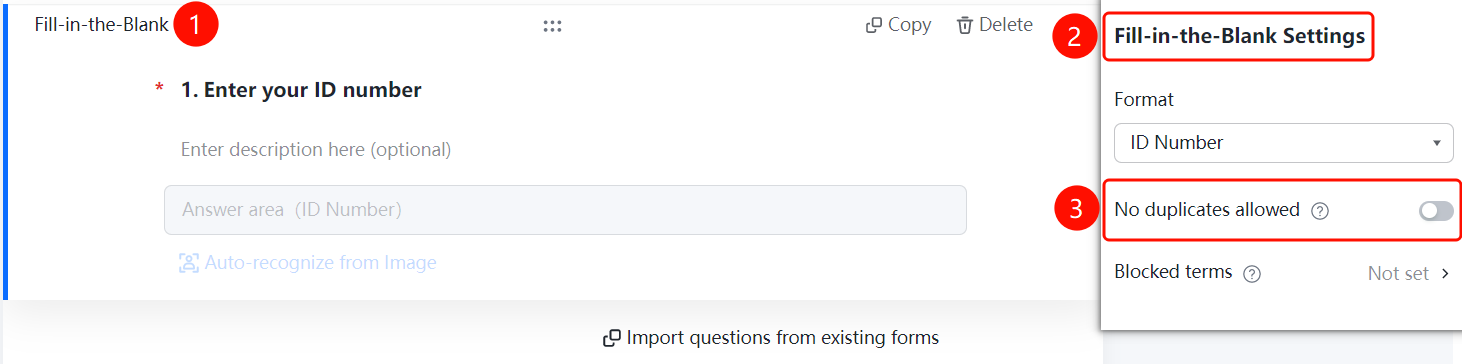
ID Numbers → Fill-in-the-blank Settings → Do Not Allow Duplicates switch
- Click the added ID Numbers field.
- In the Fill-in-the-blank Settings panel on the right, turn on the Do Not Allow Duplicates switch.
- Once enabled, the same ID number can only be submitted once, which effectively prevents duplicate submissions.
Set Prohibited Content (Blocklist)
Feature Entry
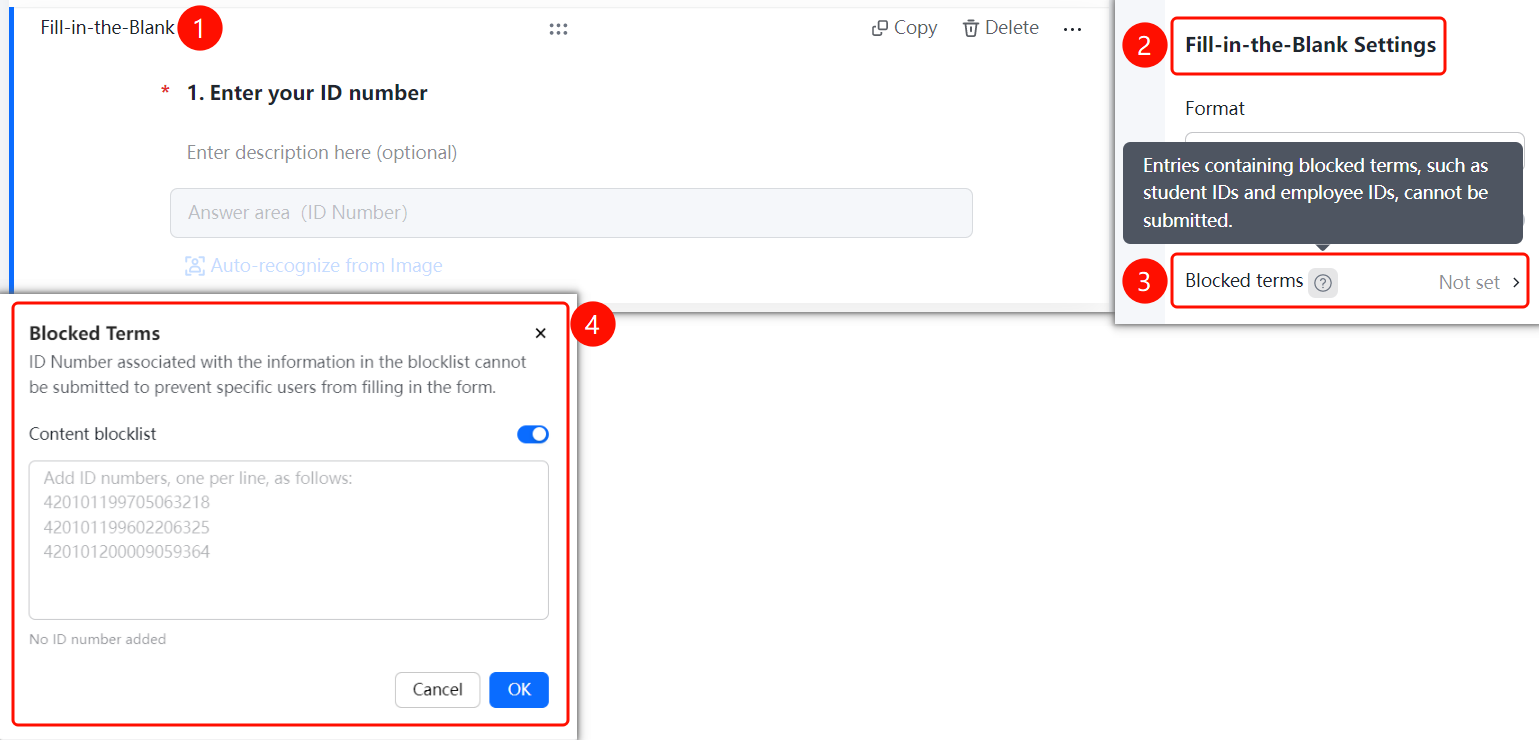
ID Numbers → Fill-in-the-blank Settings → Prohibited Content option
- Click the added ID Numbers field.
- In the Fill-in-the-blank Settings panel on the right, click Prohibited Content.
- In the Prohibited Content window that pops up, you can add ID numbers in the Content Blocklist text box.
- ID numbers in the blocklist cannot be submitted, which effectively prevents certain people from filling out the form.
- Click the OK button to save.
FAQ
Question 1: How do I add an ID numbers field?
- Solution: Click the Edit tab, and select the ID Numbers option in the Common Templates area.
Question 2: How do I recognize ID numbers from photos?
- Solution: Click the ID Numbers field, click the Recognize ID Photo button in the Fill-in-the-blank Settings panel, and upload an ID card photo. The system will automatically recognize and fill in the information.
Question 3: How do I prevent duplicate submissions of the same ID number?
- Solution: Turn on the Do Not Allow Duplicates switch in the Fill-in-the-blank Settings panel. The same ID number can only be submitted once.
Question 4: How do I set up an ID numbers blocklist?
- Solution: Click Prohibited Content in the Fill-in-the-blank Settings panel, and add ID numbers (one per line) in the Content Blocklist. ID numbers in the blocklist cannot be submitted.
Notes
- ID Numbers belongs to the fill-in-the-blank question type in basic questions, and its default format limit is ID Numbers.
- The format limit can be switched to no limit, number, phone number, bank card number, email, and other formats.
- Enabling Do Not Allow Duplicates can prevent duplicate submissions of the same ID number.
- The Prohibited Content blocklist can effectively prevent certain people from filling out the form.