Feature Overview
Dropdown questions allow respondents to select one option from a dropdown list. When there are many options, the dropdown menu remains collapsed by default and expands only when clicked, saving space and ensuring a clean, elegant interface.
Feature Description
| Feature Dimension | Description |
|---|---|
| Membership Restrictions | No membership restrictions |
| Version Restrictions | No version restrictions |
Operating Steps
Adding a Dropdown Question
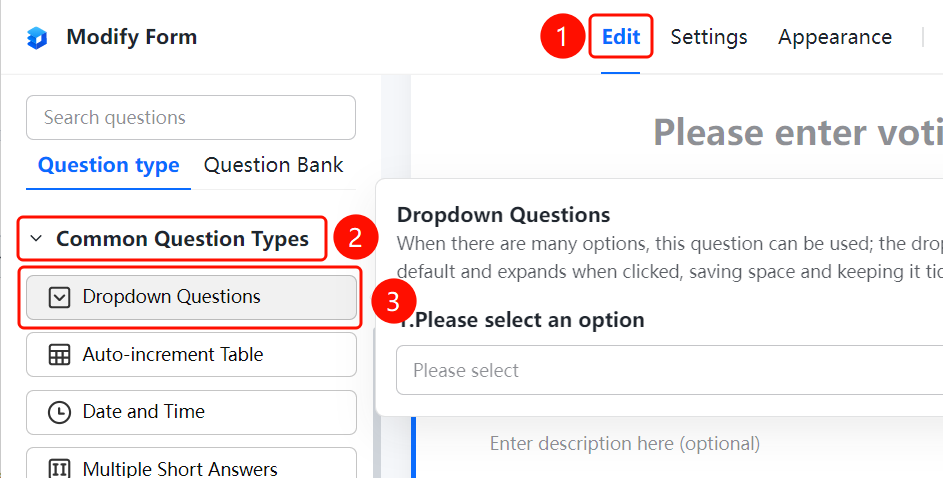
Access Path"Edit" tab → "Common Question Types" → "Dropdown Question" button
- Click the "Edit" tab at the top
- Expand the "Common Question Types" section in the left panel
- Click the "Dropdown Question" button to add a dropdown question to the poll
- Enter the question text in the question editing area and add options (e.g., "Option 1", "Option 2"). You can manage options by clicking "Add Option", "Batch Edit", or "Other Option"
Set Preset Answer
Access Path
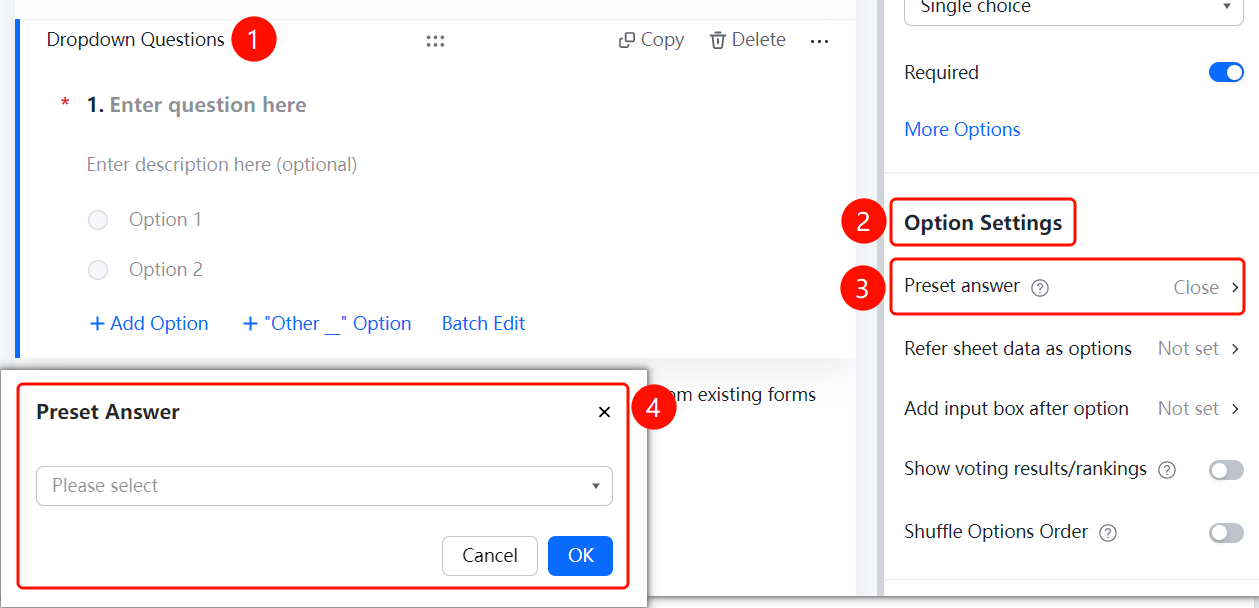
Dropdown Question → "Option Settings" → "Preset Answer"
- Click on the added dropdown question.
- In the right-hand "Option Settings" panel, click the "Preset Answer" option (currently displayed as "Off").
- In the pop-up dropdown menu, select a default answer, such as "Option 1" or "Option 2".
Reference sheet Data as Options
Feature Access
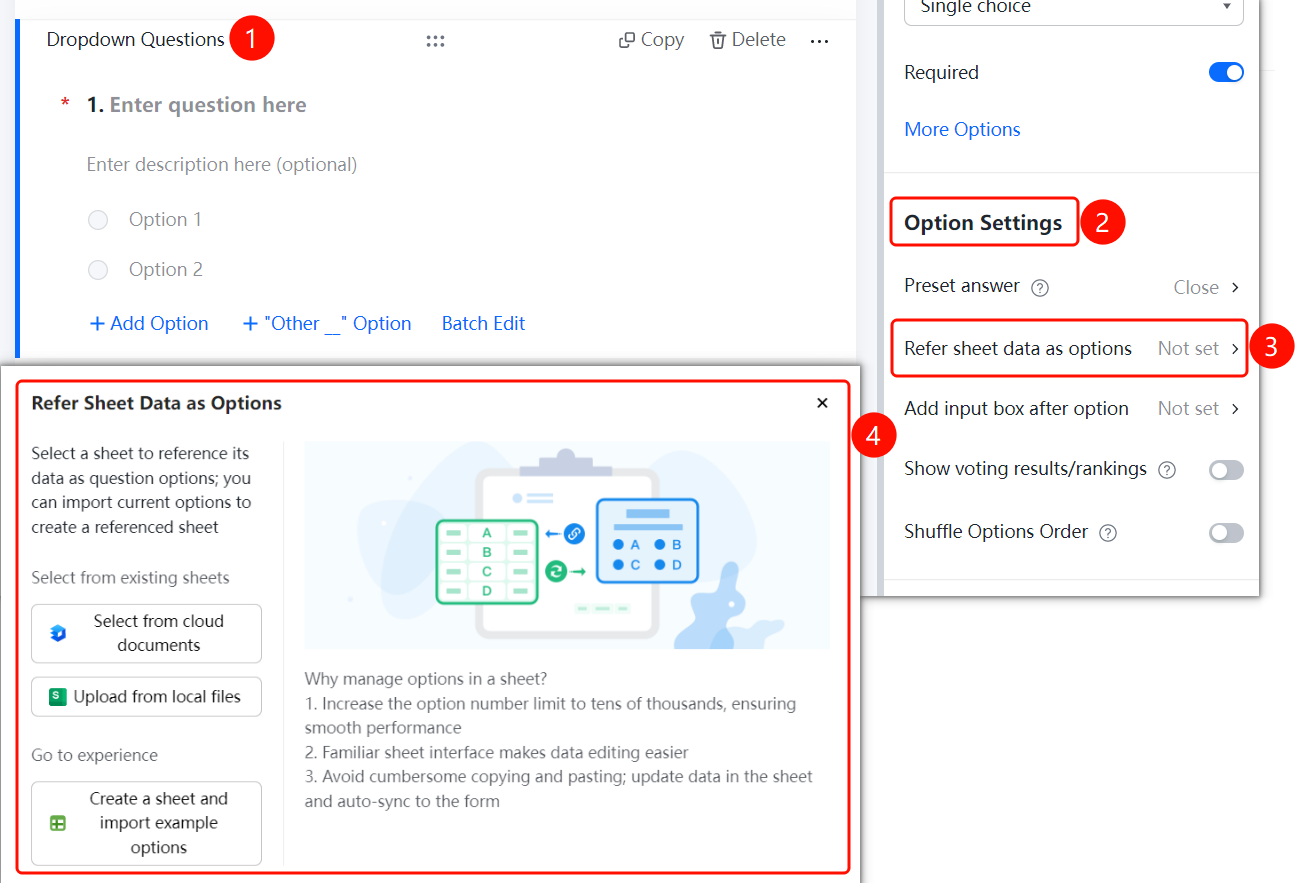
Dropdown Question → "Option Settings" → "Reference sheet Data as Options"
- Click on the added dropdown question
- In the right-hand "Option Settings" panel, click "Reference sheet Data as Options" (currently displayed as "Not Set")
- In the pop-up panel, select the table source: choose from a cloud document, upload from a local file, or create a new table and import sample options
Add Input Box After Options
Feature Access
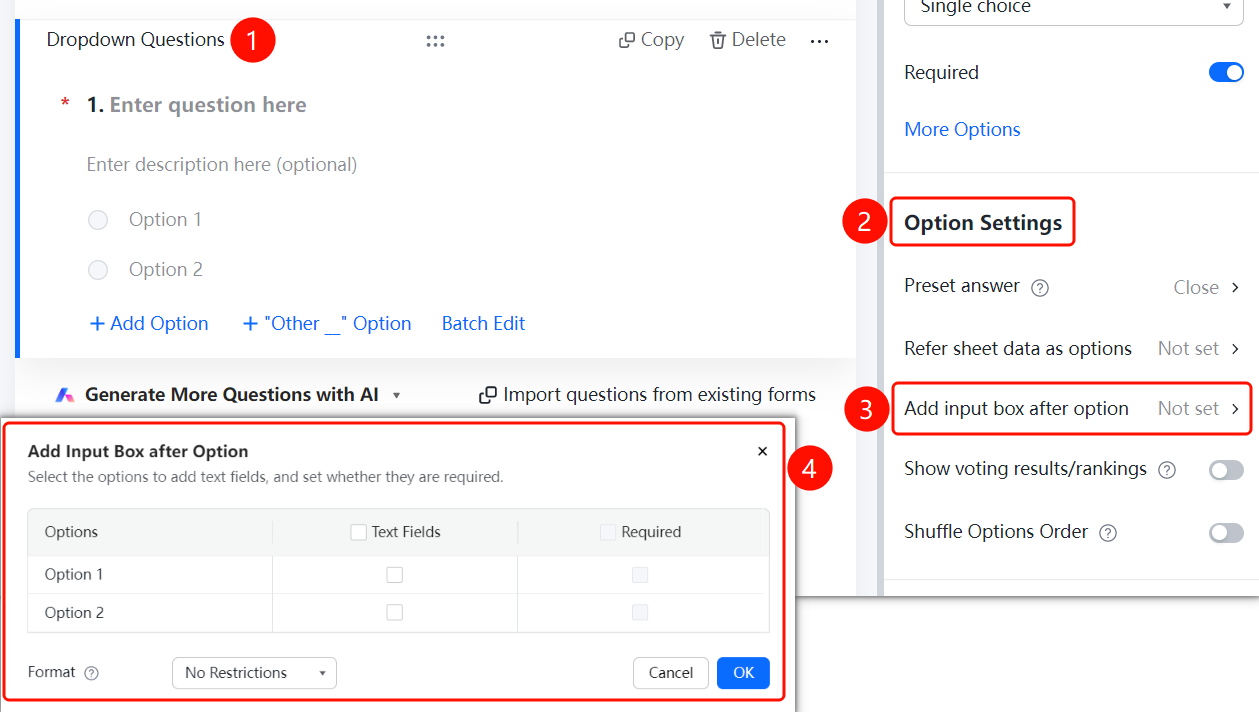
Dropdown Question → "Option Settings" → "Add Input Box After Options"
- Click on the dropdown question you have added.
- In the right-hand "Option Settings" panel, click "Add Input Box After Options" (currently displayed as "Not Set").
- In the pop-up panel, check the options for which you want to add an input box, and set whether the input box is required.
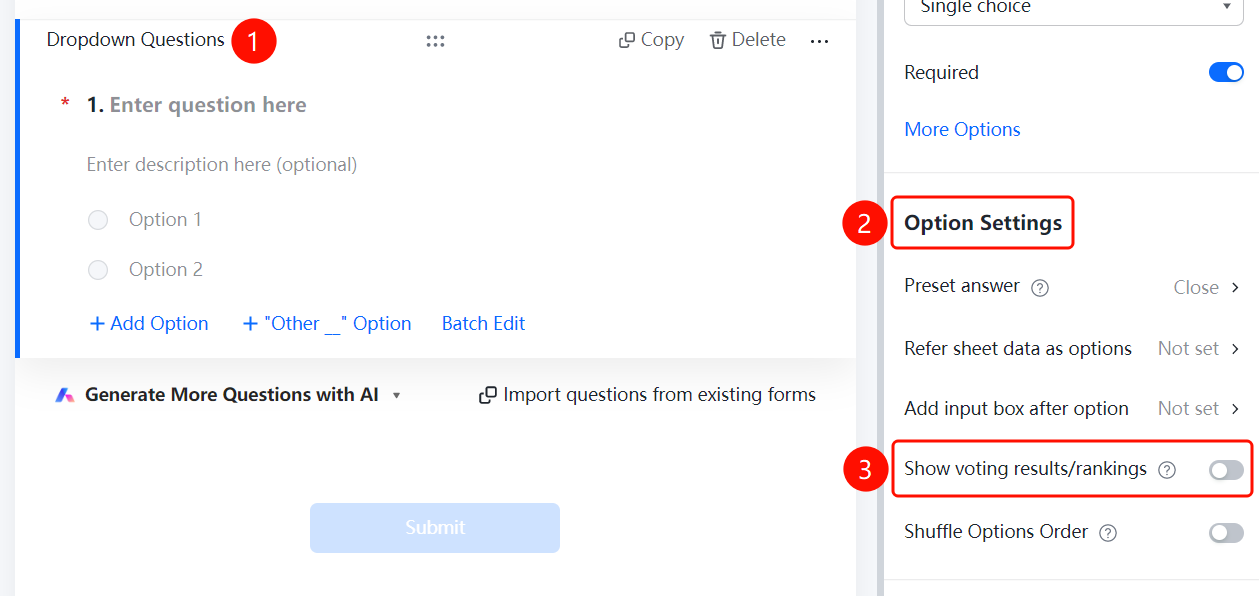
Display Voting Results/Leaderboard
Feature Access
Dropdown Question → "Option Settings" → Toggle "Display Voting Results/Leaderboard"
- Click on the added dropdown question
- In the right-hand "Option Settings" panel, turn on the "Display Voting Results/Leaderboard" toggle
Shuffle Option Order
Feature Access
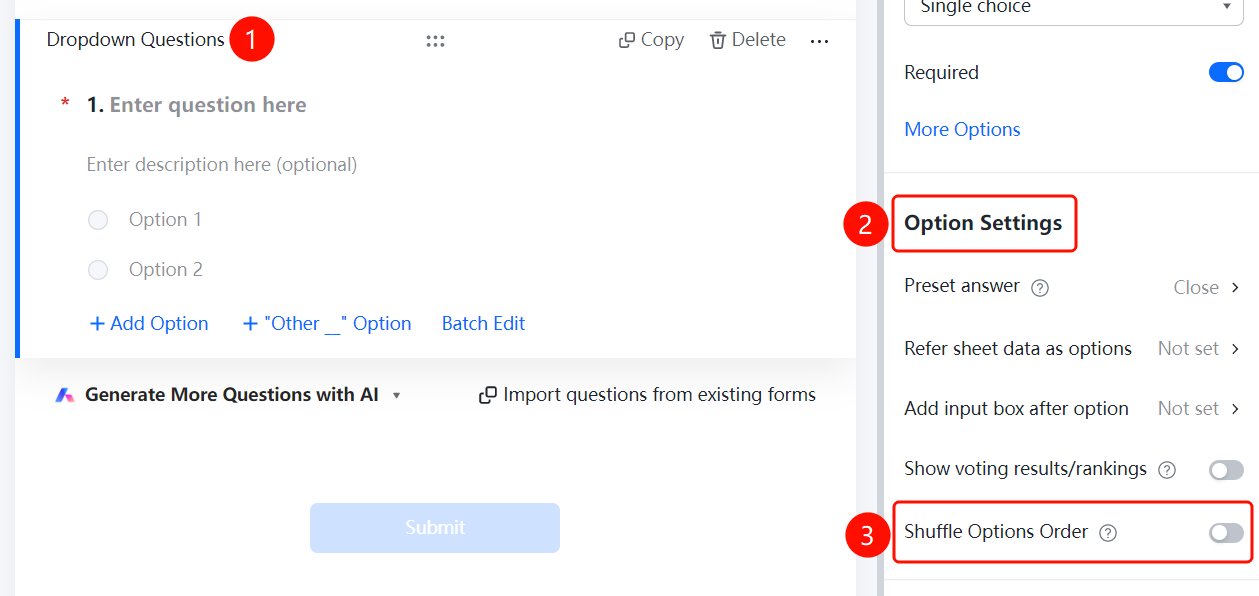
Dropdown Question → "Option Settings" → Toggle "Shuffle Option Order"
- Click on the added dropdown question
- In the right-hand "Option Settings" panel, turn on the "Shuffle Option Order" toggle
Frequently Asked Questions
Q1: How to set a default option for a dropdown question?
- Solution: Click the dropdown question, then in the "Option Settings" panel, click "Predefined Answer," and select the desired default option from the dropdown menu.
Q2: Can a dropdown question reference table data as options?
- Solution: Yes. Click the dropdown question, then in the "Option Settings" panel, click "Reference Table Data as Options." You can either select a table from a cloud document or upload a local file.
Q3: How to allow respondents to enter custom content after selecting an option?
- Solution: Click the dropdown question, then in the "Option Settings" panel, click "Add Input Box After Option." Select the options where you want to add input boxes and set required rules accordingly.
Notes
- Dropdown questions support multiple options, which can be managed via "Add Option," "Batch Edit," or the "Other" option.
- When "Randomize Option Order" is enabled, each respondent will see the options in a randomly shuffled sequence.