Feature Overview
The image question feature allows you to collect images uploaded by respondents. It supports options such as uploading photos only, adding watermarks, customizing image naming conventions, creating categorized folders, and setting limits on individual image size and total number of images.
Feature Details
| Feature Aspect | Description |
|---|---|
| Membership Restrictions | No membership restrictions |
| Version Restrictions | No version restrictions |
Operating Steps
Adding an Image Question
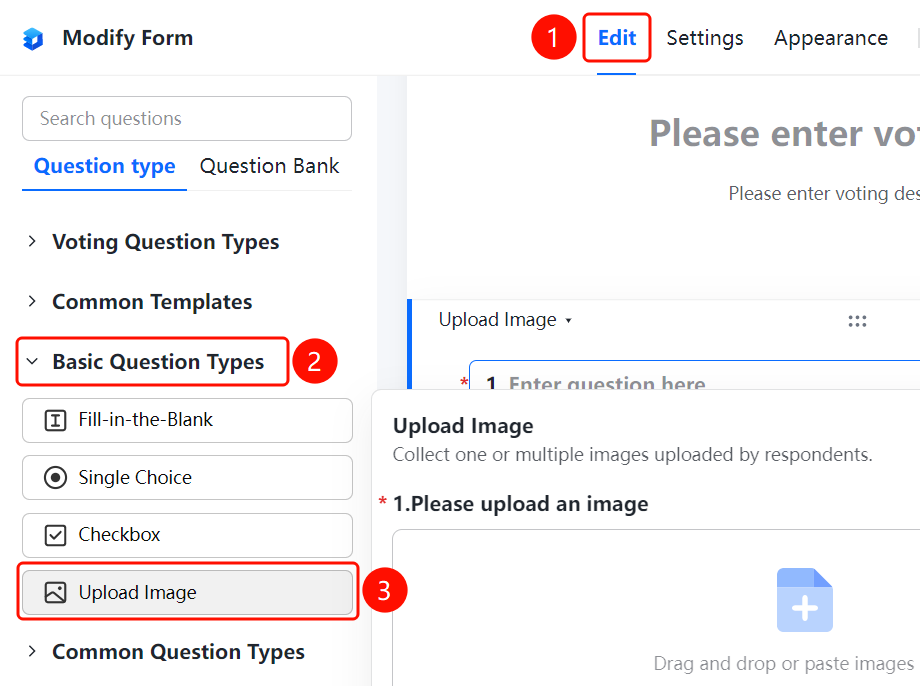
Access Path"Edit" tab → "Basic Question Types" → "Image Question" button
- Click the "Edit" tab at the top
- Expand the "Basic Question Types" section in the left panel
- Click the "Image Question" button to add an image question to the poll
- Enter the question content in the question editing area, for example, "Image Question Example"
- Click "Upload Image" to upload an image; current settings allow up to 1 image upload, with each image under 10MB
Enable Only upload by photo
Feature Access Path
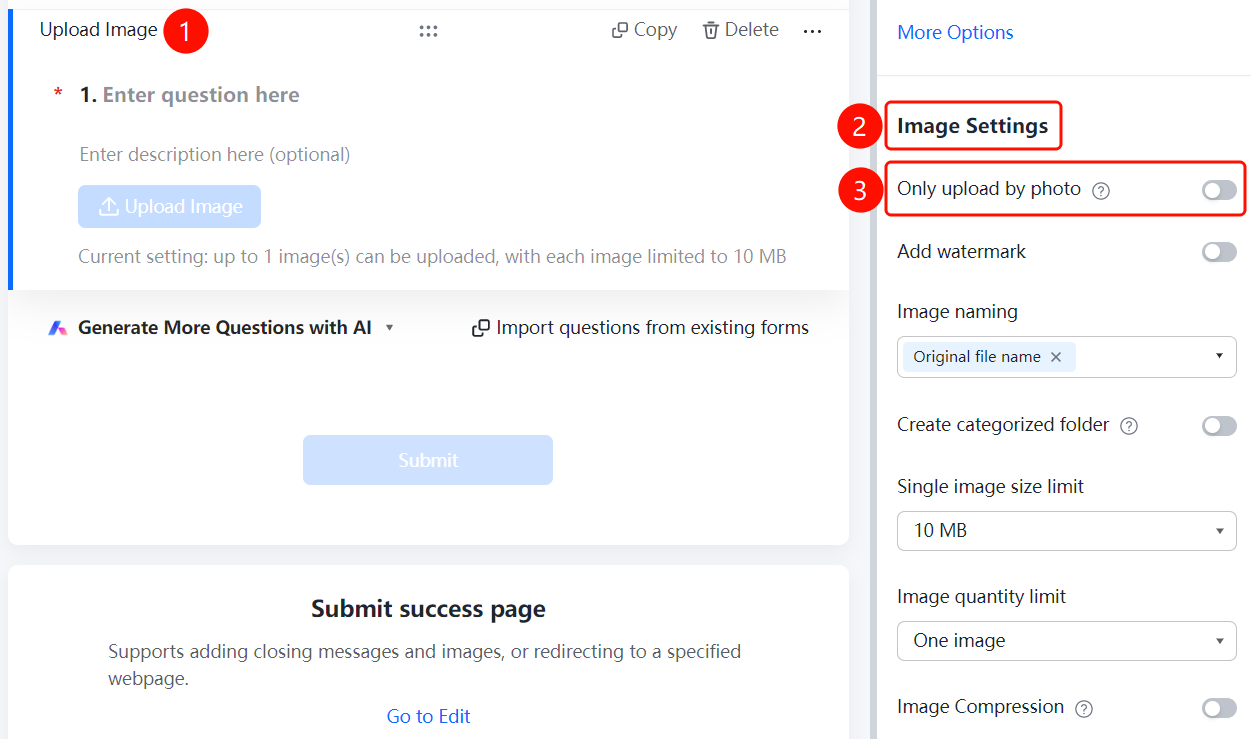
Image Question → "Image Settings" → Toggle "Only upload by photo"
- Click on the added image question
- In the right-hand "Image Settings" panel, turn on the "Only upload by photo" toggle
- Once enabled, respondents can only upload images by taking photos
!
Add Watermark Settings
Feature Access
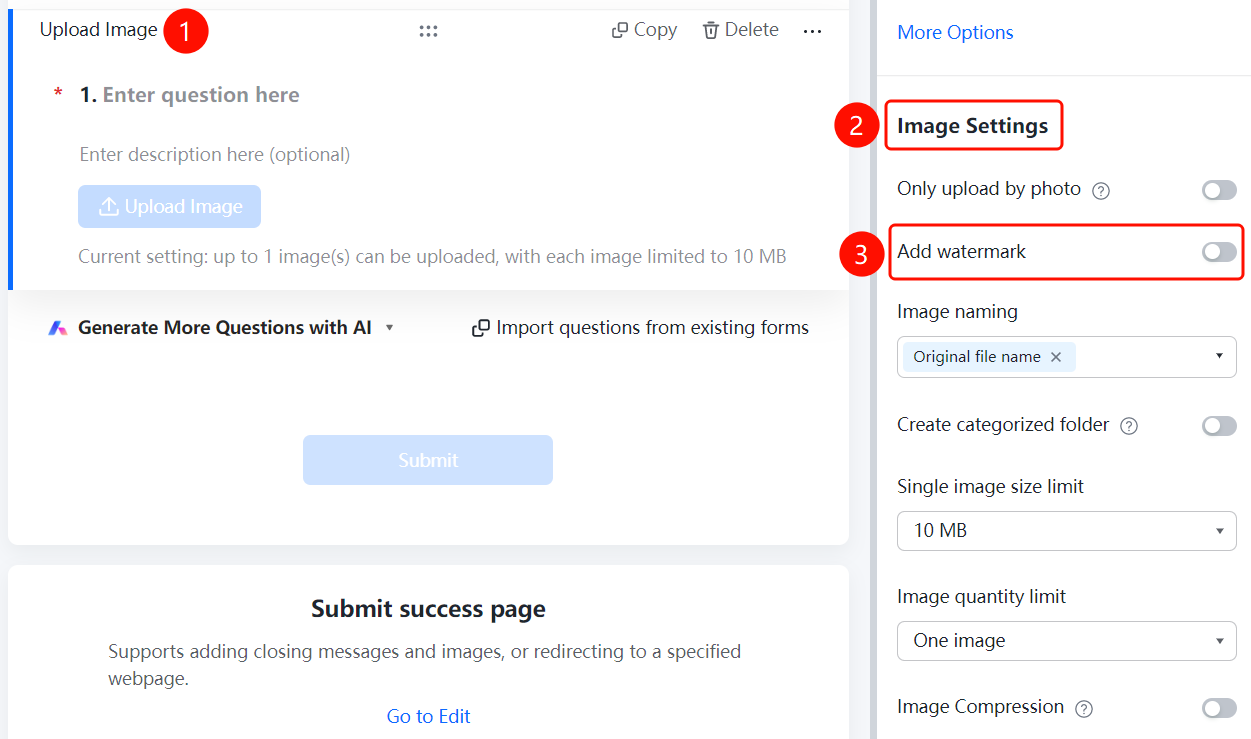
Image Question → "Image Settings" → "Add Watermark" option
- Click on the image question you have added
- In the right-hand "Image Settings" panel, click the "Add Watermark" option
Set Image Naming Method
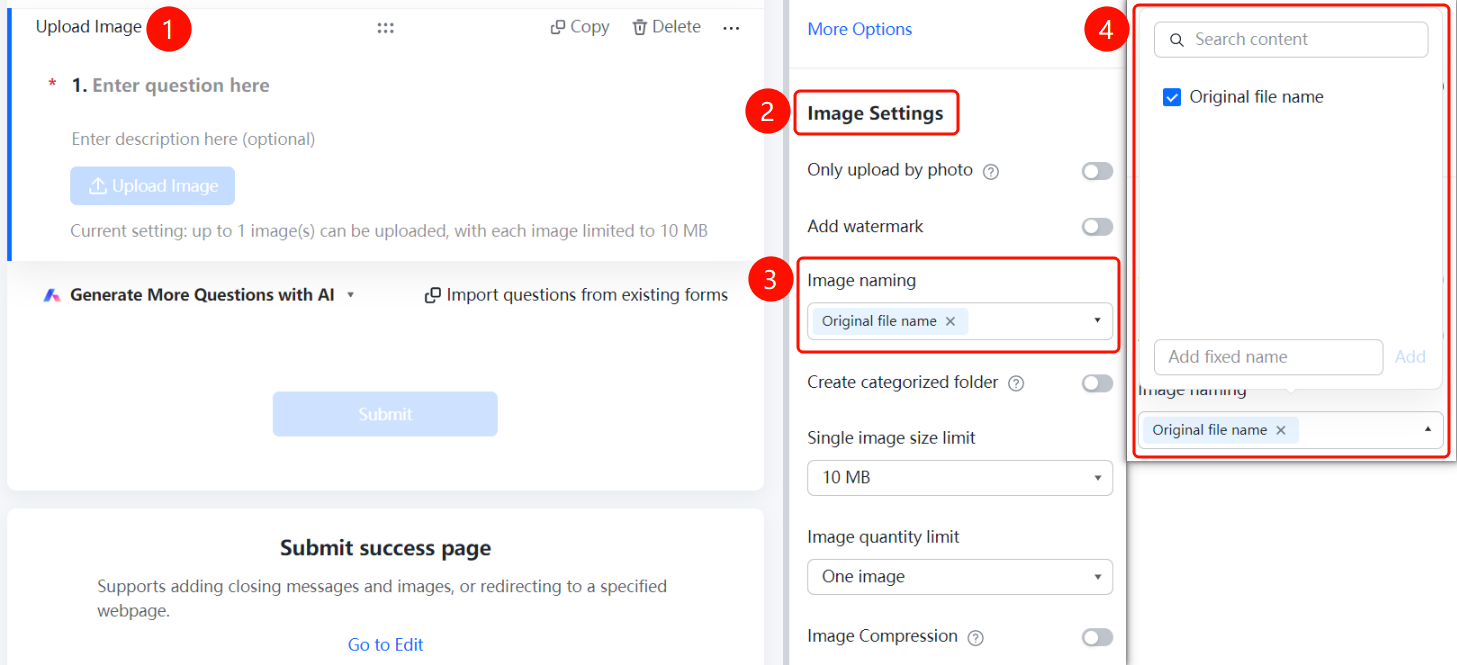
Access PathImage Question → "Image Settings" → "Image Naming Method"
- Click on the added image question
- In the right-hand "Image Settings" panel, click "Image Naming Method" (currently displayed as "Original Filename ×")
- Select a naming method or click "Add Custom Fixed Name" to define your own rule
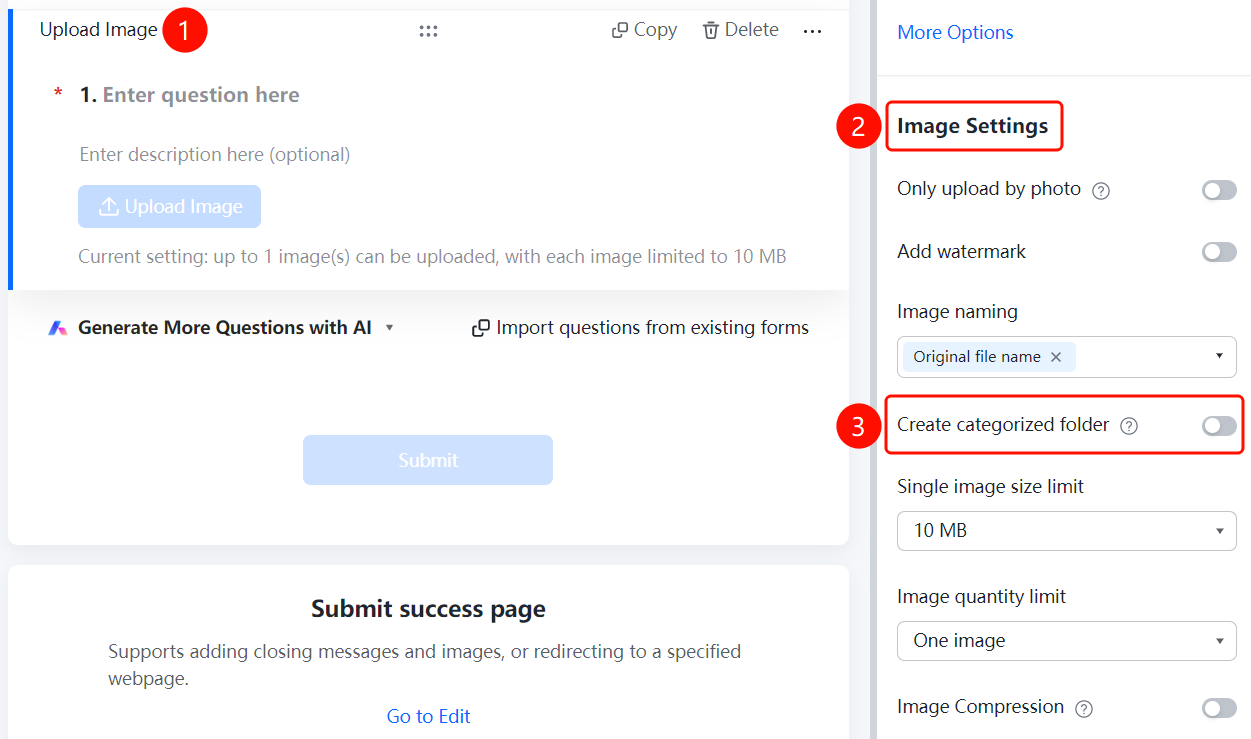
Enable Creating Categorized Folders
Feature Access
Image Question → "Image Settings" → Toggle "Create Categorized Folder"
- Click on the added image question
- In the right-hand "Image Settings" panel, turn on the "Create Categorized Folder" toggle
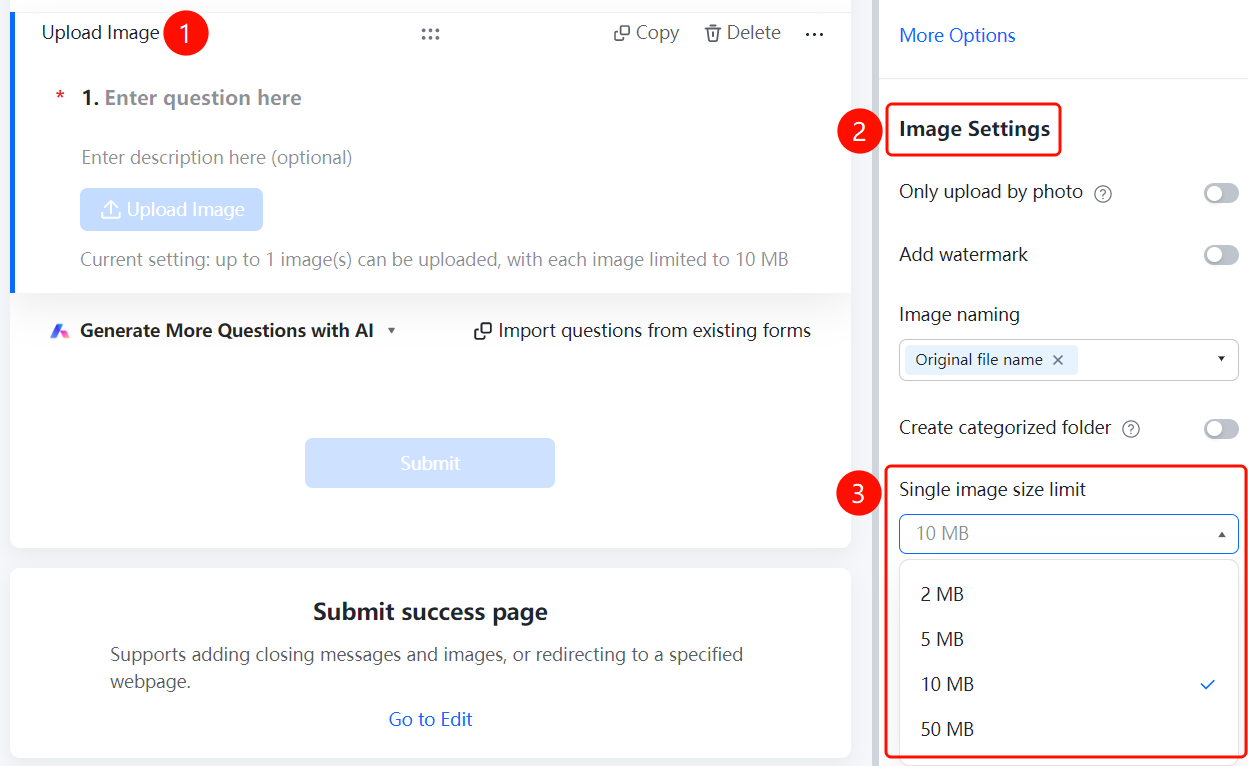
Set Single Image Size Limit
Feature Access PathImage Question → "Image Settings" → "Single Image Size Limit" option
- Click on the added image question
- In the right-hand "Image Settings" panel, click "Single Image Size Limit" (currently set to "10M")
- Select the allowed size limit
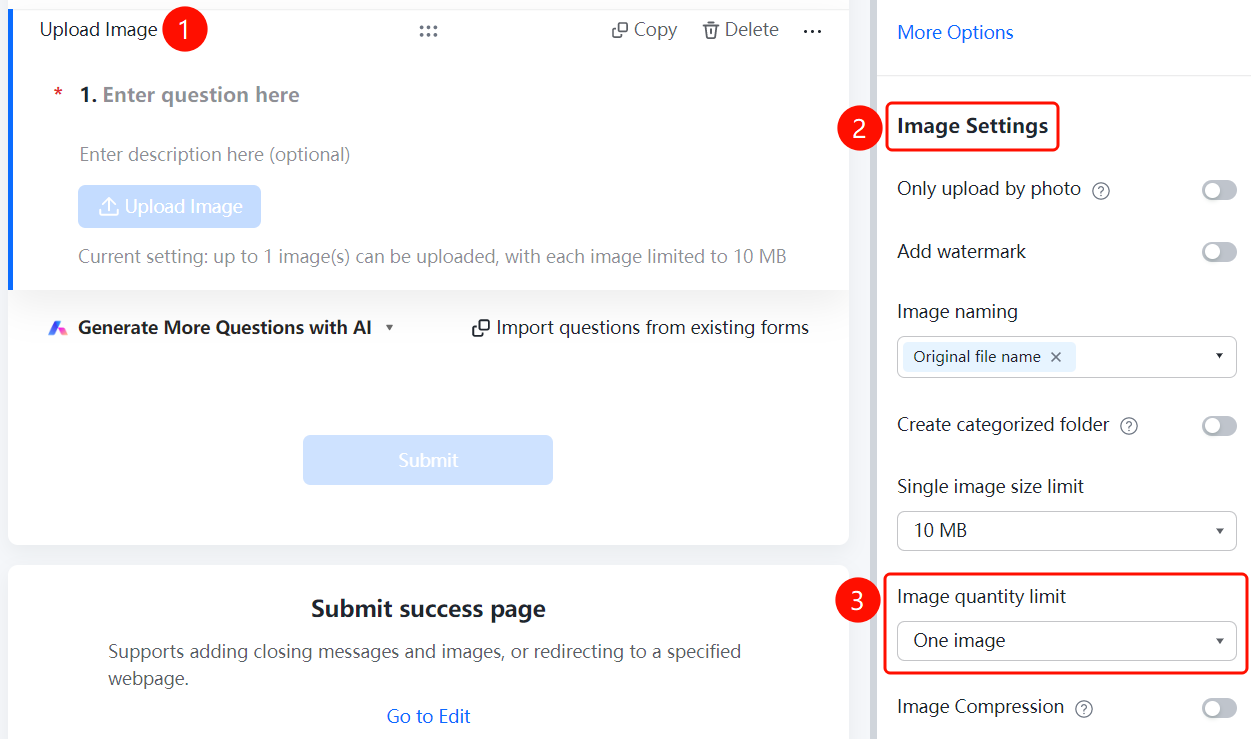
Set Image Upload Limit
Access PathImage Question → "Image Settings" → "Image Upload Limit"
- Click on the image question you have added.
- In the right-hand "Image Settings" panel, click "Image Upload Limit" (currently set to "1 image").
- Select the number of images allowed for upload.
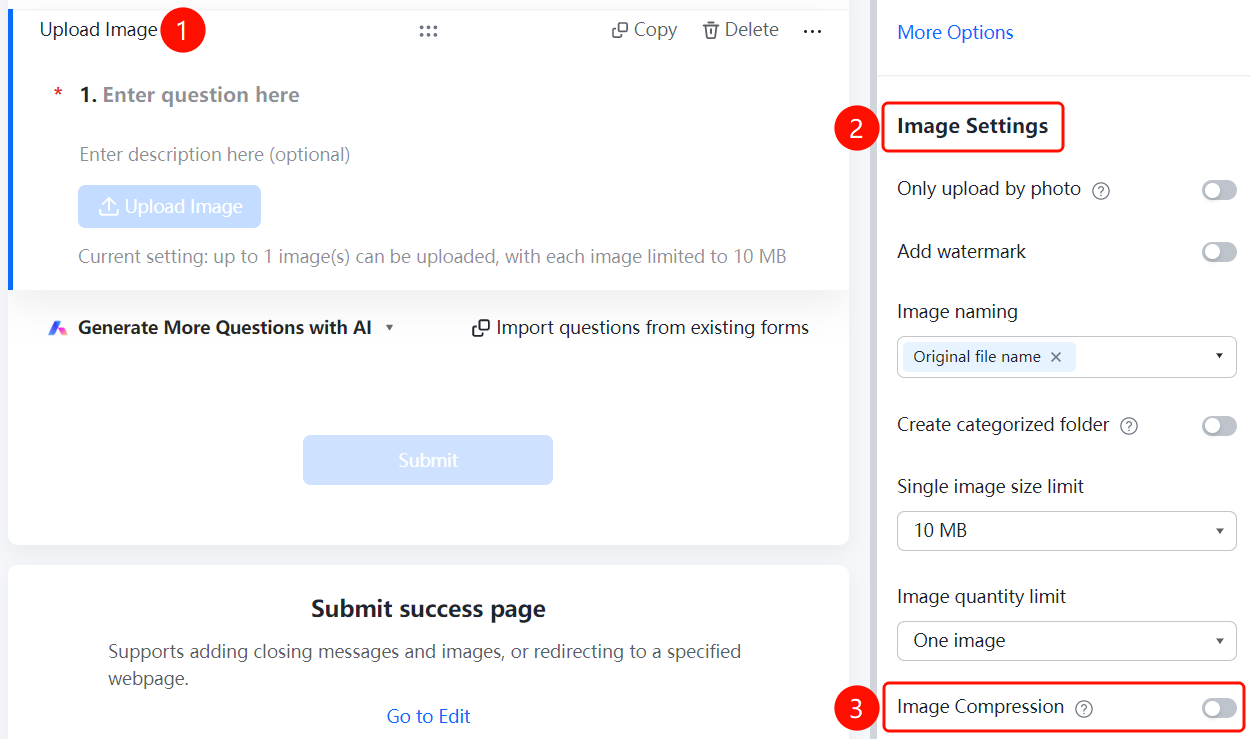
Set Image Compression
Feature Access
Image Question → "Image Settings" → Toggle "Image Compression"
- Click on the added image question
- In the right-hand "Image Settings" panel, turn on the "Image Compression" toggle
Frequently Asked Questions
Q1: How many images can be uploaded for an image question?
- Solution: Click on the image question, go to "Image Settings," and set the "Maximum Number of Images" (e.g., 1), or choose a higher number if needed.
Q2: How can I limit the size of uploaded images?
- Solution: Click on the image question, go to "Image Settings," click on "Limit per Image Size," and select the allowed maximum size (e.g., 10MB).
Q3: How can I allow respondents to upload only photos taken with their camera?
- Solution: Click on the image question, go to "Image Settings," and enable the "Allow Only Camera Uploads" option.
Notes
- Image questions are suitable for scenarios requiring image collection.
- It is recommended to set reasonable limits for both the number and size of images.