Feature Overview
Multiple-choice questions allow users to select one or more options from a set of choices. They are commonly used in surveys, exams, teaching, satisfaction assessments, and similar scenarios.
Feature Description
| Feature Dimension | Description |
|---|---|
| Membership Restrictions | No membership restrictions |
| Version Restrictions | No version restrictions |
Operating Steps
Adding a Multiple-Choice Question
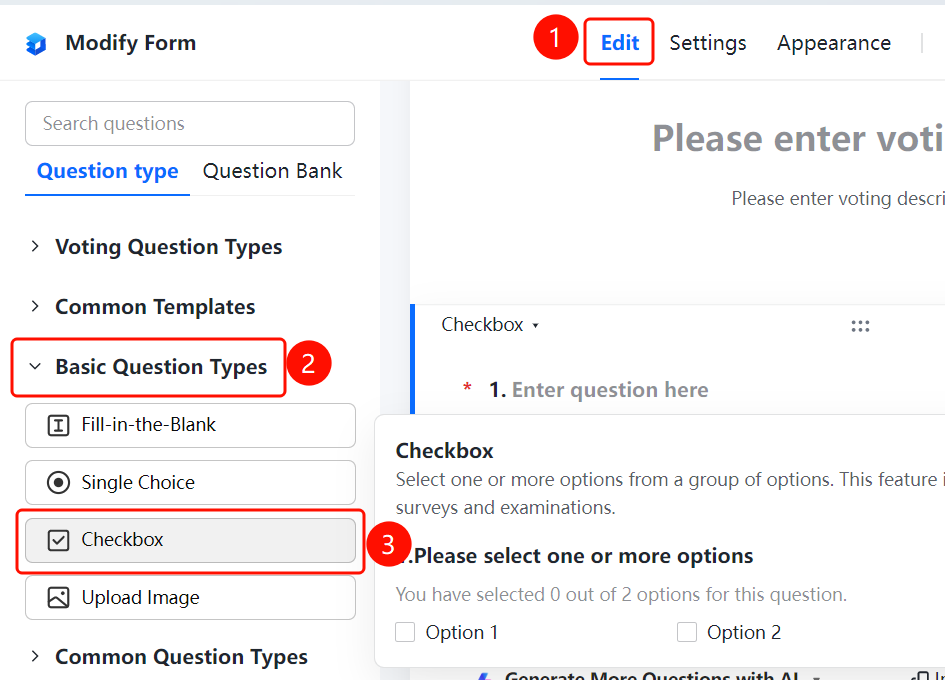
Access Path"Edit" tab → "Basic Question Types" → "Multiple-Choice Question" button
- Click the "Edit" tab at the top
- Expand the "Basic Question Types" section in the left panel
- Click the "Multiple-Choice Question" button to add a multiple-choice question to the poll
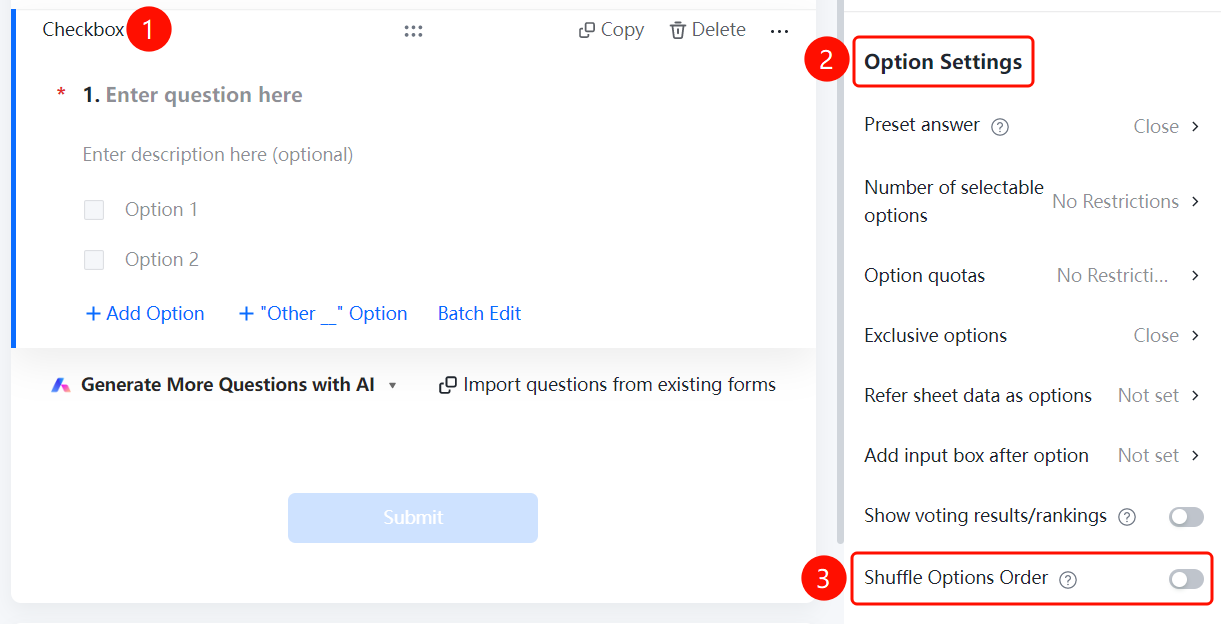
- Enter the question content in the question editing area and add options (e.g., "Option 1", "Option 2"). You can click "Add Option", "Batch Edit", or "Other Option" to manage options
Set Default Answers
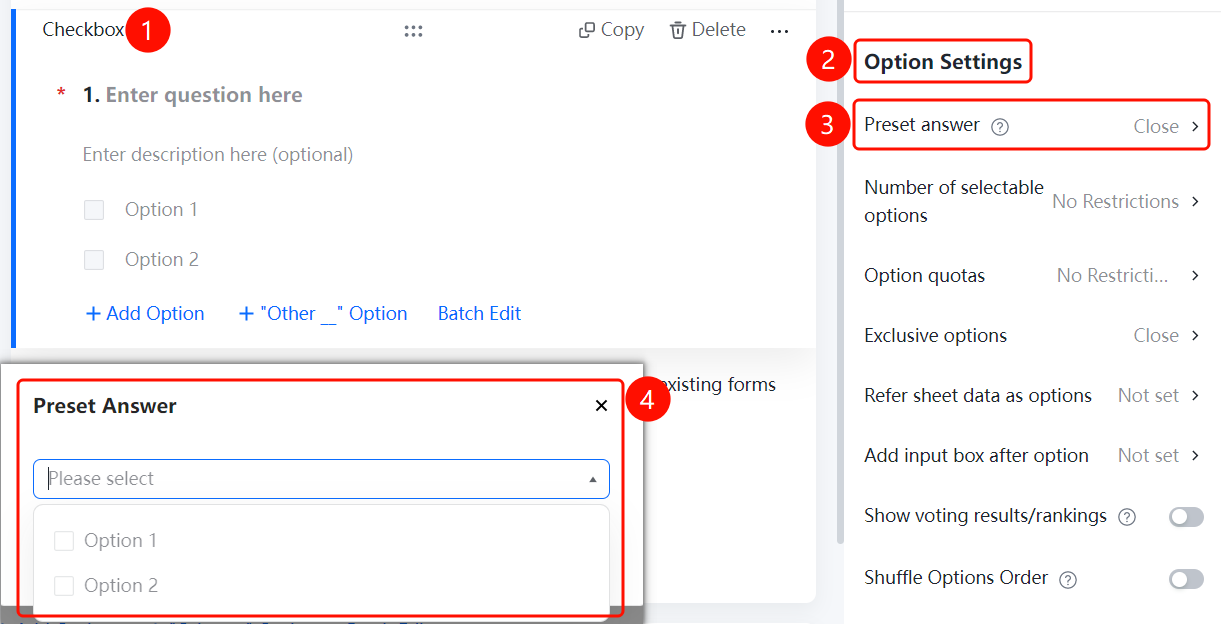
Feature Access PathMultiple Choice Question → "Option Settings" → "Default Answer" option
- Click on the added multiple-choice question
- In the right-hand "Option Settings" panel, click the "Default Answer" option (currently displayed as "Off")
- In the pop-up dialog box, select the desired default answer options
Set Number of Selectable Options
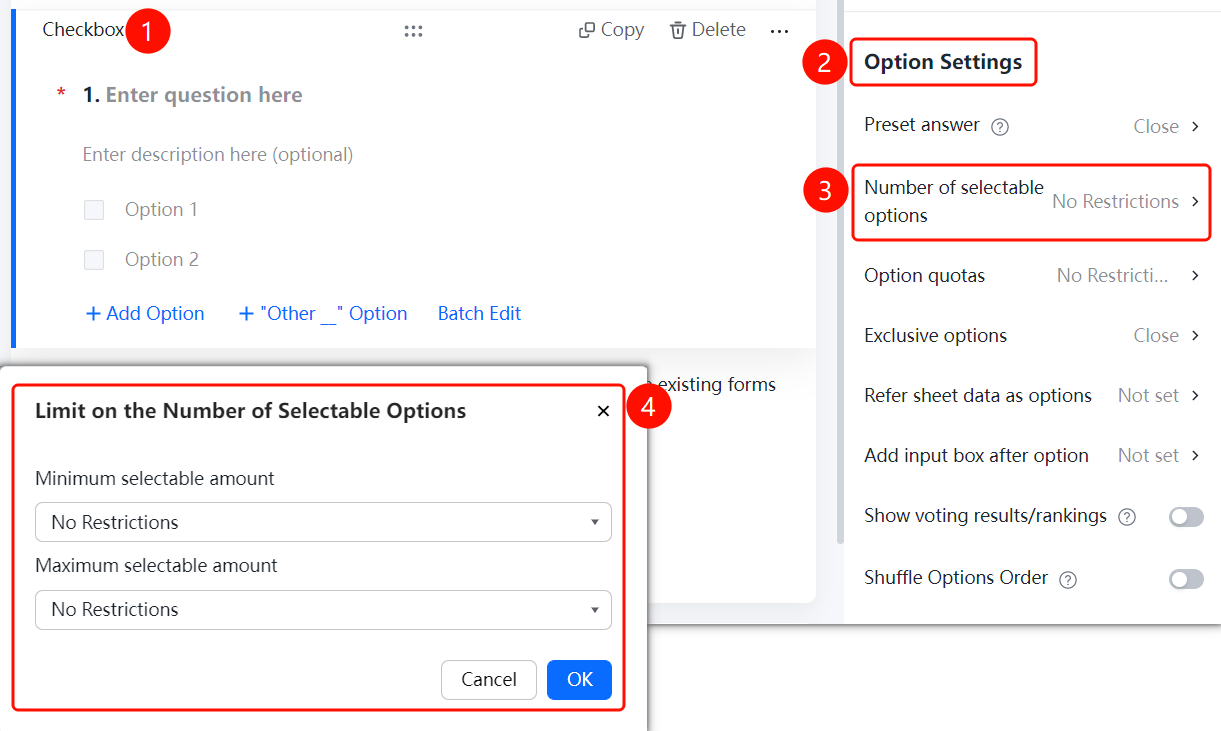
Feature Access PathMultiple Choice Question → "Option Settings" → "Number of Selectable Options"
Click on the added multiple-choice question.
In the right-hand "Option Settings" panel, click on "Number of Selectable Options" (currently displayed as "Unlimited").
In the pop-up dialog box, configure:
- Minimum Required Selections: Unlimited or specify a number
- Maximum Allowable Selections: Unlimited or specify a number
Click "Confirm" to save.
Set Option Quotas
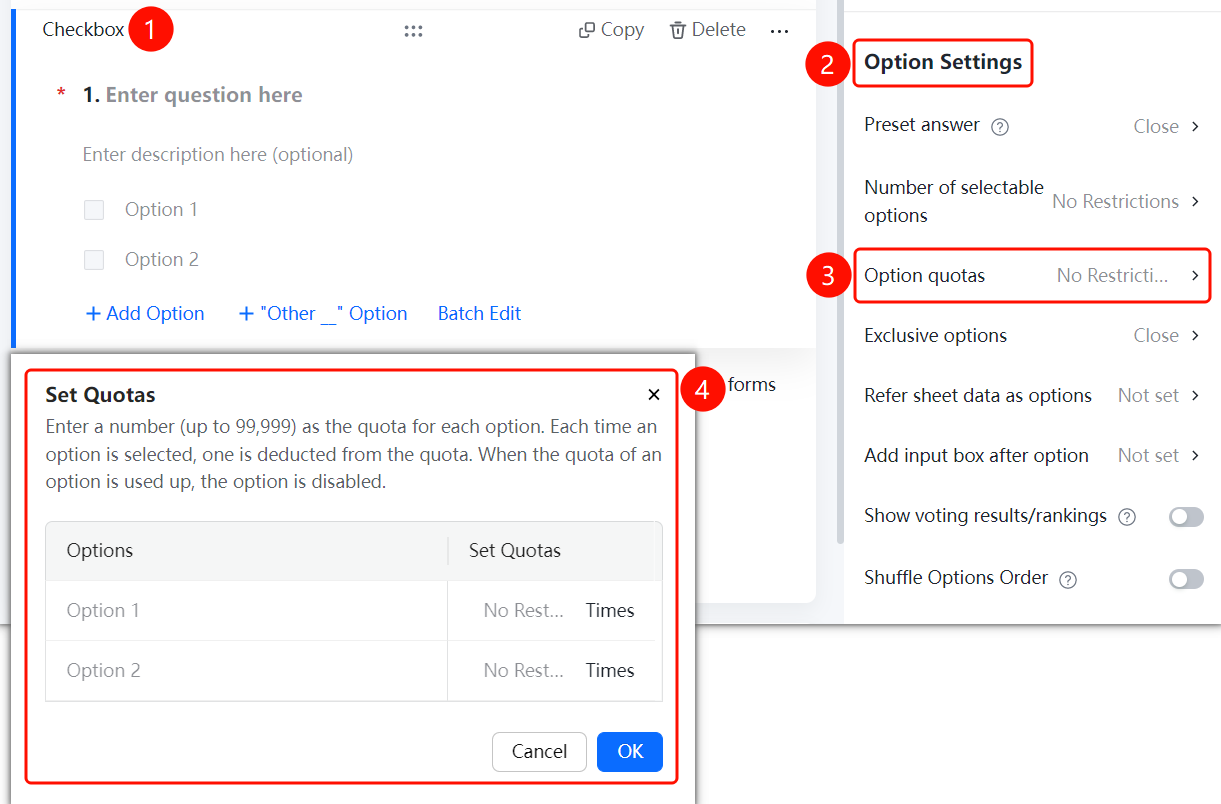
Feature Access PathMultiple Choice Question → "Option Settings" → "Option Quotas"
- Click on the multiple-choice question you have added.
- In the right-hand "Option Settings" panel, click on the "Option Quotas" option (currently displayed as "Unlimited").
- In the pop-up dialog, set a quota for each option; the maximum number of quotas allowed is 99,999.
- Each time an option is selected, one quota will be deducted. Once all quotas are used up, that option can no longer be selected.
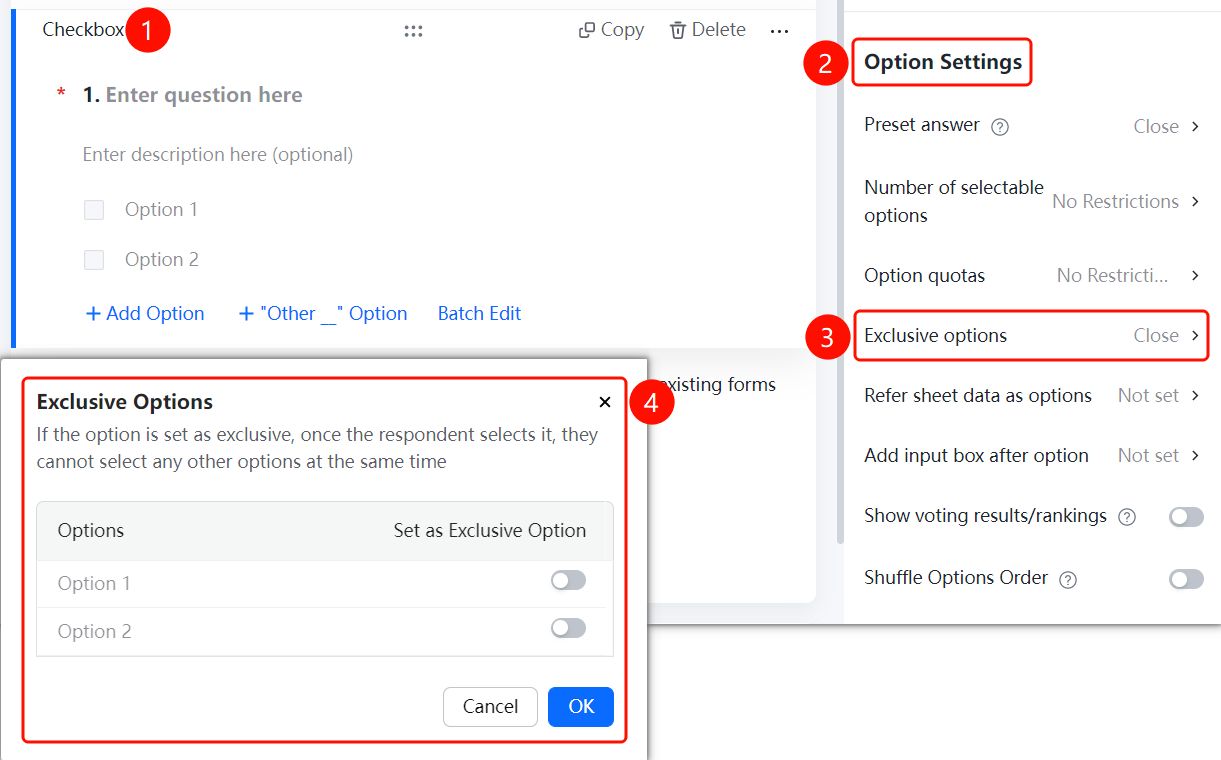
Set Exclusive Options
Feature Access PathMultiple Choice Question → "Option Settings" → "Exclusive Option"
- Click on the multiple-choice question you have added.
- In the right-hand "Option Settings" panel, click the "Exclusive Option" setting (currently displayed as "Off").
- In the pop-up dialog, if an option is set as exclusive, respondents will not be able to select any other options once they check this one.
- Turn on the switch for the options you wish to make exclusive.
- Click "Confirm" to save your changes.
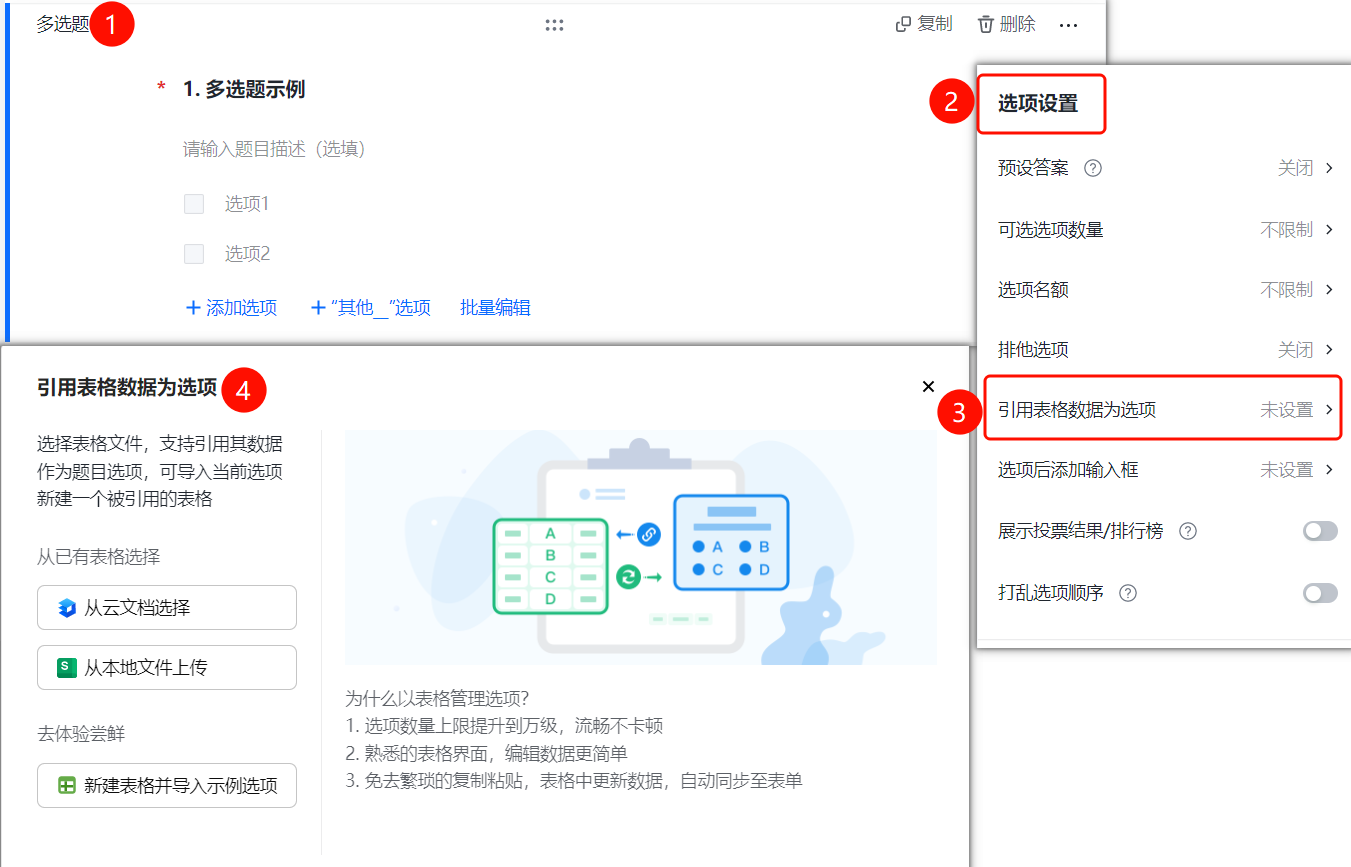
Reference Table Data as Options
Feature Access
Multiple Choice Question → "Option Settings" → "Reference Table Data as Options"
- Click on the added multiple-choice question
- In the right-hand "Option Settings" panel, click "Reference Table Data as Options" (currently displayed as "Not Set")
- Choose your data source: "Select from Cloud Document", "Upload from Local File", or "Create New Table and Import Sample Options"
- After selecting the table file, the table data will be automatically synchronized to the form
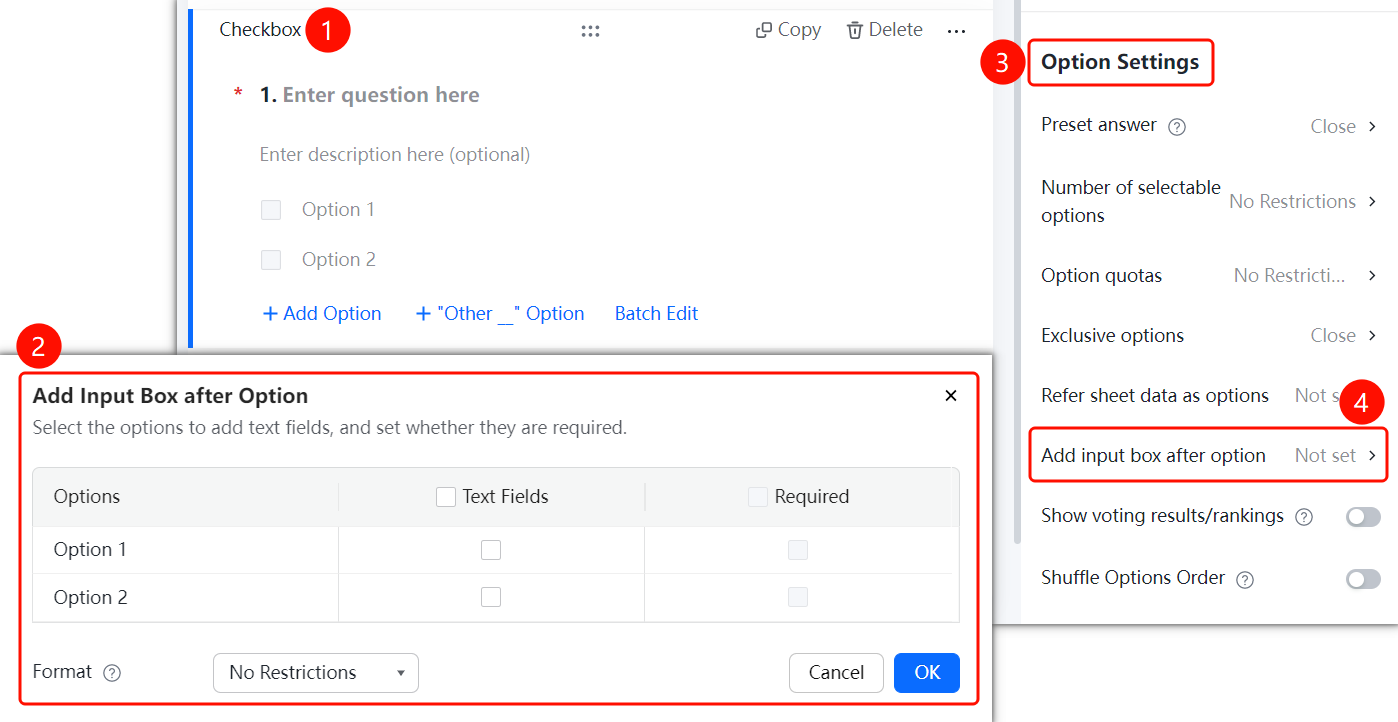
Add Input Box After Options
Feature Access PathMultiple Choice Question → "Option Settings" → "Add Input Box After Options"
- Click on the multiple-choice question you have added.
- In the right-hand "Option Settings" panel, click the "Add Input Box After Options" option (currently displayed as "Not Set").
- In the pop-up panel, check the options for which you want to add input boxes and set whether the input is required.
- You can also configure "Input Format Restrictions", such as no restrictions.
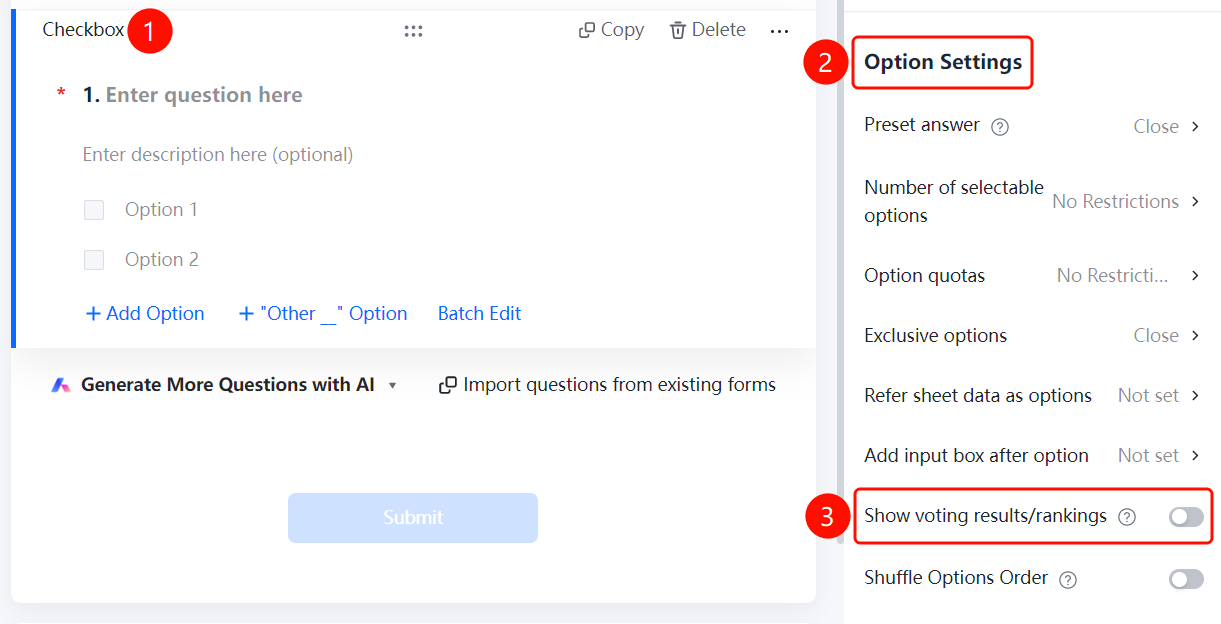
Display Voting Results/Leaderboard
Feature Access
Multiple-choice question → "Option Settings" → Toggle "Display Voting Results/Leaderboard"
- Click on the added multiple-choice question
- In the right-hand "Option Settings" panel, turn on the "Display Voting Results/Leaderboard" toggle
Shuffle Option Order
Feature Access
Multiple Choice Question → "Option Settings" → Toggle "Shuffle Option Order"
- Click on the added multiple-choice question
- In the right-hand "Option Settings" panel, turn on the "Shuffle Option Order" toggle
Frequently Asked Questions
Q1: What is the exclusive option?
- Solution: An exclusive option means that once selected, no other options can be chosen simultaneously. It is suitable for scenarios such as "None of the above."
Q2: How to limit the number of selections?
- Solution: Click on the multiple-choice question, then go to "Option Settings" → "Number of Selectable Options" and set the minimum and maximum number of choices allowed.
Q3: Can a multiple-choice question reference table data?
- Solution: Yes. Click on the multiple-choice question, then go to "Option Settings" → "Reference Table Data as Options" and select the data source.
Notes
- Multiple-choice questions are suitable for scenarios requiring multiple answers.
- When "Shuffle Option Order" is enabled, the order of options will be randomly arranged for each respondent.