Feature Overview
Common settings are used to configure core parameters of the poll, including valid response time, who can participate, collection period, pausing collection, respondent modification options, and response approval.
Feature Description
| Feature Dimension | Description |
|---|---|
| Membership Restriction | No membership restriction |
| Version Restriction | No version restriction |
Operation Steps
Set Valid Response Period
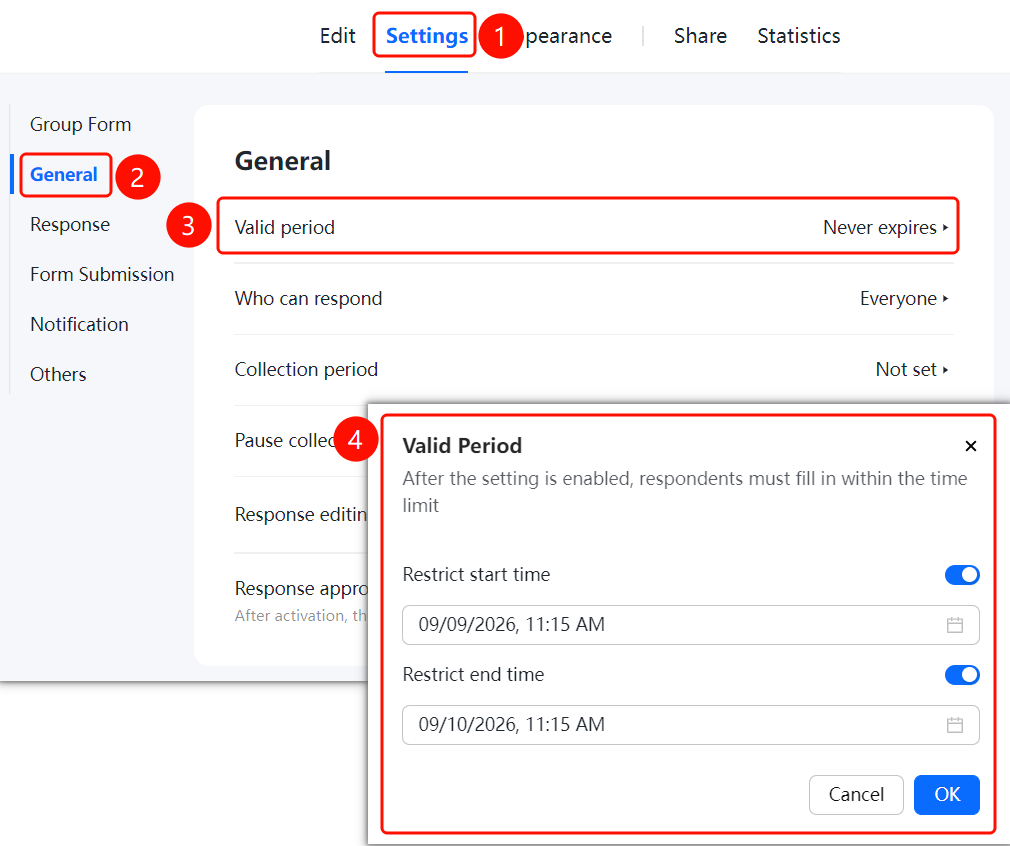
Access PathSettings tab → Common Settings → Fill-in Valid Time option
- Click the "Settings" tab at the top
- In the left panel, click "Common Settings"
- Click "Fill-in Valid Time" (currently set to "Unlimited")
- In the pop-up window, enable both "Restrict Start Time" and "Restrict End Time", then specify the exact times
- After enabling these settings, respondents must complete the form within the designated time period. Click "Confirm" to save
Set Who Can Fill In
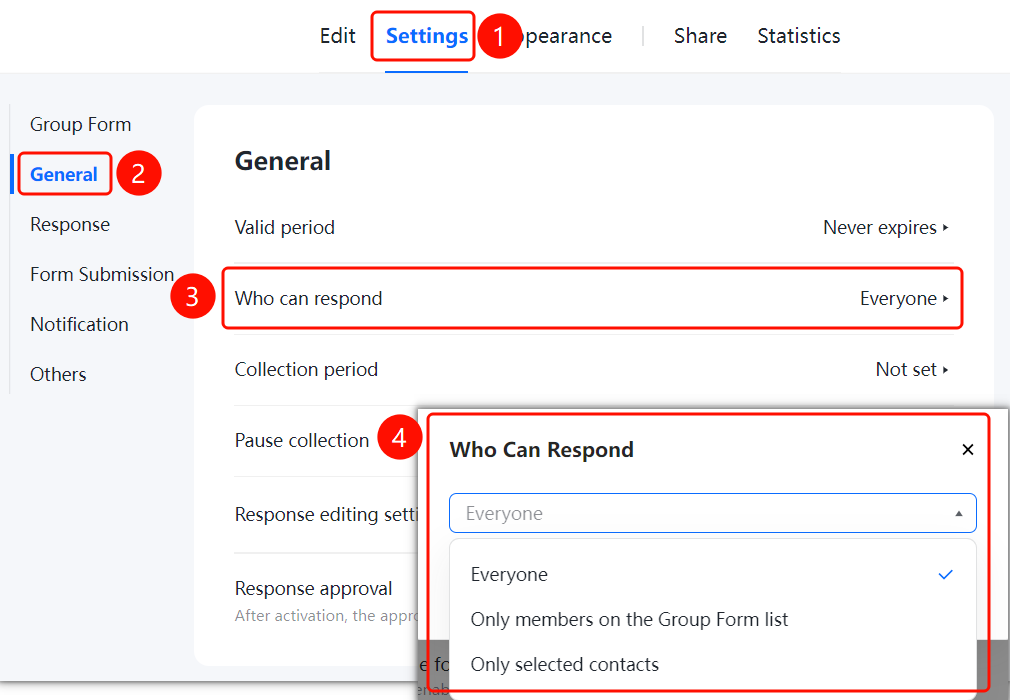
Feature Access Path"Settings" tab → "Common Settings" → "Who Can Fill In" option
- Click the "Settings" tab at the top
- In the left sidebar, click "Common Settings"
- Click "Who Can Fill In" (currently set to "Anyone can fill in")
- Choose the filling permission: "Anyone can fill in", "Only members on the preset list can fill in", or "Only selected contacts can fill in"
Set Collection Cycle
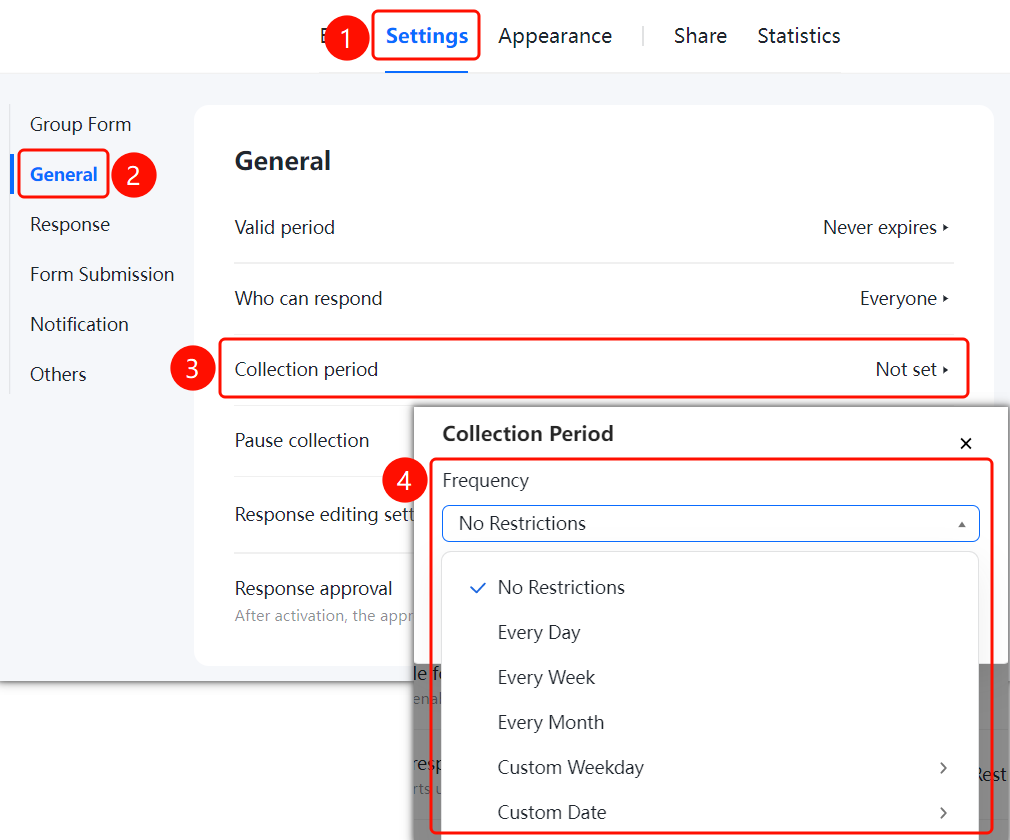
Access PathSettings tab → Common Settings → Collection Cycle option
- Click the "Settings" tab at the top
- In the left panel, click "Common Settings"
- Click "Collection Cycle" (currently set to "Not Set")
- Select a cycle type: Unrestricted, Daily, Weekly, Monthly, or Custom Date
Pause Collection Settings
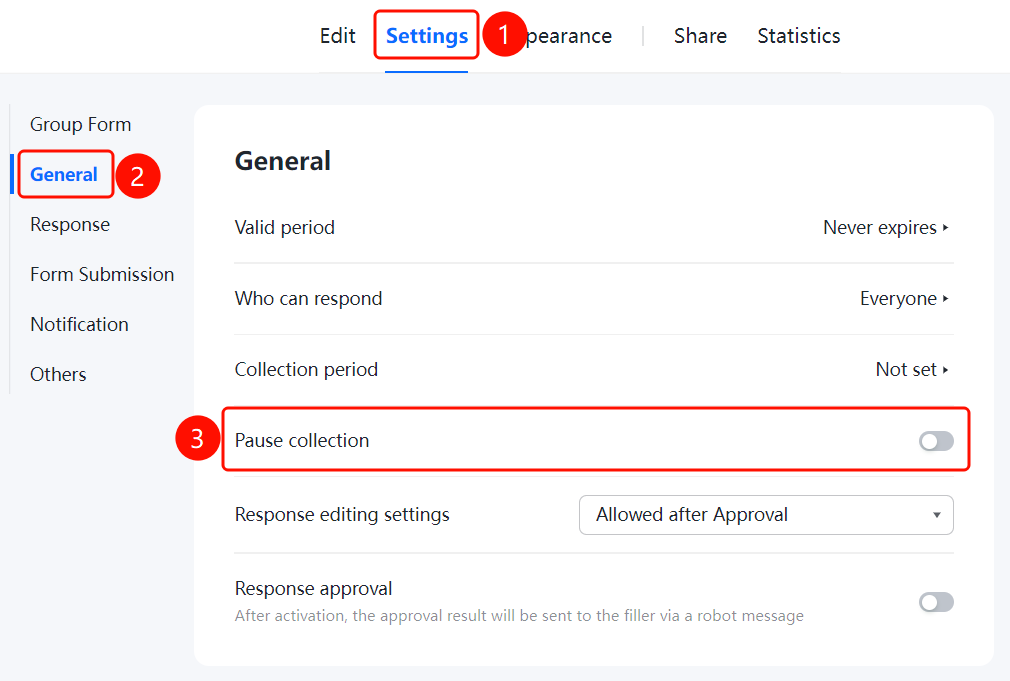
Access PathSettings tab → General Settings → Pause Collection toggle
- Click the "Settings" tab at the top
- In the left sidebar, click "General Settings"
- Turn on the "Pause Collection" toggle
- Once enabled, voting will be paused and respondents will not be able to submit responses
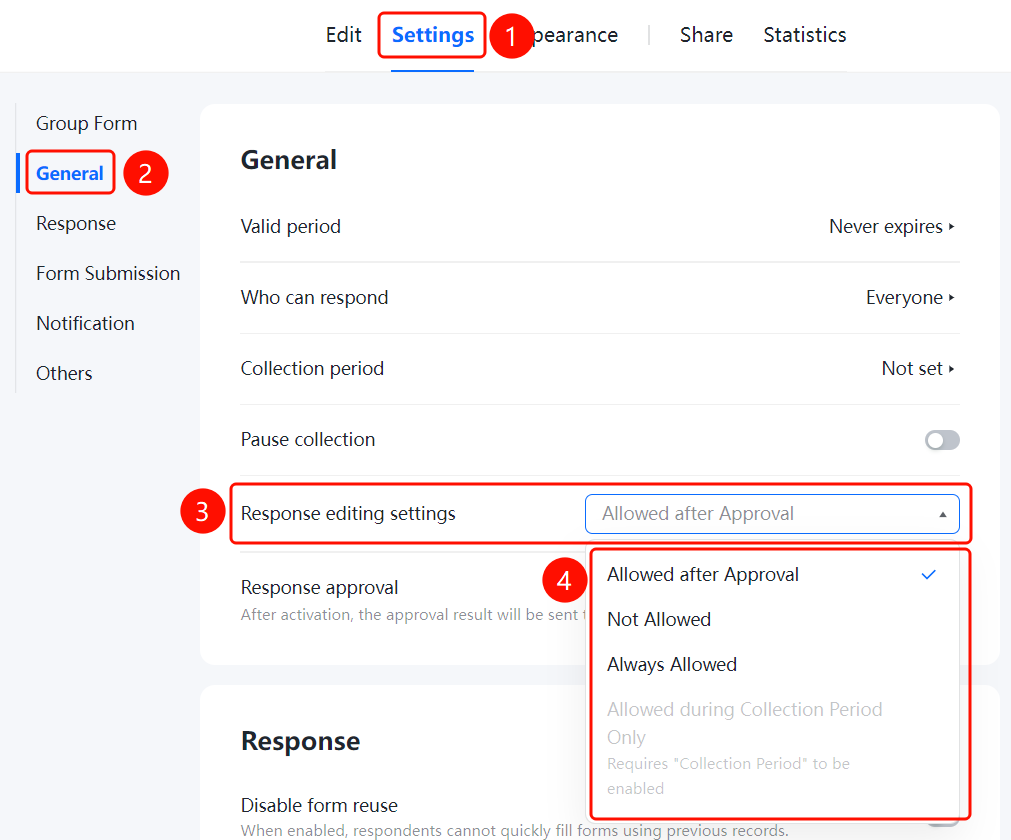
Set Up Respondent Answer Editing
Access Path"Settings" tab → "Common Settings" → "Respondent Answer Editing Settings"
- Click the "Settings" tab at the top
- In the left panel, click "Common Settings"
- Click "Respondent Answer Editing Settings"
- Choose the editing permission: allow editing after approval, disallow editing, always allow editing, or allow editing only during the collection period
Set Up Form Approval
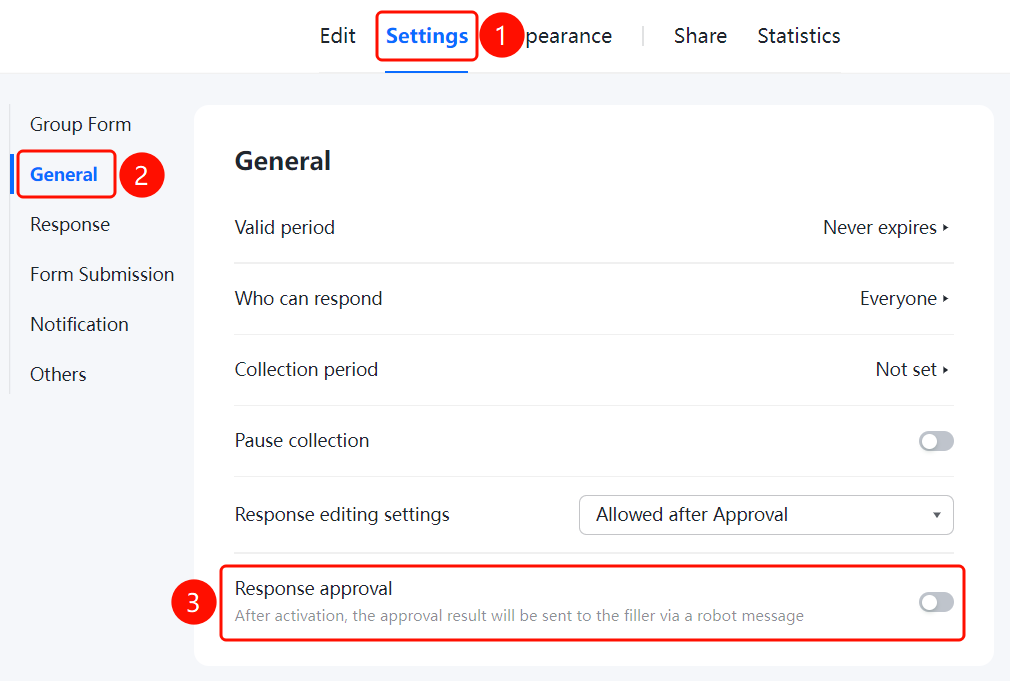
Access PathSettings tab → Common Settings → Toggle for Form Approval
- Click the "Settings" tab at the top
- In the left-side panel, click "Common Settings"
- Turn on the "Form Approval" toggle
- After enabling, approval results will be sent to respondents via a bot message
Frequently Asked Questions
Q1: How to set a vote to be valid only during a specific time period?
- Solution: In the "Common Settings," click on "Submission Valid Period," then enable both "Restrict Start Time" and "Restrict End Time," and set the specific times accordingly.
Q2: How to restrict who can submit responses?
- Solution: In the "Common Settings," click on "Who Can Submit," and choose from the following options: "Anyone can submit," "Only members on the preset list can submit," or "Only selected contacts can submit."
Q3: How to enable response approval?
- Solution: In the "Common Settings," turn on the "Response Approval" toggle. Once enabled, approval results will be sent via a bot message.
Notes
- After setting the submission validity period, users outside this timeframe will not be able to submit.
- The collection cycle supports periodic collection by day, week, month, or custom dates.