Feature Overview
The mobile number field is used to collect respondents' phone numbers and falls under the fill-in-the-blank question type in common templates. By default, it enforces a mobile number format, with automatic system validation. It supports mobile number verification and prevents submission from specific phone numbers.
Feature Description
| Function Dimension | Description |
|---|---|
| Membership Restrictions | No membership restrictions |
| Version Restrictions | No version restrictions |
Operating Steps
Adding a Phone Number
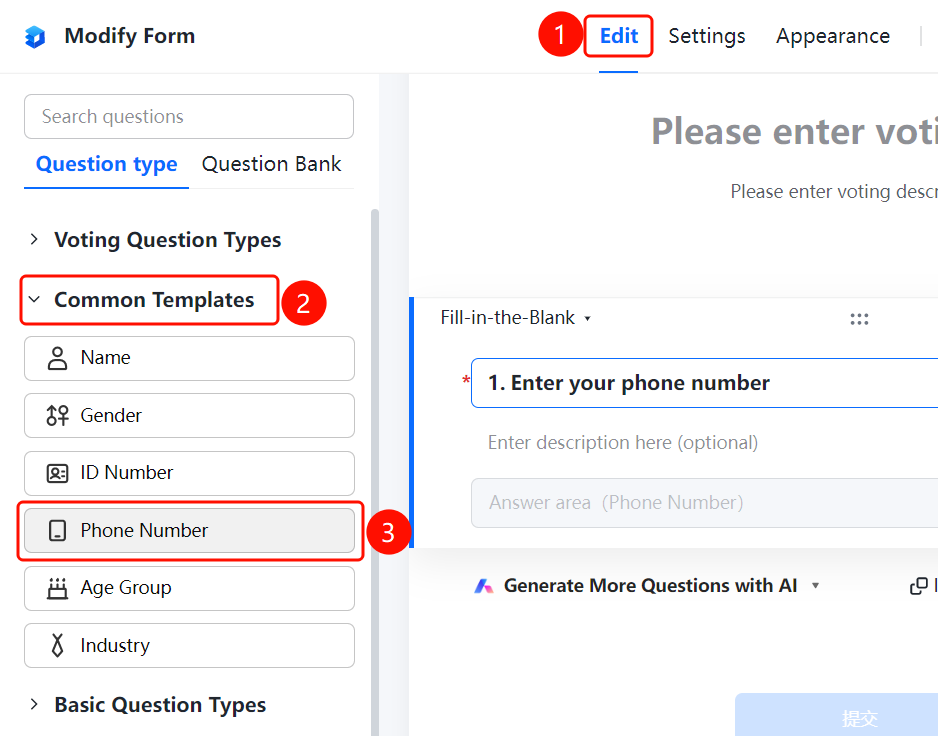
Access Point"Edit" tab → "Common Templates" → "Phone Number" option
- Click the "Edit" tab at the top
- In the left-side panel, expand the "Common Templates" section and click the "Phone Number" option
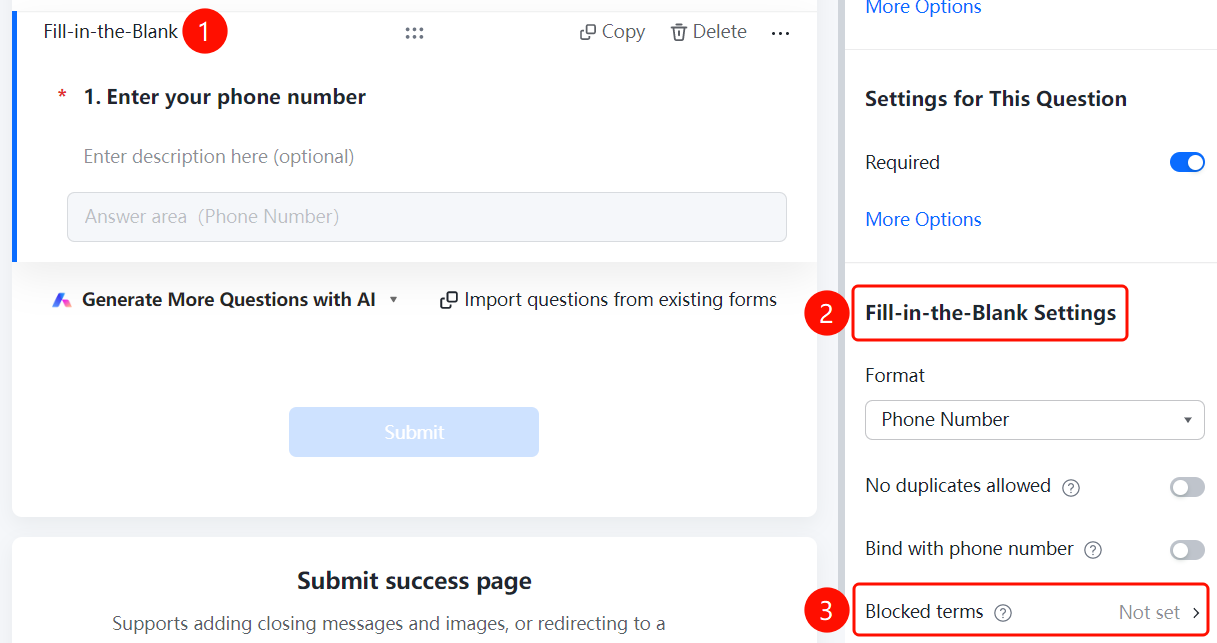
- The phone number field will be added to the poll; respondents can enter their phone numbers in the "Responder Answer Area (Phone Number)"
Set Format Restrictions
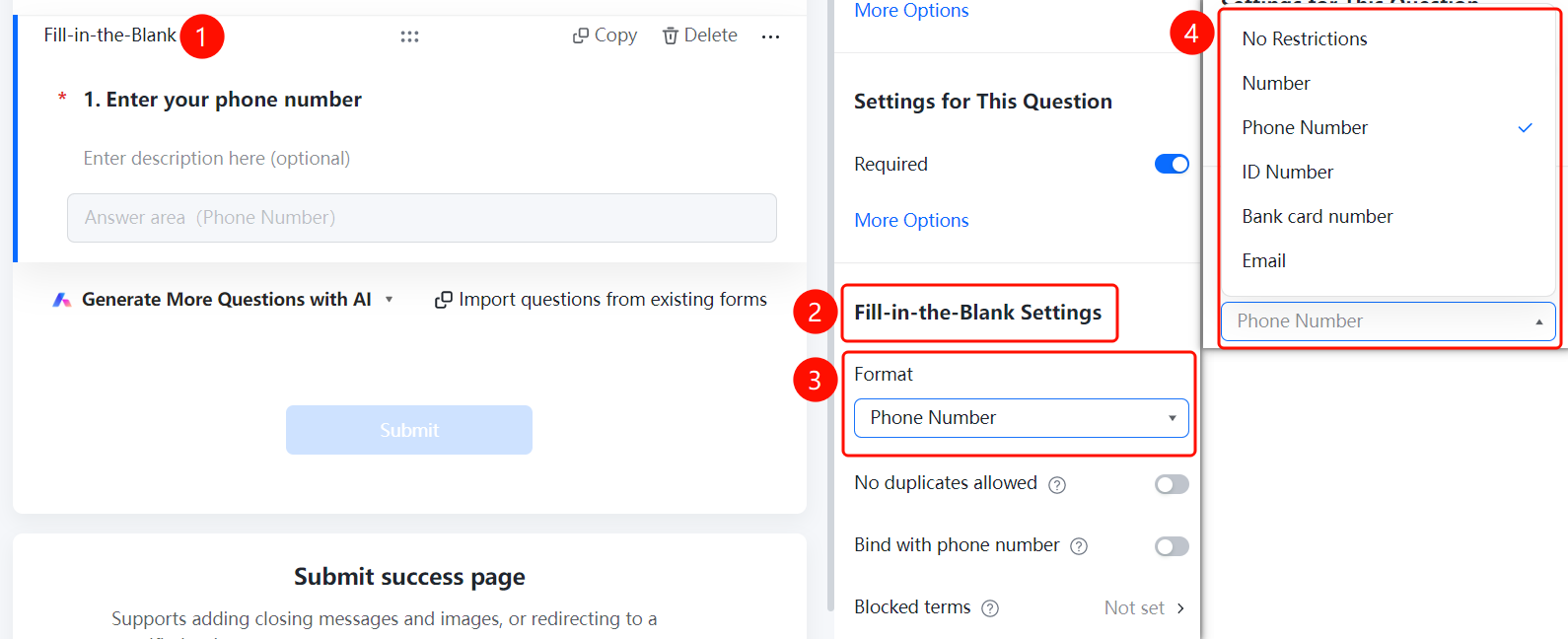
Access PathPhone Number → "Field Settings" → "Format Restrictions"
- Click on the added phone number field.
- In the right-hand "Field Settings" panel, click the "Format Restrictions" dropdown menu (currently set to "Phone Number").
- Switch between format types: "No Restriction", "Numbers Only", "Phone Number", "ID Number", "Bank Card Number", "Email"
Set to Disallow Duplicates
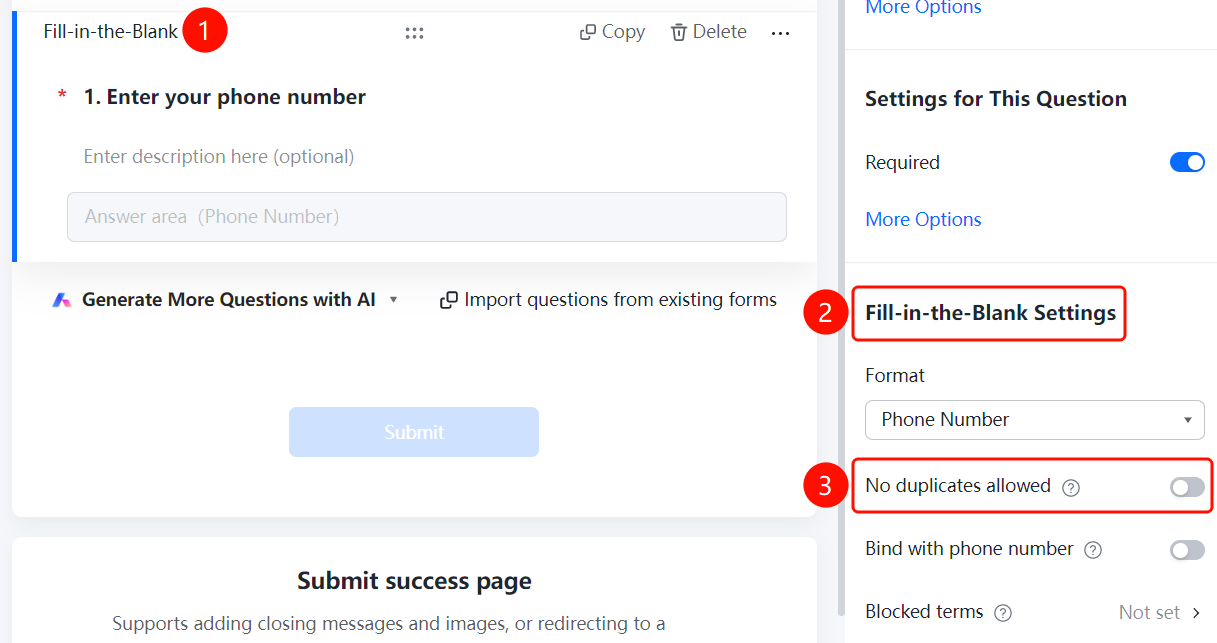
Feature Access PathPhone Number → "Field Settings" → Toggle "Disallow Duplicates"
- Click on the phone number field you have already added.
- In the "Field Settings" panel on the right, turn on the "Disallow Duplicates" toggle.
- Once enabled, any phone number submitted by respondents cannot match those already submitted.
Enable Phone Number Verification
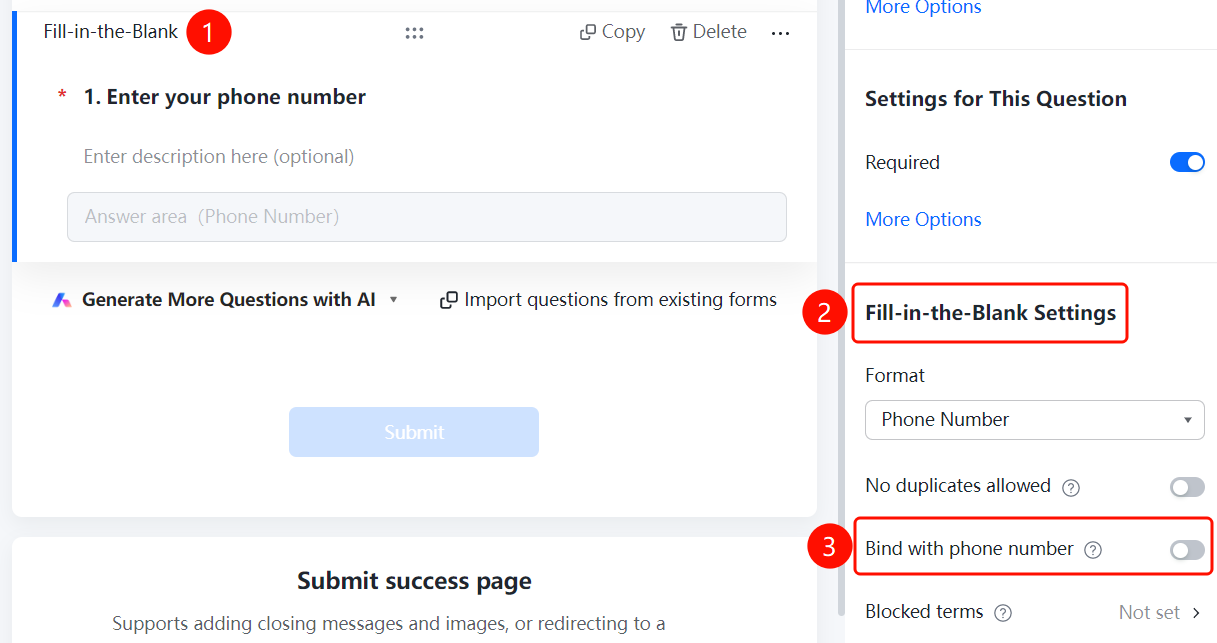
Feature Access PathPhone Number → "Field Settings" → Toggle "Verify Phone Number"
- Click on the added phone number field
- In the right-hand "Field Settings" panel, turn on the "Verify Phone Number" toggle
- Once enabled, users must enter a verification code to confirm their phone number, preventing random or incorrect entries
Set Prohibited Submission Content
Feature Access PathPhone Number → "Field Settings" → "Prohibited Submission Content"
- Click on the added phone number field
- In the right-hand "Field Settings" panel, click the "Prohibited Submission Content" option (currently set to "Not Set")
- In the pop-up dialog, turn on the "Content Blacklist" switch
- Enter prohibited phone numbers in the input box—one per line
- Phone numbers listed in the blacklist will be blocked from submission, effectively preventing certain individuals from filling in the form
- Click "Confirm" to save the settings
Frequently Asked Questions
Q1: How can I prevent respondents from entering random phone numbers?
- Solution: Click on the phone number field, then in "Field Settings," enable "Verify Phone Number." Respondents must enter a verification code to confirm their phone number.
Q2: How can I block certain phone numbers from submitting?
- Solution: Click on the phone number field, then in "Field Settings," click "Prohibited Submission Content," enable the content blacklist, and add the phone numbers you wish to block.
Q3: Can the phone number format be changed to other types?
- Solution: Yes. Click on the phone number field, then in "Field Settings," click "Format Restrictions" to switch between options such as no restriction, digits only, or ID number format.
Notes
- The phone number field is a standard input type in common templates, with the default format restricted to phone numbers.
- Once phone number verification is enabled, respondents must enter a verification code before submission.