Feature Overview
Single-choice voting allows users to select one option from a list of choices. It is commonly used for voting and selection polls. After submission, users can view voting results and rankings, with each option displaying its vote count and percentage.
Feature Description
| Feature Dimension | Description |
|---|---|
| Membership Restrictions | No membership restrictions |
| Version Restrictions | No version restrictions |
Operating Steps
Adding a Single-Choice Poll Question
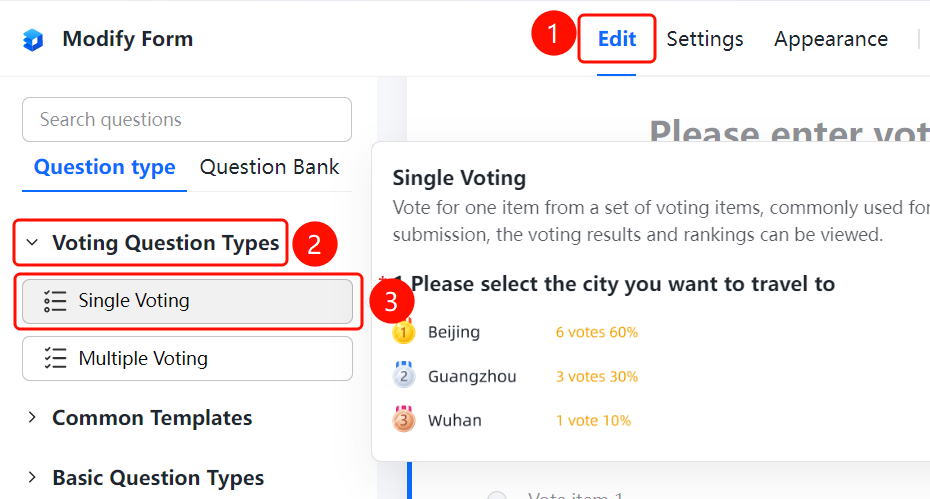
Access Path"Edit" tab → "Poll Question Types" → "Single-Choice Poll" button
- Click the "Edit" tab at the top
- Expand the "Poll Question Types" section in the left panel
- Click the "Single-Choice Poll" button to add a single-choice poll question to the poll
- Enter the question content in the question editing area, for example: "Please select the city you would like to visit"
- Add poll options; each option displays vote count and percentage, such as "6 votes 60%", "3 votes 30%", "1 vote 10%"
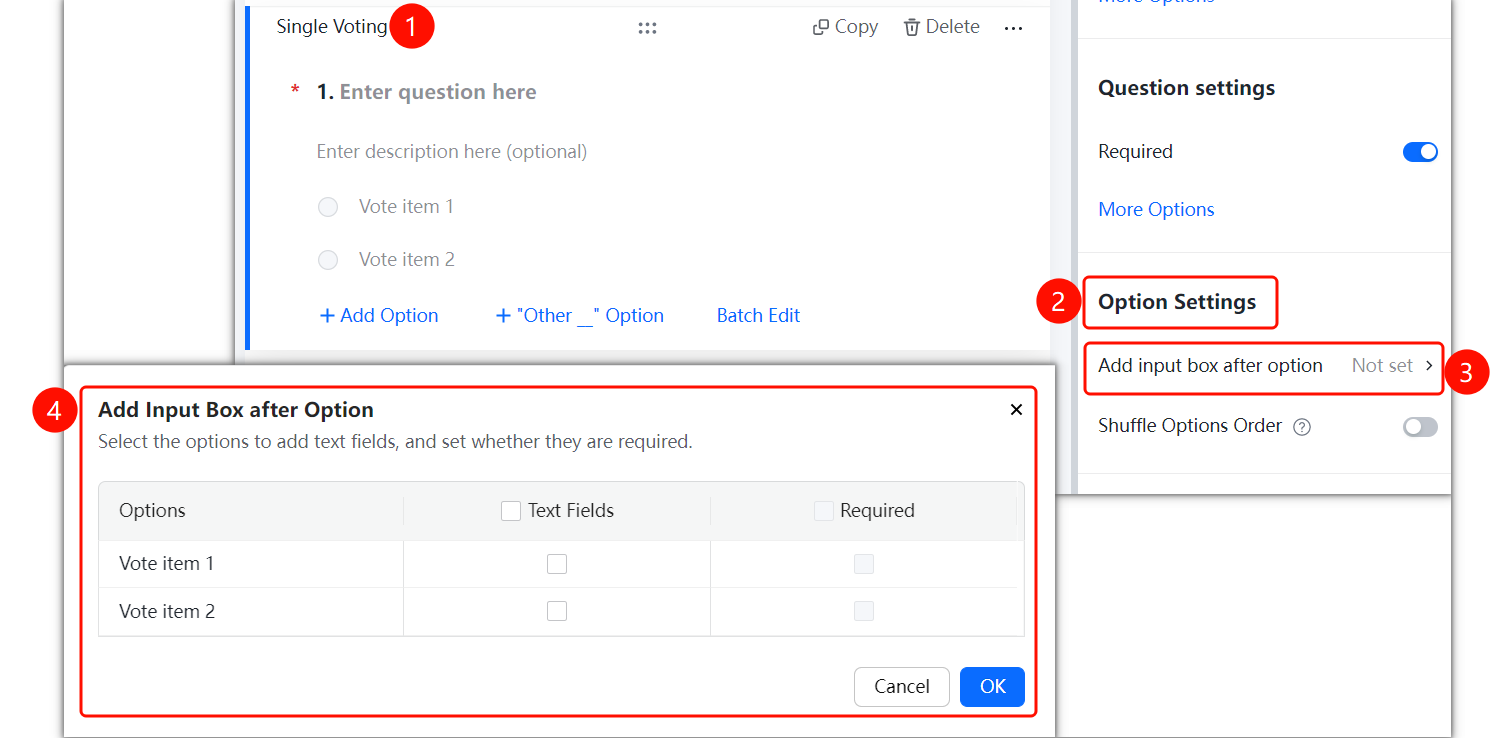
Add Input Box After Options
Feature Access PathPoll Single Choice Question → "Option Settings" → "Add Input Box After Options"
- Click on the already added poll single choice question.
- In the right-hand "Option Settings" panel, click the "Add Input Box After Options" option (currently displayed as "Not Set").
- In the pop-up dialog, check the options for which you want to add an input box, and set whether the input box is required.
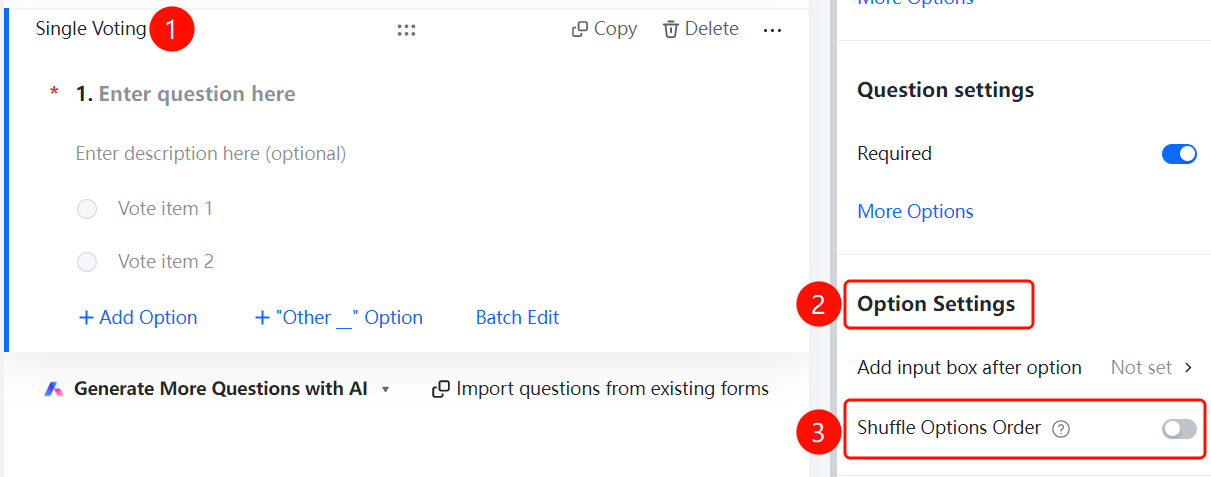
Shuffle Option Order
Feature Access
Poll single-choice question → "Option Settings" → Toggle "Shuffle Option Order"
- Click on the added poll single-choice question
- In the right-hand "Option Settings" panel, turn on the "Shuffle Option Order" toggle
- After enabling, respondents will see the options displayed in a randomized order
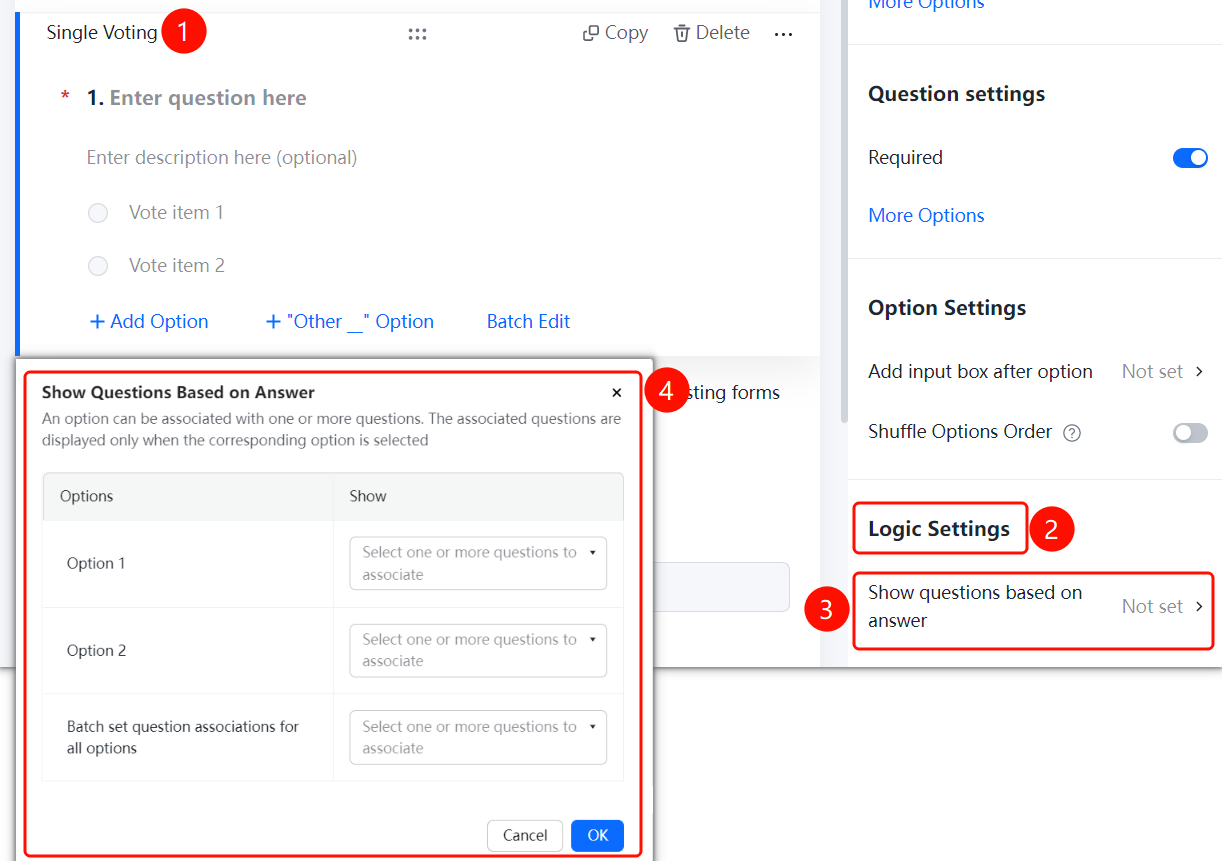
Set Show questions based on answer
Access Path
Poll Single Choice Question → "Logic Settings" → "Show questions based on answer"
- Click on the added poll single choice question.
- In the right-hand "Logic Settings" panel, click the "Show questions based on answer" option (currently displayed as "Not Set").
- In the pop-up dialog, assign associated questions to each option.
- One option can be linked to one or more questions; the associated questions will only appear when respondents select the specified option.
- Click "Batch Set Question Associations for All Options" to apply settings in bulk.
- Click "Confirm" to save the settings.
Frequently Asked Questions
Q1: What is the difference between single-choice and multiple-choice voting?
- Solution: Single-choice voting allows only one option to be selected, while multiple-choice voting allows users to select more than one option.
Q2: How can I view voting results?
- Solution: After submission, voting questions with "Show Results/Leaderboard" enabled will automatically display vote counts and percentages for each option.
Q3: What is the purpose of question linking?
- Solution: Question linking dynamically shows or hides other questions based on the user's selections, enabling conditional logic.
Notes
- Voting results are displayed as vote counts and percentages, e.g., "6 votes, 60%"
- Question linking enables conditional logic, suitable for scenarios where form content needs to change dynamically based on user choices