Feature Overview
The puzzle question is used to collect large images assembled from multiple parts, such as "collecting dual codes" or "combining front and back of an ID card." After users upload several images, the system automatically stitches them together.
Feature Description
| Function Dimension | Description |
|---|---|
| Membership Restrictions | No membership restrictions |
| Version Restrictions | No version restrictions |
Operating Steps
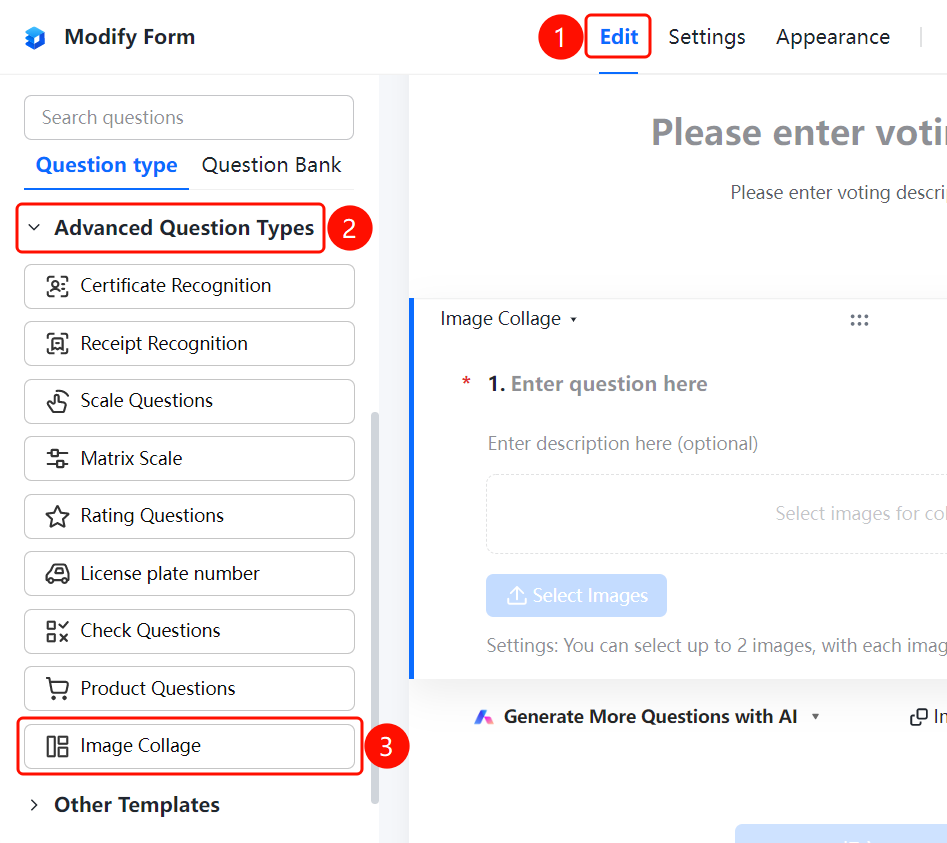
Adding a Jigsaw Puzzle Question
Access Path"Edit" tab → "Advanced Question Types" → "Jigsaw Puzzle" button
- Click the "Edit" tab at the top
- Expand the "Advanced Question Types" section in the left panel
- Click the "Jigsaw Puzzle" button to add a jigsaw puzzle question to the poll
- Enter the question content in the question editing area, for example: "Please upload multiple images and assemble them"
- Respondents click "Select Images to Assemble" to upload images
- Current settings: up to 2 images can be selected, with each image not exceeding 10MB
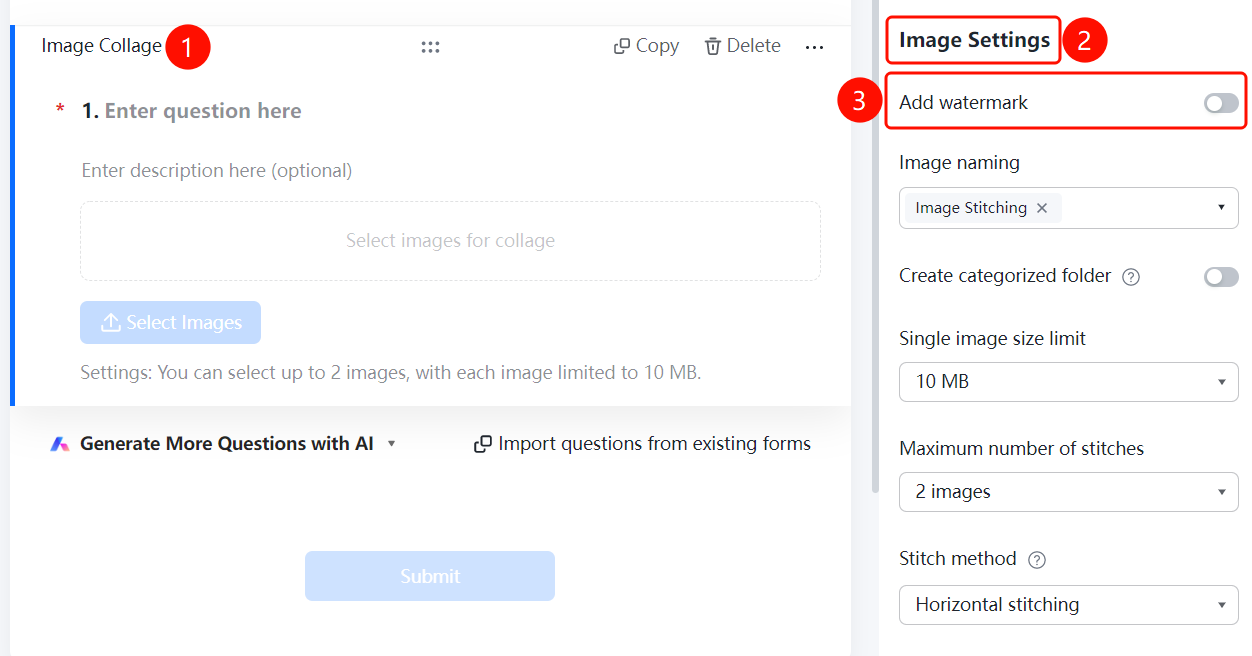
Add Watermark
Feature Access
Puzzle Question → "Image Settings" → Toggle "Add Watermark"
- Click on the puzzle question you have added
- In the right-hand "Image Settings" panel, turn on the "Add Watermark" toggle
- Once enabled, a watermark will be added to the combined image
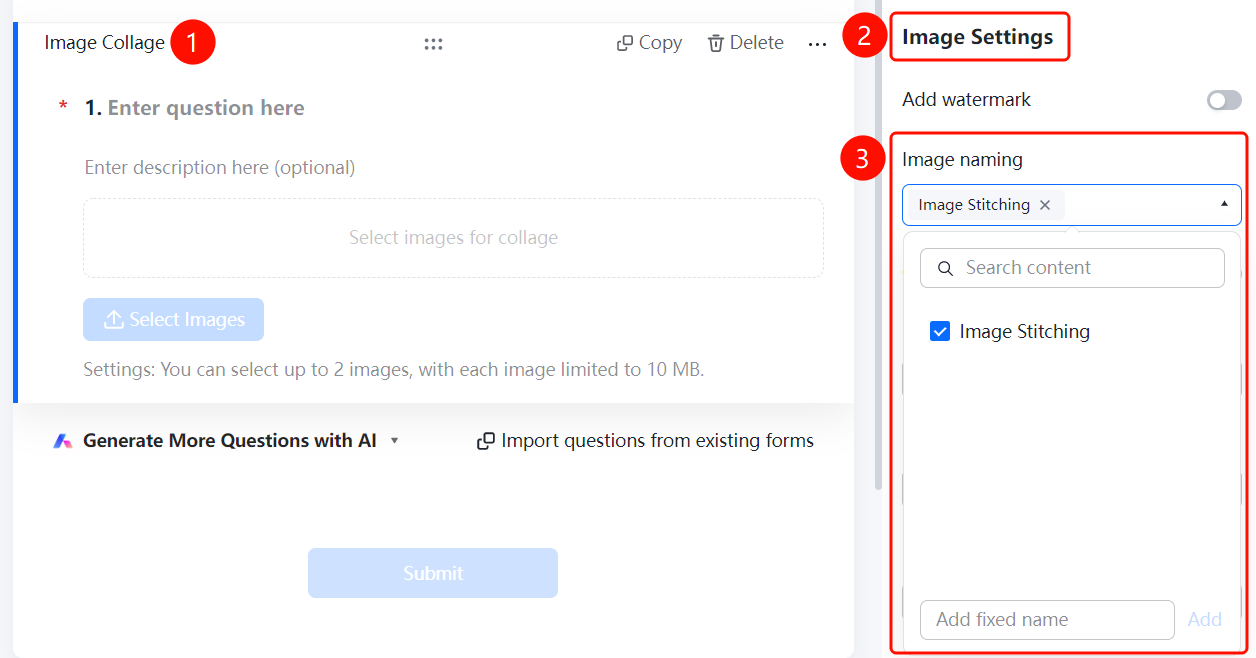
Set Image Naming Method
Access PathPuzzle Question → "Image Settings" → "Image Naming Method" option
- Click on the added puzzle question
- In the right-hand "Image Settings" panel, click the "Image Naming Method" dropdown menu (currently set to "Puzzle ×")
- Select a naming method or click "Add Custom Fixed Name" to define your own rule
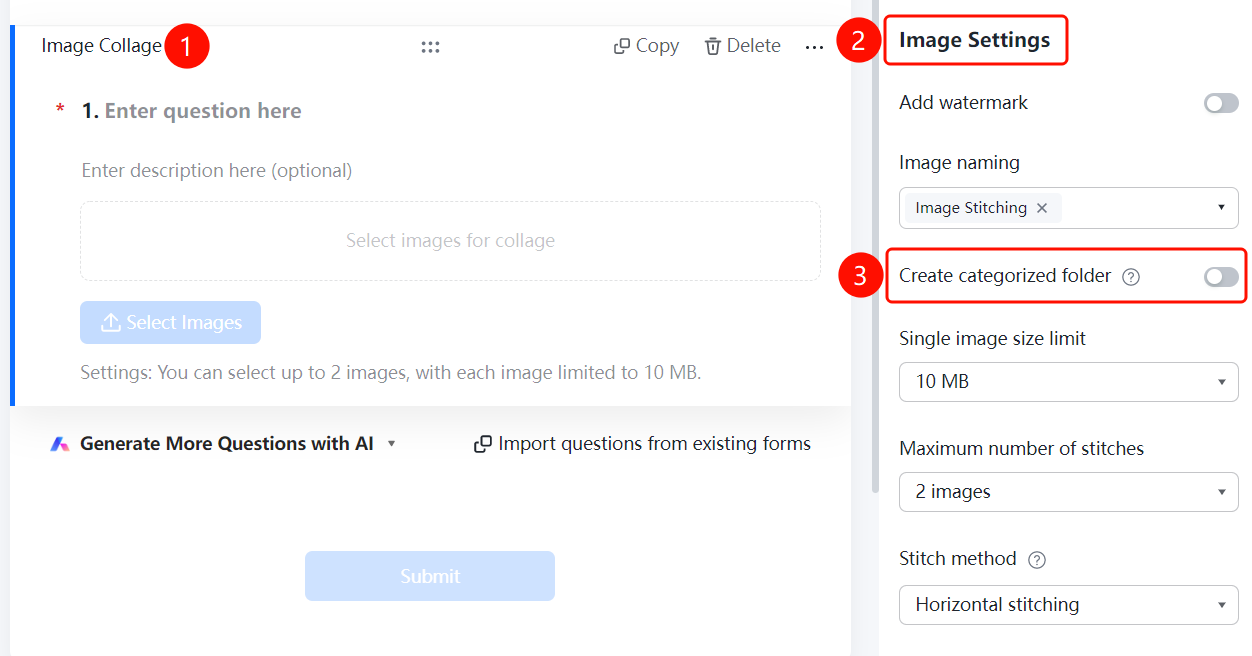
Create Categorized Folders
Feature Access
Puzzle Question → "Image Settings" → Toggle "Create Categorized Folder"
- Click on the added puzzle question
- In the right-hand "Image Settings" panel, enable the "Create Categorized Folder" toggle
- Once enabled, folders will be automatically created based on the naming convention and images collected will be categorized accordingly
- For example, if folders are named by "Department," images from the same department will be automatically grouped into the same folder
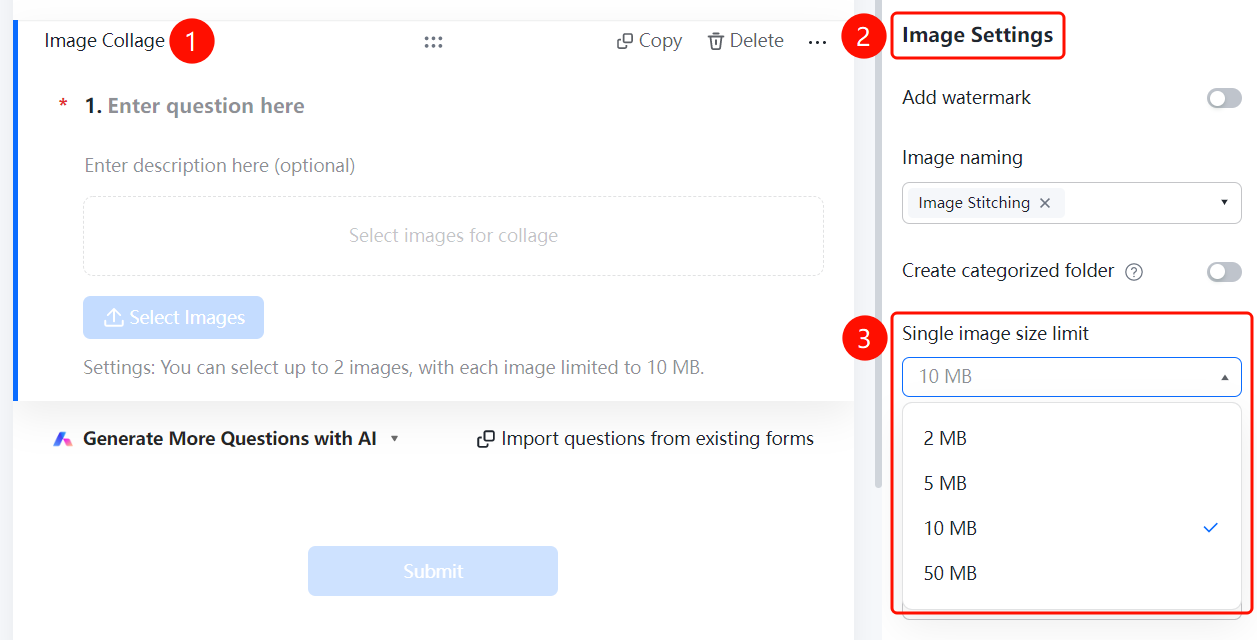
Set Single Image Size Limit
Access PathPuzzle Question → "Image Settings" → "Single Image Size Limit" option
- Click on the added puzzle question
- In the right-hand "Image Settings" panel, click the "Single Image Size Limit" dropdown menu (currently set to "10M")
- Select the allowed size limit: "2M", "5M", "10M", or "50M"
Set Maximum Number of Puzzles
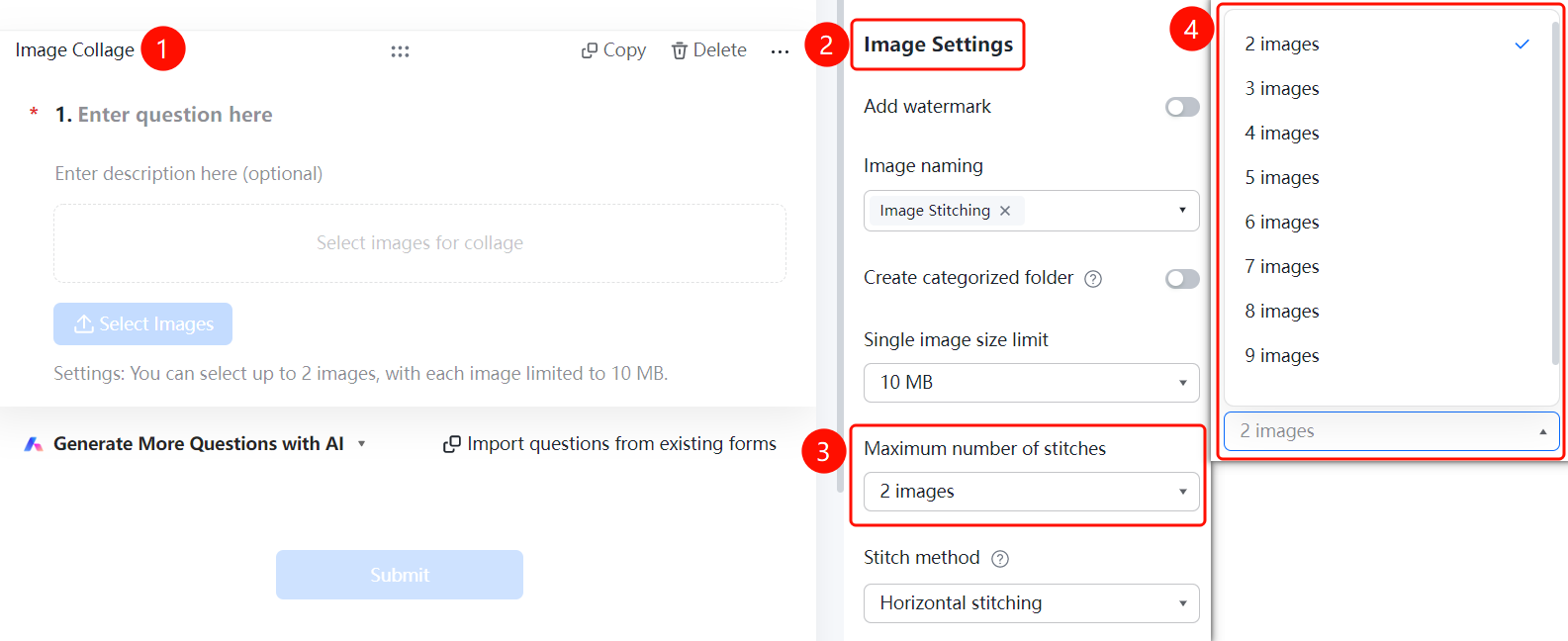
Access PathPuzzle Question → "Image Settings" → "Maximum Number of Puzzles" option
- Click on the added puzzle question
- In the right-hand "Image Settings" panel, click the "Maximum Number of Puzzles" dropdown menu (currently set to "2 pieces")
- Select the maximum number of images allowed for upload
Set the stitching method
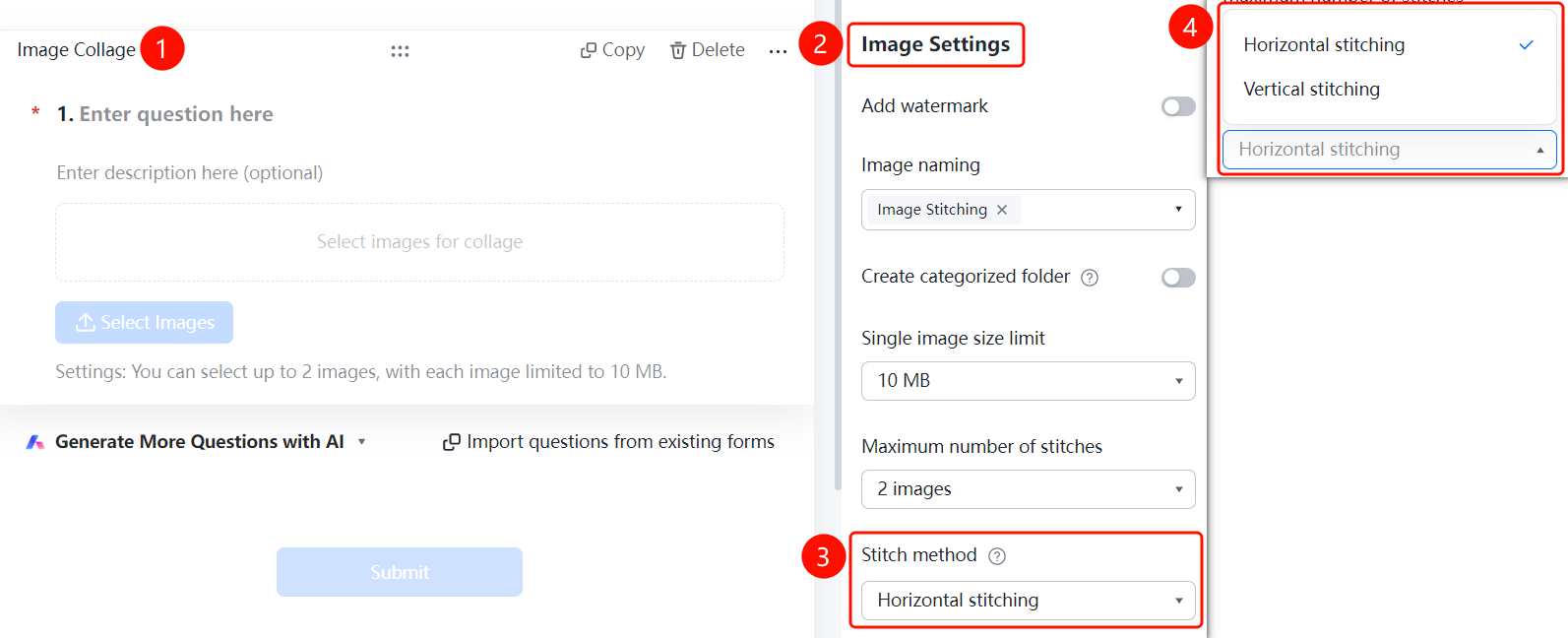
Access PathPuzzle Question → "Image Settings" → "Splicing Method" option
- Click on the added puzzle question
- In the right-hand "Image Settings" panel, click the "Splicing Method" dropdown menu (currently set to "Horizontal Splicing")
- Choose a splicing method: "Horizontal Splicing" or "Vertical Splicing"
- The collected images will be concatenated in the order they were uploaded by users
Frequently Asked Questions
Q1: In what scenarios is the puzzle question suitable?
- Solution: The puzzle question is used to collect and assemble large images, such as "dual-code collection" or "front and back of ID card stitching."
Q2: What are the available stitching methods?
- Solution: Two stitching methods are supported: horizontal (left-right) and vertical (top-bottom). Images collected will be stitched in the order they were uploaded by users.
Q3: How do I set the maximum number of images allowed for stitching?
- Solution: Click on the puzzle question, then go to "Image Settings" → "Maximum Stitching Number" to select the maximum number of images allowed for upload.
Notes
- The puzzle question is suitable for scenarios requiring the combination of multiple images.
- Horizontal stitching combines images side by side (left-right), while vertical stitching stacks them vertically (top-bottom).