Feature Summary
Chain setting is used to configure the chain function of voting forms. When enabled, form fillers can view each other's submissions. It supports various settings such as display mode for chain details, table-based presentation of chain data, allowing participants to keep their chain records private, and enabling likes.
Feature Description
| Feature Dimension | Description |
|---|---|
| Membership Restrictions | No membership restrictions |
| Version Restrictions | No version restrictions |
Operating Steps
Enable Chain Response
Feature Access
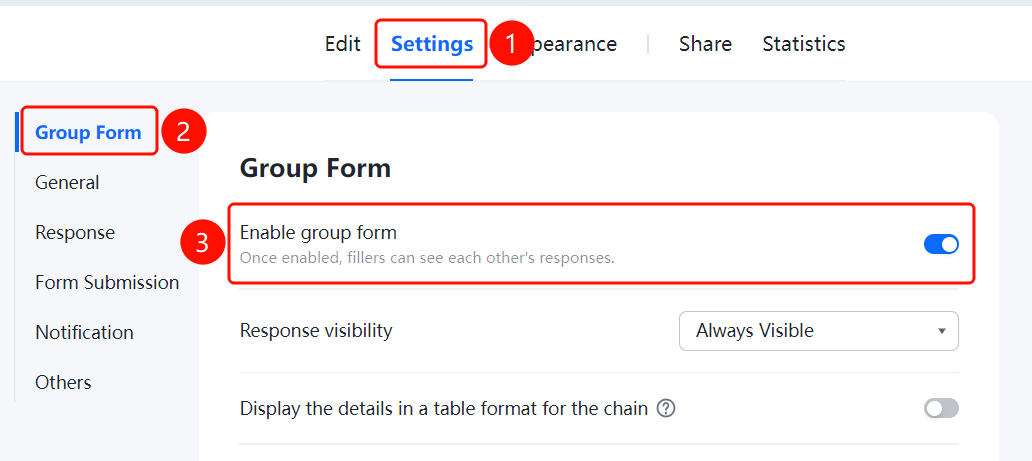
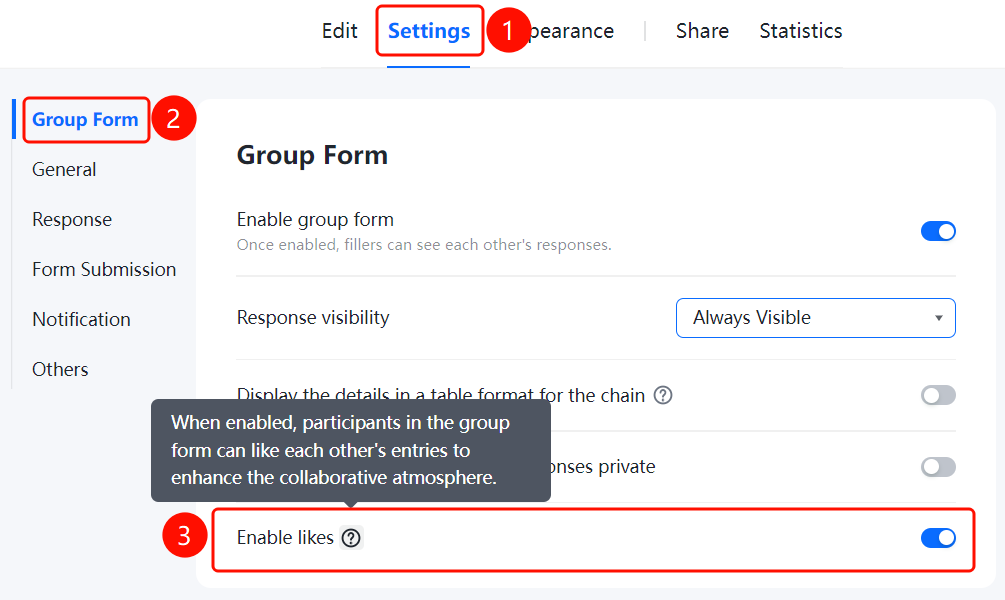
Settings tab → Chain Response Settings → Toggle "Enable Chain Response"
- Click the "Settings" tab at the top
- In the left sidebar, click "Chain Response Settings"
- Turn on the "Enable Chain Response" toggle
- After enabling, respondents will be able to see each other's submitted content
Set Chain Detail Display
Feature Access
Tab "Settings" → "Chain Settings" → "Chain Detail Display" option
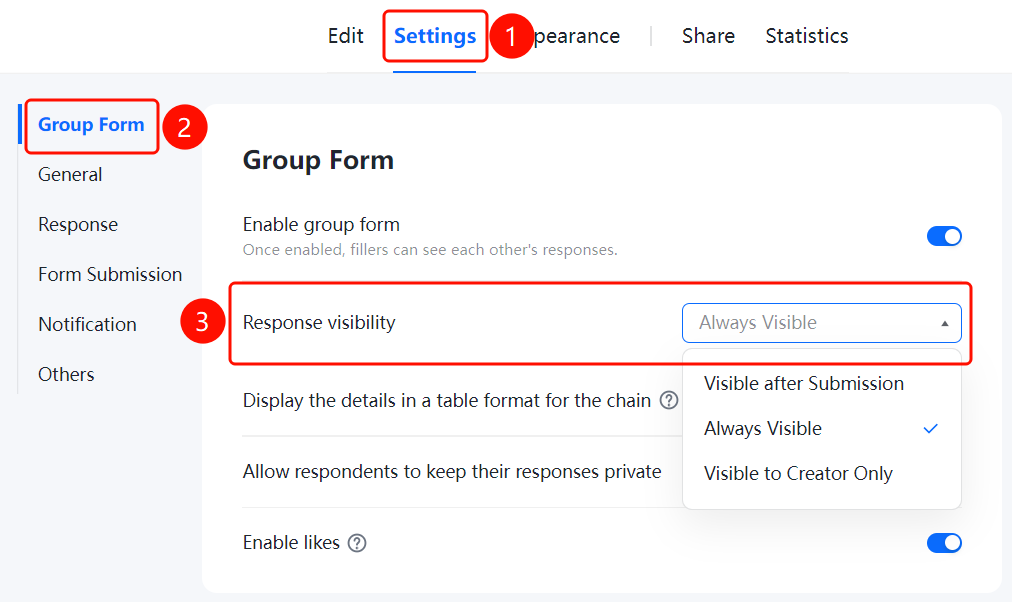
- After enabling the chain, click the dropdown menu under "Chain Detail Display"
- Choose the display mode: "Visible only after joining the chain", "Visible both before and after joining the chain" (default), or "Visible only to the creator"
Enable Table View for Chain Details
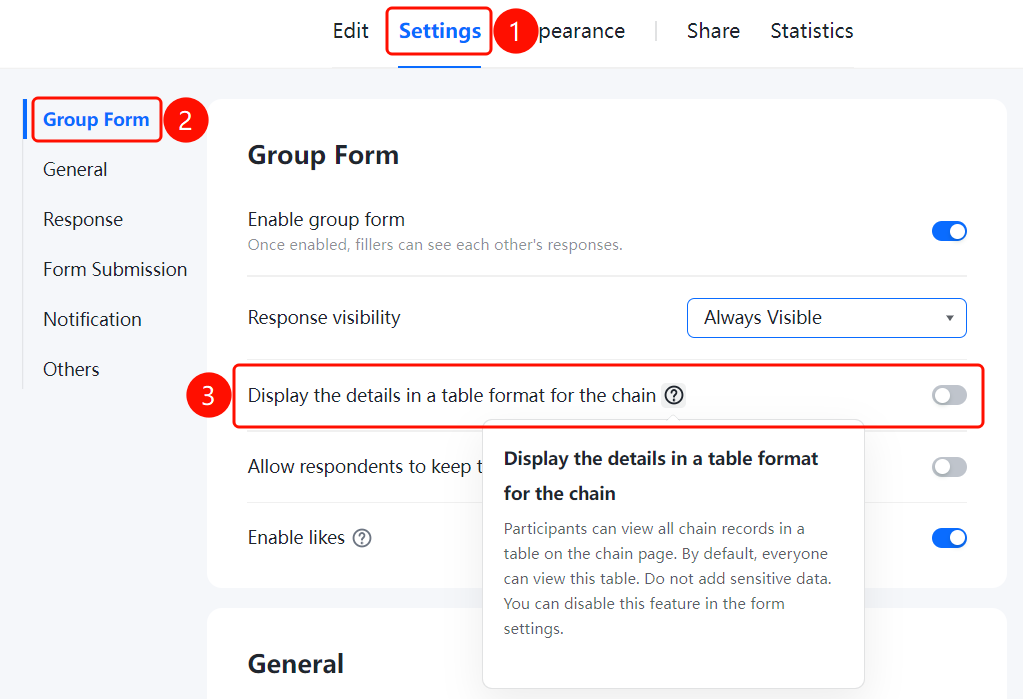
Feature Access PathSettings tab → Chain Settings → Toggle "Display Chain Details in Table"
- In the Chain Settings panel, turn on the "Display Chain Details in Table" toggle.
- After enabling, participants can open the table on the chain page to view all chain records.
- This table is visible to everyone by default; please avoid including sensitive information.
Enable Participants to Keep Their Chain Records Private
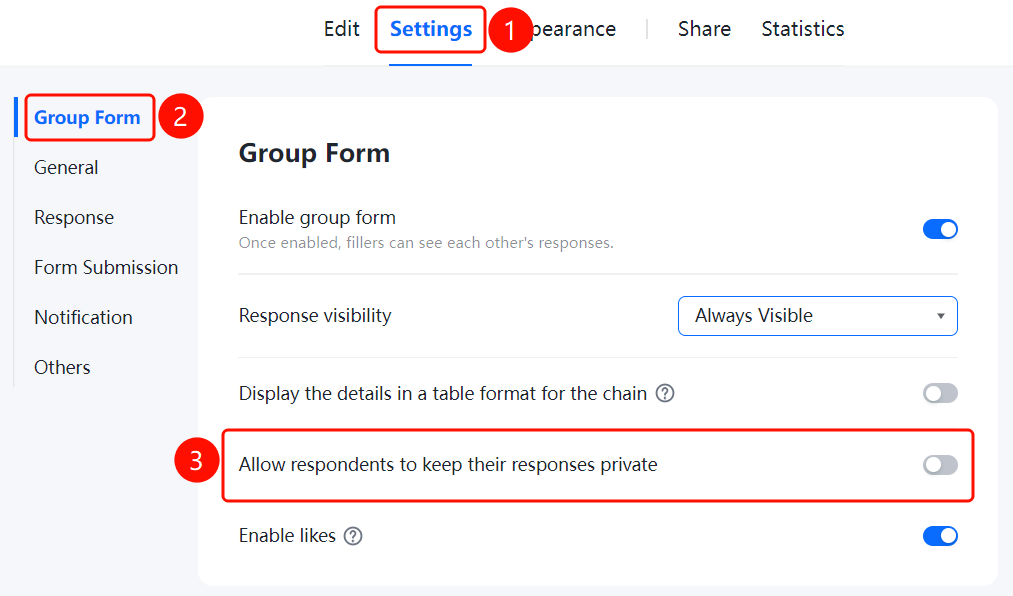
Feature Access PathSettings tab → Chain Settings → Toggle "Allow participants to keep their chain records private"
- In the Chain Settings panel, turn on the toggle for "Allow participants to keep their chain records private"
- Once enabled, fillers can choose whether to make their chain records public or private
Enable Like Function
Access PathSettings tab → Chain Settings → Toggle "Allow Likes"
- In the Chain Settings panel, turn on the "Allow Likes" toggle.
- Once enabled, participants in the chain can like other users' chain entries, enhancing the overall engagement and atmosphere of the chain activity.
Frequently Asked Questions
Q1: What happens when the chain response feature is enabled?
- Solution: Once enabled, participants can see each other's responses in real time, making it ideal for public voting scenarios.
Q2: What are the options for displaying chain response details?
- Solution: Three visibility options are supported: "Visible only after joining," "Visible before and after joining," and "Visible only to the creator."
Q3: What risks are associated with displaying chain response details in a table format?
- Solution: By default, this table is visible to everyone. Avoid entering sensitive information; you can disable this feature in the form settings.
Notes
- Enabling the chain response feature allows participants to view each other’s content, suitable for open voting.
- Allowing likes can enhance the interactive atmosphere of the chain response.