Feature Overview
The data statistics feature allows you to view the results of collected voting data. It supports sorting by vote count to display each option's number of votes and corresponding percentage, such as "1 vote 100%".
Feature Description
| Function Dimension | Description |
|---|---|
| Membership Restrictions | No membership restrictions |
| Version Restrictions | No version restrictions |
Operating Steps
View Data Statistics
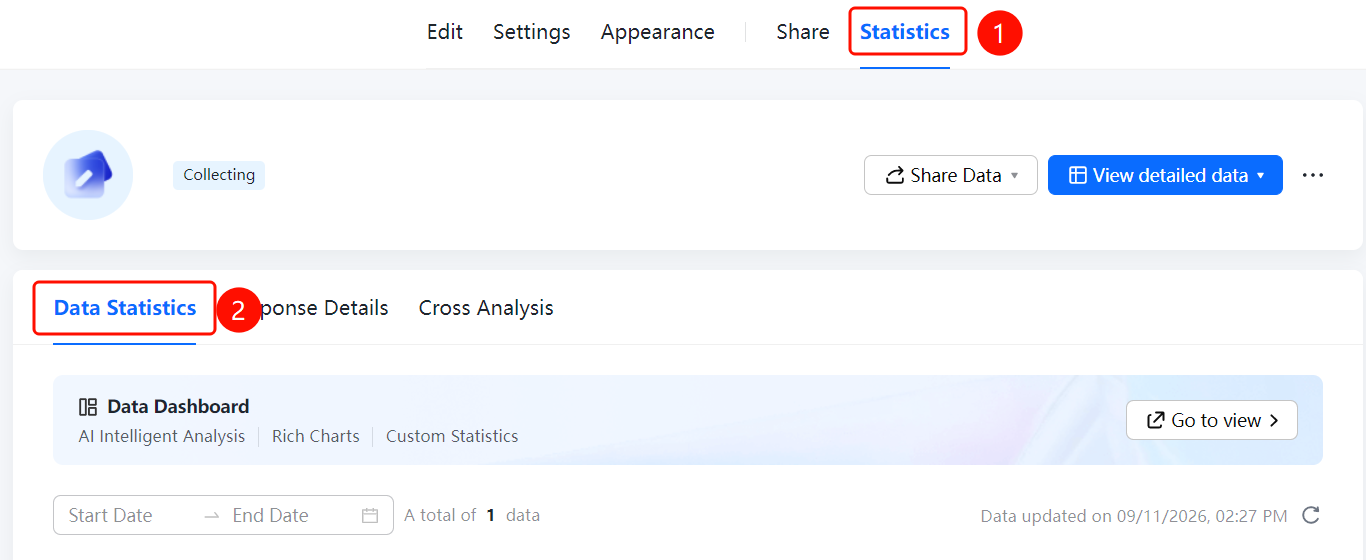
Access Path"Statistics" tab → "Data Statistics" option
- Click the "Statistics" tab at the top
- In the left menu, click "Data Statistics"
- At the top of the page, set the "Start Date" and "End Date" to filter the data range
- View vote counts and percentages for each option, e.g., "Option 1: 1 vote (100%)", "Option 2: 0 votes (0%)"
- Switch between "Default Sorting" or "Sort by Votes" as needed
- Click "Detailed Data" to view detailed information
Frequently Asked Questions
Q1: How to filter voting data by time range?
- Solution: Set the "Start Date" and "End Date" at the top of the "Data Statistics" page.
Q2: How to sort results by vote count?
- Solution: Click "Sort by Vote Count" on the Data Statistics page.
Q3: How to view detailed content for each entry?
- Solution: Click "Detailed Data" to view the full details of each submission record.
Notes
- Data statistics support two sorting methods: "Default Sorting" and "Sort by Vote Count"
- Voting-specific: Option vote counts are displayed in the format "X votes Y%"