Feature Summary
The date and time question is used to collect date and time information selected by respondents. It supports multiple date and time formats and allows setting date range restrictions to ensure collected date data meets requirements.
Feature Description
| Feature Dimension | Description |
|---|---|
| Membership Restrictions | No membership restrictions |
| Version Restrictions | No version restrictions |
Operating Steps
Adding a Date and Time Question
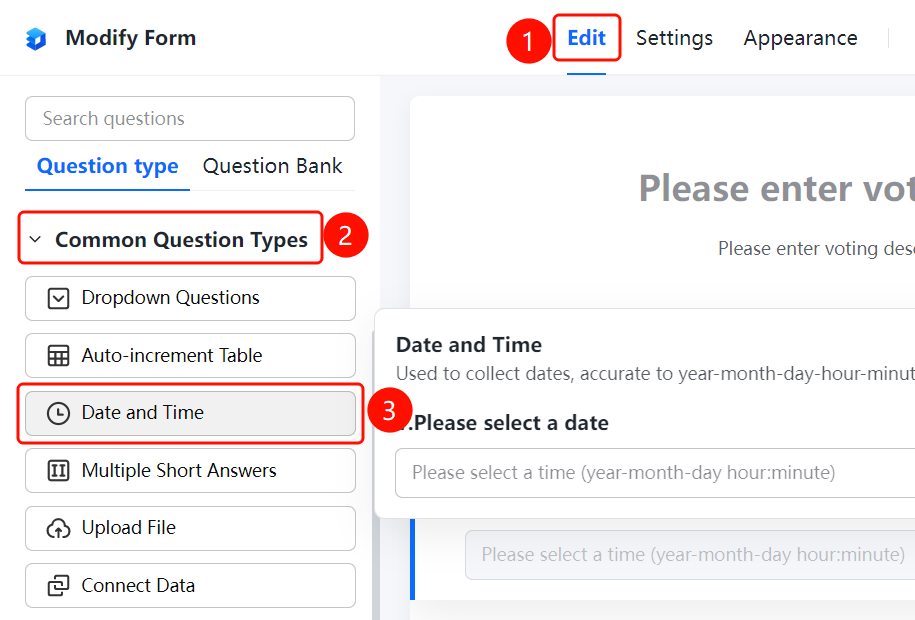
Accessing the Feature"Edit" tab → "Common Question Types" → "Date and Time" button
- Click the "Edit" tab at the top
- Expand the "Common Question Types" section in the left panel
- Click the "Date and Time" button to add a date and time question to the poll
- Enter the question text in the question editing area; respondents will see the input format: "Please select a time (YYYY-MM-DD HH:MM)"
Set Date and Time Format
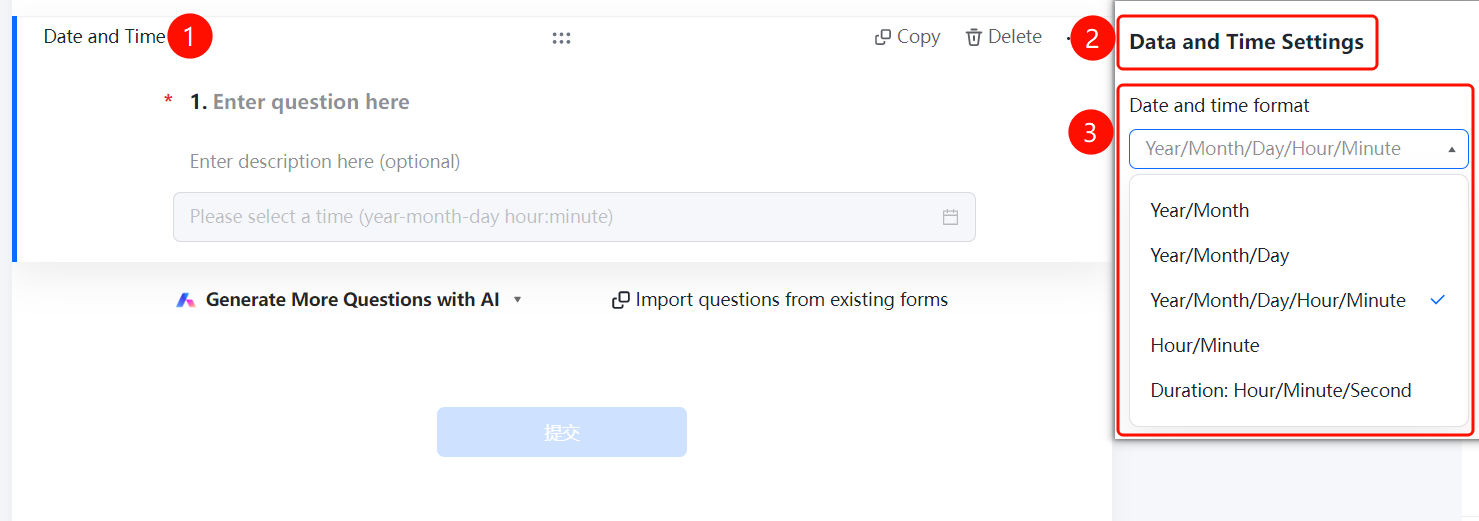
Access PathDate and Time Question → "Date and Time Settings" → "Date and Time Format" option
- Click on the added date and time question
- In the right-hand "Date and Time Settings" panel, click the "Date and Time Format" option
- Select a format type: "Year/Month", "Year/Month/Day", "Year/Month/Day/Hour/Minute", "Hour/Minute", or "Duration: Hour/Minute/Second"
Set Date Range Restrictions
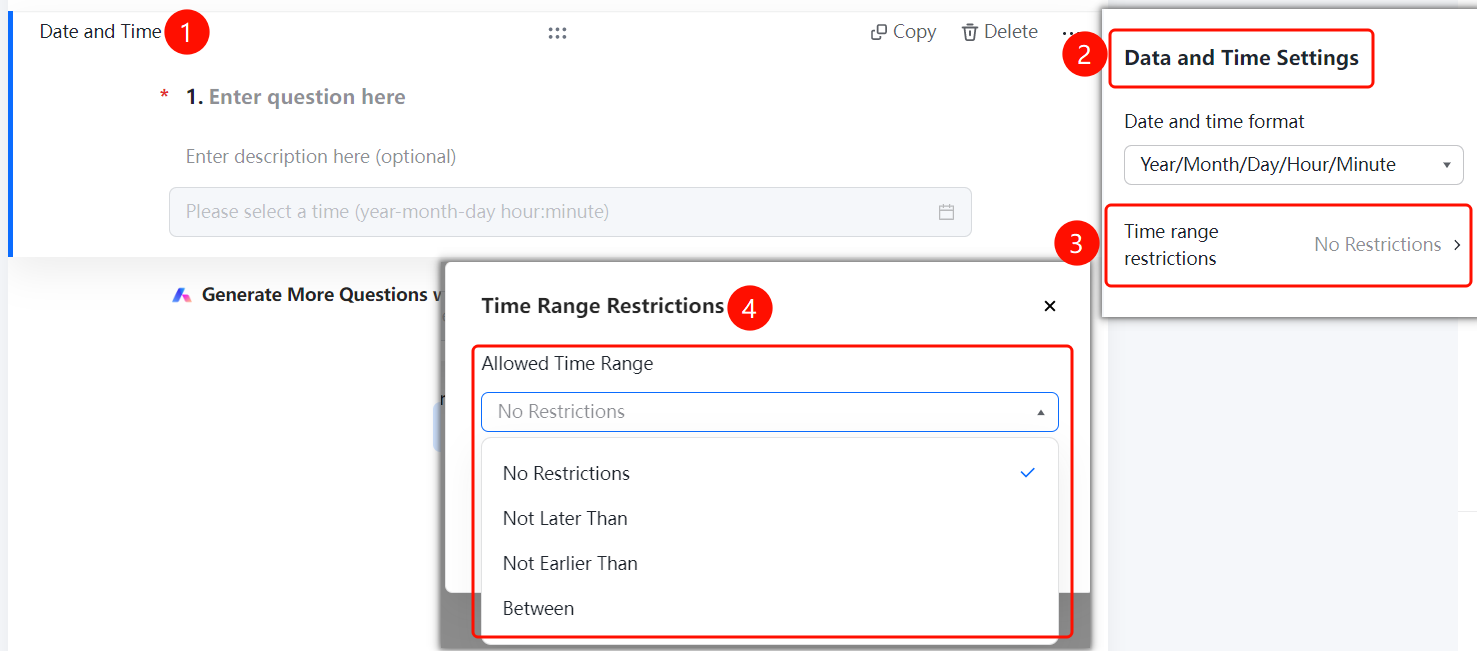
Access PathDate & Time Question → "Date & Time Settings" → "Date Range Restriction"
- Click on the added date and time question.
- In the right-hand "Date & Time Settings" panel, click the "Date Range Restriction" option.
- In the pop-up window, select a restriction type: "No restriction," "Not later than," "Not earlier than," or "Between," then specify the exact dates for the restriction.
Frequently Asked Questions
Q1: What date and time formats are supported?
- Solution: Supports various formats such as year/month, year/month/day, year/month/day/hour/minute, hour/minute, duration: hours/minutes/seconds, etc. You can choose the appropriate format based on your scenario.
Q2: How can I restrict the date range that respondents can select?
- Solution: Click on the date-time question, go to "Date-Time Settings," then click "Date Range Restriction." Select either "Not later than" or "Not earlier than," and set the specific date accordingly.
Q3: Can a date-time question be made mandatory?
- Solution: Yes. Click on the date-time question, then in "Basic Settings," enable "This question is required."
Notes
- Date-time questions are suitable for scenarios such as scheduling appointments, event registration, check-in times, etc.
- Date range restrictions ensure that respondents select dates within a reasonable range.