Feature Overview
The informed consent question is a single-choice type, pre-configured with the option: "I confirm that I have read and understood the above notices and will strictly comply with the relevant regulations." It is commonly used in scenarios requiring users to acknowledge and confirm their awareness of privacy policies, disclaimers, and important notices.
Feature Description
| Functional Dimension | Description |
|---|---|
| Membership Restrictions | No membership restrictions |
| Version Restrictions | No version restrictions |
Operating Steps
Adding an Informed Consent Question
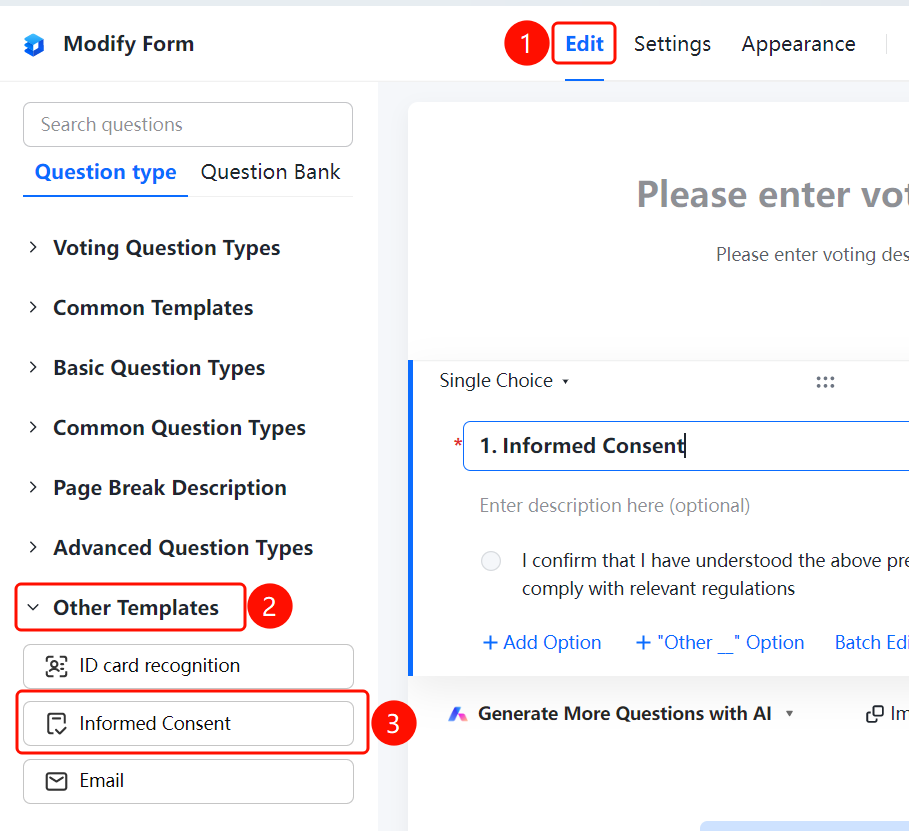
Access Path"Edit" tab → "Other Templates" → "Informed Consent" button
- Click the "Edit" tab at the top
- Expand the "Other Templates" section in the left panel
- Click the "Informed Consent" button to add the informed consent question to the poll
- The system automatically generates the confirmation option: "I confirm that I have read and understood the above instructions, and will strictly comply with the relevant regulations." Respondents complete the confirmation by checking this box
Set Default Answers
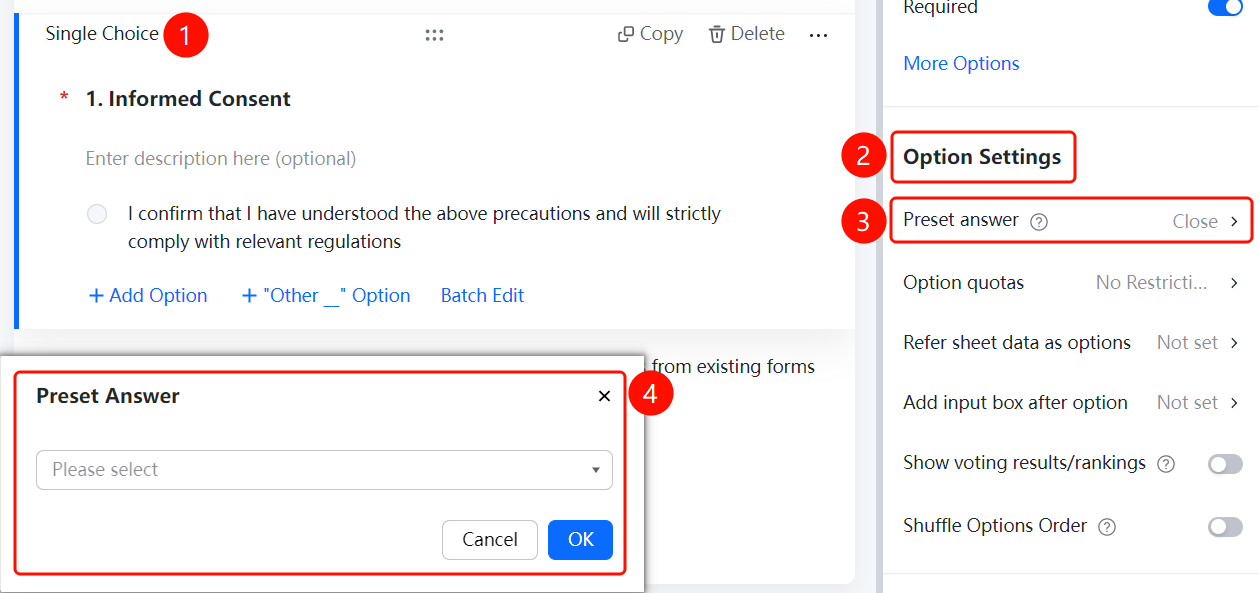
Feature Access PathInformed Consent Question → "Option Settings" → "Default Answer" option
- Click on the informed consent question you have added.
- In the right-hand "Option Settings" panel, click "Default Answer" (currently displayed as "Off").
- In the pop-up "Default Answer" window, select a default option from the "Please Select" dropdown menu, then click "Confirm" to save.
- After setting a default option, if the respondent does not make any changes, this default value will be submitted as their response.
Set Option Quotas
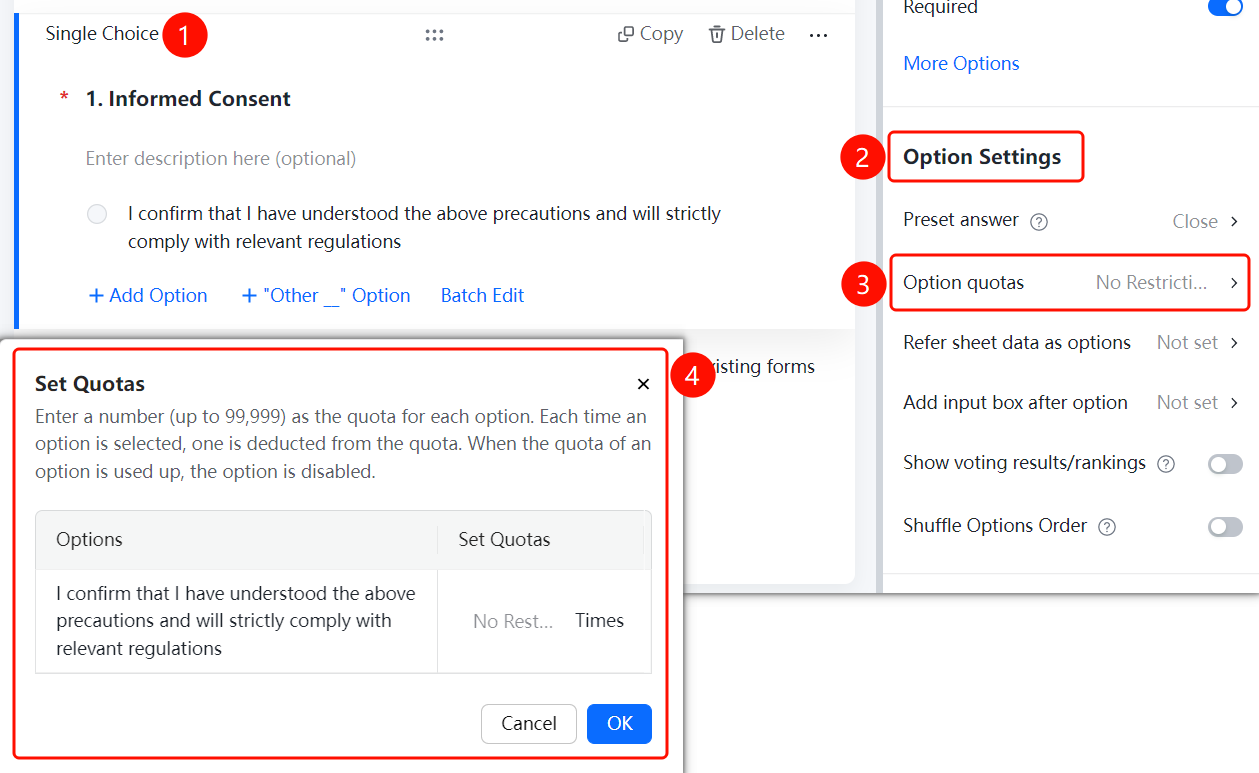
Feature Access PathInformed Consent Question → "Option Settings" → "Option Quotas"
- Click on the informed consent question you have added.
- In the right-hand "Option Settings" panel, click "Option Quotas" (currently displayed as "Unlimited").
- In the pop-up "Set Option Quotas" window, enter a number for each option to set its quota; the maximum supported quota is 99,999.
- Each time an option is selected, one quota will be deducted. Once all quotas are used up, that option can no longer be selected.
- Click "Confirm" to save your settings.
Reference Table Data as Options
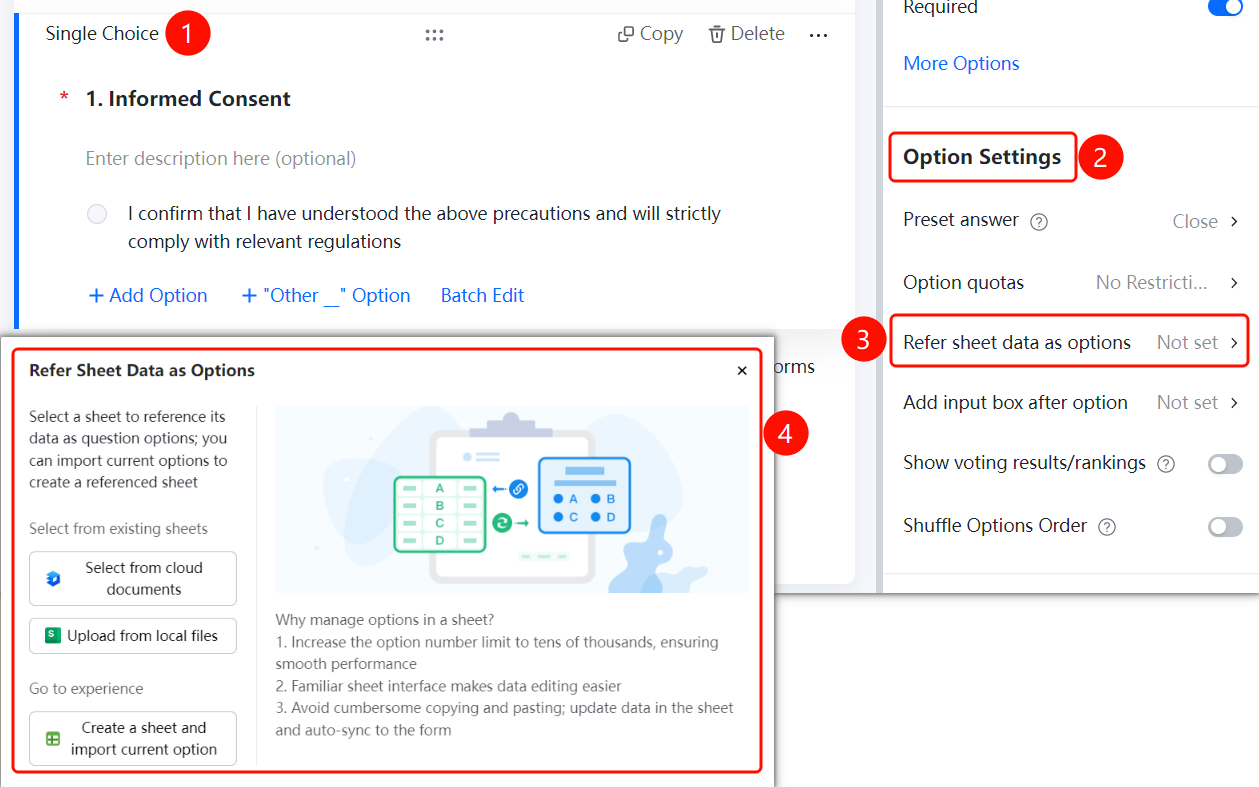
Feature Access PathInformed Consent Question → "Option Settings" → "Reference Table Data as Options"
Click on the added informed consent question.
In the right-hand "Option Settings" panel, click "Reference Table Data as Options" (currently displayed as "Not Set").
In the pop-up "Reference Table Data as Options" window, select the source of the table file:
- "Select from Cloud Document"
- "Upload from Local File"
- "Create New Table and Import Current Options"
After selecting the table file, the table data will be automatically synchronized to the form.
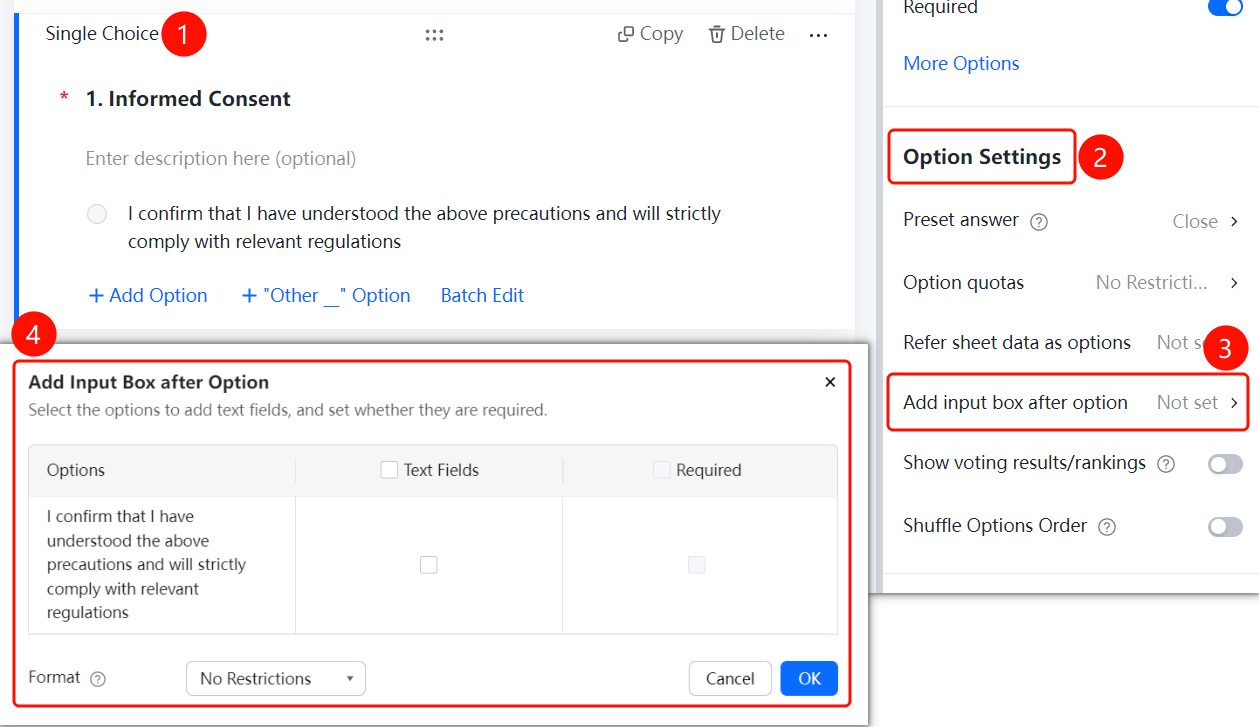
Add Input Box After Options
Feature Access PathInformed Consent Question → "Option Settings" → "Add Input Box After Options"
- Click on the informed consent question you have added.
- In the right-hand "Option Settings" panel, click "Add Input Box After Options" (currently displayed as "Not Set").
- In the pop-up window "Add Input Box After Options", check the options for which you want to add an input box, and set "Input Box Required".
- Use the "Input Content Format Restriction" dropdown menu to specify format constraints (e.g., "No Restrictions"), then click "Confirm" to save.
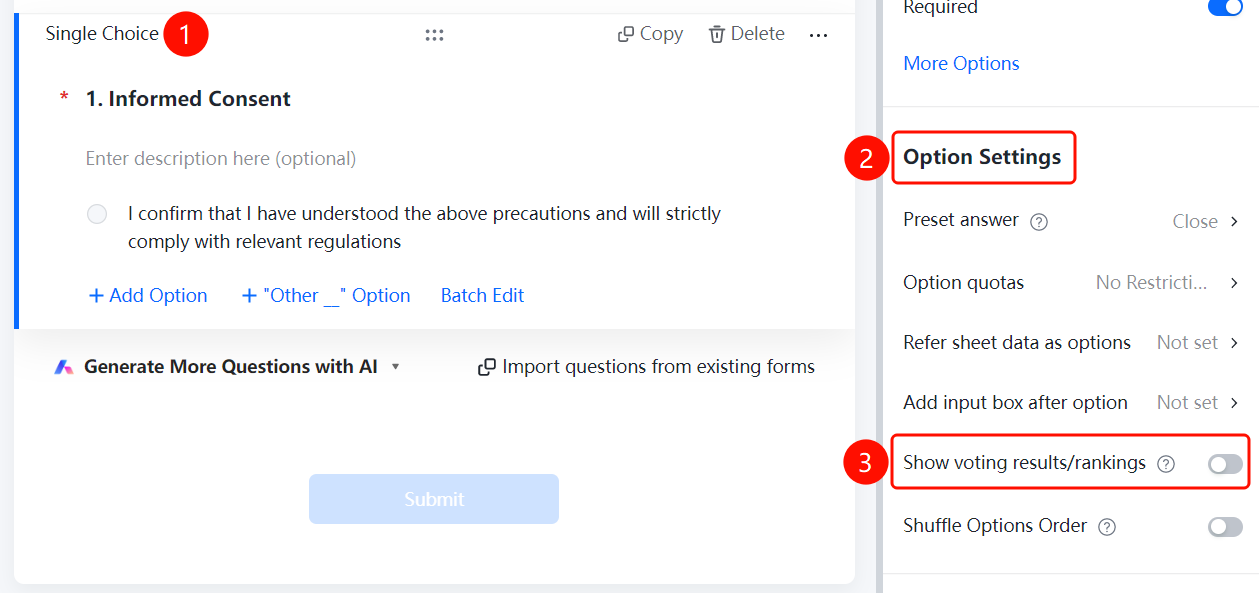
Display Voting Results/Leaderboard
Feature Access
Informed Consent Question → "Option Settings" → Toggle for "Display Voting Results/Leaderboard"
- Click on the added informed consent question
- In the right-hand "Option Settings" panel, turn on the "Display Voting Results/Leaderboard" toggle
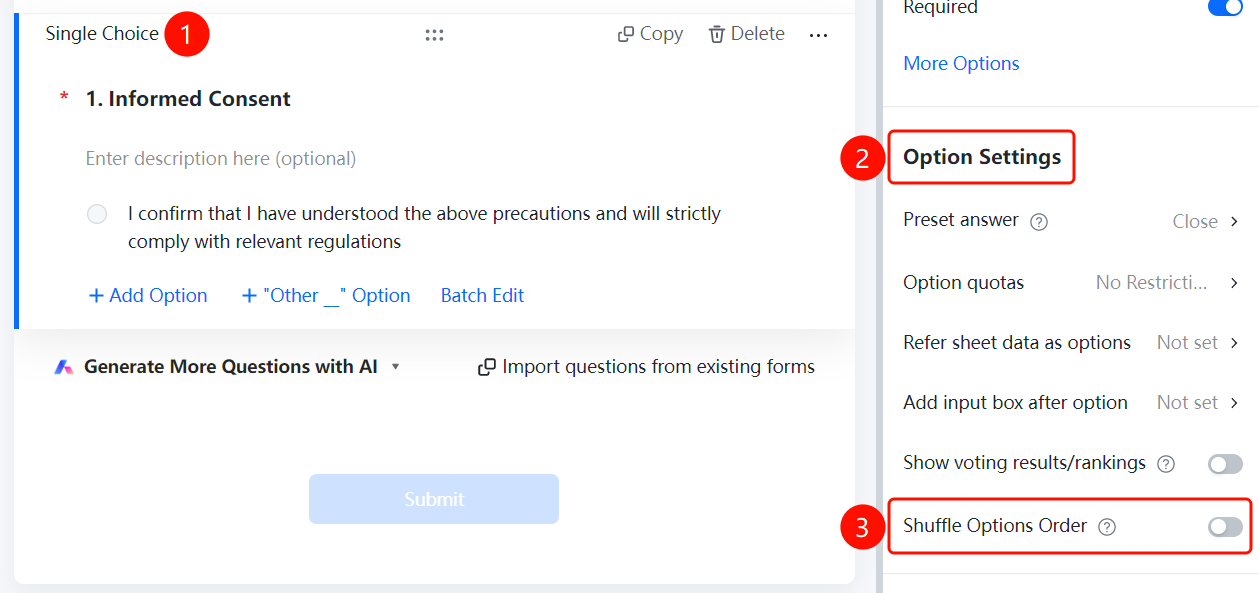
Shuffle Option Order
Feature Access
Informed Consent Question → "Option Settings" → Toggle "Shuffle Option Order"
- Click on the added informed consent question
- In the right-hand "Option Settings" panel, turn on the "Shuffle Option Order" toggle
- Once enabled, respondents will see the options displayed in a randomized order
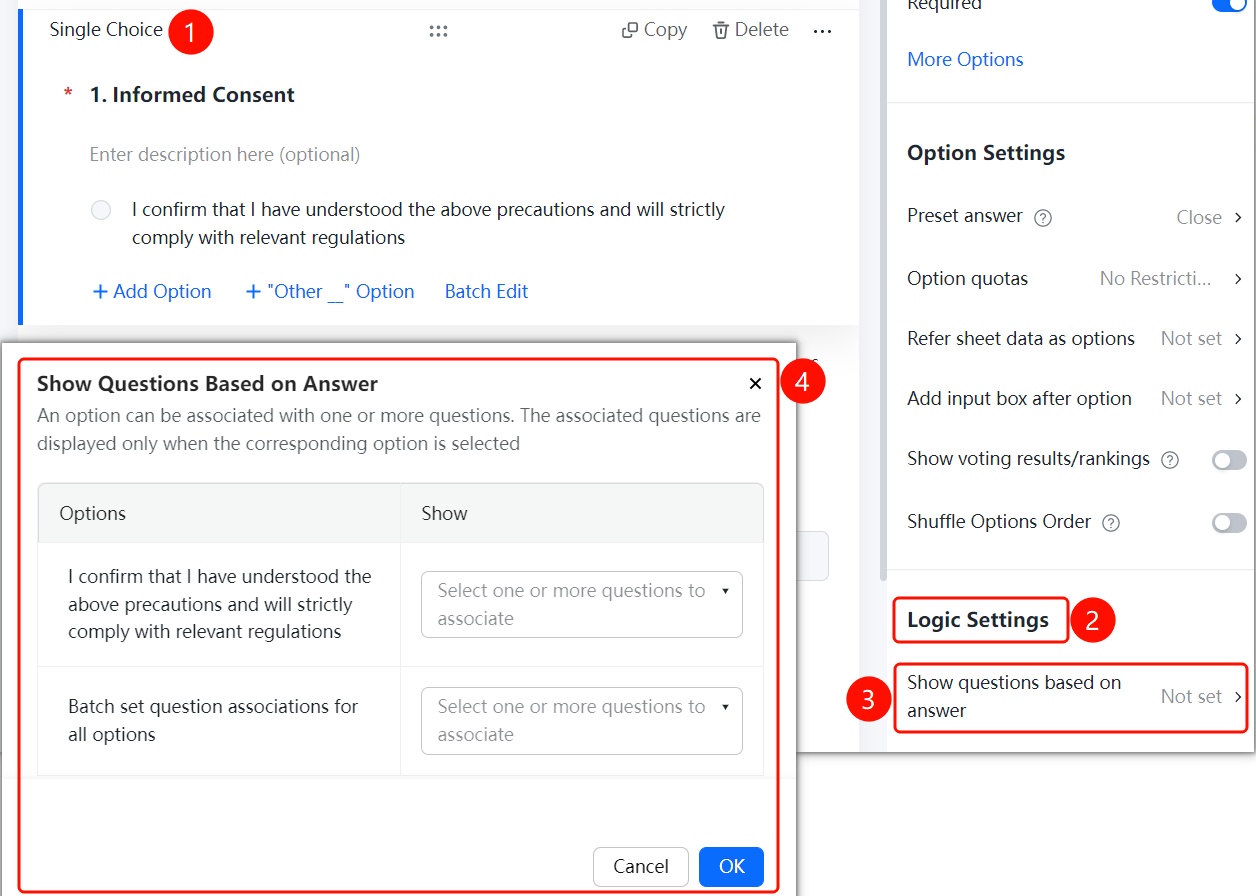
Set Question Associations
Function Access PathInformed Consent Question → "Logic Settings" → "Question Association"
- Click on the informed consent question you have added.
- In the right-hand "Logic Settings" panel, click "Question Association" (currently displayed as "Not Set").
- In the pop-up "Set Question Association" window, you can link one or more questions to a single option; the associated questions will only appear when respondents select the specified option.
- Select the desired questions from the "Associated Questions" dropdown menu (multiple selections allowed), or use "Bulk Set Question Associations for All Options" to apply settings uniformly.
- Click "Confirm" to save.
Frequently Asked Questions
Q1: In what scenarios are consent confirmation questions applicable?
- Solution: They are suitable for scenarios requiring users to confirm their awareness, such as privacy policy agreements, disclaimers, and notice acknowledgments.
Q2: Can the default option text of a consent confirmation question be modified?
- Solution: Yes. Consent confirmation questions are essentially single-choice questions, so you can directly edit the option text in the question editing area.
Q3: How can I require users to confirm before submitting?
- Solution: Enable the "Required" toggle under "Basic Settings," which requires users to check the confirmation box before submission.
Notes
- Consent confirmation questions are located in the "Other Templates" section and belong to the single-choice question type.
- They are typically set as required to ensure users have read the relevant content.