Feature Summary
The response details feature allows you to view the submission time and answers of each collected response in a voting form, supporting filtering by time range and keywords.
Feature Description
| Functional Dimension | Description |
|---|---|
| Membership Restrictions | No membership restrictions |
| Version Restrictions | No version restrictions |
Operating Steps
View Response Details
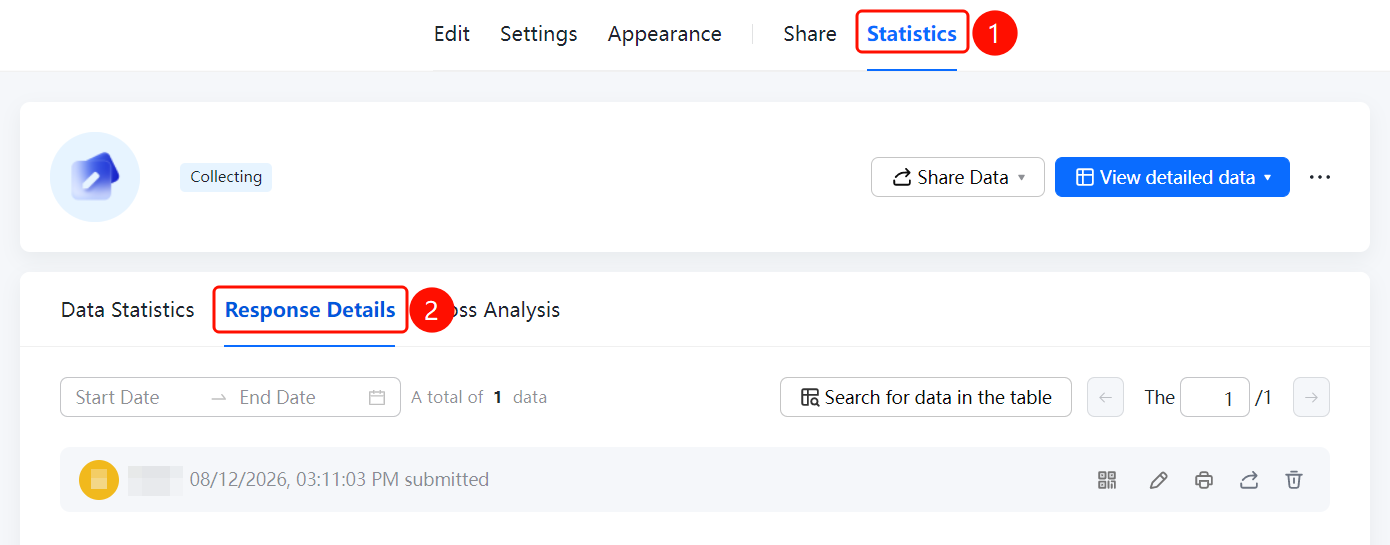
Access Path"Statistics" tab → "Response Details" option
- Click the "Statistics" tab at the top
- In the left-hand menu, click "Response Details"
- At the top of the page, set the "Start Date" and "End Date" to filter by time range
- Enter keywords in the "Search data in table" input box to quickly locate responses
- Review each response's submission time (e.g., "Submitted on 2026/08/06 10:50:58") and answer content
Frequently Asked Questions
Q1: How to filter responses by time range?
- Solution: Set the "Start Date" and "End Date" at the top of the "Response Details" page to view response data within that specific period.
Q2: How to quickly locate a specific response?
- Solution: Enter keywords in the "Search Data in Table" input box on the "Response Details" page to quickly find relevant responses.
Q3: What is the difference between Response Details and Data Statistics?
- Solution: Response Details displays each individual response with submission time and answers, while Data Statistics provides aggregated analysis of overall data. Both can be used together for comprehensive insights.
Notes
- Response Details are displayed in reverse chronological order, with the most recently submitted responses appearing at the top.
- The total number of responses is shown at the bottom of the page, e.g., "Total of 1 response"