Feature Overview
The auto-numbering feature automatically generates a unique identifier for each submitted record, such as serial numbers, order IDs, or product codes. These numbers are generated upon submission without requiring user input, ensuring uniqueness and consistency.
Feature Description
| Function Dimension | Description |
|---|---|
| Membership Restrictions | No membership restrictions |
| Version Restrictions | No version restrictions |
Operating Steps
Adding Auto-Numbered Questions
Feature Access
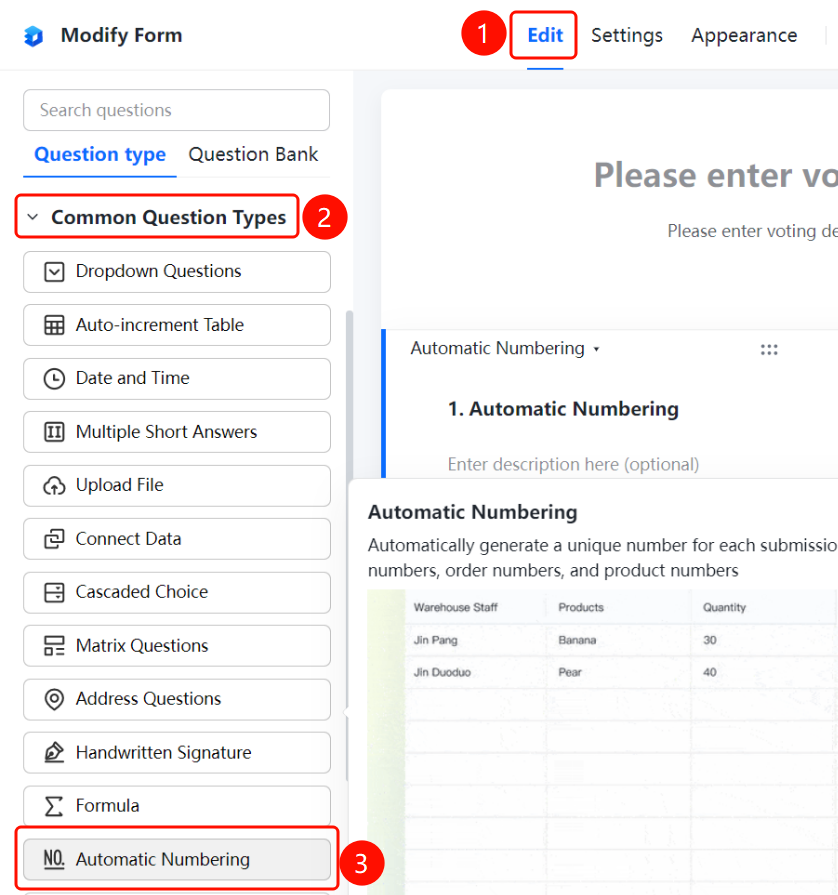
"Edit" tab → "Common Question Types" → "Auto-Number" button
- Click the "Edit" tab at the top
- Expand the "Common Question Types" section in the left panel
- Click the "Auto-Number" button to add an auto-numbered question to the poll
- Enter the question content in the editing area, such as "Receipt Number". Below the question, it will display "Automatically generated upon submission; no input required"
Set Auto-Counting
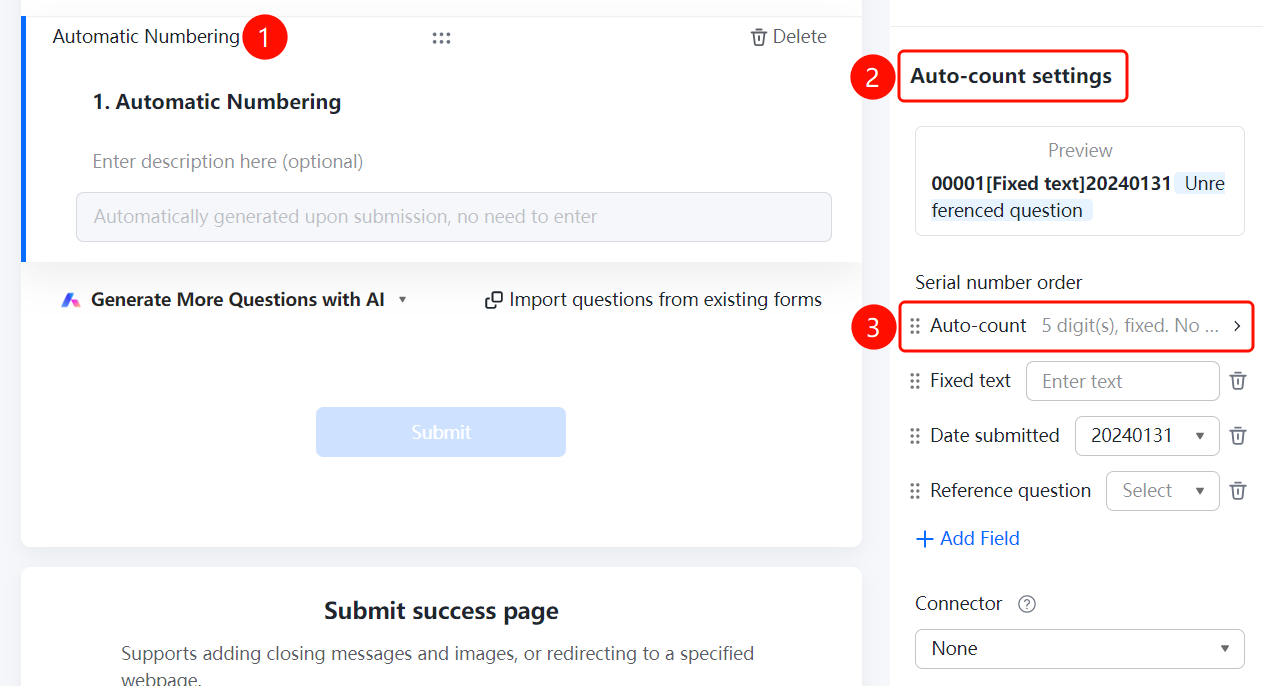
Feature Access PathAuto-numbered Question → "Auto-number Settings" → "Auto-counting" → "Auto-counting Settings"
Click on the auto-numbered question you have added.
In the right-hand "Auto-number Settings" panel, click "Auto-counting" (currently displayed as "5 digits; fixed; no reset").
In the pop-up "Auto-counting Settings" window, configure the following:
- "Number Range": e.g., "00001~99999"
- "Number of Digits": e.g., "5", and check "Fixed Length" to pad with leading zeros if fewer digits are used
- "Start Value": e.g., "1"
- "Reset Cycle": e.g., "No Reset"
- "If the number reaches its maximum value, when continuing submission": e.g., "Continue Incrementing"
Click "Confirm" to save.
Set Fixed Text
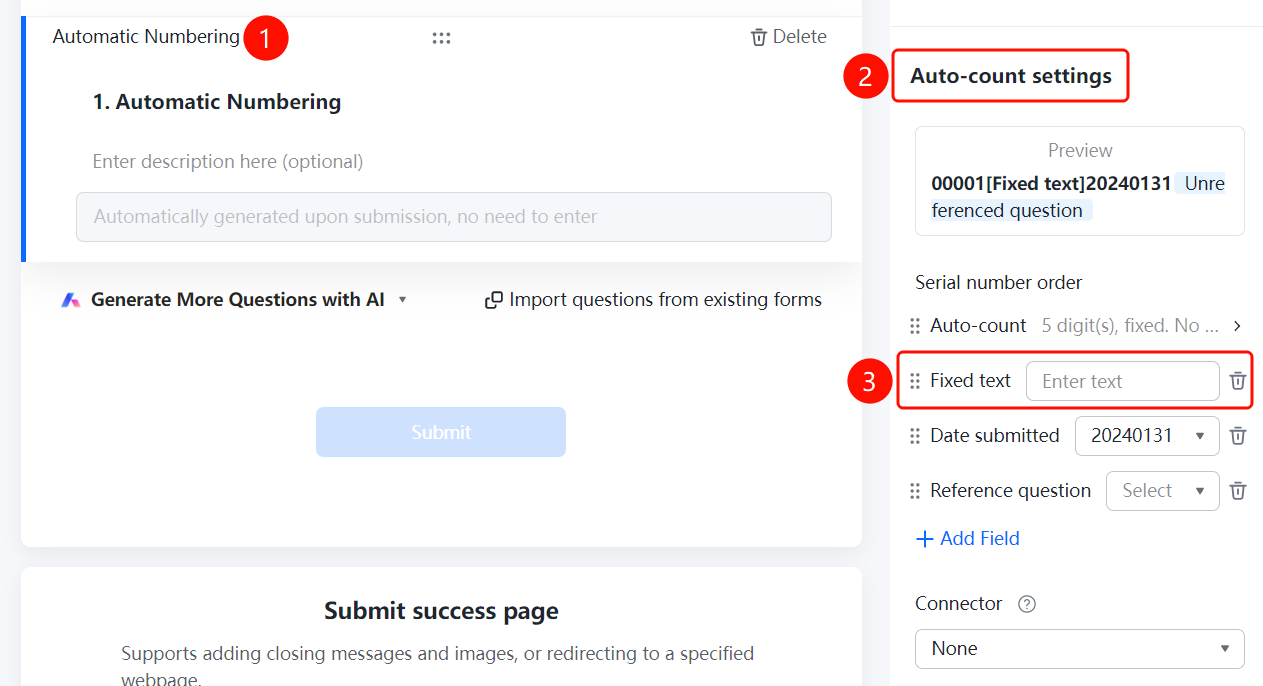
Access PathAuto-numbered Question → "Auto-numbering Settings" → "Fixed Text" input box
- Click on the auto-numbered question you have added
- Enter the fixed content in the "Fixed Text" input box within the "Auto-numbering Settings" panel on the right
- Click the delete icon next to the field to remove it
Set Submission Date
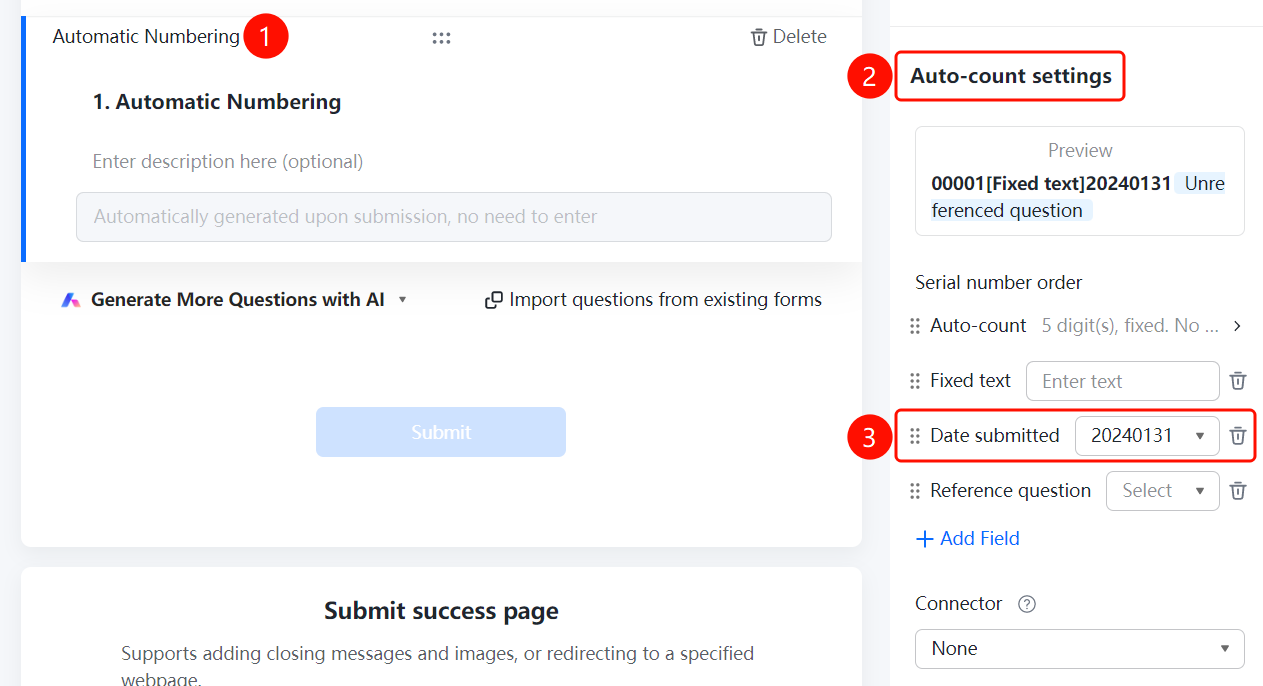
Access PathAuto-numbered Question → "Auto-numbering Settings" → "Submission Date" dropdown menu
- Click on the auto-numbered question you have added.
- In the right-hand "Auto-numbering Settings" panel, click the "Submission Date" dropdown and select a date format (e.g., "20240131").
- Click the delete icon next to the field to remove it.
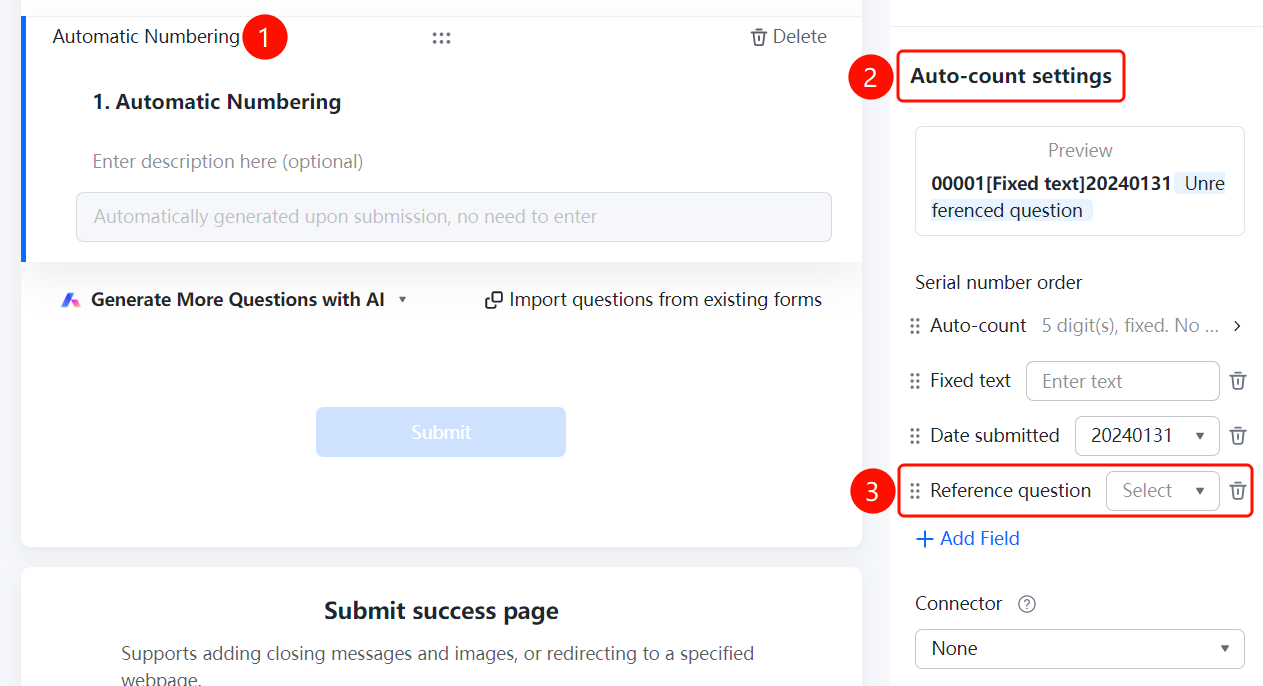
Reference Form Question
Feature Access
Auto-numbered question → "Auto-numbering Settings" → "Reference Question" dropdown menu
- Click on the auto-numbered question you have added
- In the right-hand "Auto-numbering Settings" panel, click the "Reference Question" dropdown and select the desired form question
- Click the delete icon next to a field to remove it
Add Field
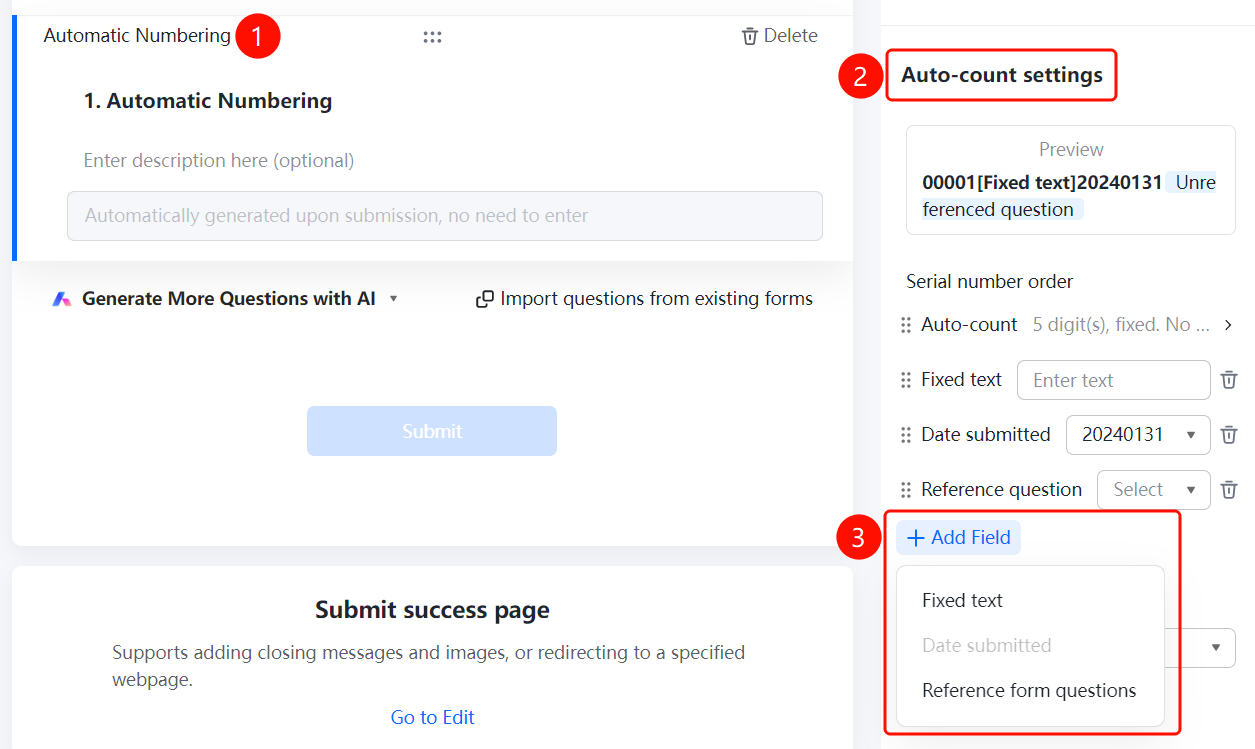
Feature Access PathAuto-numbering Question → "Auto-numbering Settings" → "Add Field" option
- Click on the auto-numbering question you have added
- In the right-hand "Auto-numbering Settings" panel, click "Add Field"
- Choose from: "Fixed Text", "Submission Date", or "Reference Form Question"
Set Connector
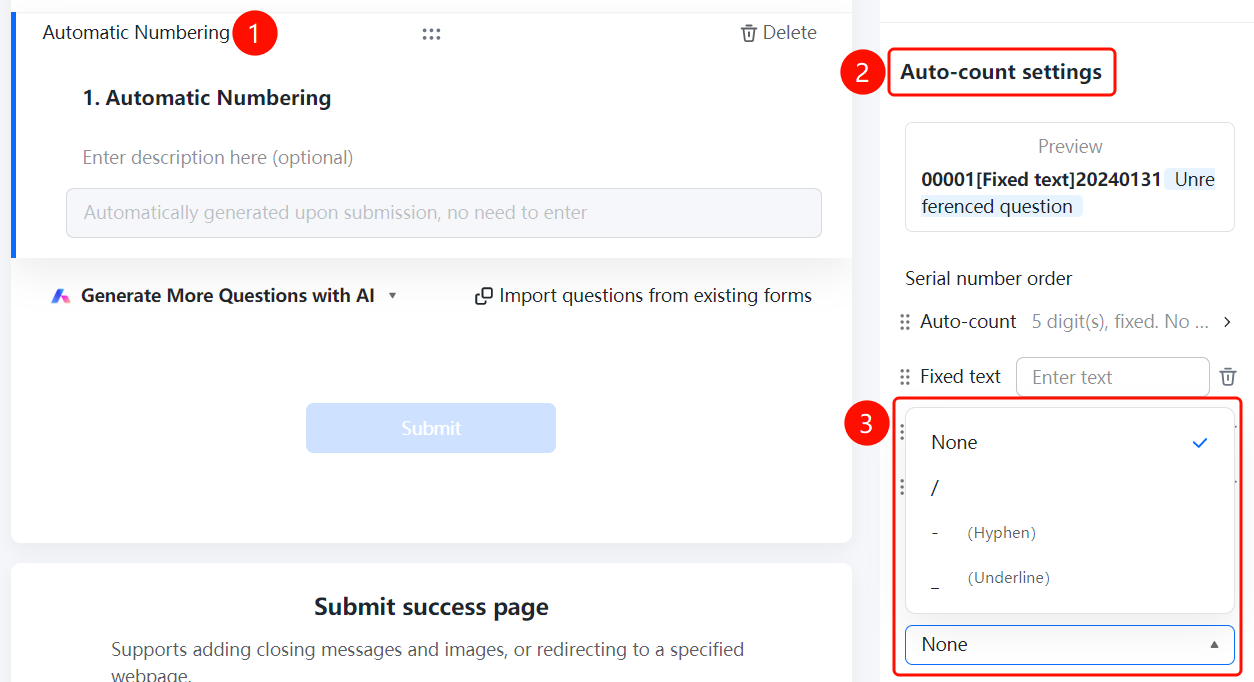
Access PathAuto-numbered Question → "Auto-numbering Settings" → "Connector" dropdown menu
- Click on the auto-numbered question you have added
- In the right-hand "Auto-numbering Settings" panel, click the "Connector" dropdown menu
- Choose from: "None", "/", "-" (hyphen), or "_" (underscore)
Frequently Asked Questions
Q1: How to set the number of digits and starting value for numbering?
- Solution: Click on the auto-numbering question, then in "Auto Numbering Settings," select "Auto Count." In the pop-up dialog box, configure the numbering range, number of digits, fixed digit length, and starting value.
Q2: How to include fixed text or submission date in the numbering?
- Solution: Click on the auto-numbering question, then in "Auto Numbering Settings," set "Fixed Text" and "Submission Date" separately. You can also add them via "Add Field."
Q3: How to include content from other questions in the form within the numbering?
- Solution: Click on the auto-numbering question, then in "Auto Numbering Settings," click "Reference Question" to select the desired question, or add it using "Add Field."
Notes
- Auto-numbering is generated automatically upon submission; no input is required from respondents.
- A "Preview" option at the top of the panel displays the real-time combination effect of the numbering, such as "00001[Fixed Text]20240131 Unreferenced Question."
- If the numbering reaches its maximum value, you can set it to "Continue Incrementing" when further submissions are made.