Feature Overview
The auto-increment table question is used to collect multiple pieces of information submitted by respondents. Respondents can add or delete rows as needed, and the number of entries submitted by each respondent may vary.
Feature Description
| Feature Dimension | Description |
|---|---|
| Membership Restrictions | No membership restrictions |
| Version Restrictions | No version restrictions |
Operating Steps
Adding an Auto-increment Table Question
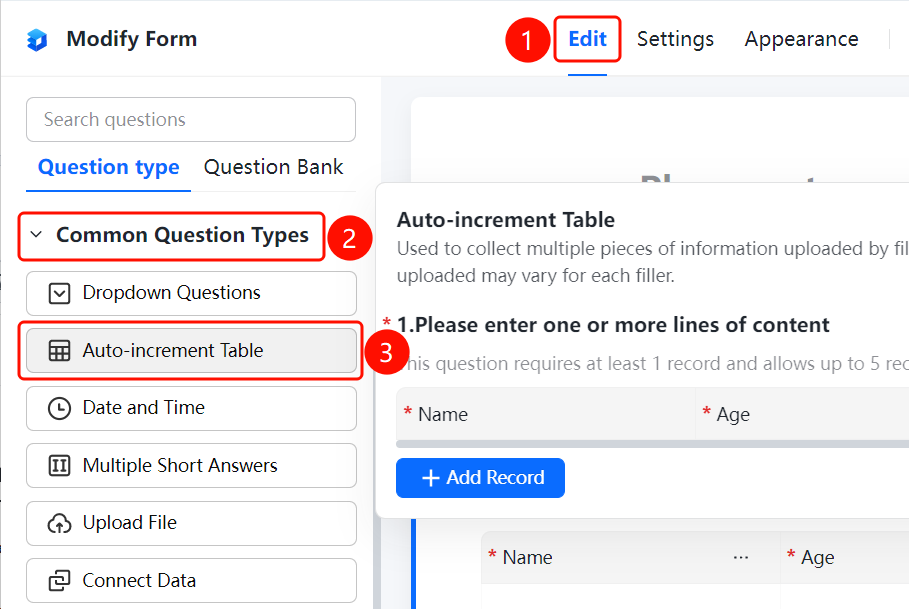
Access Path"Edit" tab → "Common Question Types" → "Auto-increment Table" button
- Click the "Edit" tab at the top
- Expand the "Common Question Types" section in the left panel
- Click the "Auto-increment Table" button to add the auto-increment table question to the poll
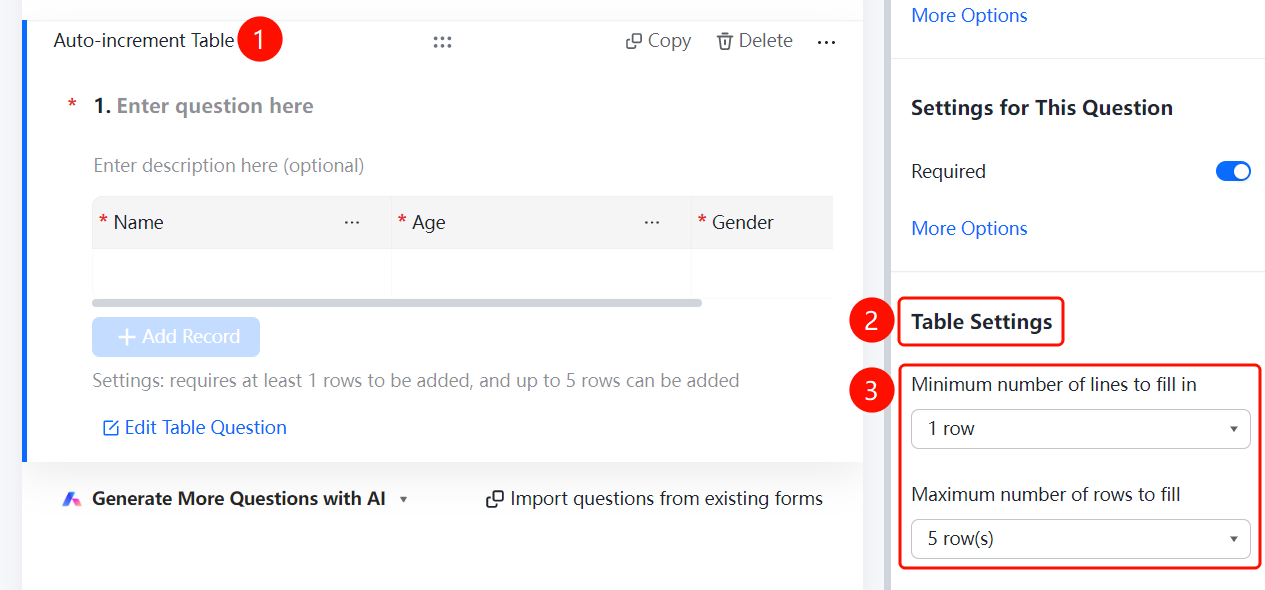
- Click "Edit Table Question" to set the column fields, such as "Name", "Age", "Gender", etc.
- Respondents can click "Add a Record" to insert new rows; currently configured to require at least 1 row and allow up to 5 rows
Set the Range of Rows to Fill
Access PathAuto-incremented Table Question → "Table Settings" → "Minimum Rows to Fill" / "Maximum Rows to Fill"
- Click on the added auto-incremented table question.
- In the right-hand "Table Settings" panel, click "Minimum Rows to Fill", then select the minimum number of rows required (e.g., "1 row").
- Click "Maximum Rows to Fill", then select the maximum number of rows allowed (e.g., "5 rows").
Frequently Asked Questions
Q1: How can I set the minimum and maximum number of rows respondents can fill in?
- Solution: Click on the auto-increment table question, then in the "Table Settings" panel, set the "Minimum Rows to Fill" and "Maximum Rows to Fill" accordingly.
Q2: How do I configure the column fields for an auto-increment table?
- Solution: Click on the auto-increment table question, then click "Edit Table Question" to add, modify, or delete column fields.
Q3: Can respondents add new record rows themselves?
- Solution: Yes. Respondents can click "Add a Record" to insert a new row. The number of added rows must fall within the range defined by the minimum and maximum settings.
Notes
- Auto-increment tables are suitable for scenarios where each respondent may submit a different number of data entries.
- The current settings will be displayed below the question, for example: "At least 1 row required, up to 5 rows allowed."