Feature Overview
The ID card recognition question is designed to identify photos of ID cards uploaded by respondents, automatically extracting information from the ID card. It belongs to the "Advanced Question Types" category. Once a respondent uploads an ID card photo, the system automatically recognizes and processes the data.
Feature Description
| Function Dimension | Description |
|---|---|
| Membership Restrictions | No membership restrictions |
| Version Restrictions | No version restrictions |
Operation Steps
Add ID Card Recognition Question
Feature Access
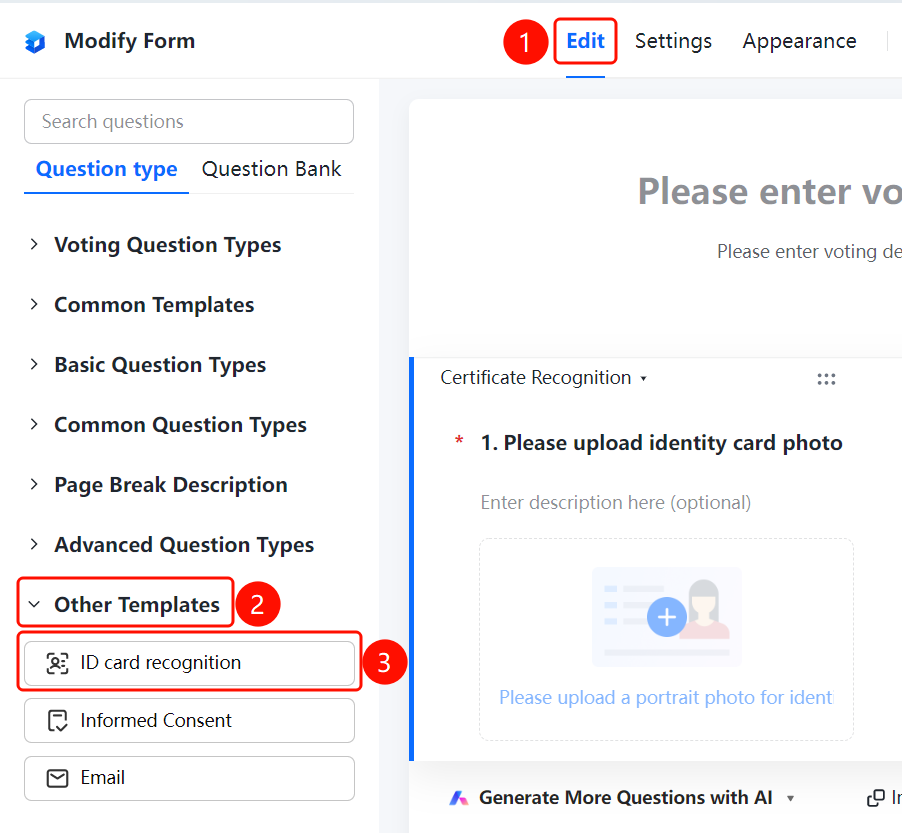
"Edit" tab → "Other Templates" → "ID Card Recognition" button
- Click the "Edit" tab at the top
- Expand the "Other Templates" section in the left panel
- Click the "ID Card Recognition" button to add an ID card recognition question to the poll
- Enter the question content in the question editing area, for example: "Please upload a photo of your ID card"
Set the Types of Documents to Be Recognized
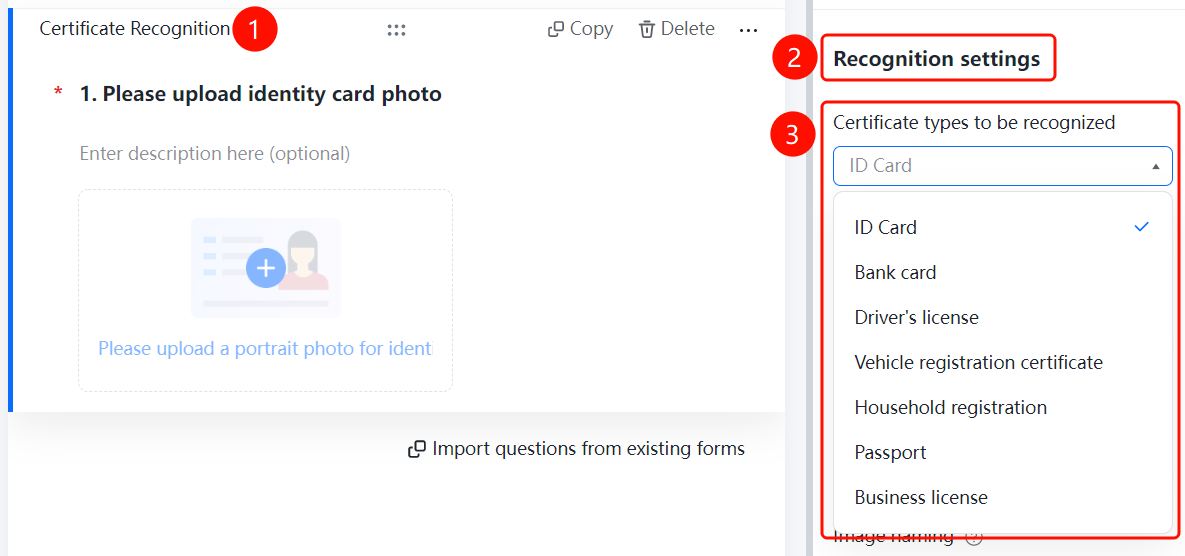
Access PathID Card Recognition Question → "Recognition Settings" → Dropdown menu for "Document Types to Be Recognized"
- Click on the added ID card recognition question.
- In the "Recognition Settings" panel on the right, click the dropdown menu labeled "Document Types to Be Recognized."
- Select the desired document types from the dropdown list: ID Card / Bank Card / Driver's License / Vehicle Registration Certificate / Household Register / Passport / Business License
Configure Information to Be Recognized
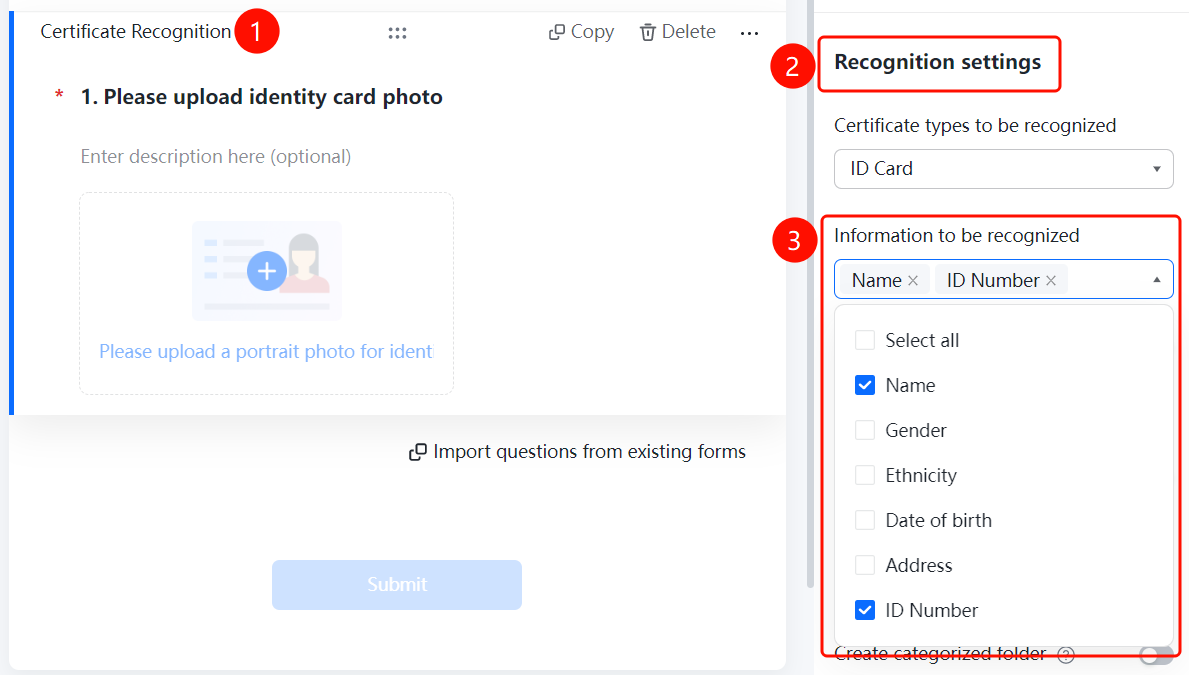
Access PathID Card Recognition Question → "Recognition Settings" → "Information to Be Recognized"
- Click on the added ID card recognition question
- In the right-hand "Recognition Settings" panel, click the "Information to Be Recognized" option
- Check the following: Name / Gender / Ethnicity / Date of Birth / Address / ID Number
Enable Manual Input
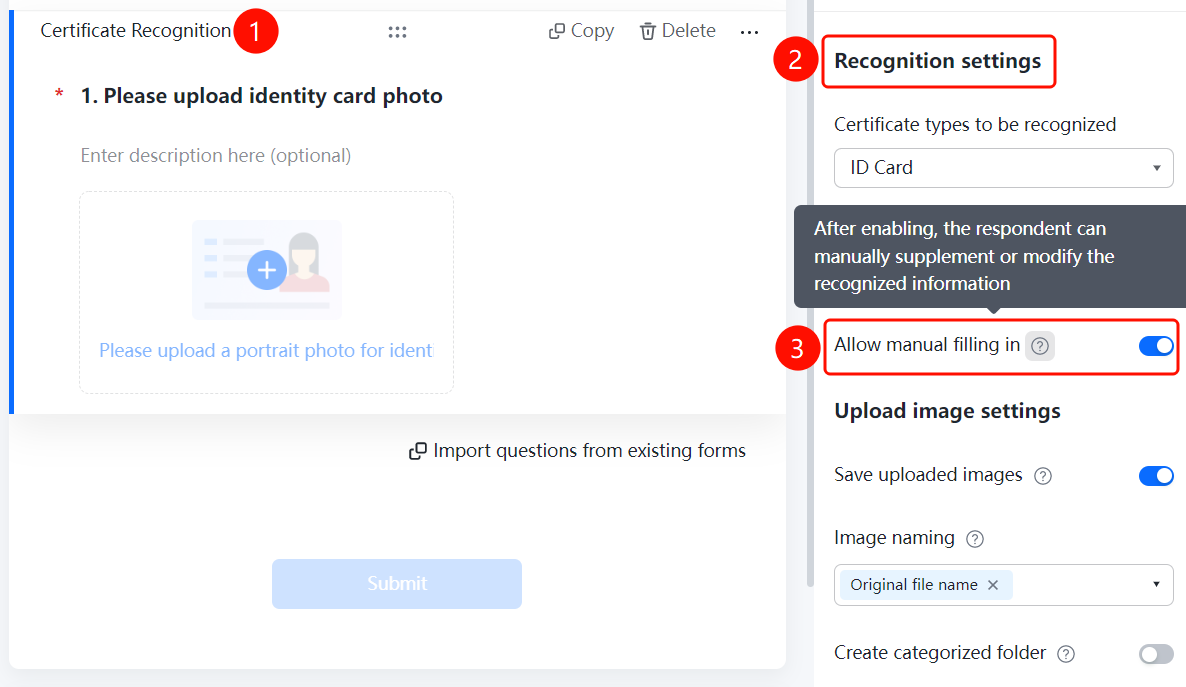
Feature Access PathID Card Recognition Question → "Recognition Settings" → Toggle "Allow Manual Input"
- Click on the added ID card recognition question
- In the right-hand "Recognition Settings" panel, turn on the "Allow Manual Input" toggle
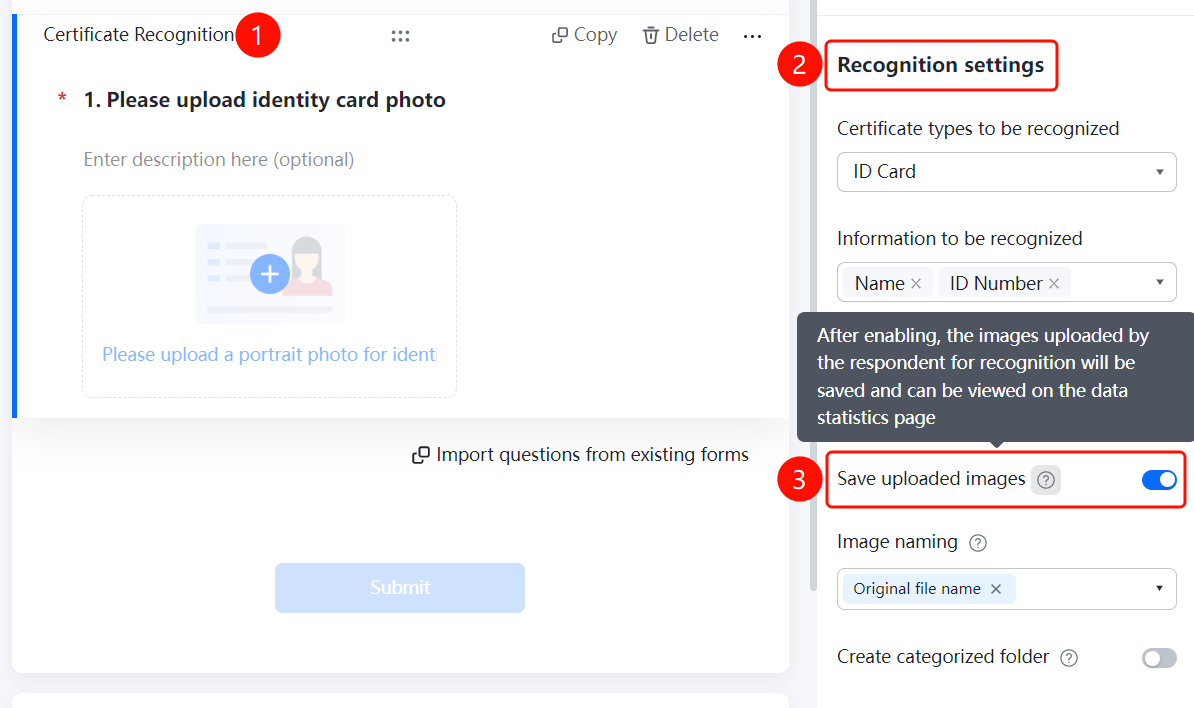
Enable Saving Uploaded Images
Feature Access PathID Card Recognition Question → "Image Upload Settings" → Toggle "Save Uploaded Images"
- Click on the added ID card recognition question
- In the right-hand "Image Upload Settings" panel, turn on the "Save Uploaded Images" toggle
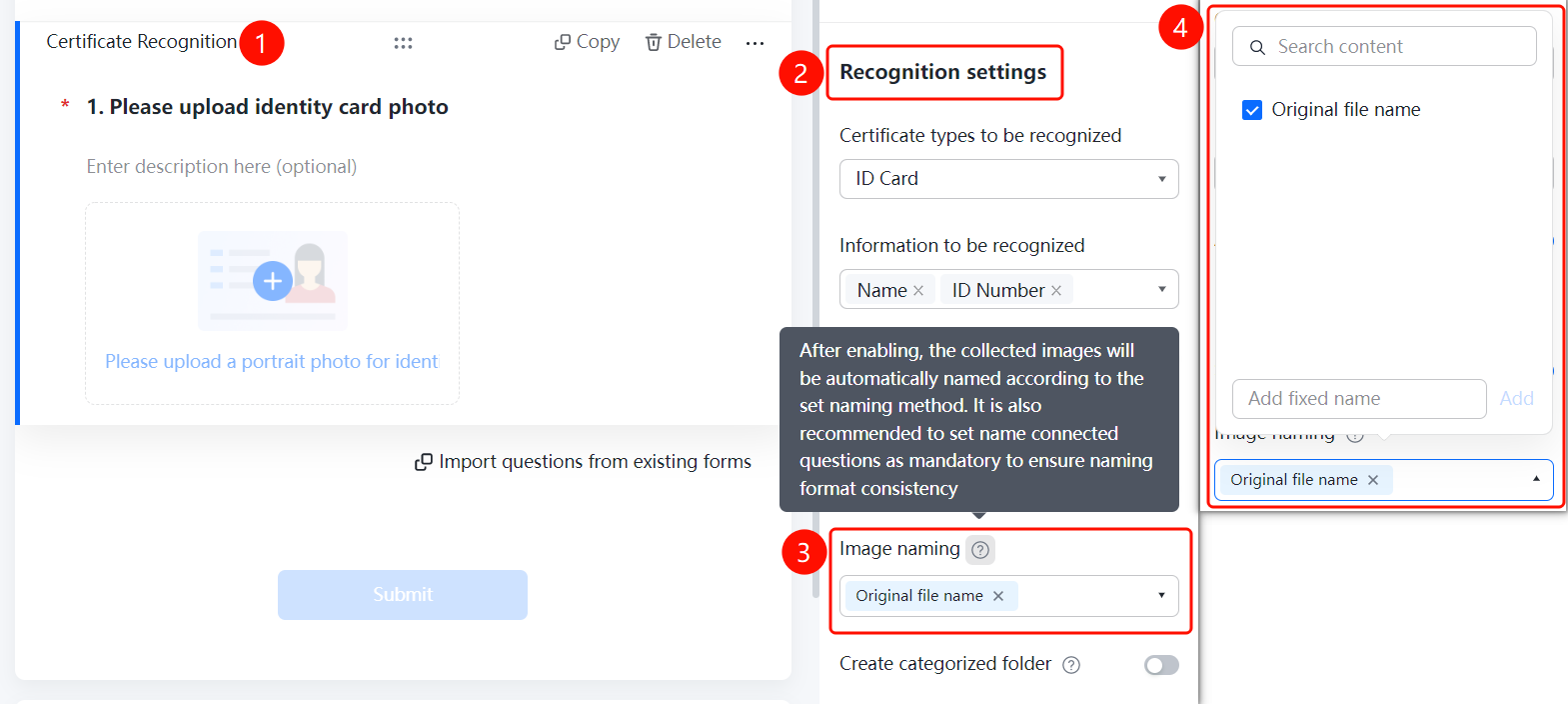
Set Image Naming Method
Access PathID Card Recognition Question → "Upload Image Settings" → "Image Naming Method" option
- Click on the added ID card recognition question.
- In the right-hand "Upload Image Settings" panel, click the "Image Naming Method" option.
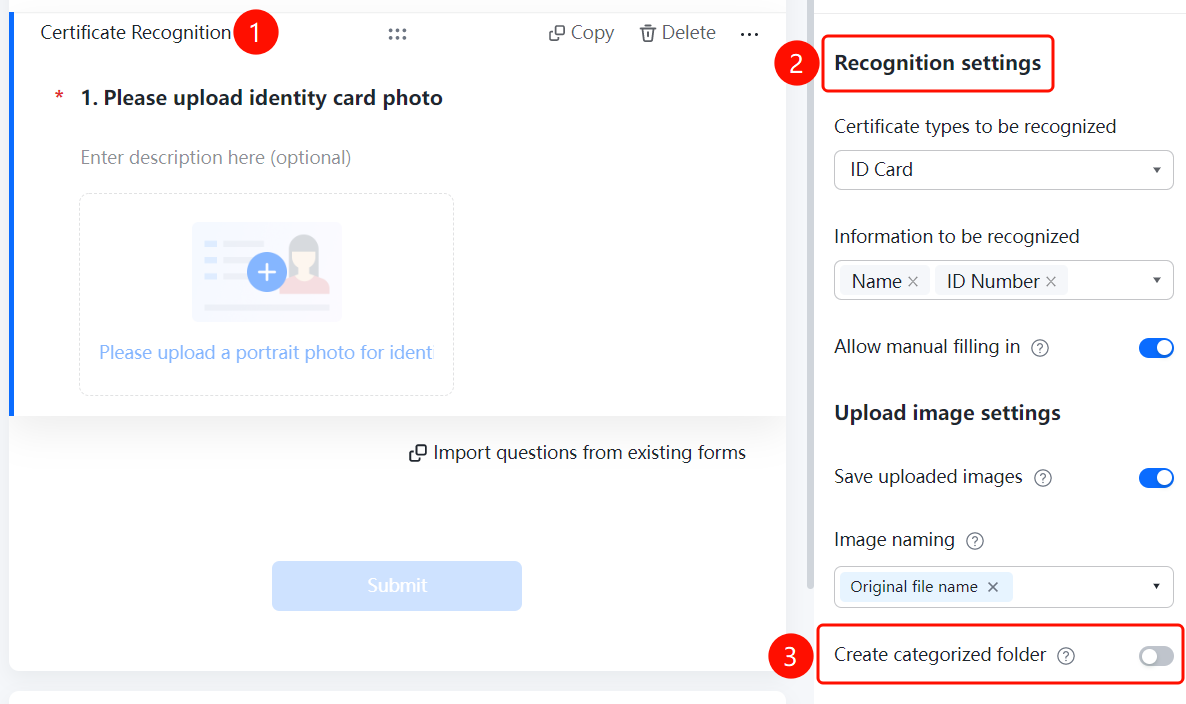
Enable Creation of Categorized Folders
Feature Access PathID Card Recognition Question → "Upload Image Settings" → Toggle "Create Categorized Folder"
- Click on the added ID card recognition question.
- In the right-hand "Upload Image Settings" panel, turn on the "Create Categorized Folder" toggle.
Frequently Asked Questions
Q1: What information can be recognized from an ID card?
- Solution: The system can automatically recognize name, gender, ethnicity, date of birth, address, and ID number.
Q2: How to correct inaccurate recognition results?
- Solution: Enable the "Allow Manual Input" option in "Recognition Settings," allowing users to manually edit or supplement the information.
Q3: How to prevent duplicate submissions of the same ID card?
- Solution: Enable the "ID Card Duplicate Check" option in "Recognition Settings," which will verify and prevent duplicate entries.
Notes
- ID card recognition automatically extracts information; manual input is not required.
- Enabling "ID Card Duplicate Check" helps prevent duplicate submissions.