Feature Summary
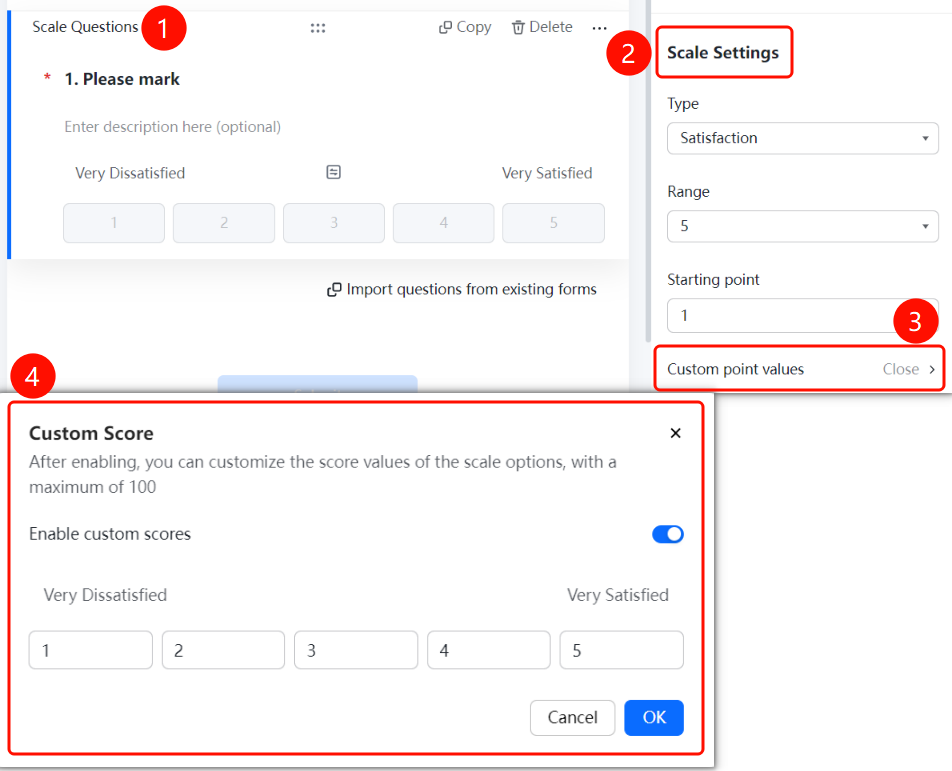
Scale questions are commonly used to assess user satisfaction, NPS, or ratings. You can set a starting value and maximum value, allowing respondents to evaluate by selecting from levels ranging from "very dissatisfied" to "very satisfied."
Feature Description
| Feature Dimension | Description |
|---|---|
| Membership Restrictions | No membership restrictions |
| Version Restrictions | No version restrictions |
Operating Steps
Adding a Scale Question
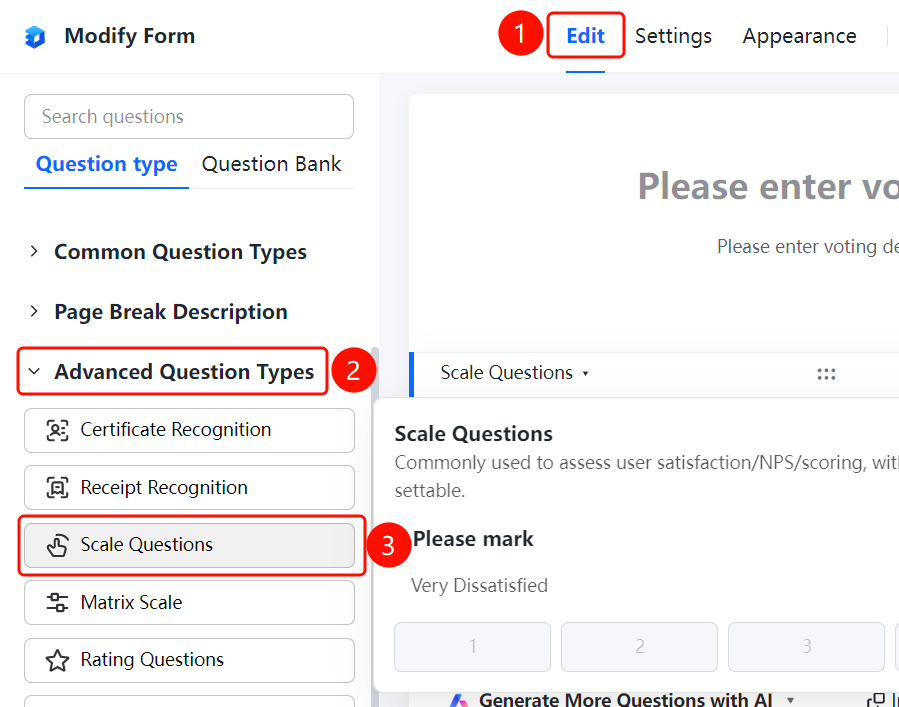
Access Path"Edit" tab → "Advanced Question Types" → "Scale Question" button
- Click the "Edit" tab at the top
- Expand the "Advanced Question Types" section in the left panel
- Click the "Scale Question" button to add a scale question to the poll
- Enter the question text in the question editing area, for example, "Please rate"
- The scale ranges from "Very Dissatisfied" to "Very Satisfied", allowing respondents to select their level of satisfaction
Set Scale Type
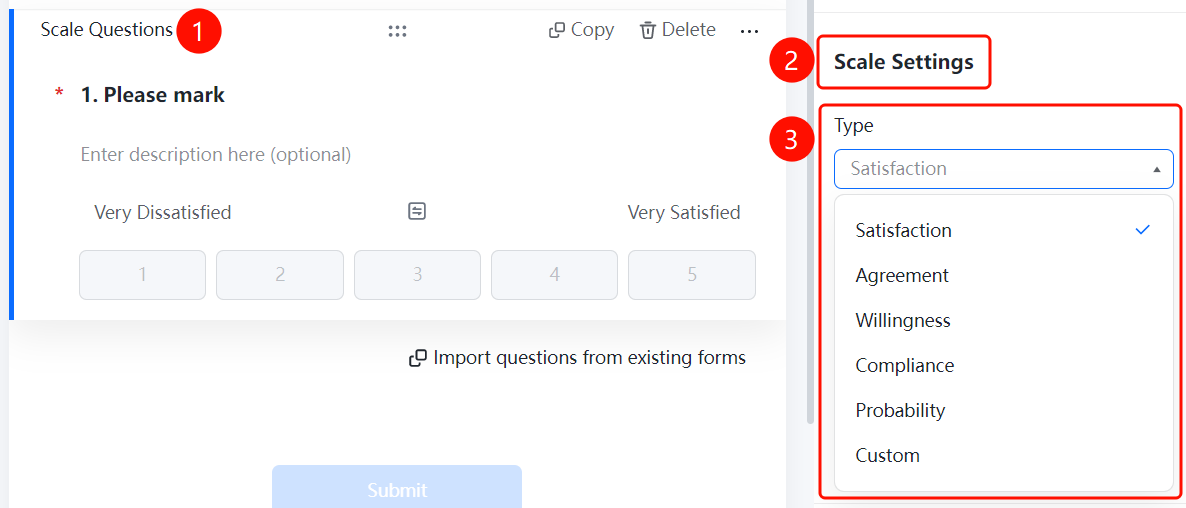
Access PathScale Question → "Scale Settings" → "Scale Type" option
- Click on the added scale question
- In the right-hand "Scale Settings" panel, click the "Scale Type" option
- Choose from: Satisfaction / Agreement / Willingness / Fit / Likelihood / Custom
Set Range
Access Path
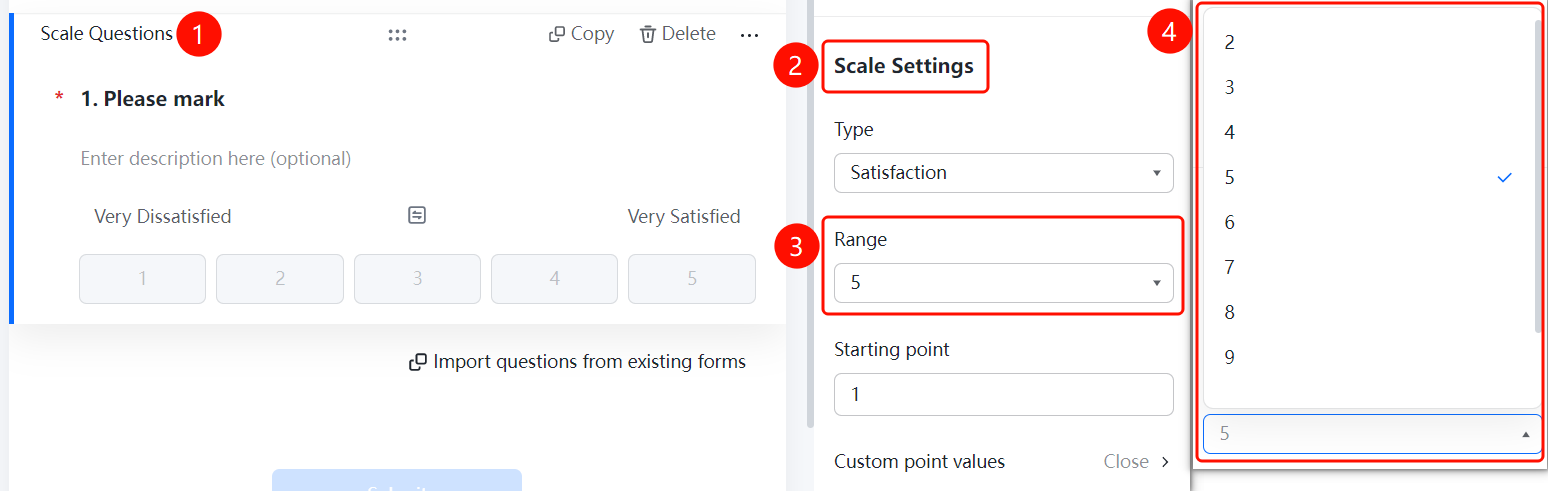
Scale Question → "Scale Settings" → "Range"
- Click on the added scale question.
- In the right-hand "Scale Settings" panel, click the "Range" option.
Set Starting Value
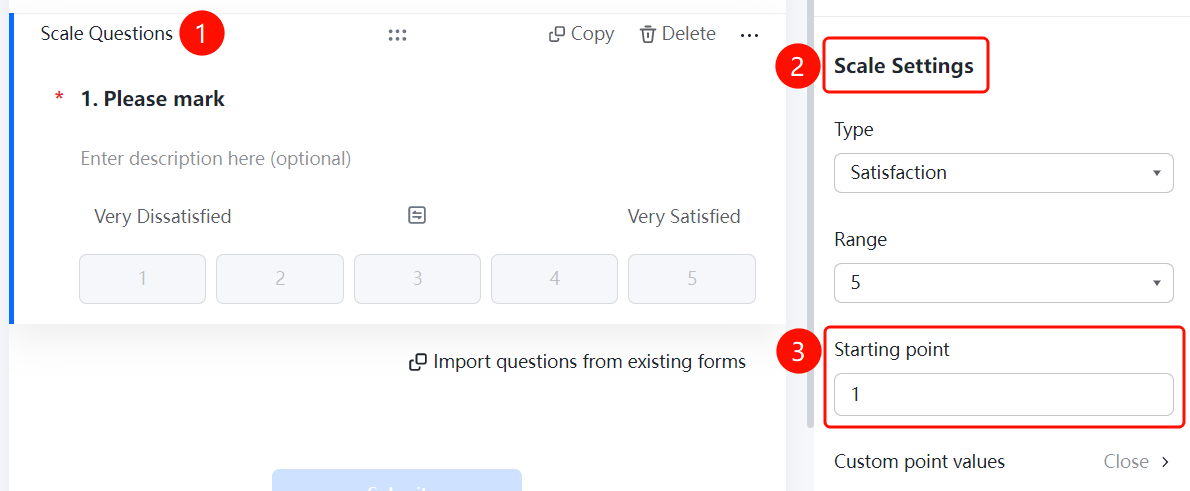
Access PathScale Question → "Scale Settings" → "Starting Value" option
- Click on the added scale question
- In the right-hand "Scale Settings" panel, click the "Starting Value" option
Enable Custom Scoring
Feature Access PathScale Question → "Scale Settings" → "Custom Score Values" → Toggle "Enable Custom Scoring"
- Click on the added scale question
- In the right-hand "Scale Settings" panel, click "Custom Score Values"
- Turn on the "Enable Custom Scoring" toggle
Frequently Asked Questions
Q1: What types of scales are supported for scale questions?
- Solution: Supports satisfaction, agreement, willingness, conformity, likelihood, and other types. You can also choose "Custom" to set your own options.
Q2: How do I set the number of scale levels?
- Solution: Click on the scale question, then in the "Scale Settings" panel, click "Level Settings."
Q3: How do I customize the score values for each scale item?
- Solution: Click on the scale question, then in the "Scale Settings" panel, click "Custom Score Values," and turn on the "Enable Custom Scoring" switch.
Notes
- Scale questions are suitable for surveys such as satisfaction assessments, NPS evaluations, and scoring.
- You can set starting values and maximum values to meet different scoring requirements.