Feature Summary
Save Draft is used to save the currently edited form content as a draft. You can save at any time during editing to avoid losing content and conveniently continue editing later.
Feature Description
| Feature Dimension | Description |
|---|---|
| Membership Restriction | No membership restriction |
| Version Restriction | No version restriction |
Operation Steps
Save Draft
Feature Entry
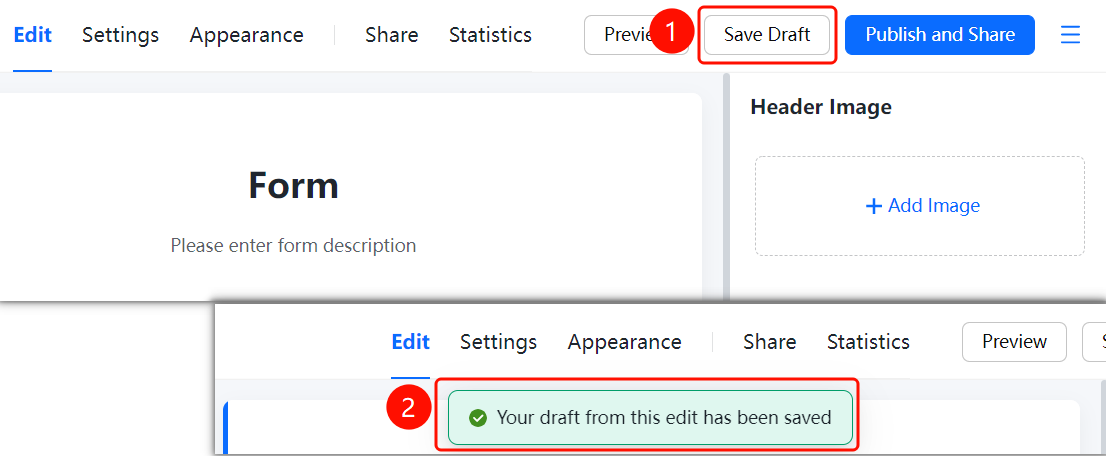
Top toolbar → "Save Draft" button
- On the editing page, click the "Save Draft" button in the top toolbar.
- The system prompts "Your current editing draft has been saved."
- After the draft is saved, you can continue editing the next time you open the form.
FAQ
Q1: Where can I find the draft after saving it?
- Solution: After saving, the draft is saved on the WPS Forms homepage or in "Personal Space" → "Apps" → "My Forms". You can open it directly next time to continue editing.
Q2: What is the difference between saving a draft and publishing?
- Solution: Saving a draft only saves the edited content and does not publish the form. Respondents can only see and fill out the form after it is published.
Q3: Will the draft be saved automatically?
- Solution: The system may automatically save some content, but it is recommended to manually click "Save Draft" during editing to ensure no content is lost.
Notes
- It is recommended to click "Save Draft" regularly during editing to avoid losing content.
- After saving a draft, the form remains in editing status. You need to click "Publish and Share" to officially publish it.