Feature Summary
Share Data is used to share the form's data statistics page with others for viewing. It supports sharing the current page and sharing the data summary table, and allows you to set access permissions and link validity periods.
Feature Description
| Feature Dimension | Description |
|---|---|
| Membership Restrictions | No membership restrictions |
| Version Restrictions | No version restrictions |
Steps
Share Current Page
Feature Entry
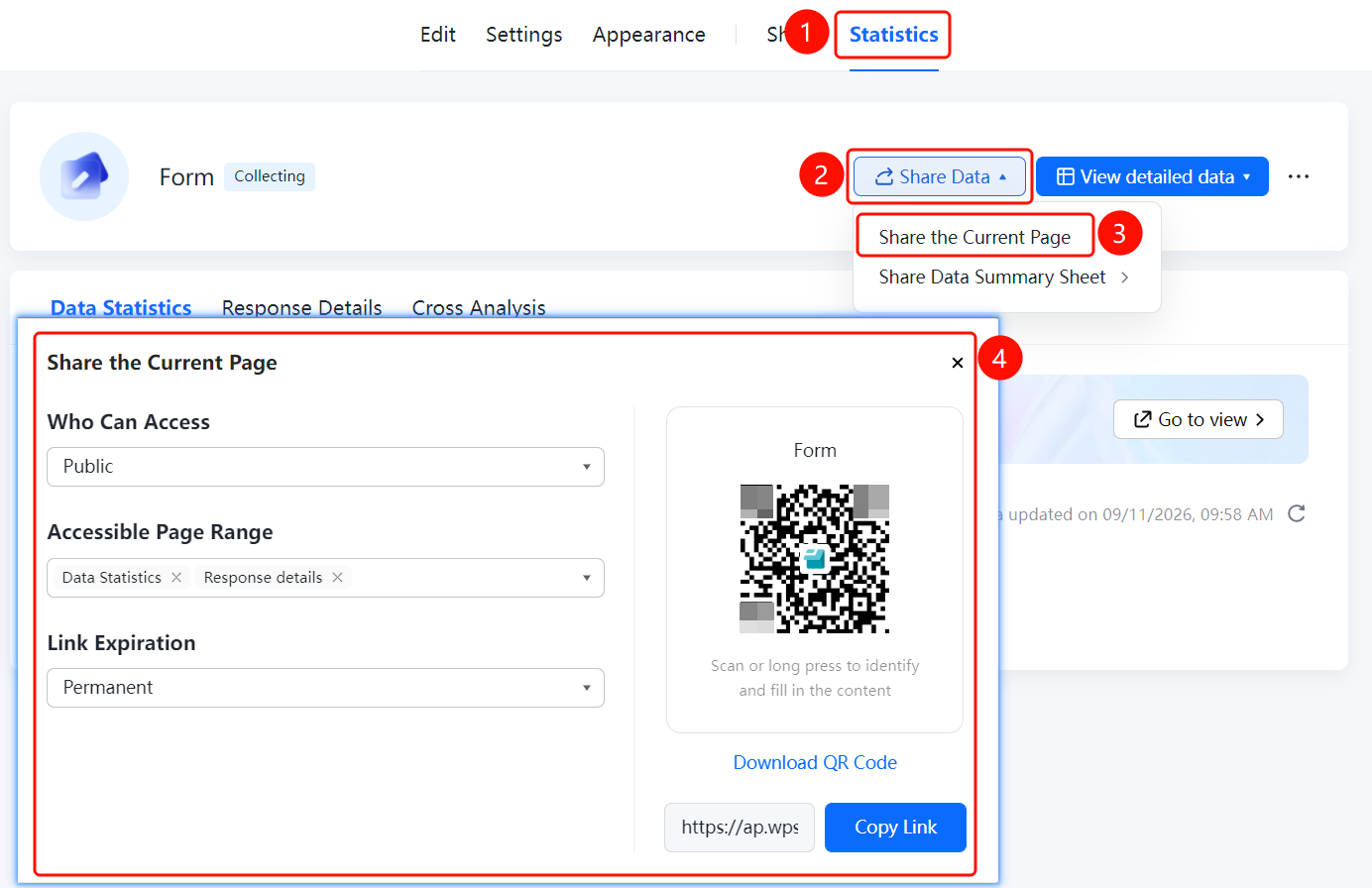
"Share Data" → "Share Current Page" option
- On the statistics page, click the "Share Data" button
- Click the "Share Current Page" option
- In the pop-up window, set "Who can access" (e.g., Public) and "Accessible Page Range" (e.g., Data Statistics, Response Details)
- Set the "Link Validity Period" (e.g., Permanent)
- You can click "Download QR Code" or "Copy Link" to share with others
Share Data Summary Table
Feature Entry
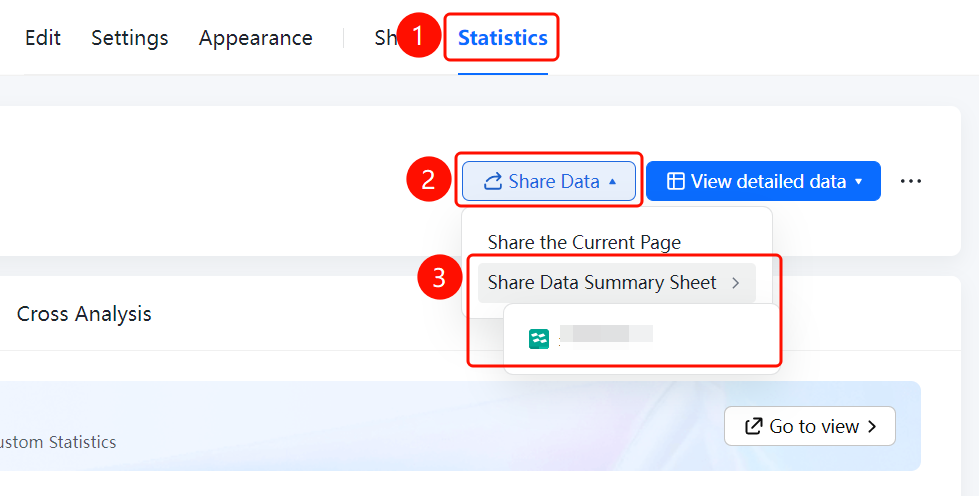
"Share Data" → "Share Data Summary Table" option
- On the statistics page, click the "Share Data" button
- Click the "Share Data Summary Table" option
- Choose a sharing method to share the data summary table with others for viewing
FAQ
Q1: Who can view the data after sharing?
- Solution: In the "Share Current Page" settings, you can select "Public" or specify individuals. When set to Public, everyone can view it via the link or QR code.
Q2: How to set the validity period of the shared link?
- Solution: In the "Share Current Page" settings, click "Link Validity Period" and select Permanent or a custom validity period.
Q3: What is the difference between sharing the data summary table and sharing the current page?
- Solution: Sharing the current page shares the data statistics page, while sharing the data summary table shares the data summary table. You can choose based on your needs.
Notes
- Before sharing data, please confirm the accessible page range to ensure only necessary data is shared
- You can share via QR code or link for quick access by others