Feature Summary
Duplicate is used to quickly copy the current form and generate a copy with identical content. The copy is saved on the WPS Forms homepage and in "Personal Space" → "Apps" → "My Forms".
Feature Description
| Feature Dimension | Description |
|---|---|
| Membership Restriction | No membership restriction |
| Version Restriction | No version restriction |
Steps
Duplicate
Feature Entry
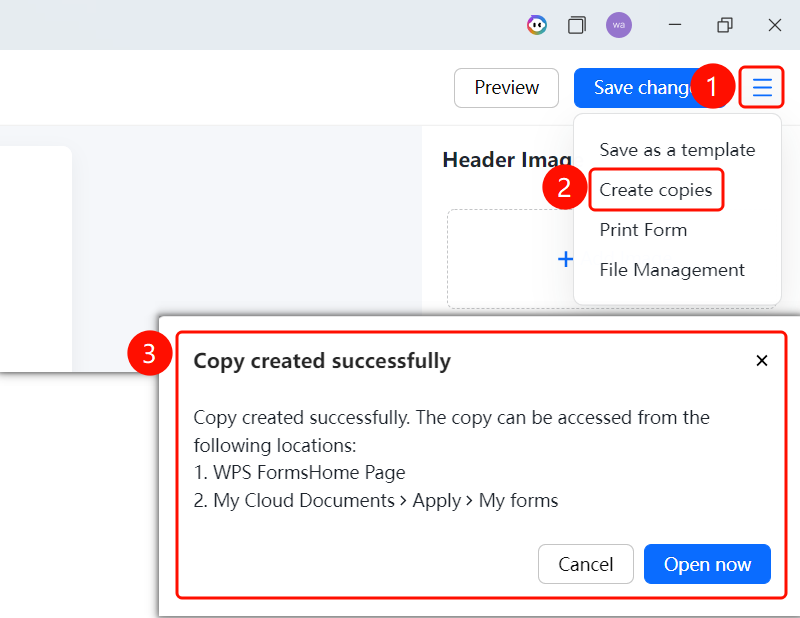
Top toolbar → "Duplicate" button
- On the editing page, click the "Duplicate" button in the top toolbar.
- The system prompts "Duplicate created successfully".
- The copy can be accessed from the following locations: WPS Forms homepage, or "Personal Space" → "Apps" → "My Forms".
- Click "Open Now" to directly open the copy.
FAQ
Q1: Will the original form be affected after duplicating?
- Solution: No. Duplicating only copies a form with identical content; the original form remains unchanged.
Q2: Where is the copy saved?
- Solution: The copy is saved on the WPS Forms homepage and in "Personal Space" → "Apps" → "My Forms", and can be accessed from these two locations.
Q3: What is the use of duplicating?
- Solution: Duplicating can be used to back up a form, create a new form based on an existing one, or use a form with the same structure in different scenarios.
Notes
- After duplicating, the copy and the original form are independent; modifying either will not affect the other.
- After the copy is successfully created, you can click "Open Now" to directly enter editing.