Feature Summary
The Appearance feature is used to set the display style of the form, including switching between desktop/mobile preview, setting a background image or solid color, and selecting a form color scheme to make the form more visually appealing.
Feature Description
| Feature Dimension | Description |
|---|---|
| Membership Restriction | No membership restriction |
| Version Restriction | No version restriction |
Operation Steps
Switch Desktop/Mobile Preview
Feature Entry
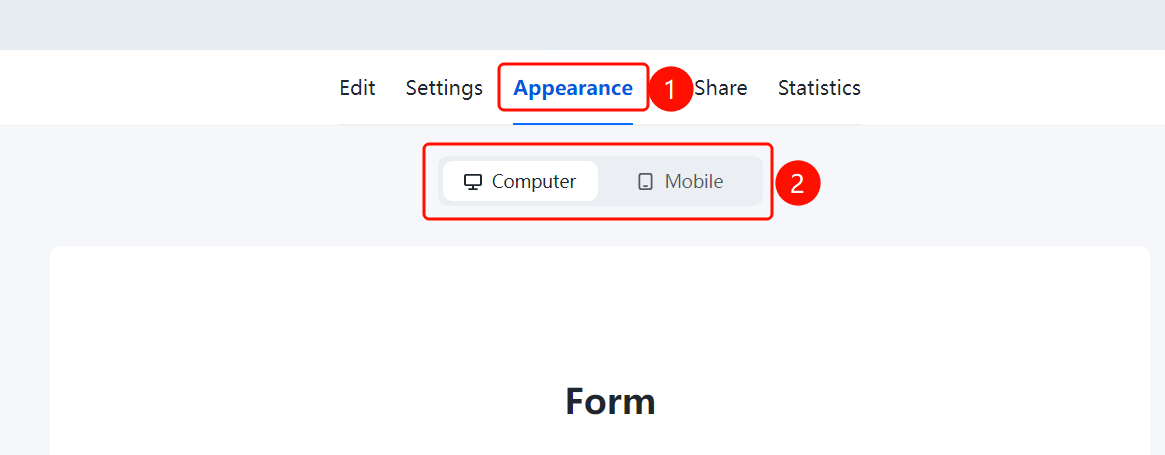
「Appearance」 tab → 「Desktop」/「Mobile」 toggle
- Click the top 「Appearance」 tab
- Click 「Desktop」 or 「Mobile」 to switch the preview mode
- In Desktop mode, the desktop layout is displayed; in Mobile mode, the mobile layout is displayed
Set Background
Feature Entry
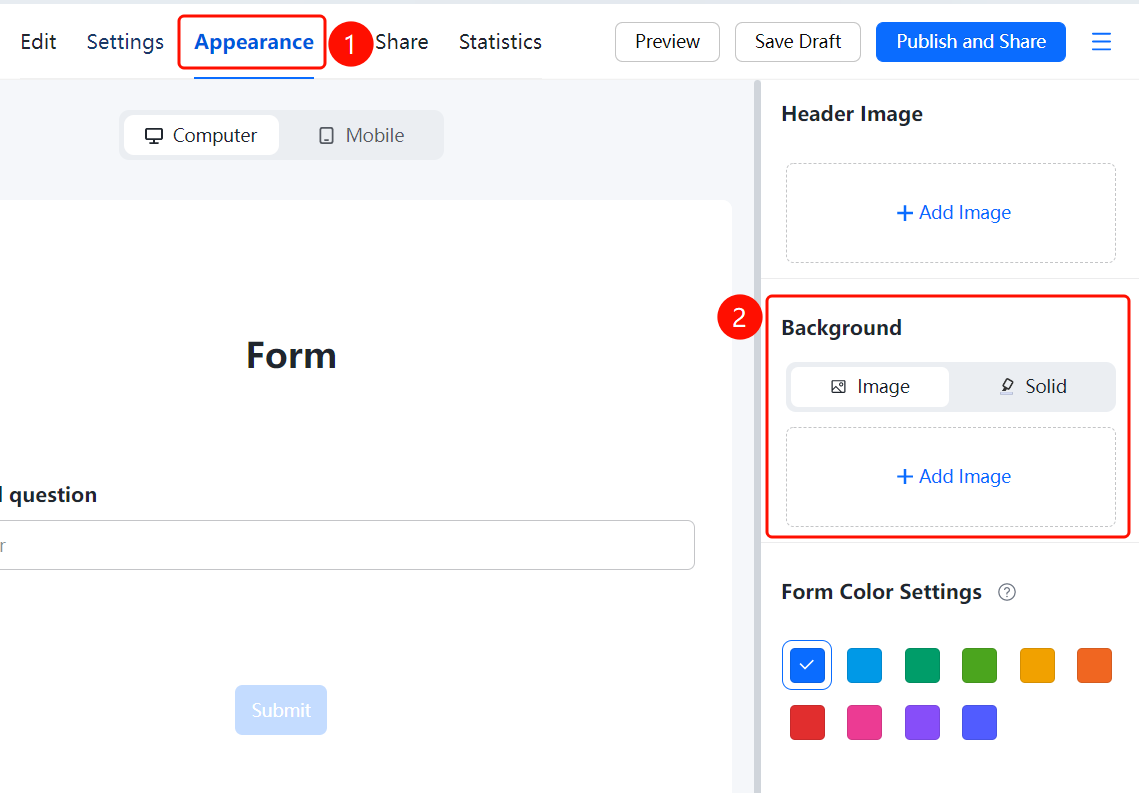
「Appearance」 tab → 「Background」 → 「Image」/「Solid Color」 option
- Click the top 「Appearance」 tab
- Click the 「Background」 option
- Select 「Image」 and click 「Add Image」 to upload a background image, or select 「Solid Color」 to set a solid color background
Set Form Color Scheme
Feature Entry
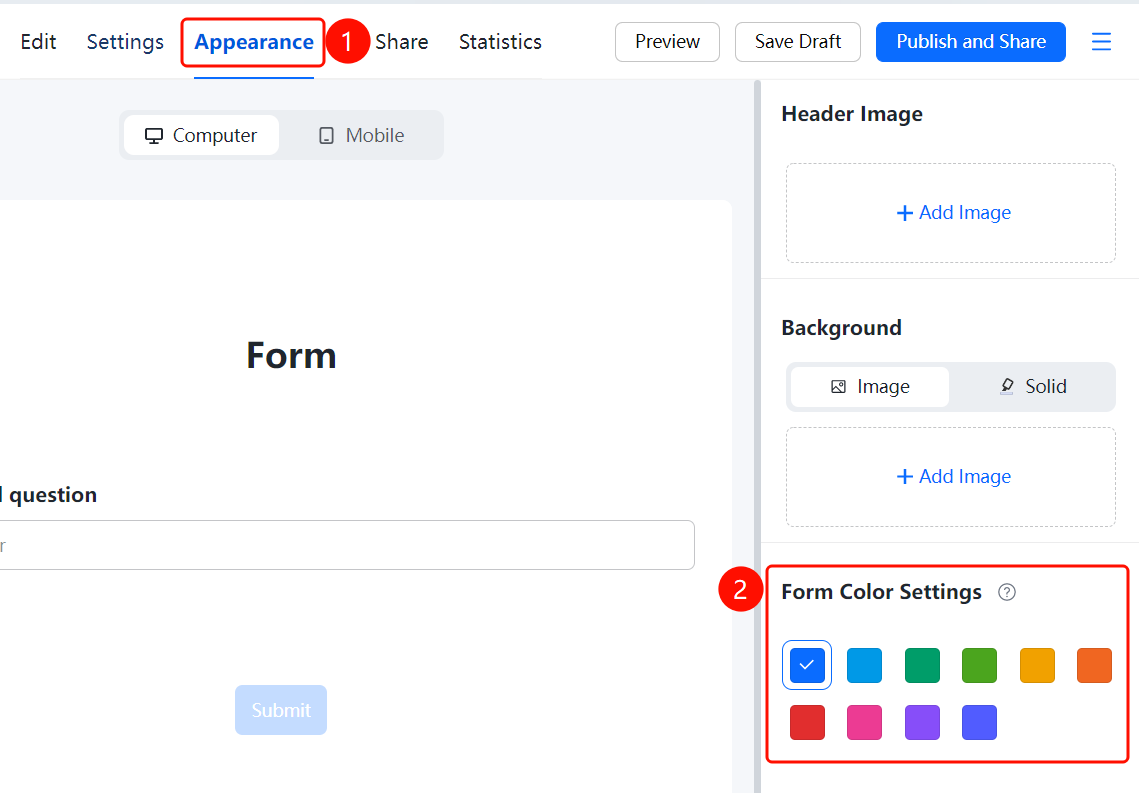
「Appearance」 tab → 「Form Color Scheme」 option
- Click the top 「Appearance」 tab
- Click the 「Form Color Scheme」 option
- Select a preset color scheme to apply a unified color style to the form
FAQ
Q1: How to set a background image for the form?
- Solution: Click the 「Appearance」 tab, select 「Background」 → 「Image」 → 「Add Image」, and upload a background image.
Q2: How to preview the mobile display effect?
- Solution: Click the 「Appearance」 tab and switch to 「Mobile」 mode to preview the mobile display effect.
Q3: Can the form color scheme be customized?
- Solution: Yes. Click 「Form Color Scheme」 in the 「Appearance」 tab, and select a preset color scheme or customize the color scheme.
Notes
- Appearance settings only affect the display style of the form and do not affect form functionality
- It is recommended to keep the form color scheme consistent with your brand image