Feature Summary
Print is used to print the current form as a paper Document for offline distribution and archiving. You can adjust related settings before printing.
Feature Description
| Feature Dimension | Description |
|---|---|
| Membership Restriction | No membership restriction |
| Version Restriction | No version restriction |
Steps
Print Form
Feature Entry
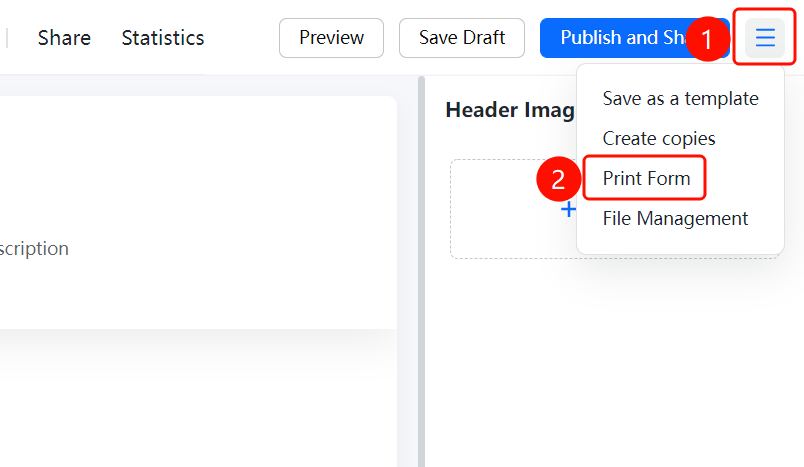
Top toolbar → "Print Form" button
- On the editing page, click the "Print Form" button in the top toolbar.
FAQ
Q1: How do I print each question on a separate page?
- Solution: Check the "One Question Per Page" option in the print settings, and each question will be printed on a separate page.
Q2: How do I adjust question settings when printing a form?
- Solution: In the print settings, you can adjust options such as "Global Settings", "All Questions Required Setting", and "Form Submission Validation".
Q3: What adjustment options are supported for printing a form?
- Solution: Click "Expand More" to can view all print options, including page layout, print range, etc.
Notes
- It is recommended to preview the effect before printing the form to ensure the print content is complete.
- "One Question Per Page" is suitable for forms with many questions, making them easier to read.