Feature Summary
PC Forms supports the New feature, allowing you to create new forms.
Feature Description
| Feature Dimension | Description |
|---|---|
| Membership Restriction | No membership restriction |
| Version Restriction | No version restriction |
Steps
Create a New Form from the Homepage
Feature Entry
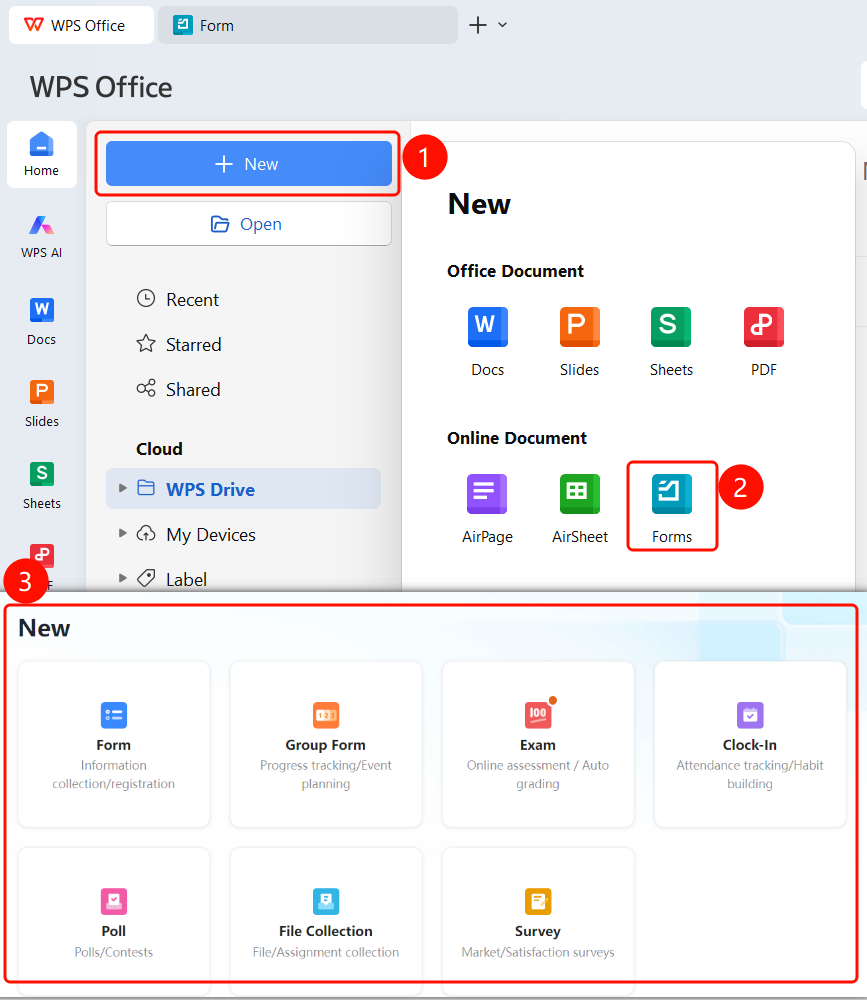
WPS Office Homepage → "New" → "Forms" → Select form type
- Open the WPS Office app
- Click the "New" button in the upper left corner
- On the new page, click the "Forms" icon in the Online Document area
- Select the type of form you want to create:
- Form: Information collection / Registration
- Group Form: Clear progress / Quick collection
- Exam: AI-generated questions / Unique tests for everyone
- Check-in: Attendance check-in / Habit building
- Poll: Voting and selection / Popularity contest
- File Collection: Collect files / Homework collection
- Survey: Market research / Satisfaction survey
Create a New Form from the File List
Feature Entry
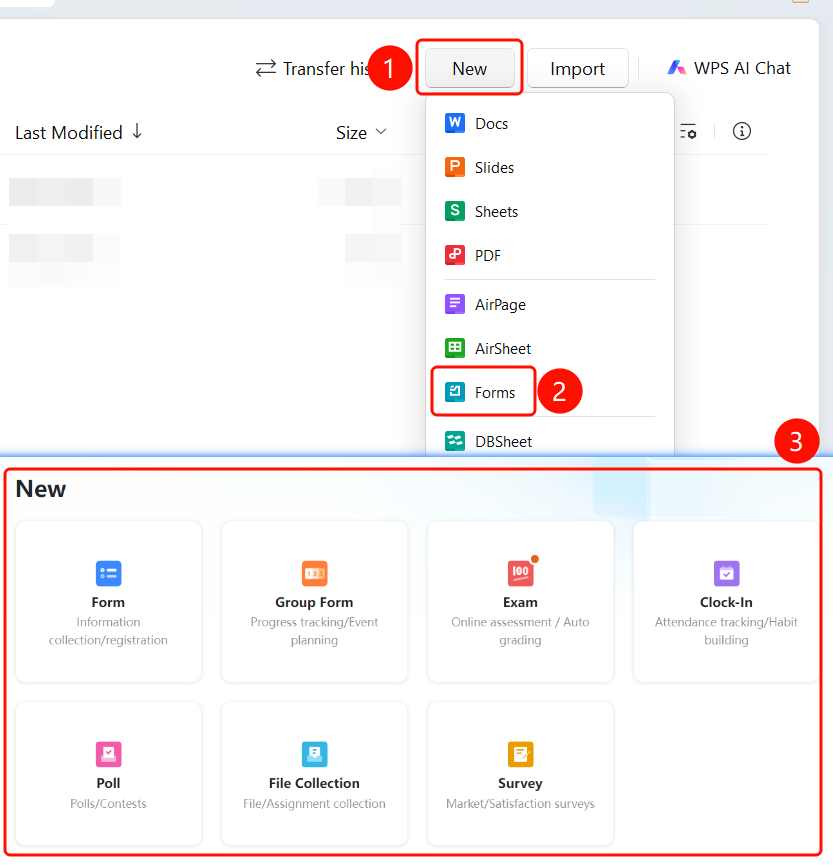
WPS Office File List → "New" → "Forms" → Select form type
- Open the WPS Office app
- On the file list page, click the "New" button in the upper right corner
- On the new page, click the "Forms" icon in the Online Document area
- Select the type of form you want to create
FAQ
Q1: What types of forms are available?
- Solution: Supports Form, Group Form, Exam, Check-in, Poll, File Collection, Survey, and other types.
Q2: What are the differences between different types of forms?
- Solution: Different types are suitable for different scenarios. For example, Form is suitable for information collection, and Exam is suitable for creating test papers.
Q3: Where are newly created forms saved?
- Solution: Newly created forms are saved in WPS Drive by default.
Notes
- Creating a new form requires a network connection
- Choose the appropriate form type based on your needs