Feature Summary
View Detailed Data is used to view and export the detailed data collected by Forms, supporting export to DBSheet, AirSheet, Excel Sheets, or existing sheets, facilitating data analysis and collaboration.
Feature Description
| Feature Dimension | Description |
|---|---|
| Membership Restriction | No membership restriction |
| Version Restriction | No version restriction |
Operation Steps
View Detailed Data
Feature Entry
Top toolbar → "View Detailed Data" button
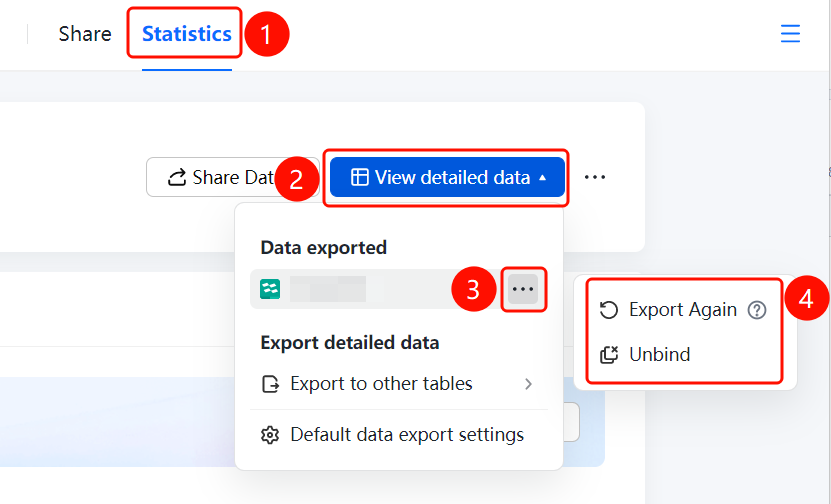
- On the statistics page, click the "View Detailed Data" button in the top toolbar.
- View the exported data, click "Export Detailed Data" to export new data.
- Click "Re-export" to re-export the latest data.
- Click "Unbind" to unbind from the exported sheet.
Export to Other Sheets
Feature Entry
"View Detailed Data" → "Export to Other Sheets" option
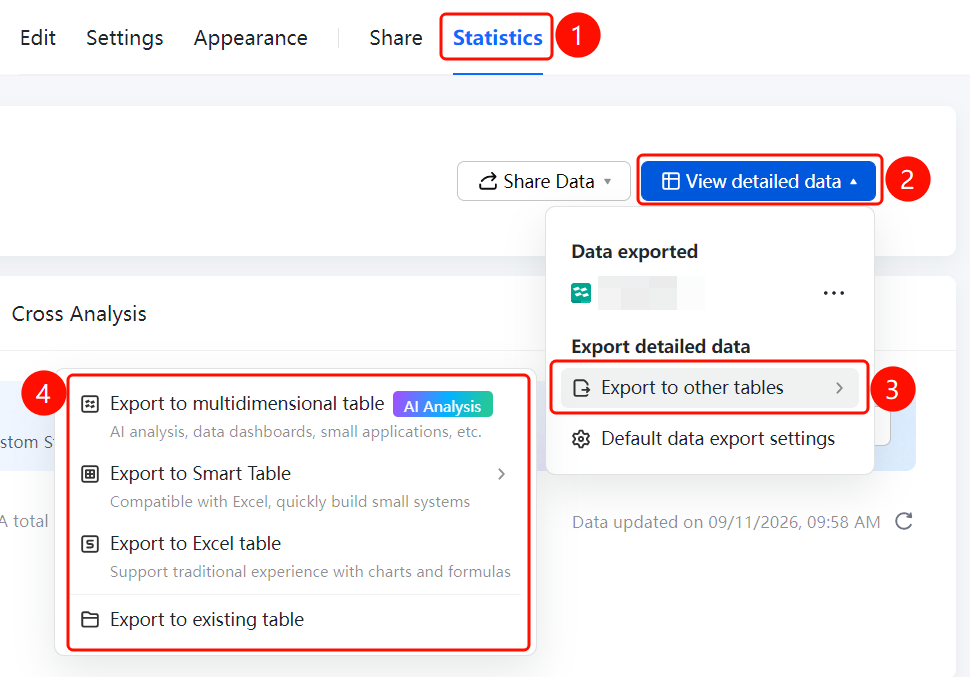
- On the View Detailed Data page, click the "Export to Other Sheets" option.
- Select the export target: "Export to DBSheet" (AI analysis, data dashboard, etc.), "Export to AirSheet" (Excel-compatible, quickly build small systems), "Export to Excel Sheets" (supports charts and formulas), "Export to Existing Sheets".
- After selection, the system automatically creates the corresponding sheet and imports the data.
Set Data Export Defaults
Feature Entry
"View Detailed Data" → "Data Export Default Settings" option
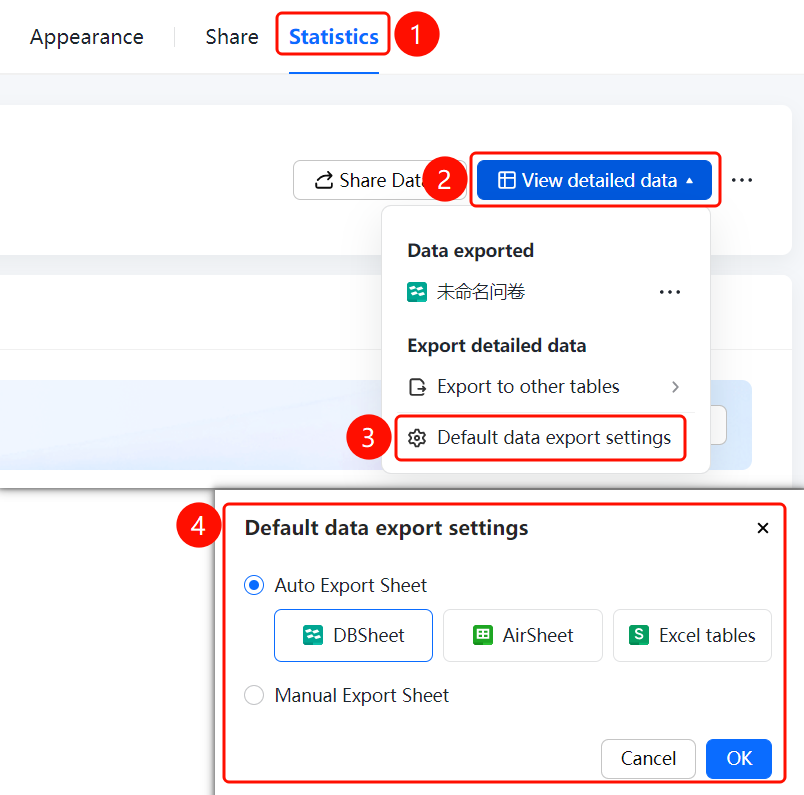
- On the View Detailed Data page, click the "Data Export Default Settings" option.
- In the pop-up window, set the "Auto Export Sheet" type: DBSheet, AirSheet, Excel Sheets.
- You can also select "Manual Export Sheet".
- Click the "Confirm" button to save the settings.
FAQ
Q1: How to export form data to a sheet?
- Solution: Click "View Detailed Data" → "Export Detailed Data", and select the target sheet type for export.
Q2: What is the difference between exporting to DBSheet and exporting to Excel Sheets?
- Solution: DBSheet supports advanced features such as AI analysis and data dashboards; AirSheet is Excel-compatible and allows quick building of small systems; Excel Sheets support the traditional experience with charts and formulas.
Q3: How to set the default export sheet type?
- Solution: Click "View Detailed Data" → "Data Export Default Settings", select the type for auto-export sheet (DBSheet/AirSheet/Excel Sheets), and click "Confirm".
Notes
- After exporting to a sheet, you can click "Re-export" to sync the latest data when form data is updated.
- After unbinding, the data association between the sheet and the form will be disconnected.