Feature Summary
Header images are used to add an image at the top of a form. You can upload brand logos, event posters, and other images to enhance the form's visual appeal and brand recognition.
Feature Description
| Feature Dimension | Description |
|---|---|
| Membership Restriction | No membership restriction |
| Version Restriction | No version restriction |
Steps
Add a Header Image
Feature Entry
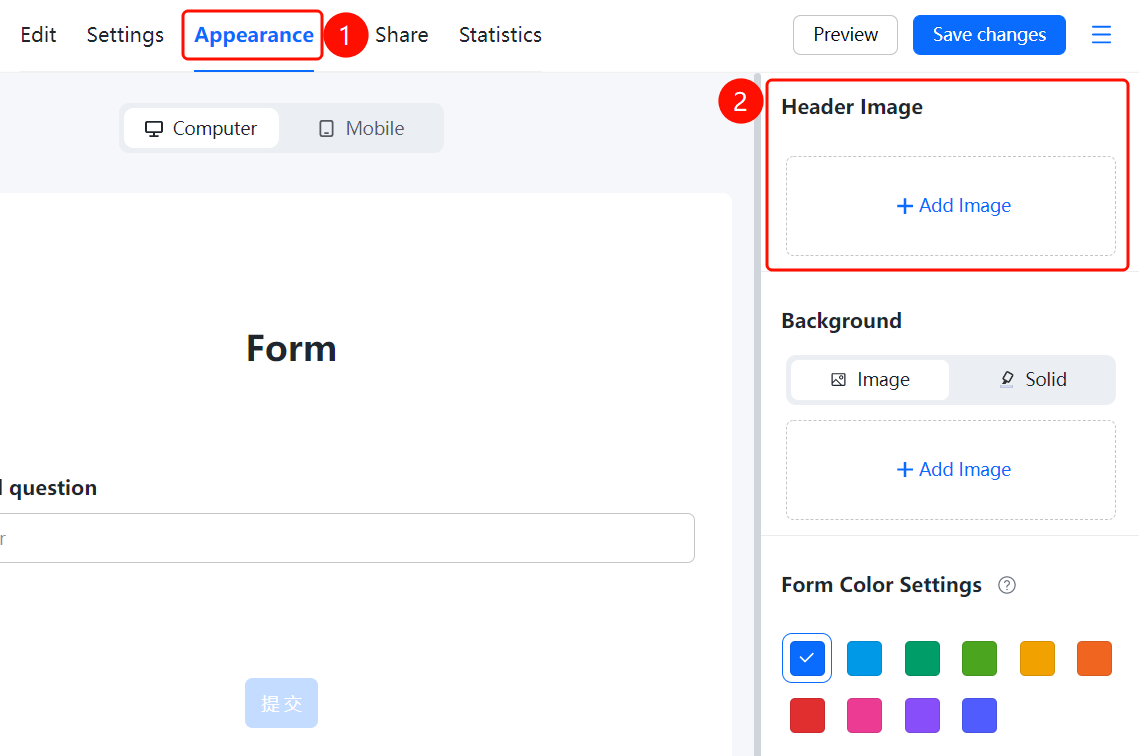
"Appearance" tab → "Header Image" → "Add Image" button
- Click the "Appearance" tab at the top
- Click the "Add Image" button in the "Header Image" area
- Select the image file to upload
- After a successful upload, the image will be displayed at the top of the form
- Click "Save Changes" to save the settings
FAQ
Q1: What formats are supported for header images?
- Solution: Header images support common image formats, such as JPG, PNG, etc.
Q2: How do I modify or delete a header image?
- Solution: Click the "Appearance" tab, and in the "Header Image" area, you can re-upload an image to replace it or delete the existing image.
Q3: How does the header image display on mobile devices?
- Solution: You can switch to "Mobile" mode in the "Appearance" tab to preview how the header image appears on mobile devices.
Notes
- The header image is displayed at the top of the form. It is recommended to use an image consistent with your brand identity.
- After adding an image, you must click "Save Changes" for it to take effect.