Feature Overview
The Preview feature allows you to review the appearance of your form before publishing. It supports both desktop and mobile previews, helping you verify the visual layout and interactive experience of the form.
Feature Specifications
| Dimension | Description |
|---|---|
| Membership Restrictions | No membership restrictions |
| Version Restrictions | No version restrictions |
Step-by-Step Instructions
Desktop Preview
Access Path
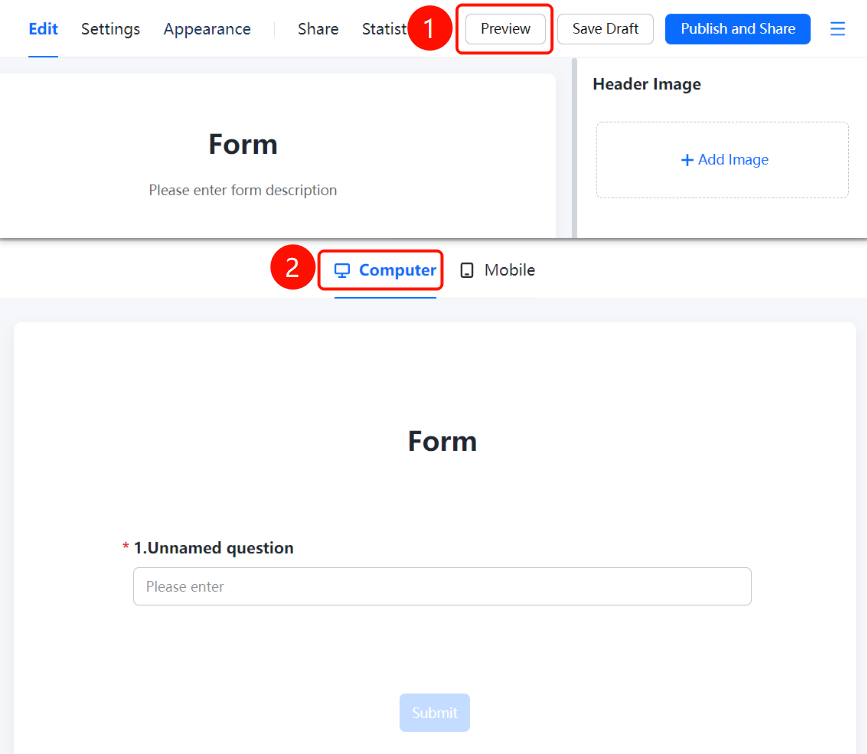
Top Toolbar → "Preview" Button → "Desktop" Mode
- On the editing page, click the "Preview" button in the top toolbar.
- In the pop-up preview window, "Desktop" mode is displayed by default.
- Review the form's appearance on a desktop, including questions, options, and the submit button.
- Please note that content in the preview is for viewing only; any data submitted during preview will not be saved.
Mobile Preview
Access Path
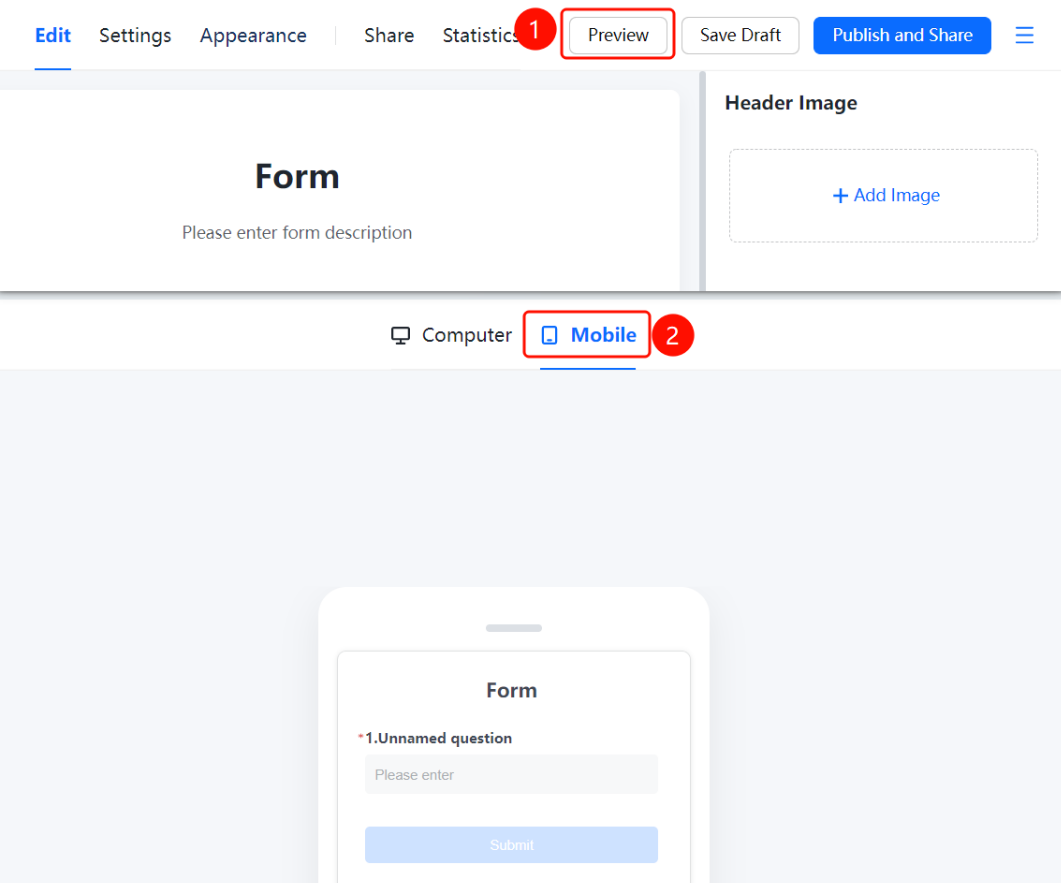
Top Toolbar → "Preview" Button → "Mobile" Mode
- On the editing page, click the "Preview" button in the top toolbar.
- In the pop-up preview window, switch to "Mobile" mode.
- Review the form's appearance on a mobile device to confirm the display and interactive experience on smartphones.
Frequently Asked Questions
Q1: Can I submit a form during preview?
- Solution: You can click the submit button in the preview to test the interactive behavior, but the submitted data will not be saved to the statistics database.
Q2: How can I preview the mobile display?
- Solution: After clicking the "Preview" button, switch to "Mobile" mode within the preview window to view the mobile layout.
Q3: What is the difference between Preview and Publish?
- Solution: Preview is solely for reviewing the layout and does not save data. Once published, respondents can fill out and submit the form via a link or QR code.
Important Notes
- It is recommended to use the Preview feature to verify the form's appearance before publishing.
- The preview supports both desktop and mobile modes; please ensure the display is consistent across both platforms.