Feature Summary
WPS uses tabbed management for multiple documents. Multiple documents open in the same window as tabs by default, supporting advanced features such as pinning tabs, saving workspaces, and splitting/combining multiple windows.
Feature Description
| Feature Dimension | Description |
|---|---|
| Membership Restriction | No membership restriction |
| Version Restriction | No version restriction |
Operation Steps
Tab Switching and Right-Click Menu
Feature Entry
Tab bar → Click tab to switch
- Multiple documents open in the same window as tabs by default, similar to browser tabs
- Click a tab to quickly switch between documents
- Use the Ctrl+Tab (mac: cmd+Tab) shortcut to switch quickly
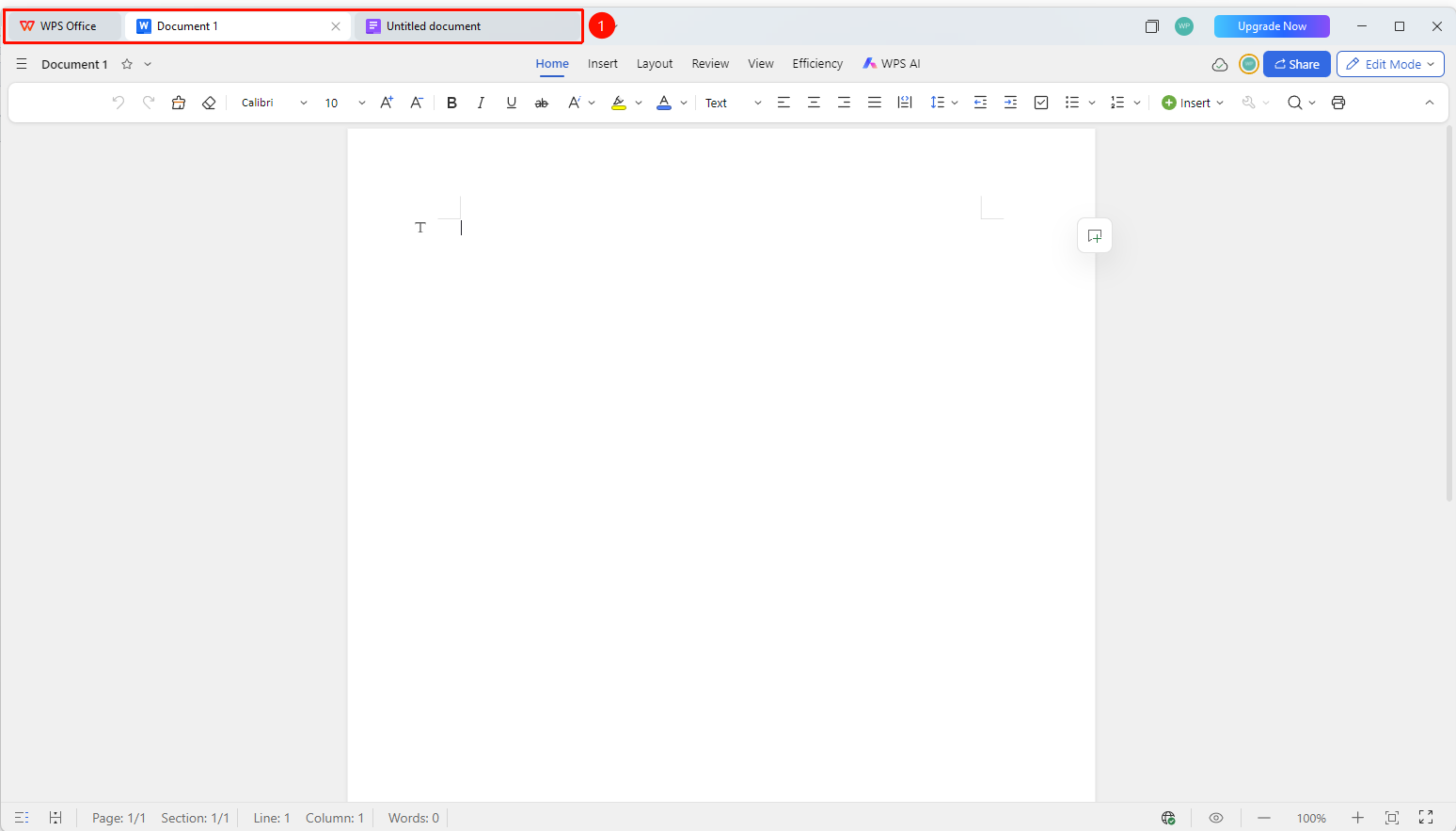
Right-Click Menu Pin Tab
Feature Entry
Right-click tab on tab bar → "Pin Tab" option
- Right-click a tab in the top tab bar
- Select "Pin Tab" from the right-click menu. Pinned tabs do not display a close button, preventing accidental closing
- Right-click again to select "Unpin Tab"
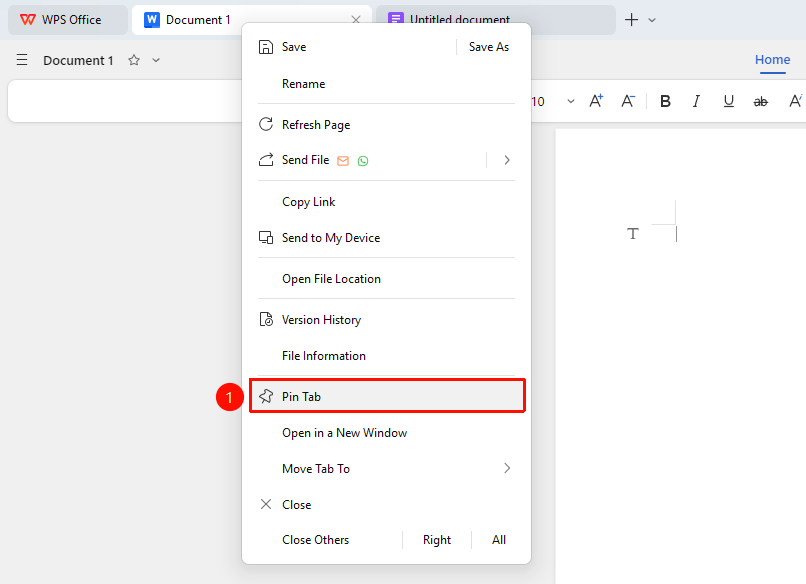
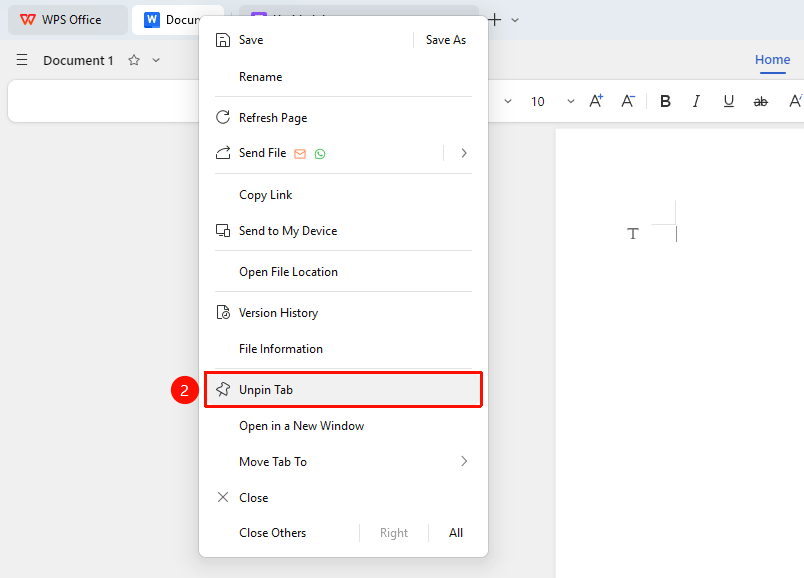
Close Tab
Feature Entry
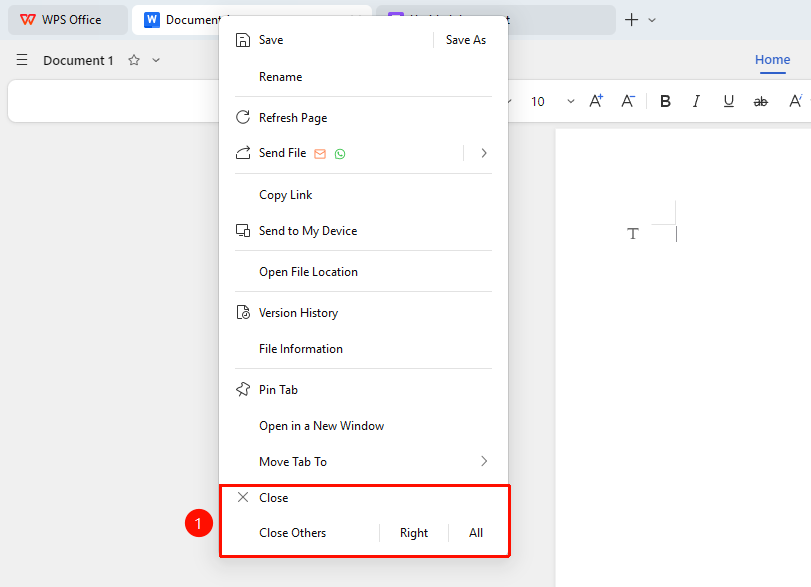
Right-click tab → Close menu items
- Right-click a tab in the top tab bar
- Select from the right-click menu:
- Close: Close the currently selected tab
- Close Right: Close all tabs to the right of the current tab
- Close All: Close all tabs in the tab bar
- Close Others: Close all tabs except the current tab
Hover the cursor over the tab to quickly view the document's location, or click the "X" to quickly close the document
Independent Window
Access Point
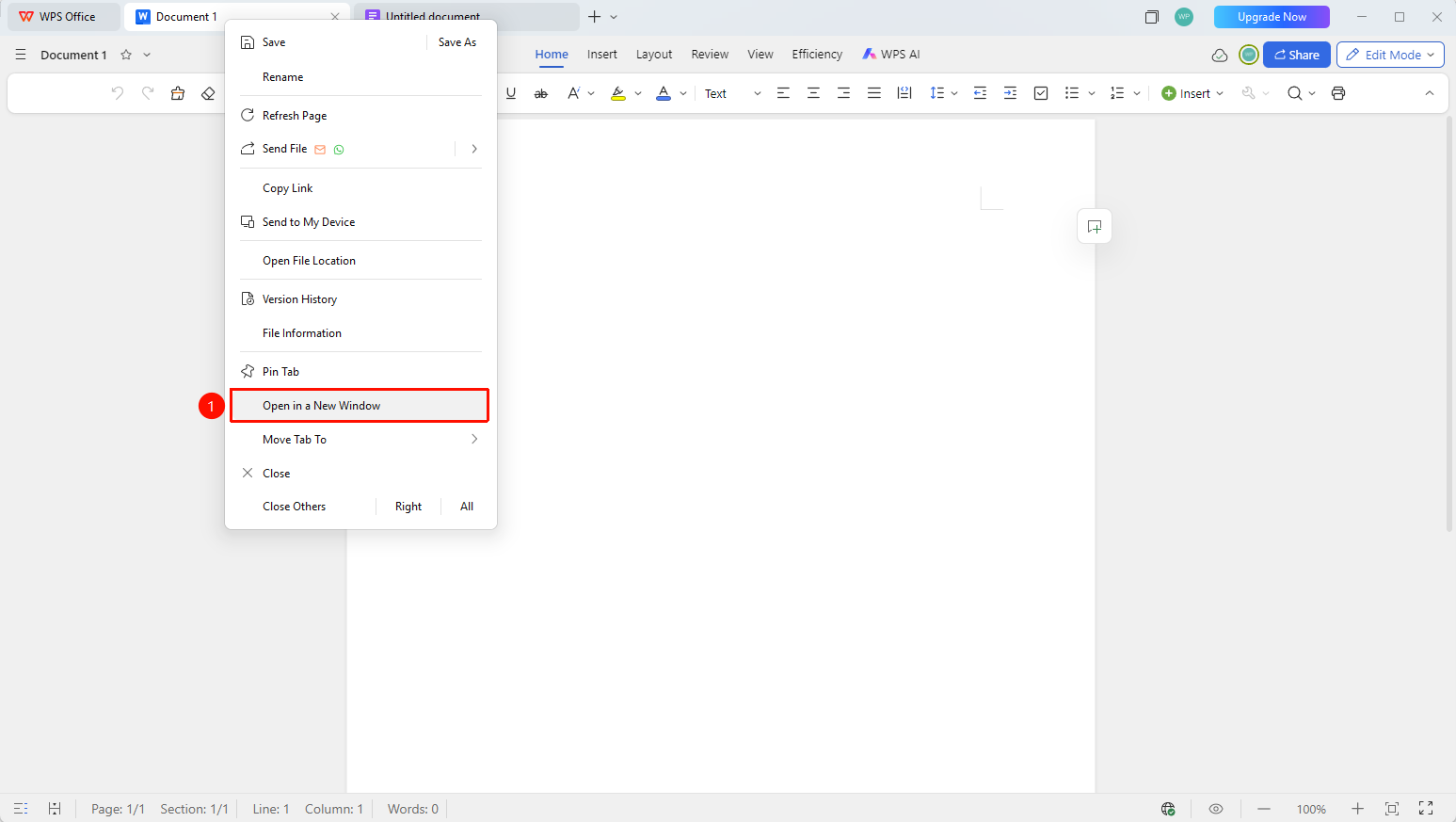
Right-click a tab → "Display as Independent Window"
Right-click a tab in the top tab bar.
Select the following option from the context menu:
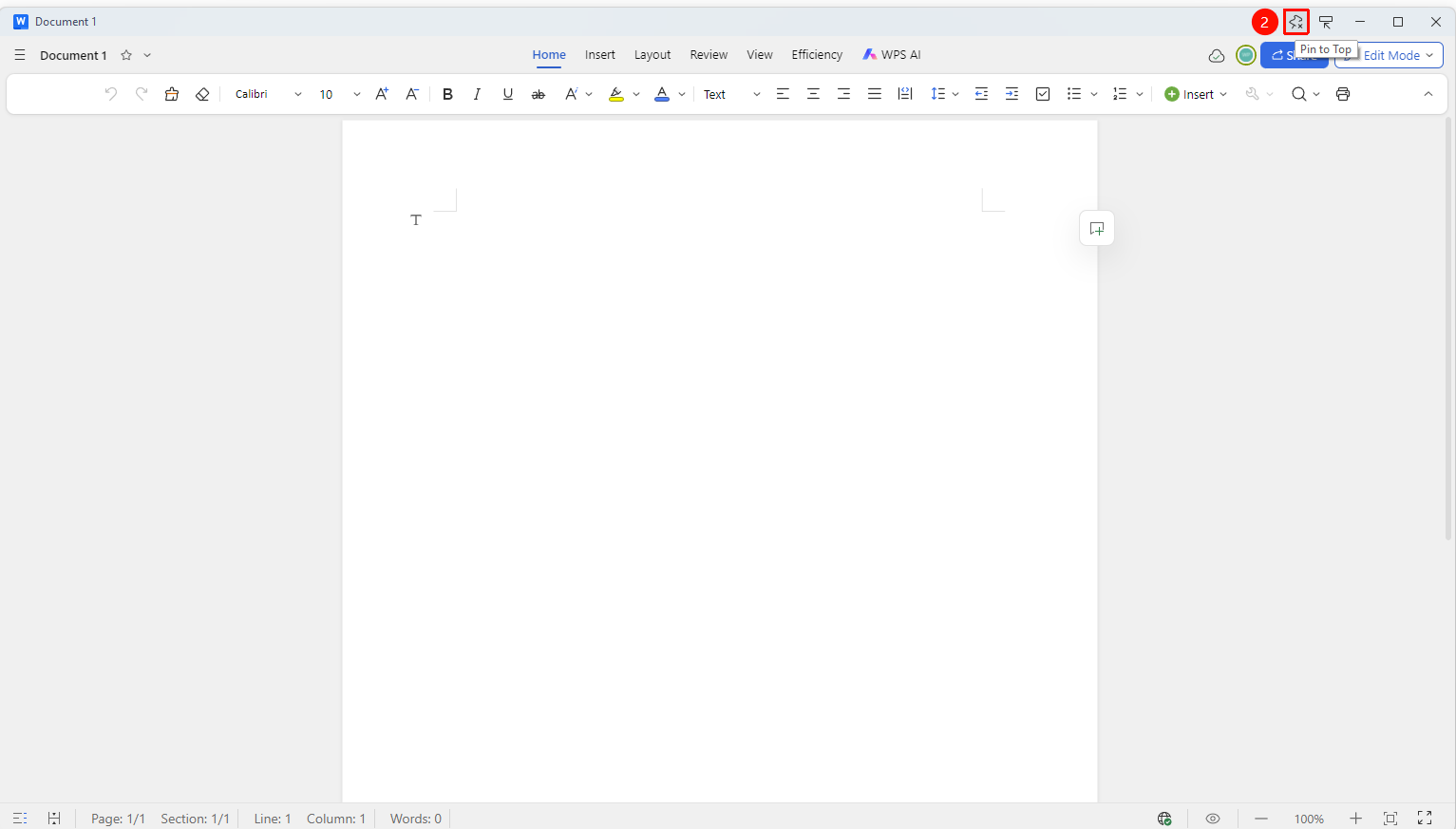
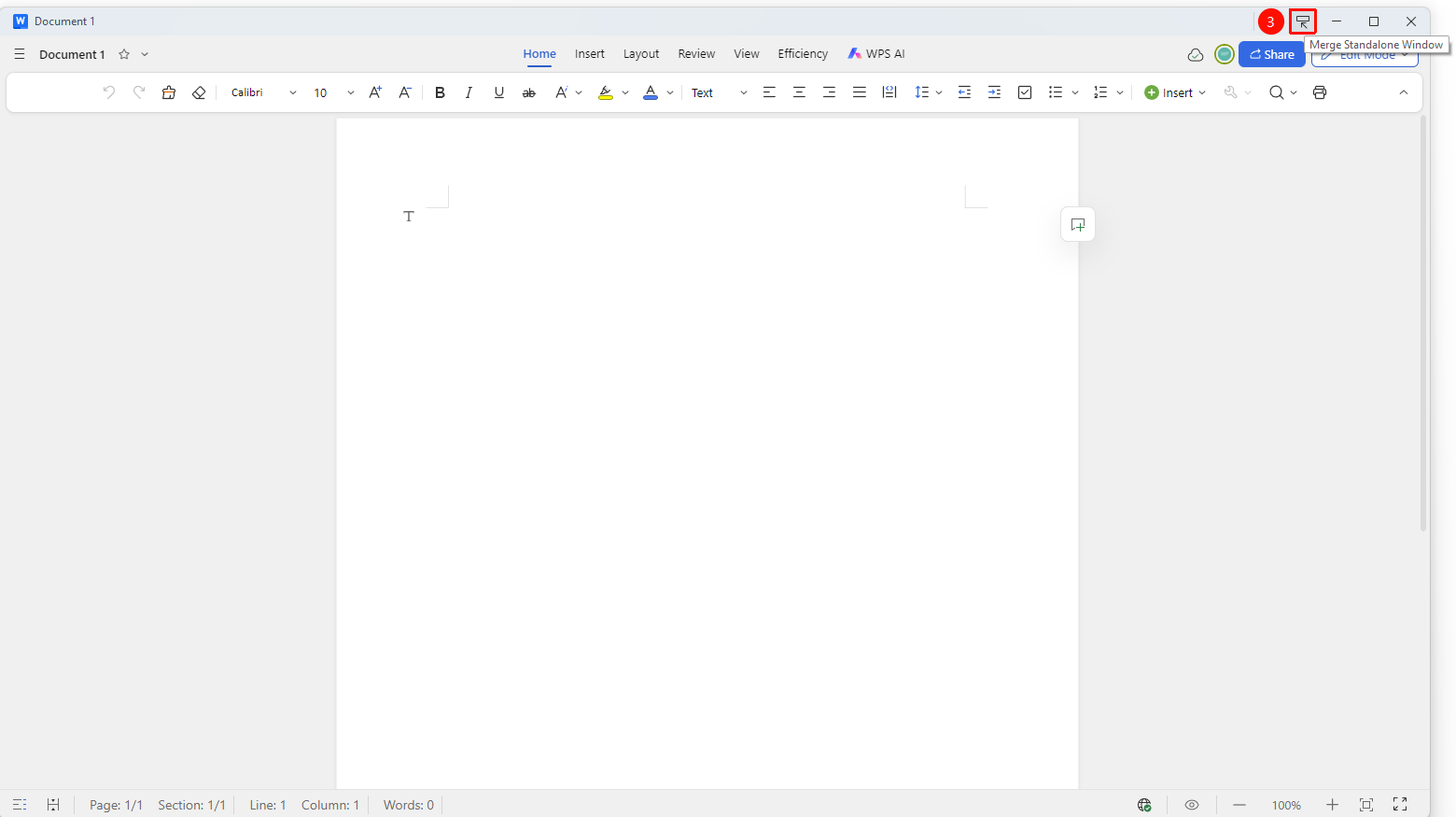
- Display as Independent Window: Detaches the current tab from the tab bar and displays it as a separate window, facilitating multi-screen or multitasking workflows.
Click "Always on Top" to keep the detached window visible above all other windows.
Click "Display as tab" to reintegrate the detached window back into the tab bar.
New Workspace Window
Feature Entry
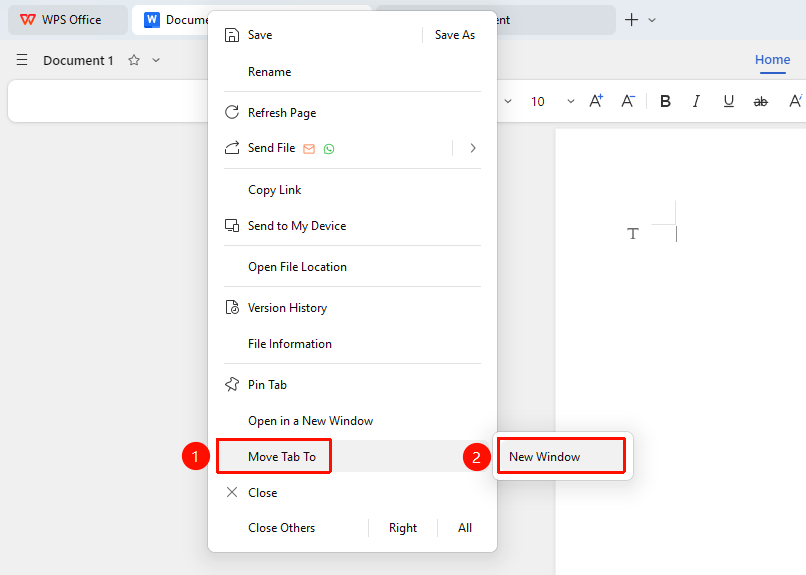
Right-click tab → "New Workspace Window" option
- Right-click a tab in the top tab bar
- Select New Workspace Window from the right-click menu, you can choose:
- New window
After selecting a tab by long-pressing with the mouse, you can quickly detach it into a separate window by dragging.
FAQ
Q1: Does the tab bar support drag-and-drop sorting?
- Solution: Yes, you can directly drag tabs to adjust the order, and you can also drag a tab out of the window to form an independent window.
Q2: What is the purpose of pinning a tab?
- Solution: Pinned tabs do not display a close button, preventing accidental closing of important documents. Right-click a tab and select "Pin Tab" to pin it.
Q3: What is the maximum number of tabs that can be opened?
- Solution: WPS does not have a strict limit on the number of tabs opened, but opening too many documents may affect performance.
Notes
- Tabbed management facilitates switching between multiple documents.
- Pinning tabs prevents accidental closing.
- Enabling work status saving can restore the workspace.