Feature Summary
When enabled, WPS automatically saves all currently open document tabs and editing states upon exit, and restores them automatically on the next launch, eliminating the need to search for and open files again.
Feature Description
| Feature Dimension | Description |
|---|---|
| Membership Restriction | No membership restriction |
| Version Restriction | No version restriction |
Steps
Save Workspace on Exit
Feature Entry
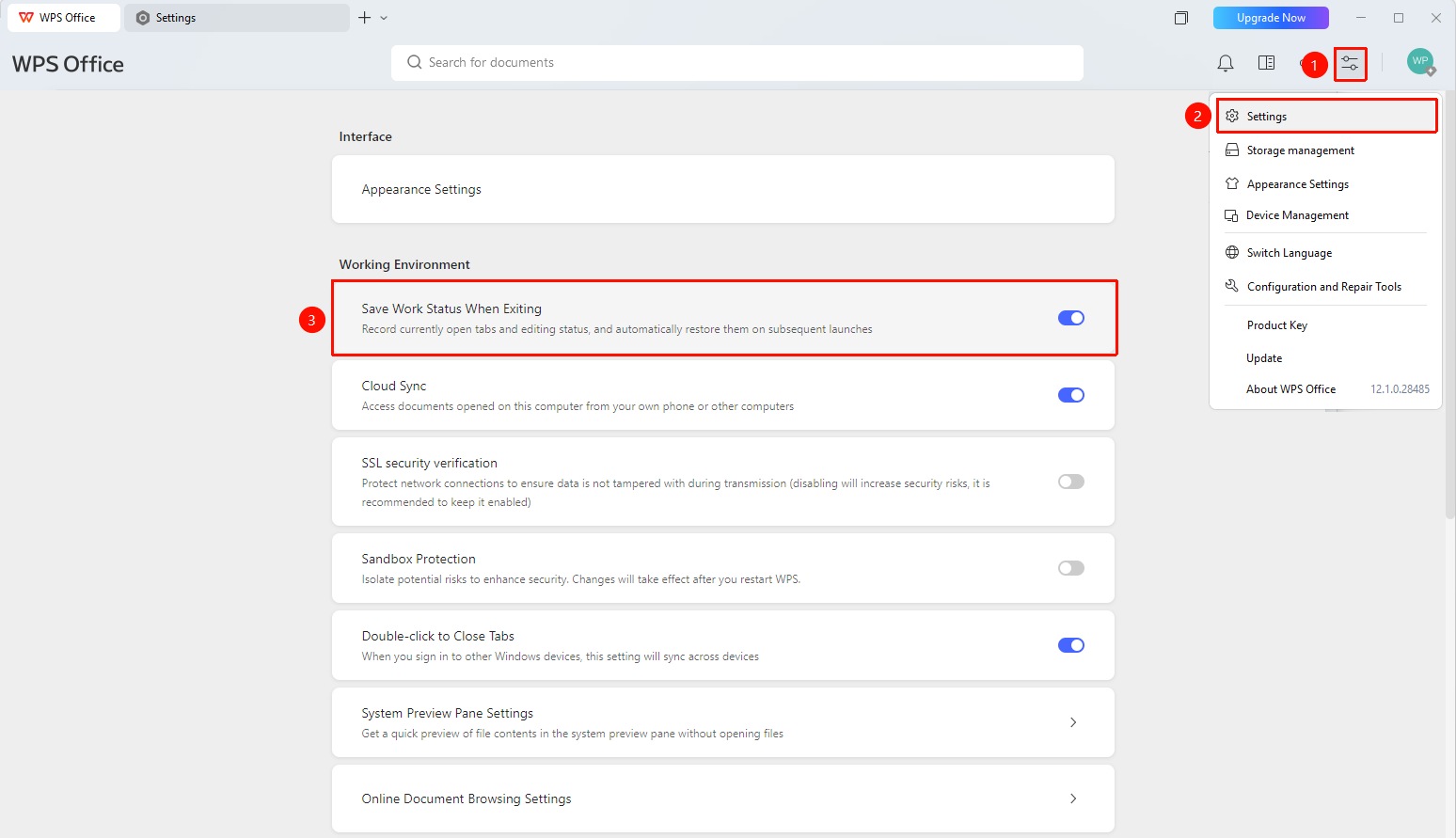
「Global Settings」→「Settings」→「Save Workspace on Exit」
- Click the Global Settings button at the top right of the WPS home screen
- Click the Settings button
- Enable 「Save Workspace on Exit」
- All current tabs and editing states will be restored the next time WPS is launched
FAQ
Q1: Will it save every time I exit after enabling this feature?
- Solution: Yes, once enabled, WPS will automatically save the current workspace state every time you exit.
Q2: Will restoring affect already open documents?
- Solution: The restore operation opens previously saved documents in a new window and does not affect existing windows.
Q3: Can pinned tabs be saved?
- Solution: Yes, they can be saved.
Notes
- The workspace state is automatically saved once enabled.
- Document tabs are automatically restored on the next launch.