Feature Summary
File format association is used to set the file types that WPS Office opens by default, including office documents, PDF, images, CAD, and many other formats, and supports compatibility settings and default save format configuration.
Feature Description
| Feature Dimension | Description |
|---|---|
| Membership Restriction | No membership restriction |
| Version Restriction | No version restriction |
Operation Steps
Access File Format Association Settings
Feature Entry
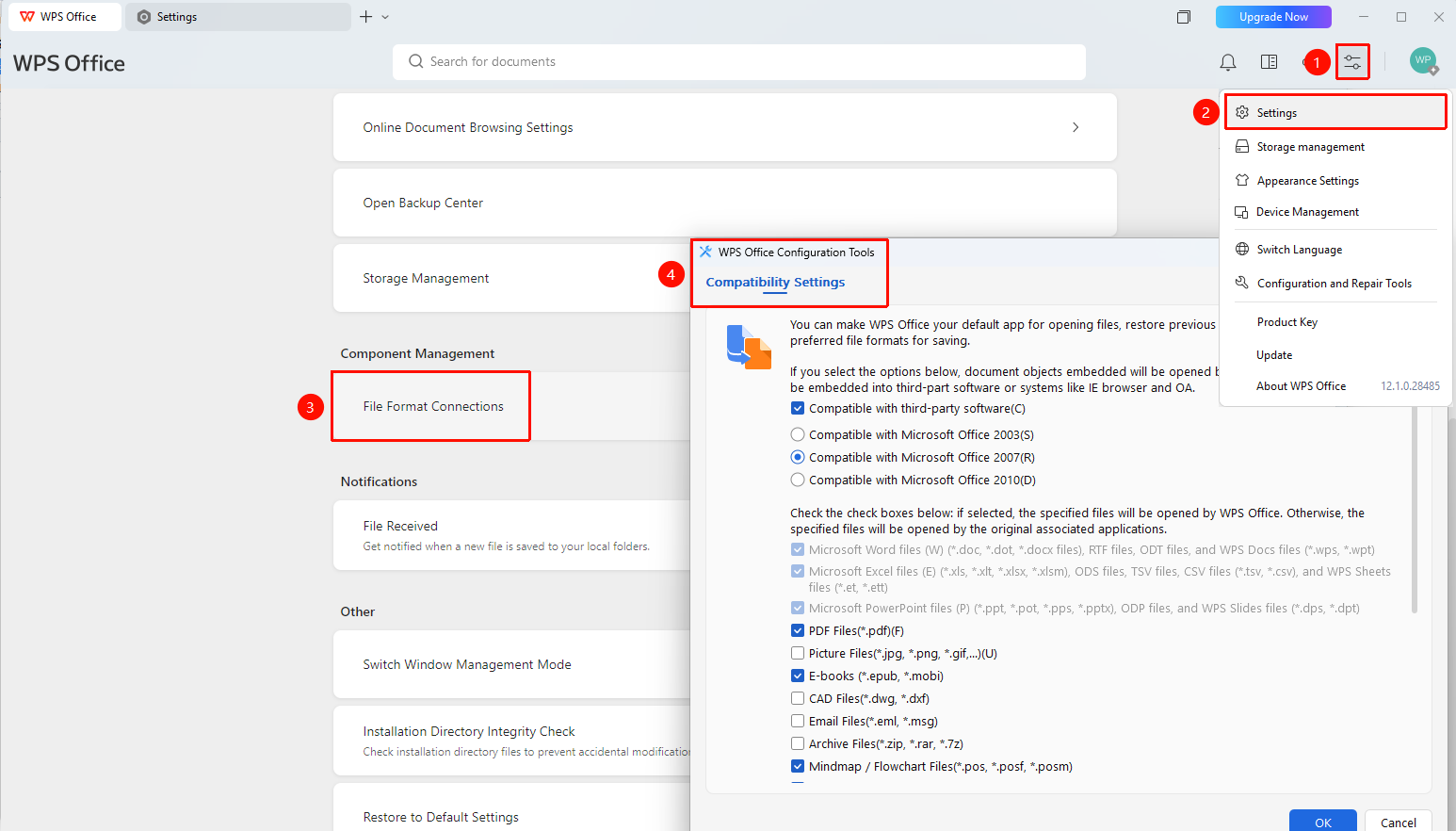
"Global Settings" button → "Settings" option → "File Format Association"
- Open the WPS client
- Click the "Global Settings" button in the upper right corner
- Select the "Settings" option
- Find and click "File Format Association" on the settings page
- The system pops up the "WPS Office Configuration Tool" dialog box
Access via Configuration and Repair Tool
Feature Entry
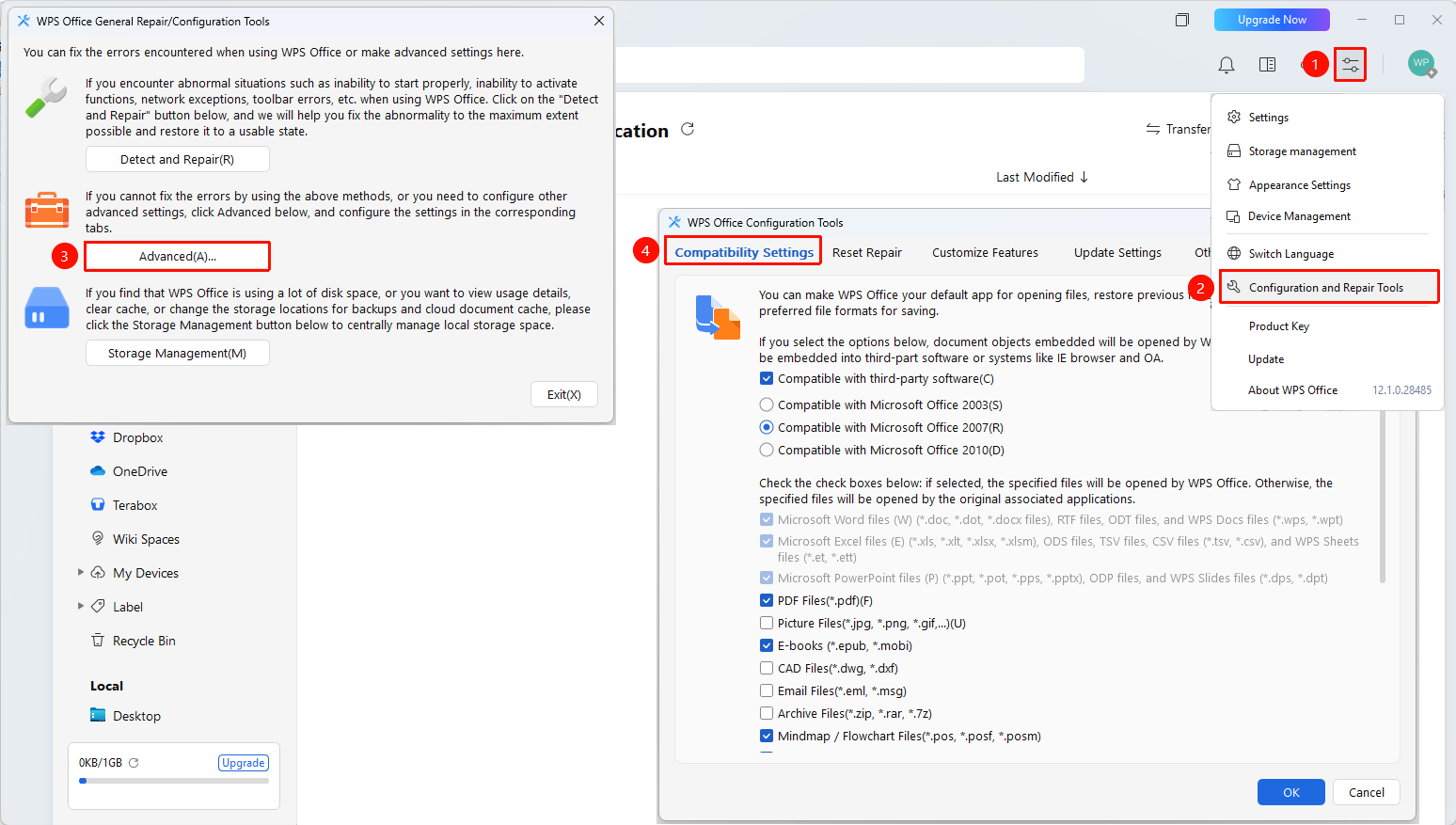
"Global Settings" button → "Configuration and Repair Tool" → "Compatibility Settings" tab
- Open the WPS client
- Click the "Global Settings" button in the upper right corner
- Select "Configuration and Repair Tool"
- In the opened "WPS Office Configuration Tool" dialog box, the "Compatibility Settings" tab is displayed by default
Set Compatibility Mode
Feature Entry
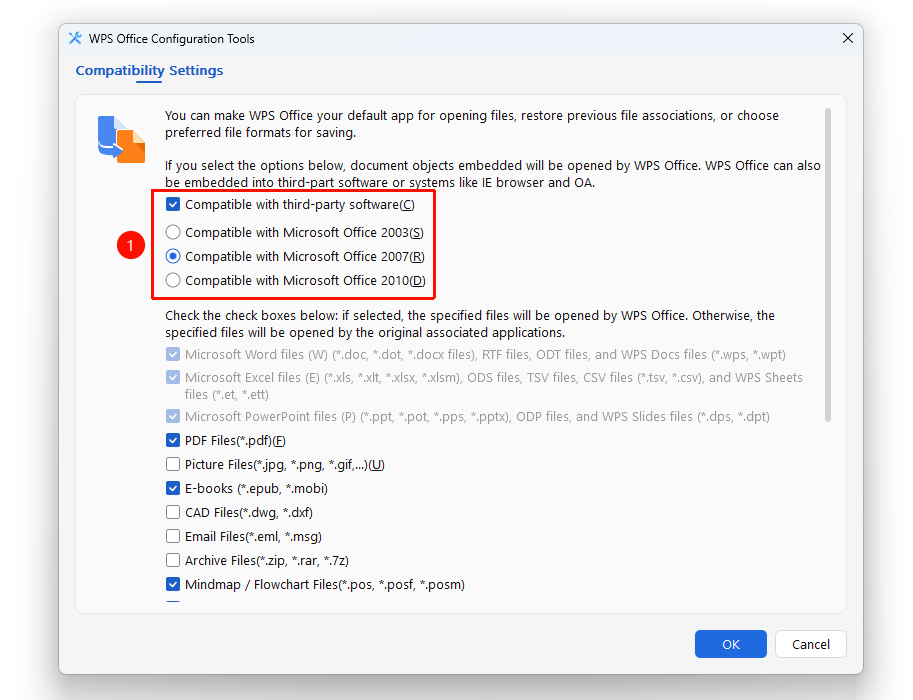
"WPS Office Configuration Tool" dialog box → "Compatibility Settings" tab → Compatibility mode options
- Open the "WPS Office Configuration Tool" dialog box
- At the top of the "Compatibility Settings" tab, check "WPS Office is compatible with third-party systems and software"
- Select one of the following compatibility modes as needed:
- "Compatible with Microsoft Office 2003"
- "Compatible with Microsoft Office 2007"
- "Compatible with Microsoft Office 2010"
4.After selection, click "OK" to save
Configure File Association Types
Feature Entry
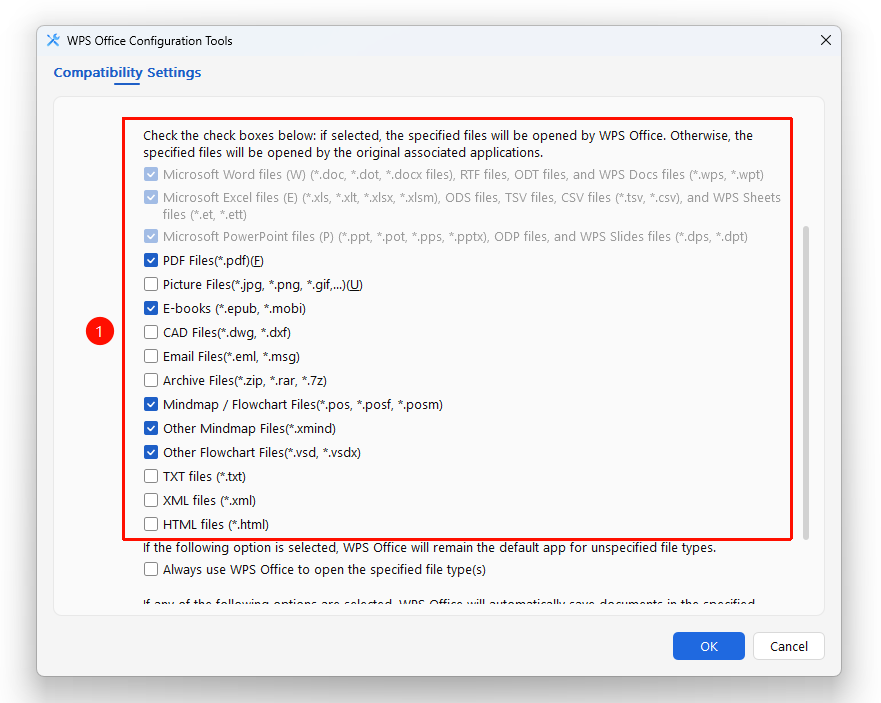
"WPS Office Configuration Tool" dialog box → "Compatibility Settings" tab → File association list
- Open the "WPS Office Configuration Tool" dialog box
- In the "Compatibility Settings" tab, check the file types you want WPS Office to open by default:
- Microsoft Word Documents (*.doc, *.dot, *.docx, etc.)
- Microsoft Excel Documents (*.xls, *.xlt, *.xlsx, etc.)
- Microsoft PowerPoint Documents (*.ppt, *.pot, *.pps, etc.)
- PDF Documents (*.pdf)
- Image Files (*.jpg, *.png, *.gif, etc.)
- E-book Files (*.epub, *.mobi)
- CAD Files (*.dwg, *.dxf)
- Email Files (*.eml, *.msg)
- Compressed Archive Files (*.zip, *.rar, *.7z)
- MindMap/FlowChart Files (*.pos, *.posf, *.posm)
- Other MindMap Files (*.xmind)
- Other FlowChart Files (*.vsd, *.vsdx)
3.After checking, click "OK" to save
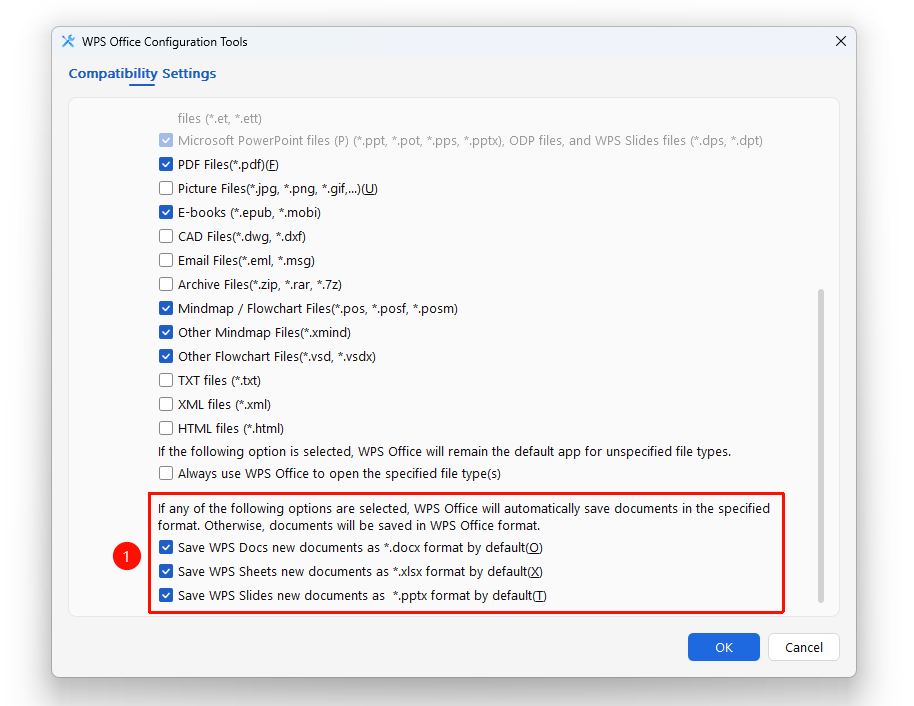
Configure Default Save Format
Feature Entry
"WPS Office Configuration Tool" dialog box → "Compatibility Settings" tab → Default save format
- Open the "WPS Office Configuration Tool" dialog box
- In the "Compatibility Settings" tab, check the following options as needed:
- "New documents created in WPS Docs are saved in .docx format by default"
- "New documents created in WPS Sheets are saved in .xlsx format by default"
- "New documents created in WPS Slides are saved in .pptx format by default"
3.After checking, new documents will be saved in the corresponding Office format by default
4.Click "OK" to save the settings
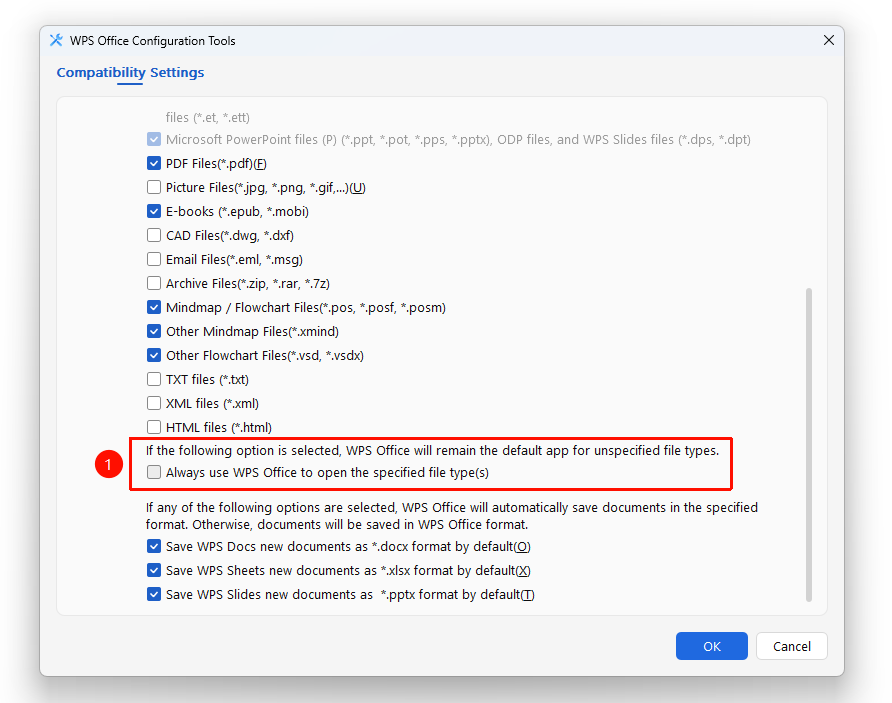
Enable Default Application Anti-Tampering Protection
Feature Entry
"WPS Office Configuration Tool" dialog box → "Compatibility Settings" tab → "Default Application Anti-Tampering Protection"
- Open the "WPS Office Configuration Tool" dialog box
- In the "Compatibility Settings" tab, check "Default Application Anti-Tampering Protection"
- After enabling, keep WPS Office as the default application for associated file types
- Click "OK" to save
FAQ
Q1: Which file types are supported for file format association?
- Solution: Supports Word, Excel, PowerPoint, PDF, images, e-books, CAD, Email, compressed packages, MindMap, FlowChart, and many other file formats. Each format can be toggled on/off independently.
Q2: How long does it take for the settings to take effect?
- Solution: Settings take effect immediately after clicking "OK" to save; no computer restart is required.
Notes
- Compatibility mode and file association checkboxes can be configured simultaneously.
- Default application anti-tampering protection prevents other programs from modifying WPS file associations.
- After configuration is complete, you must click "OK" to save and apply the settings.