Issue Description
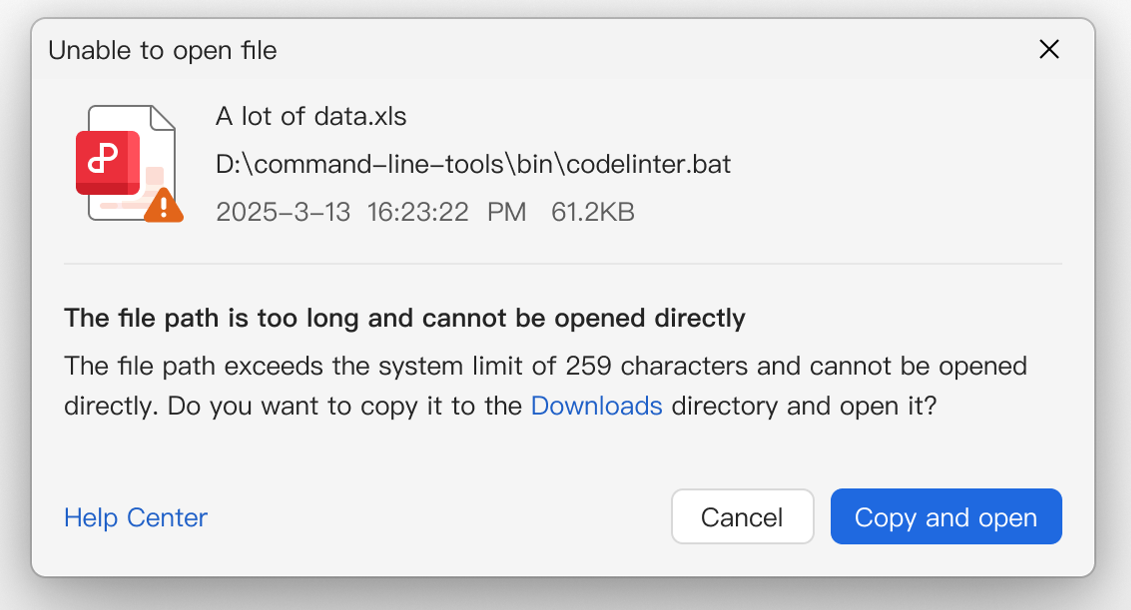
When opening a file in WPS, an error message pops up, indicating that the file cannot be opened or the "path is too long."
- This occurs when the total length of "drive letter + folder hierarchy + file name" exceeds approximately 259 characters.
- It is common in scenarios with deeply nested folders, extremely long file names, or long prefixes automatically added by Drives or project directories.
The file itself is usually not damaged; the software simply cannot access it because the path is too deep or the file name is too long.
The error screenshot is shown below:
Cause Analysis
- Windows limits the total path length (drive letter + folders + file name) to approximately 259 characters.
- Folders are nested too deeply, making the path too long.
- The file name itself is very long (e.g., containing the title, date, version, and approval comments).
- Drives or project directories automatically add long prefixes, which exceed the limit when combined.
- Extracting files from a compressed package into a deep directory further increases the path depth.
Solution
Step 1: Copy the file to a shallower directory
- Copy the file to the "Downloads" folder, and then double-click to open it.
- For files in USB flash drives or cloud sync folders, copy them to the local "Downloads" folder or another shallow directory first, and then double-click to open them.
If the file still cannot be opened after copying it to "Downloads," the path is short enough but the file name is still too long. Proceed to Step 2.
Rename the file if it still cannot be opened after copying to "Downloads"
- Select the file in "Downloads" and press F2 (or right-click and select Rename).
- Change it to a shorter name. Do not change the file extension—the part after the dot (such as .docx/.xlsx/.pptx/.pdf) must be kept.
- After renaming the file, double-click to open it.
Rule of thumb: Ensure the total length of "file path + file name" does not exceed 259 characters.
If Windows displays an error indicating that the file cannot be found or renamed: The current location is still too deep, or the file is in use. Make sure the file has been copied to "Downloads," or close any open preview panes, and then try renaming it again.
Step 3: Errors during file copying
If you receive errors like "Path too long" or "File not found" when copying the file:
- Open File Explorer, type Downloads in the address bar, press Enter, and keep this target folder open.
- Open another window and navigate to the directory of the original file.
- Drag the file from the original window to the Downloads window.
If you still cannot copy the file, open the original directory using a short path: Add a ? to the front of the address bar, for example, ?\D:\Work\Project A\Customer Data\..., press Enter, and then copy the file.
If you cannot perform these operations on a company computer, contact your IT department.
Note: If the file still cannot be opened after changing the path and name, check whether you have the required permissions, whether the file size is 0 KB, or whether the file exists.
Suggestions
- Avoid nesting too many folders. Keep the hierarchy to 3–5 levels.
- Use only key information for file names. Do not use entire paragraphs as titles.
- Ensure the paths of Drives and project directories comply with the total length limit.
- When extracting files from a compressed package, select "Downloads" or the Desktop as the destination. Do not extract them directly within a deep directory inside the package.